
Known Participant
January 14, 2018
Answered

Lightroom turns on the Development Adjustment flag

  • January 14, 2018
  • 3 replies
  • 3517 views

On my PC, this started around the 10th of October 2017. Every time I import a photo into Lightroom it sets this flag, even though I have not changed anything.

Prior to this date, this did not happen.

My workflow is using Bridge as my file (photo) handler, editing in Camera RAW and Photoshop and using the library and map facility in Lightroom.  When I import the jpeg into lightroom it sets this flag (I use the word flag as I don't know what else to call it).

I don't always have the GPS coordinates, and use the Map facility to set the GPS coordinates.

The problem is that if I save the updated metadata to file and then try to open the JPEG (photo) from Bridge or Photoshop, it opens up the Camera RAW dialogue, rather than opening up in photoshop.  If someone sends me a photo without the metadata, I cannot open it as it tries to open the Camera RAW dialogue.

For files I processed prior to the 10th of October, this does not happen.  I believe updates were released around the 10th of October and something may have changed.  There may be a flag I need to set, but if so, I can't find it, or understand which one to set.

I have tried uninstalling Bridge, Photoshop and Lightroom and reinstalling them, but I still have the problem.

If anyone can help me understand what I need to do to stop Lighroom automatically (that is how I would describe it) setting this flag, it would be appreciated.

Charlie
    This topic has been closed for replies.
    Correct answer Rob_Cullen

    Thanks for your reply.

    I downloaded a jpeg file from my camera using Windows File Explorer and than imported the jpeg into Lightroom. Lightroom then sets the develop adjustments badge, even though no changes have been made.

    I think the issue is in when or how Lightroom sets this badge.

    Charlie


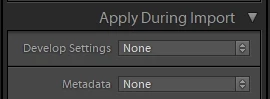
    Charlie, Can you post a screen-clip from your Import screen, in particular showing this panel-

    3 replies

    46232Author
    Known Participant
    January 15, 2018

    Thank you to everyone who has responded to my query.

    I always update to the latest version of Bridge/Photoshop/Lightroom/Camera RAW as soon as they become available, so I am always working with the latest versions.  I am using an intel based desktop PC running Windows 10 Pro, and again I update Windows when now updates become available.

    I don't want to get into a discussion on Lightroom v Bridge & Photoshop as this is akin to a religious discussion. Suffice to say I have been using Bridge and Photoshop for around 20 years, and Lightroom (not the Develop function) since it first became available.

    I do not believe the problem is associated with file type handling.  The problem started between the 29th of September and the 3rd of October 2017.  If I try to open a jpeg photo (using Bridge or Photoshop) from the 29th of September or earlier, then it opens in Photoshop.  If I try to open a jpeg photo (using Bridge or Photoshop) from the 3rd of October onwards, then it opens Camera Raw before I can get into Photoshop. The dates come from the date created field in the metadata, obviously I did not take any photos between these 2 dates.

    The settings in Bridge are as per the screen shot in elie-di response.

    I seem to remember there were Adobe updates at that time, just not what they were.

    I have not changed my workflow, so the jpegs from before the 3rd of October should be no different from the newer ones.

    Again any help would be appreciated

    Charlie

    Rob_Cullen
    Community Expert
    Community Expert
    January 15, 2018

    The settings in Bridge are as per the screen shot in elie-di response.

    1) This setting in the Bridge Preferences "Opens"  JPG files in ACR.

    This option means- "Automatically open all supported JPEGs in CAMERA RAW"

    2) This setting opens JPGs directly to Photoshop editing (ACR is NOT opened)

    This option means- "Automatically open JPEGs with settings ( EMBEDDED as metadata in the file)"

    3) So if you do not want the JPG to open in ACR, change Bridge Preferences to this, the second screen-clip.

    It is possible that an update to Bridge reset your Bridge Preferences.

    This forum thread has been a learning experience for me. The notes above I gleaned from experimenting with Bridge.

    Regards. My System: Windows-11, Lightroom-Classic 15.1.1, Photoshop 27.3.1, ACR 18.1.1, Lightroom 9.0, Lr-iOS 10.4.0, Bridge 16.0.2 .
    46232Author
    Known Participant
    January 16, 2018

    Thank you for your response.

    In my view, the problem is not with Bridge or Photoshop.  I complete my updates using Bridge and Photoshop, and then save the file. If I then open this file using Bridge or Photoshop, it opens the file in Photoshop.

    The issue I have occurs after it has been imported into Lightroom.  In Lightroom I may change some or all of the Location (GPS coordinates), keywords, rating or Color rating. I then save the metadata to the file.

    This is no different to my workflow prior to the 3rd of October.

    This file now opens in Camera Raw, and not in Photoshop, for files processed prior to the 3rd of October, they open in Photoshop (this is true for both Bridge and Photoshop).

    My conclusion is that something in Lightroom has changed and the impact is that a file now opens in Camera RAW and not Photoshop.

    Again, any advice on this would be gratefully received.

    Charlie

    Rob_Cullen
    Community Expert
    Community Expert
    January 14, 2018

    I will try to answer as best I can-

    My workflow is using Bridge as my file (photo) handler, editing in Camera RAW

    Editing in Camera Raw is setting the "Developed" flag!

    After editing in ACR an .xmp file is created (even if you do not 'open' the file fully in Photoshop) and when you Import to Lr, then Lr is recognizing the edits in the XMP and showing the Badge on the previews..

    and then try to open the JPEG (photo) from Bridge or Photoshop, it opens up the Camera RAW dialogue, rather than opening up in photoshop.

    This one I cannot understand. IIRC there was a time when an option was available to "Open a JPG via Camera Raw" but I cannot now find that option with my current versions of Photoshop and Bridge.

    If you are trying to edit JPGs directly in Photoshop (without any Lightroom involvement) -You can simply press the [Open] button in ACR to continue on to the Photoshop edit window. (or find and change that option- if you use old versions of Photoshop)

    Personally I think your workflow is making difficulty for you. I think you should avoid Bridge, Import every photo into Lightroom, use Lr as the Camera raw editor with the Develop module, and then - only if needed- use the Lr menu [Edit-In] to open any files in Photoshop.,

    Lightroom will do everything that Bridge can do- but better, and more!

    The only time I use bridge is for impromptu slide-shows- and even Lr can do that also.

    Regards. My System: Windows-11, Lightroom-Classic 15.1.1, Photoshop 27.3.1, ACR 18.1.1, Lightroom 9.0, Lr-iOS 10.4.0, Bridge 16.0.2 .
    elie_dinur
    Participating Frequently
    January 14, 2018

    and then try to open the JPEG (photo) from Bridge or Photoshop, it opens up the Camera RAW dialogue, rather than opening up in photoshop.

    This one I cannot understand. IIRC there was a time when an option was available to "Open a JPG via Camera Raw" but I cannot now find that option with my current versions of Photoshop and Bridge.

    If you are trying to edit JPGs directly in Photoshop (without any Lightroom involvement) -You can simply press the [Open] button in ACR to continue on to the Photoshop edit window. (or find and change that option- if you use old versions of Photoshop)

    From Bridge's Edit menu, open the CR Preferences and change the setting for the opening of Jpgs and Tiffs.

    Rob_Cullen
    Community Expert
    Community Expert
    January 14, 2018

    Thanks elie_di.

    I was sure I had seen it somewhere, but memory needs an upgrade

    I could only remember changing the options below the ACR image window for 'Bit' size, etc.

    Hopefully the OP has an answer that suits them.

    Regards. My System: Windows-11, Lightroom-Classic 15.1.1, Photoshop 27.3.1, ACR 18.1.1, Lightroom 9.0, Lr-iOS 10.4.0, Bridge 16.0.2 .
    Participant
    January 14, 2018

    Charlie, this sounds like a case of default program based on file type.  When you save and update the metadata before you open in Photoshop, are you sure that you still have a JPG going through... Generally Camera Raw is triggered ONLY if you are editing raw files, which have a limited set of extensions such as *.raw  *.cr2 and lest we forget Adobes Digital Negative Format. or *.dng...

    Could it be that when you save the metadata, your file is converted to dng, and the rest is history.

    Not 100% positive, but it sure sounds like this may be what has happened.