
Participant
April 18, 2023
Answered

Lightroom was unable to back up the catalog named "Lightroom Catalog-v12"

  • April 18, 2023
  • 1 reply
  • 11112 views

I have backed up my Lightroom Classic catalog about once a week since early 2020 using the popup when exiting Lightroom Classic. Ever since January 2023, I have been unable to backup my catalog as usual. Every time I have gone to backup the catalog since then, I receive the error message "(Lightroom was unable to back up the catalog named "Lightroom Catalog-v12") please check your folder permissions, and make sure that you have available space on your backup drive and main catalog's drive".


STATS:
Windows 10 Home Version 22H2
Lightroom Classic Version 12.3
Main catalog is located on C: drive with 235GB of free space
Backup folder is located on B: drive with 985GB of free space
Last successful backup was on January 14, 2023, named Lightroom Catalog-v12.zip, and is 1.8GB in size
The backup fails at roughly 70% completion and the last visible stage is "Compressing catalog backup" before receiving the popup error message


After version 12.3 was released today, I updated and tried yet again to complete a backup, but received the same error message. Because my last successful backup is named Lightroom Catalog-v12.zip, it means that somewhere in version 12 I was able to create a successful backup.


After failing yet again in version 12.3, I started to install each previous version until I was able to create a successful backup. After reverting to version 12.0.1, I was finally able to create a successful backup of my catalog today.


Something introduced in version 12.1 is causing my backups to fail and it persists in every version since then including the current version 12.3. Adobe, please address this issue and create a bug fix so that I can create successful backups in the newest versions. Thank you for your time in advance!
Correct answer Sameer K

Hey @Jeremiah29473477lsto. Welcome to the Lightroom Classic community. You've made a significant amount of effort rolling back versions & forward. The catalog is a database; changes & optimization to how Lightroom handles the database are done in the background, and it is always a work in progress. 


The issue could be specific to the catalog in question. Try this change and let me know the outcome.


  • Go to Edit > Catalog Settings > General > Backup > When Lightroom Exits next > Proceed to close Lightroom.
  • In the backup window, uncheck 'Test Integrity before backing up' & 'Optimize Catalog after backing up and take the backup for now.


If this does not help at all, we can bring everything from an existing & probably damaged catalog to a new catalog.

Follow these steps:


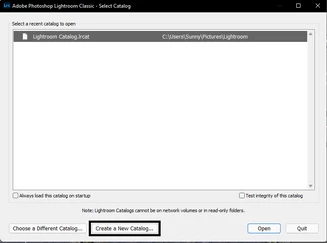
  • Press the ALT key (Windows) when launching Lightroom Classic.
  • Choose the option to create a new catalog and create a new one on the internal drive.


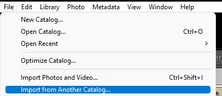
  • In the new catalog, head to File > Import from Another Catalog, as shown below.


Proceed with merging the (potentially) corrupted catalog into the newly made, internal storage-based catalog. 

For more help via video-based steps, check here. See Merging individual catalogs into a master catalog


Let me know how it goes from here,

Thanks!
Sameer K

1 reply

Sameer K
Community Manager
Sameer KCommunity ManagerCorrect answer
Community Manager
April 20, 2023

Hey @Jeremiah29473477lsto. Welcome to the Lightroom Classic community. You've made a significant amount of effort rolling back versions & forward. The catalog is a database; changes & optimization to how Lightroom handles the database are done in the background, and it is always a work in progress. 


The issue could be specific to the catalog in question. Try this change and let me know the outcome.


  • Go to Edit > Catalog Settings > General > Backup > When Lightroom Exits next > Proceed to close Lightroom.
  • In the backup window, uncheck 'Test Integrity before backing up' & 'Optimize Catalog after backing up and take the backup for now.


If this does not help at all, we can bring everything from an existing & probably damaged catalog to a new catalog.

Follow these steps:


  • Press the ALT key (Windows) when launching Lightroom Classic.
  • Choose the option to create a new catalog and create a new one on the internal drive.


  • In the new catalog, head to File > Import from Another Catalog, as shown below.


Proceed with merging the (potentially) corrupted catalog into the newly made, internal storage-based catalog. 

For more help via video-based steps, check here. See Merging individual catalogs into a master catalog


Let me know how it goes from here,

Thanks!
Sameer K

Participant
May 8, 2023

Creating a new catalog and importing from the old catalog has fixed my issue.


I am now able to complete a backup of the catalog in Version 12.3 after following your steps on bringing everything from an existing & probably damaged catalog to a new catalog above. Thank you for your time and all of your help, it truly is appreciated.

Participant
December 19, 2023

Hi Jeremiah. I had a similar issue, that turned out to be file length issue.