
Participating Frequently
April 18, 2017
Answered

LR cannot see NIK collection plugin

  • April 18, 2017
  • 5 replies
  • 20326 views

Dear All,

I have tried at least five times to install NIK.  The computer tells me that it is installed.  I believe it.

But LR cannot see it.

Every time I try to 'Edit in...', the whole downloading process re-starts.

I have followed the advice under Plug-ins do not appear in Lightroom after installing.  No change.

I have deleted and re-downloaded NIK several times.  No change.

1.  If I choose a picture, click on 'picture', then 'edit in', it offers me 'NIK collection', not the list of NIK programs.  I choose 'NIK collection', ,and get the 'what to edit' menu.  I click on 'edit', and the whole NIK downloading process restarts.

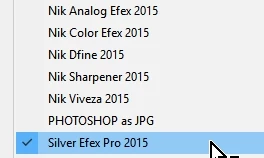
2. If under Edit > Preferences > External editing > Additional external editor, I click on 'choose', then the list varies.  I have cut and pasted the full set of NIK items onto this list.

I can no longer find what code I discovered on some help forum, but I put it into 'search programs and files,' and it did give me the full list of NIK items - so they are indeed in the computer, though I do not know where. I copied and pasted them into the 'Additional external editor ' list, but all but one have since disappeared.  If I did click on one , or if I now click on the remaining one, then nothing happens.

3. A helpful person on a photography forum suggested I watch you tube tutorials on downloading NIK, and contact the presenters for advice. Firstly, no tutorial has given any indication that I have done anything wrong; and secondly, google will not let me in to the system to contact, comment, or ask a question.  So I am stuck - this has taken about two and a half days of my life so far...
    This topic has been closed for replies.
    Correct answer Rob_Cullen

    If this helps-

    When you "Choose" the Nik program that you want to add to preferences in the list of Additional External Editors, you have to dive deeply into the program folders and 'choose' the  '.exe'  program specifically. (even to selecting the (64-bit) folder )

    For example- Nik Silver Efex Pro in my Windows-10 system lives in this folder location-

    C:\Program Files\Google\Nik Collection 2015\Nik Collection\Silver Efex Pro 2\Silver Efex Pro 2 (64-Bit)\Silver Efex Pro 2.exe

    And Nik Viveza lives here-

    C:\Program Files\Google\Nik Collection 2015\Nik Collection\Viveza 2\Viveza 2 (64-Bit)\Viveza 2.exe

    Nik HDR Efex is the one exception, as it does install as a Plugin, and is not in the Additional External Editors list.

    5 replies

    Rob_Cullen
    Community Expert
    Community Expert
    April 18, 2017

    JoeKostoss has a good point-   "In Preferences...."

    Presets (including the Plug-in templates) can be found in two places if you have ever used the option to "Store Presets with Catalog"

    a) In a sub-folder of the Catalog location.

    b) In a sub-folder of the system folders-  eg. C:\Users\YourName\AppData\Roaming\Adobe\Lightroom

    If you need to transfer presets from one location to another (a > b  or b > a)  simply Copy and paste the folder of Presets using the operating system.

    Regards. My System: Windows-11, Lightroom-Classic 15.1.1, Photoshop 27.3.1, ACR 18.1.1, Lightroom 9.0, Lr-iOS 10.4.0, Bridge 16.0.2 .
    rilbioAuthor
    Participating Frequently
    April 21, 2017

    THANK YOU  to EVERYONE who has replied.  I will try out suggestions at the weekend, since I don't have time during the working week. May not be able to reply again and thank you properly because the system didn't like my passowrd, and will not accept my phone number as a password reset code recipient.  Technology hates me - though cameras usually do not.

    To respond to Jim Hess: LR5; Windows 7.

    Many thanks to you ALL for trying to help.  I'll know on Sunday whether you've succeedd,and will try to let you know.

    rilbioAuthor
    Participating Frequently
    May 29, 2017

    First, you do NOT have to keep re-installing the Nik programs, they must already be in your computer hard-drive, expanded in sub-folders.

    Once again, Edit > Preferences > External editing > [Choose] gave me a partial list, not the full set.

    There is no 'list' at this step!   I do not know what you are seeing here.

    This [Choose] button opens a Windows File Explorer window where you have to click through all your computers folders to locate each single program executable Nik file. You have to search to the location where the installer program unzipped all the Nik programs.

    So I entered C:\NIK into the box at the top

    What box?

    Are you referring to the 'Search' box?  (No- do not use 'Search')

    It is preferable that you know the folders where the nik programs were installed, then you can click through the folders and sub-folders until you HIGHLIGHT one program (eg. Silver Efex Pro.exe) and THEN click on [Choose].

    *Note it has to be the { xxx.exe } program file that you highlight (select), NOT a folder.

    You do have File Explorer set to show the file-type suffix? Don't you?

    Now when you are back in the "Preferences" dialog box, you set the options and click [OK] to save the preferences.

    Here is a Dropbox link to a screen-video - as I install Silver Efex in Lightroom. Maybe this will help.

    https://www.dropbox.com/pri/get/LIGHTROOM/NIK%20in%20LIGHTROOM.mp4?_subject_uid=88066551&w=AABGeaY9CWE3y9aHzueswzcFBLLkf…


    This has been unbelievably frustrating. It has taken me hours just to reply to you, because the system rejected first my password, (which is written down and has not changed) then rejected attempted new passwords on the grounds that I had used them before, then rejected my mobile number for receipt of a code to reset, because it's not an American number.  It needed a change of browser to access dropbox,  Dropbox has consistently refused to recognise or accept passwords - I have tried three times; so I have now given up.  I have used dropbox for years in the office, for work-related purposes, so I am at a loss to know why it now refuses me access at home.

    Back to Nik.

    I go into LR > Preferences > external editing. I click on 'choose'.  This opens a box entitled 'LR external editor'.  Immediately under that, a long box (title bar?) containing 'Color Efex Pro 4 > Color Efex Pro 4 (64-Bit)>'

    Below, in the white area,

    dfine 2

    HDR Efex Pro 2

    Sharpener Pro 2

    Silver Efex Pro 2

    Color Efex Pro 4

    ...and nothing else.

    Prompted by your last reply, I deleted 'Color Efex Pro 4 > Color Efex Pro 4 (64-Bit)>' from the bar at the top, and managed to replace it with 'Computer > OS(C:) > NIK>'

    The main white box below then filled with 'Nik Collection'

    Clicking on this does, at last, give me the full list of Nik components (Analog - Viveza)

    It is at this stage that things fall apart. 

    Clicking on any of the seven components replaces the dialog box display with that component twice - once with a folder icon to the left, once with a coloured butterfly-shaped icon.

    The bottom of the LR External editor' box continues to give me 'open' or 'cancel' as options, and no 'choose' option as in your reply of 18th May. Nor is the box split into two side-by-side areas, as in your screenshot.

    If I manually enter (e.g. ) 'Color Efex Pro 4.exe' into the File Name box, and click on 'open' (my only option), then the  window closes. 

    But when I then go into LR > Photo > Edit in > it still tries to DOWNLOAD Nik, rather than let me edit.

    I will try to access dropbox in the office sometime during the week....

    Rob_Cullen
    Community Expert
    Rob_CullenCommunity ExpertCorrect answer
    Community Expert
    April 18, 2017

    If this helps-

    When you "Choose" the Nik program that you want to add to preferences in the list of Additional External Editors, you have to dive deeply into the program folders and 'choose' the  '.exe'  program specifically. (even to selecting the (64-bit) folder )

    For example- Nik Silver Efex Pro in my Windows-10 system lives in this folder location-

    C:\Program Files\Google\Nik Collection 2015\Nik Collection\Silver Efex Pro 2\Silver Efex Pro 2 (64-Bit)\Silver Efex Pro 2.exe

    And Nik Viveza lives here-

    C:\Program Files\Google\Nik Collection 2015\Nik Collection\Viveza 2\Viveza 2 (64-Bit)\Viveza 2.exe

    Nik HDR Efex is the one exception, as it does install as a Plugin, and is not in the Additional External Editors list.

    Regards. My System: Windows-11, Lightroom-Classic 15.1.1, Photoshop 27.3.1, ACR 18.1.1, Lightroom 9.0, Lr-iOS 10.4.0, Bridge 16.0.2 .
    JoeKostoss
    Community Expert
    Community Expert
    April 18, 2017

    This sounds weird, but in the Preferences under the Presets tab, try unchecking "Store presets with this catalog". For me it results in seeing the NIK specific plugins.  The one caveat; you may not find some of your presets that you created when this item was checked.

    JP Hess
    Inspiring
    April 18, 2017

    I don't know what version of Lightroom you are using, and I don't know what operating system you have. I am on Windows 10 and I have Lightroom CC 2015.10. I have the Nik collection installed, carried over from previous updates, and it works fine. You might find it necessary to reinstall the plug-ins even though every indication is that it is already installed.

    Sean McCormack
    Community Expert
    Community Expert
    April 18, 2017

    Open Preferences and show the External Editor tab and screen capture it.

    It sounds like the installer is being selected, not the plugins.

    Sean McCormack. Author of 'Essential Development 3'. Magazine Writer. Former Official Fuji X-Photographer.