Participant
September 13, 2018
Answered

LR Classic CC stuck syncing images

  • September 13, 2018
  • 5 replies
  • 19692 views

Since two weeks LR Classic Image result for lightroom preferences sync status

In preferences -> Lightroom sync no sync activities are displayed. On LR exit a windows pops up telling me that sync will stop and continue on next start. What is the reason for this behavior? Any solution or workaround?

This topic has been closed for replies.
Correct answer Akash Sharma

Hi BlueHair,

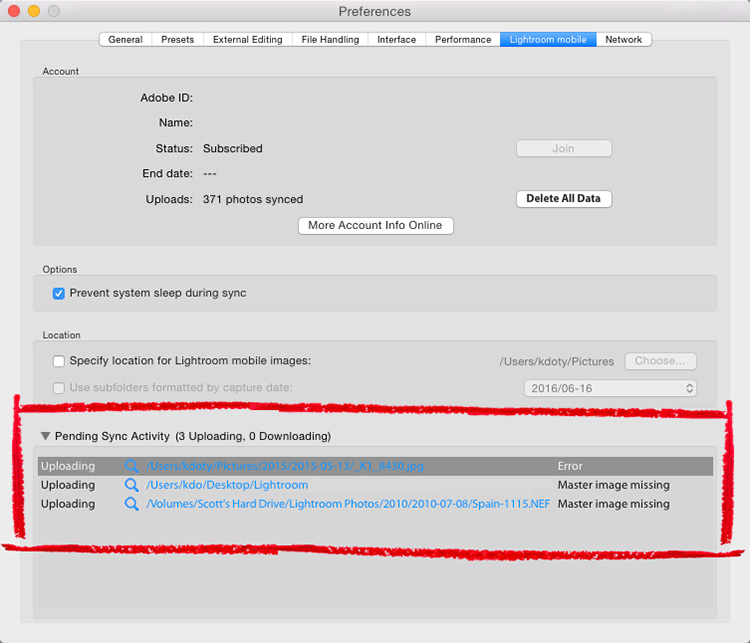
As I understand you are unable to sync images as the app is stuck syncing 2 images. Please sign-out and sign-in from Lightroom desktop and creative cloud desktop app and check if that fixes the issue. Also, check which two photos is the app syncing in the Lightroom Preferences> Lightroom mobile> Sync activity section and see if that shows an error message.

Image result for lightroom preferences sync status

Thanks,

Akash

5 replies

Participant
October 22, 2023

Another "solution"


After a week of looking for solutions I finally managed to synchronize again. It seems incredible to me that until this new version I had not had major synchronization problems.


No pending sync activity appeared; The option with the Rebuild Sync Data Button that magically appears did not work either.

Then i try to delete from the file explorer (finder) the files that accompany the catalog file: HELPER, PREWIEW and DATA, obviously I made a backup of them just in case... When I reopened the catalog it took years to rebuild those files but it synchronized again without problem.

johnrellis
Legend
October 13, 2020

"Why does this solution feel so hidden? I feel like I need to know a specific knock, handshake and password to fix this issue. Come on Adobe, get on your bike and fix this! There's an error listed but we can't see any details or have any control over the specific file freezing the sync??"


Unfortunately, Adobe product developers don't participate in this forum and won't see your feedback. I suggest you post in the official Adobe feedback forum, where Adobe wants all bug reports and feature suggestions: 
https://www.lightroomqueen.com/send-bug-report-feature-request-adobe/

[Use the blue reply button under the first post to ensure replies sort properly.]

Paulfcdx
Participant
December 9, 2022

So this is the Adobe support community, complete with Adobe logo, which is not monitored by Adobe... because???  Not even by a junior employee or intern??  I was puzzling over the many inconsistencies between Lightroom Classic and Lightroom creative cloud and now realise that if you don't monitor the support community then you can remain blissfully unaware... its like a Dilbert cartoon.  

Rikk Flohr_Photography
Community Manager
December 9, 2022

That information is out of date. (That happens when you post to old threads...)


In August of 2021, Adobe's bug and feature forum (formerly feedback.photoshop.com) merged with this forum and now serves as the single source for official bug, feature, and general peer-to-peer instructions. I would encourage you to explore a little. 

Rikk Flohr: Adobe Photography Org
Nona Janssen Walls
Participating Frequently
July 7, 2019

I also had this issue, had taken multitudes of photos on multiple iOS devices (including friends'),  collected them in iCloud, deleted the ones I didn't want going to LRCC and then synced.  I suspect I did something in this process to delete the eternally syncing photos from the wrong place, as I'm really just getting started with this whole LRCC/Mobile workflow.

What worked for me:

  1. Open Preferences > Lightroom Sync in LRCC
  2. In Sync Activity, I could see links to the offending photos.  (I realize this isn't the case for everyone, but it was for me).
  3. Clicking on each link opened a new browser window showing the offending photo in LR Web.
  4. I marked each offending photo (in my case, only 22 photos) as "Rejected".  Note I don't use this flag for anything else in my normal use.
  5. I then went onto an IOS device (iPad in my case), filtered for "Rejected" photos, checked the photo count (it matched the 22 in the Sync Activity pane), selected and deleted them.
  6. I checked the albums these photos were contained in (both LR and SmugMug) and they still appeared correctly.

What a process!  Hope this helps someone else!

johnrellis
Legend
September 13, 2018

If Akash's suggestions don't help, try going to Preferences > Lightroom Sync, holding down Alt / Opt, and clicking the Rebuild Sync Data button that magically appears.  This should not change your existing synced collections or their contents, just rebuild the existing relationship between LR Classic and LR CC.

Participant
July 16, 2019

Thank you Johnrellis.  That worked perfectly for me.  I had 70 pending notifications with no files attached.  Now all sorted and no problems on any of the synced devices.  FINALLY!!!!!!!

Participant
December 28, 2019

Than you!!!!  Nothing else has worked for me.  This did the trick FINALLY!

Akash Sharma
Akash SharmaCorrect answer
Legend
September 13, 2018

Hi BlueHair,

As I understand you are unable to sync images as the app is stuck syncing 2 images. Please sign-out and sign-in from Lightroom desktop and creative cloud desktop app and check if that fixes the issue. Also, check which two photos is the app syncing in the Lightroom Preferences> Lightroom mobile> Sync activity section and see if that shows an error message.

Image result for lightroom preferences sync status

Thanks,

Akash

BlueHairAuthor
Participant
September 17, 2018

No pending sync activity is listed, on LR screen left upper corner "sync 2 photos" is displayed.

I followed johnrellis' suggestion and this message disappeared. After two days the the sync 2 photos message was back again. No chance to identify the respective photos, because the pending sync activity list is empty.