
Dusky03
Inspiring
February 10, 2020
Answered

Lr Classic Desktop to PS Ctrl+E does not work, Edit in PS grayed out

  • February 10, 2020
  • 1 reply
  • 1653 views

Since January 31st, I’ve had this problem and searched for a solution on different forums without success. In the updated Lr Classic Desktop CC 9.1, Photoshop 21.0.3 (PS 2020), ACR 12.1, I’ve lost the keyboard shortcut Ctrl+E. In the toolbar Photo>Edit In> Photoshop it is grayed out as is: Open as Smart Object, Merge to Panorama, Merge to HDR, and Open as Layers. I have OnOne products that are not grayed out but have never used it. All Photo Merge options are grayed out also.


I’ve never used Smart Objects, Smart Previews, Quick Collections, and I am not using synced files which I understand are Smart Previews. I do not use a mobile app. I am able to use the Export option and is how I’ve worked around this. However, I want to use the keyboard shortcut and have my grayed out options returned. I cannot work on my HDR photos.


On the Photoshop Family forum, an answer to this problem from 2 months ago does not apply to me: Two things that will grey-out the 'Edit-In' menus are-

  1. The selected images are 'Missing' in the Library. (showing the !)
  2. You only have access to Smart Previews. The original files are not connected or available.


I am on a 1-year-old laptop running Windows 10 - Home Premium Edition 64 Bit, V. 10.0.18362. My Graphics Processor is updated - Direct X: NVIDIA GeForce GTX 1060 with Max Q Design 26.14.4114. All of my Adobe CC products are up to date. 


Any help is greatly appreciated!
This topic has been closed for replies.
Correct answer Dusky03

Re-installing Photoshop will not be a problem. (Hopefully this will solve the problem)

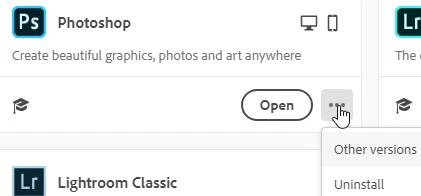
First do the un-install from the CC Desktop App- click the 3-dots icon, uninstall, restart the laptop, then [Install] from the App-


Yesterday, 19 Feb 2020, PS had an update. I hoped it would fix the problem & it did! The update said it was for a bug realized from the last update. Thank you Adobe & thank you for helping with this problem! This forum is awesome that others stop what they are doing to help others!

1 reply

GoldingD
Legend
February 10, 2020

First possible solution is to reinstall Photoshop 


Dusky03
Dusky03Author
Inspiring
February 18, 2020

Thank you for your suggestion, David. Adobe emailed me today to ask if the reply was successful. I had also put the question out to my photography club & received a few replies to reset my preferences & to call Adobe before reinstalling. I've never had to uninstall & reinstall so I asked what to expect because I am nervous about doing that. As soon as I am finished editing photos for a client I will try the suggestions to get things back to normal. I will return here to let you & others know the outcome.

Rob_Cullen
Community Expert
Community Expert
February 18, 2020

Re-installing Photoshop will not be a problem. (Hopefully this will solve the problem)

First do the un-install from the CC Desktop App- click the 3-dots icon, uninstall, restart the laptop, then [Install] from the App-


Regards. My System: Windows-11, Lightroom-Classic 15.1.1, Photoshop 27.3.1, ACR 18.1.1, Lightroom 9.0, Lr-iOS 10.4.0, Bridge 16.0.2 .