Inspiring
October 29, 2016
Answered

LR doesn't set White Balance temperature correctly on import

  • October 29, 2016
  • 3 replies
  • 21879 views

When I import a Canon RAW file with a manual white balance e.g. 5300K

Lightroom sets it as "As Shot 4650K"

Why does it do that, and why doesn't it set it to 5300K as specified in the image's EXIF data?

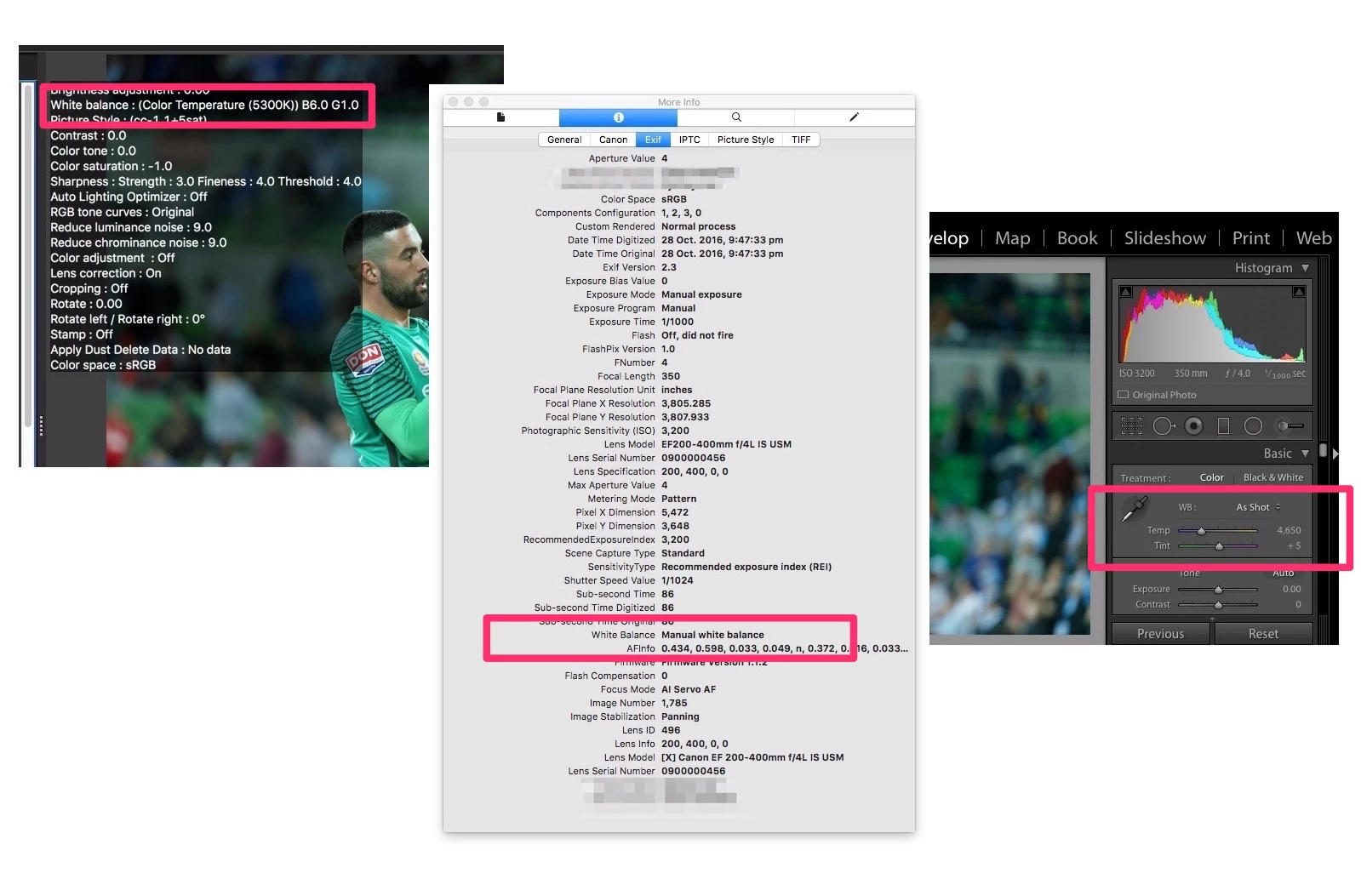
Attached is image showing the issue:"

- CR2 file imported into Canon DPP correctly with White Balance setting as per EXIF in the image file

- EXIF data showing manual white balance

- LR imports this and sets WB to 4650K

- EXIFTool app extracts the following info from the file (not shown):

White Balance                   : Manual Temperature (Kelvin)

Color Temperature            : 5300

This topic has been closed for replies.
Correct answer Todd Shaner

trshaner wrote:

You have your White Balance set for Auto and not Daylight, so the 'As Shot' reading in LR will not be Daylight 5200.

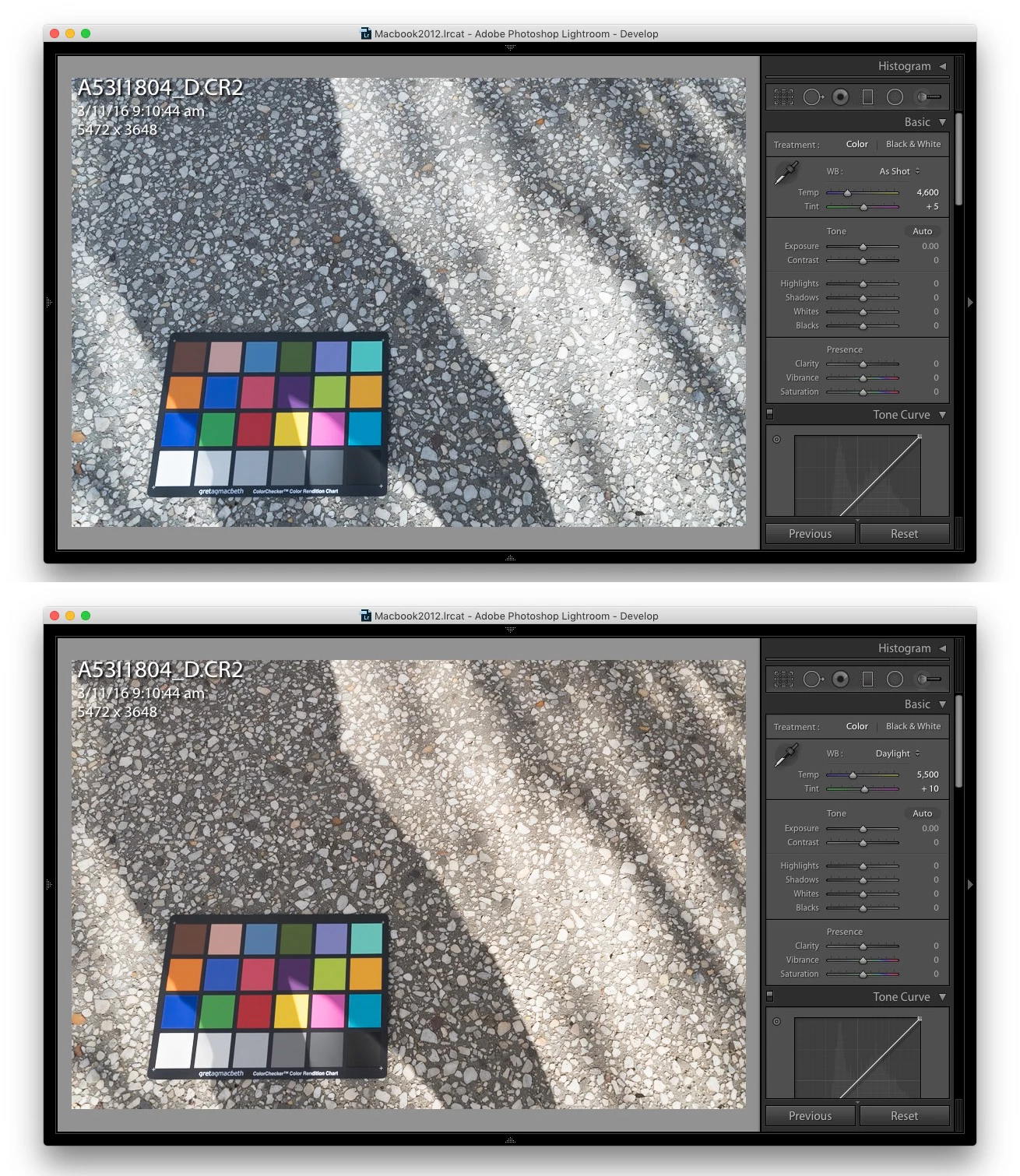
Here's the image shot with Daylight in camera, and rendered by LR as:

As Shot (top) and Daylight (bottom).

As Shot is 4600K, +5

Daylight is 5500K, +10

The EXIF value in the image for Color Temperature is 5200K

sydneylow wrote:

trshaner wrote:

You have your White Balance set for Auto and not Daylight, so the 'As Shot' reading in LR will not be Daylight 5200.

Here's the image shot with Daylight in camera, and rendered by LR as:

As Shot (top) and Daylight (bottom).

As Shot is 4600K, +5

Daylight is 5500K, +10

The EXIF value in the image for Color Temperature is 5200K

CORRECTION: I checked the EXIF data in that file and it's telling me your camera is set to White Balance Auto. How are you checking the EXIF data? Under EXIF

I was referring to the first file posted. The 2nd file A5311804_D.CR2 does show as Daylight:

But you have a WB Shift applied:

WB Shift AB                : -6
WB Shift GM                : 1

Please try the following:

1) In the camera menu go to WB SHIFT/BK, click on 'Clear All,' and then on Set OK.

2) Set  the camera mode dial to Av, Tv, or Pv mode.

3) Set the WB to 'Daylight' using the camera top LCD display and dial as below.

4) Shoot another CR2 file and post to Dropbox.

3 replies

Participant
May 14, 2021

I had a similar issue.  Lightroom as changing the temperature of my raw images.  I shoot with a Nikon D750 and a Nikon D7100.  The D7100 Temp was always as shot.  The Nikon D750 was always different.  I set my Temp at 5000 because that is where i like it.  I found that i had to set the temp in camera at 4900 in order to have the temp at 5000 once i imported to lightroom.  I cant answer why lightroom does this, still searching for that answer myself,  if you every find it i would like to know too.  I had to just experiment by changing the temp in camera and happened to find i would get the result i wanted in lightroom.

Community Expert
May 14, 2021

There is another factor in play here: WB auto adjustments whether in-camera or after the fact, do not necessarily seek technical neutrality regardless of Kelvin. They are not linearly applied. When the light source is in absolute terms "warm" then we tend to like to SEE that warmth in our photos (the distinctive oranginess of sunset; the cosiness of candlelight). We usually wouldn't want that warmth completely neutralised away, and it is an aesthetic matter how much warmth we like to have left in.


Camera manufacturers compete to give people the photos they will like, and that includes on how different lighting conditions will be variously handled in practice.


You may be able to change settings in the camera as to what its own autoWB is trying to do. For example my K5 allows me to set either "Subtle" or "Strong" compensation relative to neutrality in its AutoWB interpretation of tungsten lighting or other equivalently warm lighting. But I cannot set it for technical AutoWB neutrality regardless of the lighting conditions. And a different camera will have its own, differently programmed WB responses to all these same lighting conditions. Or manually selecting the same absolute Kelvin WB in these two cameras may give different practical results from the same scene.


Otherwise (working best with Raw of course) you have the ability to use a WB sampler tool directly, and so to disregard all prior Temp and Tint information, perhaps with formal calibration too. This is normal e.g. for controlled studio circumstances.


But by telling LrC to respect the camera's WB "As-Shot", IMO this is not about matching a Kelvin number. It really means, AFAICT, that you want to see the same pictorial effect of whatever that particular camera's WB response amounted to - whether due to Auto or Manual settings inside the camera - as that outcome is translated into LrC adjustment terms.

TheDigitalDog
Inspiring
October 29, 2016

sydneylow wrote:

When I import a Canon RAW file with a manual white balance e.g. 5300K

Lightroom sets it as "As Shot 4650K"

Why does it do that, and why doesn't it set it to 5300K as specified in the image's EXIF data?

Because any CCT (Kelvin value) is a range of possible colors and every product can calculate the values differently. Further, a camera is absolutely not the device one should use to measure CCT values! A Spectrophotometer? Yes. Anywhere, this explains why a large range of possible numeric values are all acceptable to define a range of possible colors of white:

http://digitaldog.net/files/22Thecolorofwhite.pdf

Author “Color Management for Photographers" & "Photoshop CC Color Management/pluralsight"
Inspiring
October 29, 2016

that's right, so as you can see, on your camera there is just one value, and in LR the white balance is split in two.

by import the value of your white balance from the camera it will be recalculated to this of adobe.

Inspiring
October 29, 2016

Do you have a reference for that statement?

What's the formula that equates 5300Kelvin to 4650K, +5 Tint?

Participating Frequently
October 30, 2016

So how does LR arrive at the LR value of colour temp without analysing or interpreting the image/EXIF data?

Is there an Adobe reference document you can point me to that explains in more detail your explanation or meaning of "Neutral color as shot"? I'm not sure how LR can determine "neutral" without analysing the image.


The "As Shot" white balance is what the camera saved for the white balance value.  The actual numbers used by RAW processing software for the "As Shot" value is a function of the RAW processing software and camera profile used by the software.  I shoot using a Nikon camera and have compared a lot of images processed by Nikon software and Adobe software where I used the Camera matching profile with the Adobe software.  The "As Shot" white balance used in the Adobe software did not match what the Nikon software used, but color in the Nikon processed image and the Adobe processed image from the same RAW file match. 

When I compare camera profiles I process about 50 RAW files with both Nikon and Adobe software using the camera matching profile with the Adobe software and the "As Shot" white balance in both.  I name the images so when I put them in the same file the Nikon and Adobe processed images from the same RAW file are next to each other.  I turn off lens correction in both so no corrections are applied for the lens.  I compare them by running a slide show.  When the slide show switches from the Nikon processed image to the Adobe processed image it's difficult to see any changes.  This shows that the "As Shot" values used by Adobe is what's required to get the same colors in the image.

I have also generated custom camera profiles for Adobe software using X-Rite Passport software.  When white balance is set to "As Shot" in the Adobe software and I change the camera profile from one of the Adobe profiles to the Passport profile the "As Shot" values will change is some cases.  This shows that the "As Shot" white balance is a function of the camera profile.

I suggest you process a RAW file using both Canon and Adobe software and use the Camera Matching profile with the Adobe software and set White Balance to the Kelvin value used by the Canon software.  Compare the two images to see if they match.  Then do the same with Adobe software using the "As Shot" values for white balance.  I think you will get a much closer match when the Adobe software is set to "As Shot" for white balance. 

I assume your goal is to get matching colors in the Canon and Adobe processed images.