
Inspiring
January 12, 2022
Answered

LR hangs during import

  • January 12, 2022
  • 2 replies
  • 4922 views

This problem occurs when I try to import new images to my standard catalog in LR Classic. After selecting the images in the import dialog and pressing the "import" button, the two waitbars start as usual, but shortly after that the second one ("import files at their current location") stops making progress. At the same time, the library filters show "Loading...". Basically, most LR functionality hangs.
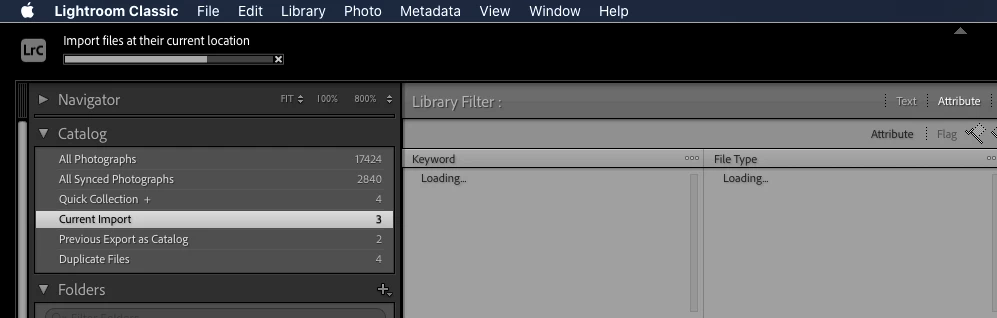
 

It is possible to stop this import process by pressing the [x] at the right end of the wait bar, but LR still remains unusuable. It is not even possible to quit the application, I have to "force quit".


I have systematically tried following variations, without any success, still same behaviour:

  • Importing from SD card, external disk or built-in disk
  • Choosing "copy", "move" or "add" for the import
  • "Use graphics processor" to "off"
  • "File" -> "Optimize catalog"
  • "Test integrity of this catalog" in the "Select Catalog" dialog at the start of LR
  • Reinstalled LR
  • Removed the Library/Application\ Support/Adobe/Lightroom/ directory

I have the hypothesis that the catalog might have been damaged due to numerous crashes related to videos, see this issue: Lightroom V11.0 crashes upon clicking on a Video file 


This problem does not occur with a fresh catalog.


LR 11.1 on macOS Catalina 10.15.7 (19H1615), iMac, 3.1 GHz Quad-Core Intel Core i7, NVIDIA GeForce GT 650M 512 MB


Correct answer Axel in Sweden

Next step in my DoE: Fresh catalog + external disk.

Works fine 🙂


Finally: I created a new catalog and imported all folders from the original one. I'll get back in a few days with my observations.

2 replies

Inspiring
December 8, 2022

Yep, more Lightroom issues. Again, import doesn't work properly.

Seems like almost every time I do anything with Lightroom there's a problem, even on the latest Apple hardware.

Just doesn't seem productive anymore. Think I'm going to start looking for a better, more stable, solution.

Tarun Saini
Community Manager
Community Manager
January 12, 2022

Hi there,


We're sorry about the trouble with Lightroom Classic. As you've mentioned a lot of troubleshooting has already been done to no avail. Have you tried removing all the external devices ( like External drive & SD card) and then tried importing images directly from the desktop?


Try resetting the preferences of Lightroom Classic by:  https://helpx.adobe.com/lightroom-classic/help/setting-preferences-lightroom.html

Backup your preferences before resetting by: https://helpx.adobe.com/lightroom-classic/kb/preference-file-and-other-file-locations.html


Also, as you have mentioned that the issue does not occur with a fresh catalog then you may try moving the content of the original catalog to the new one. You may check this link for more info: https://helpx.adobe.com/in/lightroom-classic/help/create-catalogs.html#copy_or_move_a_catalog


Let us know if that helps.


Regards,

Tarun


Inspiring
January 14, 2022

Hi Tarun,

thanks for your advice. I'll test the approaches one by one.

I followed the instructions to reset the preferences. After that, I start LR, choose the "problematic" catalog, and get an empty window:

When I quit, LR backs up the catalog but gets stuck in the "Optimizing catalog" step:

No processor activity for some minutes, so I kill (force quit) LR.

I start LR a second time, and the catalog loads properly.

I import 25 photos from internal disk (choosing "add", i.e. add photos to catalog without moving them) and they import properly.

Second import, also "add" works fine.

Third, fourth, fifth attempt go fine.

I import from my external disk, 150 pictures this time: Same problem as before 😞

So this seems to solve the problem.

Inspiring
January 14, 2022

Next approach was to disconnect my external drive. Now the import to my problematic catalog works fine, even for 550 pictures.