
Participating Frequently
September 14, 2018
Question

LR images become muddy/darker after rendering in correct/captured exposure

  • September 14, 2018
  • 4 replies
  • 1739 views

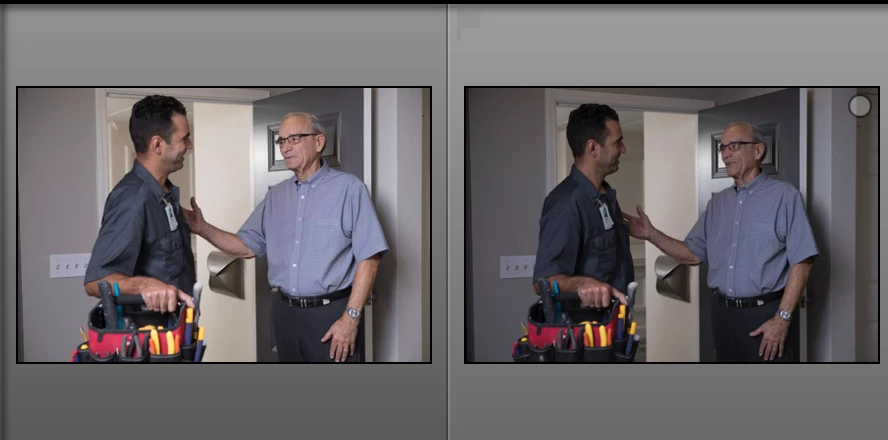
Hi everyone. I have a problem that has been plaguing me for the last day. I was on a marketing/commercial shoot last week and when my friend was working on the images in LR, suddenly the images to the right started turning dark...as if the exposure had been dialed down quite a bit (all the history in LR only showed 'import' no changes to the images were done and no presets applied). We were using a 5D Mark IV, profoto lights, and editing in Lightroom Classic CC. When he called me telling me of the problem, I pulled up the same images on my computer (running a slightly older version of LR) and they were perfectly fine.  When he came over and had me open his catalog, I had to update my LR version and the images started turning dark and muddy like he was experiencing.  I've since uninstalled the newer LR Classic version and using the version I had used before, but the images are STILL changing and turning muddy/dark after a few minutes.  I'm trying to figure out if it is a camera profile issue etc. It's been so frustrating not knowing what is going on.   Image included is of two back to back photos taken at basically the same time, but the photo on the right has been darkened for some unknown reason.  Thanks!  
This topic has been closed for replies.

4 replies

bowbenieAuthor
Participating Frequently
September 16, 2018

Thanks everyone!  I'm looking into each of your responses.  I think it might be the auto lighting optimizer.  It was on Standard in my camera, but not sure if it was disabled during M mode, which is what we use.  We were wirelessly tethered to an iPad so the images coming over to it were the jpg files, which were lighter (with the auto lighting optimizer enabled).  I'm thinking that might be the problem.  The one frustrating issue is that it only happened in this one part of the day, so I'm still a bit confused and will go through the other ideas you've given.

Community Expert
September 15, 2018

elie_di hits the nail on the head. Bowbenie is using auto lighting optimizer as exiftool reveals from the raw file:

Auto Lighting Optimizer         : Standard

This will automatically underexpose the raw image and Lightroom does not know how to read this tag nor how to emulate what it does. Also Bowbenie uses the neutral picture style in camera which will also make the camera render somewhat greyer. This means that to emulate in Lightroom what both these settings do, you need to select the camera neutral profile in the profile browser and dial in about +1 of exposure. It is best to not use any of these modes in camera.

elie_dinur
Participating Frequently
September 15, 2018

>>" When you use a camera setting that lifts the shadows (Nikon calls it Active D-lighting, and Canon probably has something similar), and choose the two settings I mentioned above, the Library previews will change like you described.

Note that this does not affect Develop, which has its own previews, so in Develop you will always see the actual image."

Canon cameras actually have two different functions that do this; Highlight Tone Priority and Auto Lighting Optimizer. The metadata of the supplied CR2 files reveal that although HTP is disabled, ALO is on and set to Standard, which affects the processing of camera jpgs, probably by trying compensate for underexposure .

This is how Canon describes ALO:

Auto Lighting Optimizer (ALO) was introduced as a feature on the EOS 450D DSLR in 2008. It is found on all current Canon EOS DSLR cameras, from the entry-level EOS 1100D to the professional EOS-1D X, with the exception of the EOS-1Ds Mark III. The aim of ALO is to provide in-camera processing that will improve the look of your images.

ALO is designed to even out contrast by selectively adjusting areas of the image. It is especially useful when using flash or with backlit subjects as it can detect faces in the frame and brighten those areas to achieve a better result.

ALO analyses contrast in captured images and modifies both shadows and highlights via tone curve adjustments to minimise loss of detail in contrasty light conditions. There are three levels of setting strength as well as the ability to turn the setting off (known as Disable). The levels are Standard, Low and Strong and these can be used at any ISO speed setting.

Auto Lighting Optimizer - Canon Professional Network

Sean McCormack
Community Expert
Community Expert
September 16, 2018

Yep, that was the one I couldn’t remember the name of.

Sean McCormack. Author of 'Essential Development 3'. Magazine Writer. Former Official Fuji X-Photographer.
Community Expert
September 16, 2018

In this mode the camera will dial in an underexposure depending on the

scene content. So the effect will not always be as strong. It applies to

all exposure modes including manual. It’s generally best to turn off these

sort of automatic modes if you shoot raw for use in Lightroom or other

non-canon apps.

On Sat, Sep 15, 2018 at 8:58 PM SeanMcCormack <forums_noreply@adobe.com>

Sean McCormack
Community Expert
Community Expert
September 14, 2018

Without seeing the settings in Develop, it'll be hard to tell.

Sean McCormack. Author of 'Essential Development 3'. Magazine Writer. Former Official Fuji X-Photographer.
bowbenieAuthor
Participating Frequently
September 14, 2018

Sean McCormack
Community Expert
Community Expert
September 14, 2018


Flat as a pancake, so this leads me to ask is Highlight Priority enabled in camera?

Sean McCormack. Author of 'Essential Development 3'. Magazine Writer. Former Official Fuji X-Photographer.