bartonlew
Legend
September 17, 2022
Answered

LR not showing newly created folder in newly associated drive

  • September 17, 2022
  • 3 replies
  • 1999 views

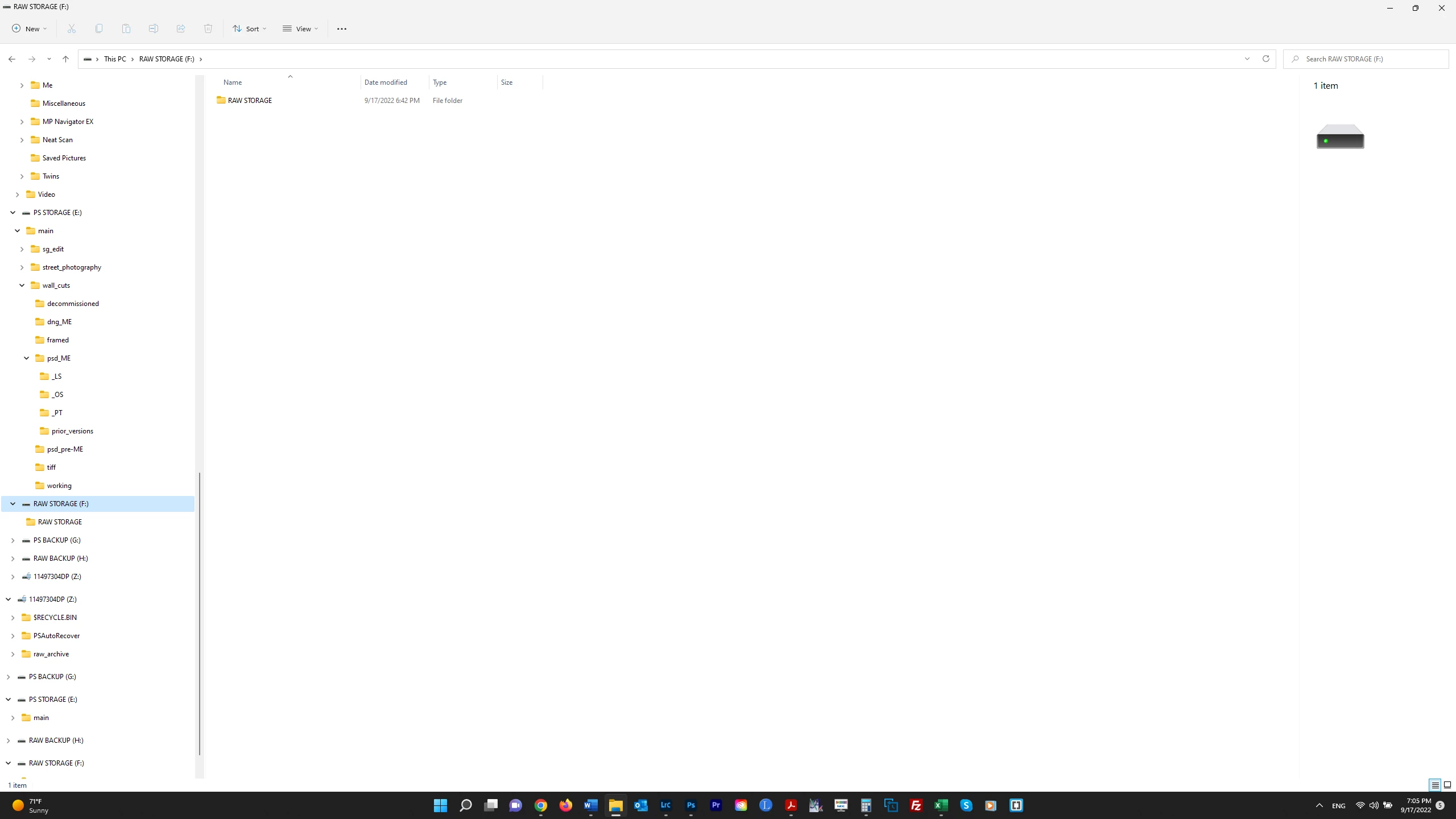
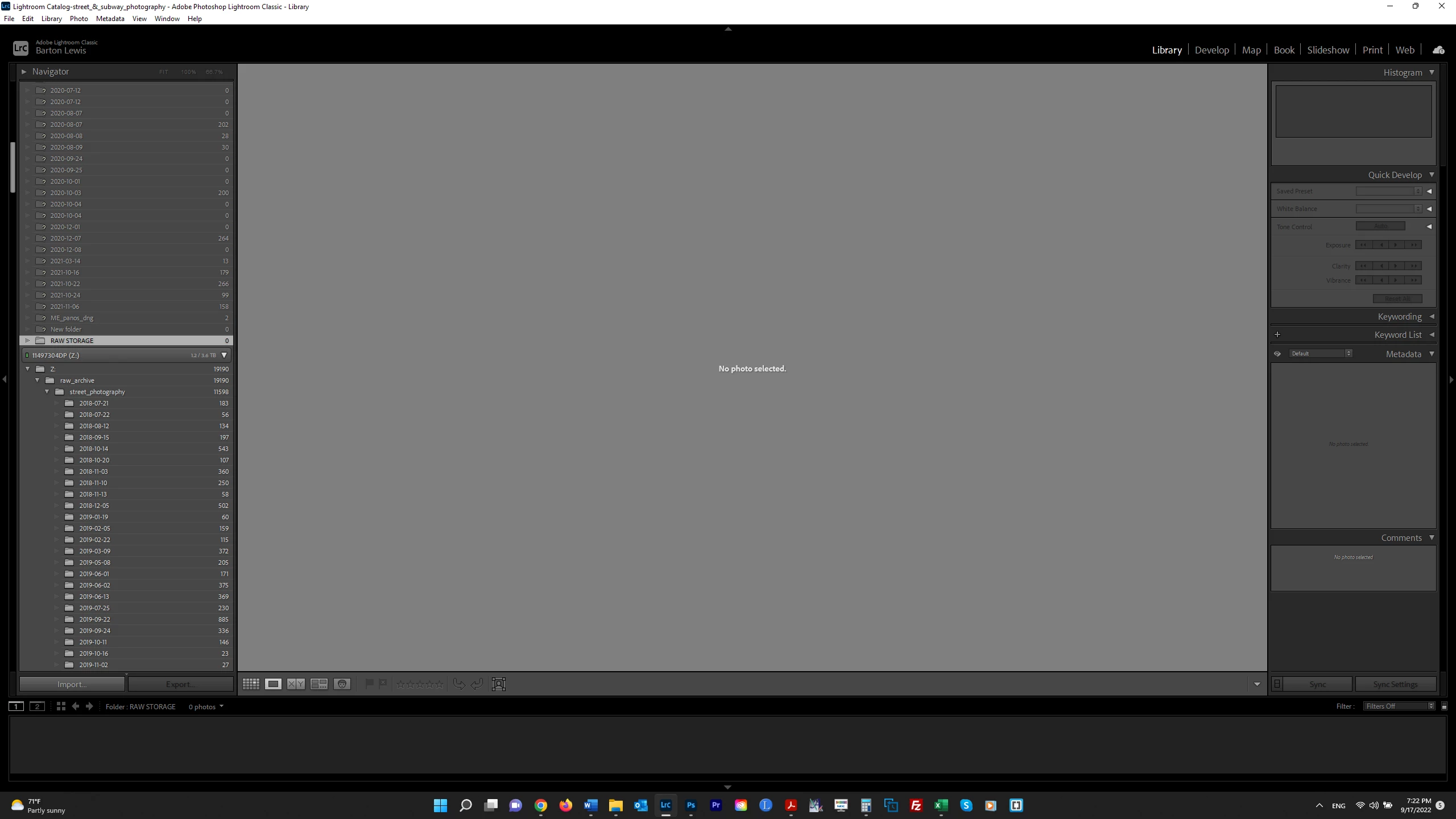
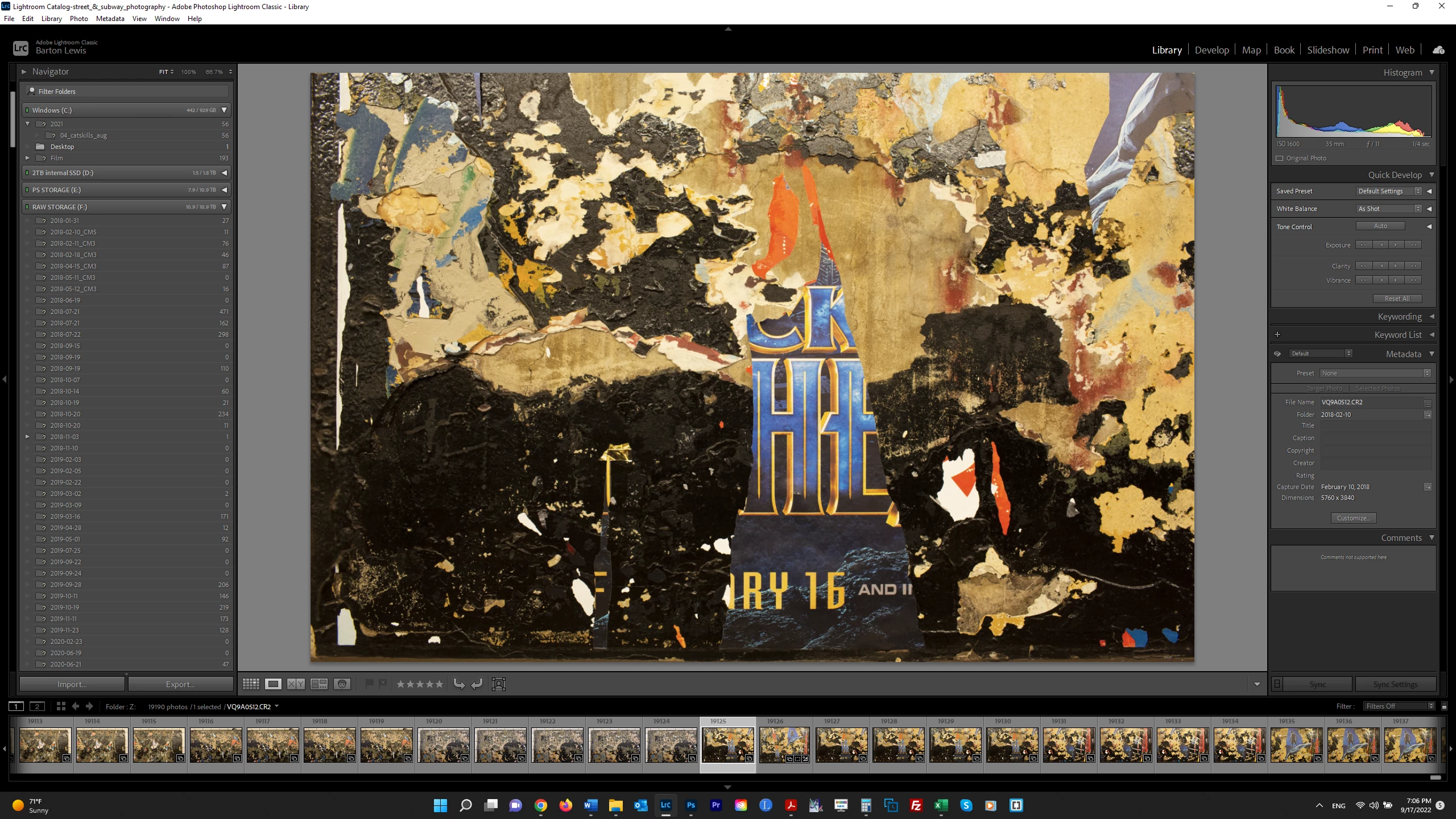
I need to move my RAW files from one drive to a new one, and followed the instructions by Scott Kelby at this youtube video https://www.youtube.com/watch?v=yl5oH_shX08  I plugged in the new drive ("RAW STORAGE (F:)") to my laptop, created a new folder on that drive so that LR could recognize the new drive, and expected to see that folder show up in LR.  But instead, a lot of "missing" folders (with "?s") are showing up directly underneath the drive.  See 1st screenshot below.  In the 2d screenshot, I show the drive in Windows Explorer with the folder I created.  Why is LR not showing that folder (into which I want to drag the files from the other drive) and what is the significance of all of these missing fodlers appearing here?    Thank you.  UPDATE:  I deleted the folder in the new drive and added it again, and now it is showing (see 3d screenshot).    But I am changing the file structure since I now have this newly created "parent" folder into which I am dragging the parent folder on the old drive with all its contents.  I guess this is okay ???      


This topic has been closed for replies.
Correct answer dj_paige

So I copied (in Windows Explorer) all of my files from the old drive to the new one ("RAW STORAGE (F:)"). But in LR, I do not see the parent folder ("raw_archive") inside the new drive.


That's right you won't see it. You have to right click and select Update Folder Location on the OLD folder on the PREVIOUS drive.


You talk about "raw_archive" in one place and "RAW STORAGE" in another place. I am not understanding the difference between these two.


Also you seem to have the misunderstanding that Lightroom Classic is a file browser such as Windows Explorer or Mac Finder. It is not a file browser. It does not "see" files or folders unless you specifically perform a task in Lightroom Classic to let Lightroom Classic know to look there. Normally this is done by importing, but the "Update Folder Location" command above lets Lightroom Classic know that it should look for a specific folder in a specific location.

3 replies

Inspiring
September 21, 2022

If you’re seeing the error on one photo, simply click the exclamation point on the top right of the photo and select ‘Locate.’


You may have accidentally deleted the image, or you may have moved the file somewhere else.

Locating the image will remap its location, but it’s a good idea to actually move the image into the folder where it should be, instead.

If you are unable to locate the file, there’s not much more that you can do, unfortunately.

How to fix the error for a folder
In my case, I’ll offload old folders from my computer hard drive and move them to an external hard drive.

When I need to reference the old files, I’ll connect my external hard drive and I’ll do my work while connected.

Whenever I do the moving process, I always need to “tell” Lightroom where the new folder is.

Right-click on the folder with the question mark on it, and select ‘Find Missing Folder’.


From here, you can relocate the folder in its new location. You’ll see that the folder will move into a different spot within the Folders module in Lightroom.


In my case, I have all of my files on my Mac hard drive and the rest of my folders stored on a 10TB hard drive.


Regards,

Rachel Gomez

GoldingD
Legend
September 18, 2022

Reading your description of the steps you took does not match the steps given in the video. Sounds like you did much outside of LrC.

  I plugged in the new drive ("RAW STORAGE (F:)") to my laptop, created a new folder on that drive so that LR could recognize the new drive, and expected to see that folder show up in LR


Sounds like using Windows File Explorer, you created a folder on the new hard drive.

But instead, a lot of "missing" folders (with "?s") are showing up directly underneath the drive

Sounds like, are lessons learned from other members mistakes leads me to think, that you then, once again using Windows File Explorer, moved the images into that new folder.


The video directed to inside LrC, in the Folders panel (not File Explorer) to create/add a new folder. Then once visible in LrC Folder Panel, to move photos. All done inside LrC, not outside.


The Folders Panel in LrC is not a OS file manager, and the Windows File Explorer, the Windows OS file manager, does not communicate to LrC, nor the Folders panel in LrC, hence LrC has no clue as to where the photos are if you move them outside of LrC.


and see:

Adobe Lightroom Classic Find missing or moved folders By lan Lyons


bartonlew
bartonlewAuthor
Legend
September 18, 2022

No, I created the folder on the new drive inside of LR, as the video directed.  But dj_page said not to use the workflow in the video, and instead at the link he provided, copying the files using Windows Explorer and then reflinking them inside LR.  So that's what I'm doing.  

Abambo
Community Expert
Community Expert
September 20, 2022

Multiple ways are leading to Rome, but some are shorter than others.

ABAMBO | Hard- and Software Engineer | Photographer
dj_paige
Legend
September 18, 2022

So I have not watched that video from Kelby, as I don't like his instruction. Nevertheless, in order to move photos to a different disk, you DO NOT have to create a folder on the disk; and if you do create the folder on the new disk, that does not cause Lightroom Classic to recognize that the folder is there. So lots of things wrong here.


I would advise starting over, and follow the instructions in "Part 2 -- Updating Folder Location" of this document to move photos to the new disk. http://www.computer-darkroom.com/lr2_find_folder/find-folder.htm

bartonlew
bartonlewAuthor
Legend
September 19, 2022

So I copied (in Windows Explorer) all of my files from the old drive to the new one ("RAW STORAGE (F:)").  But in LR, I do not see the parent folder ("raw_archive") inside the new drive.  I wanted to follow the intructions in the link you sent by right-clicking on the "raw_archive" folder and selecting "Update Folder Location" as explained there - but as seen in the screenshot below, that folder does not appear in the RAW STORAGE (F:) drive - even if you scroll all the way down.  Any idea why it doesn't appear there and how do I get it to?  Thanks.  


dj_paige
Legend
September 20, 2022

So I am ready to do this.  I created a parent folder with the same name on the new drive ("raw_archive") as on the old drive; chose Update Folder Location on that parent folder in the OLD drive and navigated to the folder on the NEW drive - choosing it and got the message "the selected folder or one of its subfolders is already in Lightroom.  Do you want to combine these folders?" I just want to be absolutely sure this is what I should be seeing before choosing "Merge".  This step is not referenced in the instructions in the link you sent which makes me nervous.  Thanks.  


Click on Yes.