Participant
January 2, 2022
Answered

LR On New 14" MacBook Pro Not Using All Screen Real Estate

  • January 2, 2022
  • 2 replies
  • 13326 views

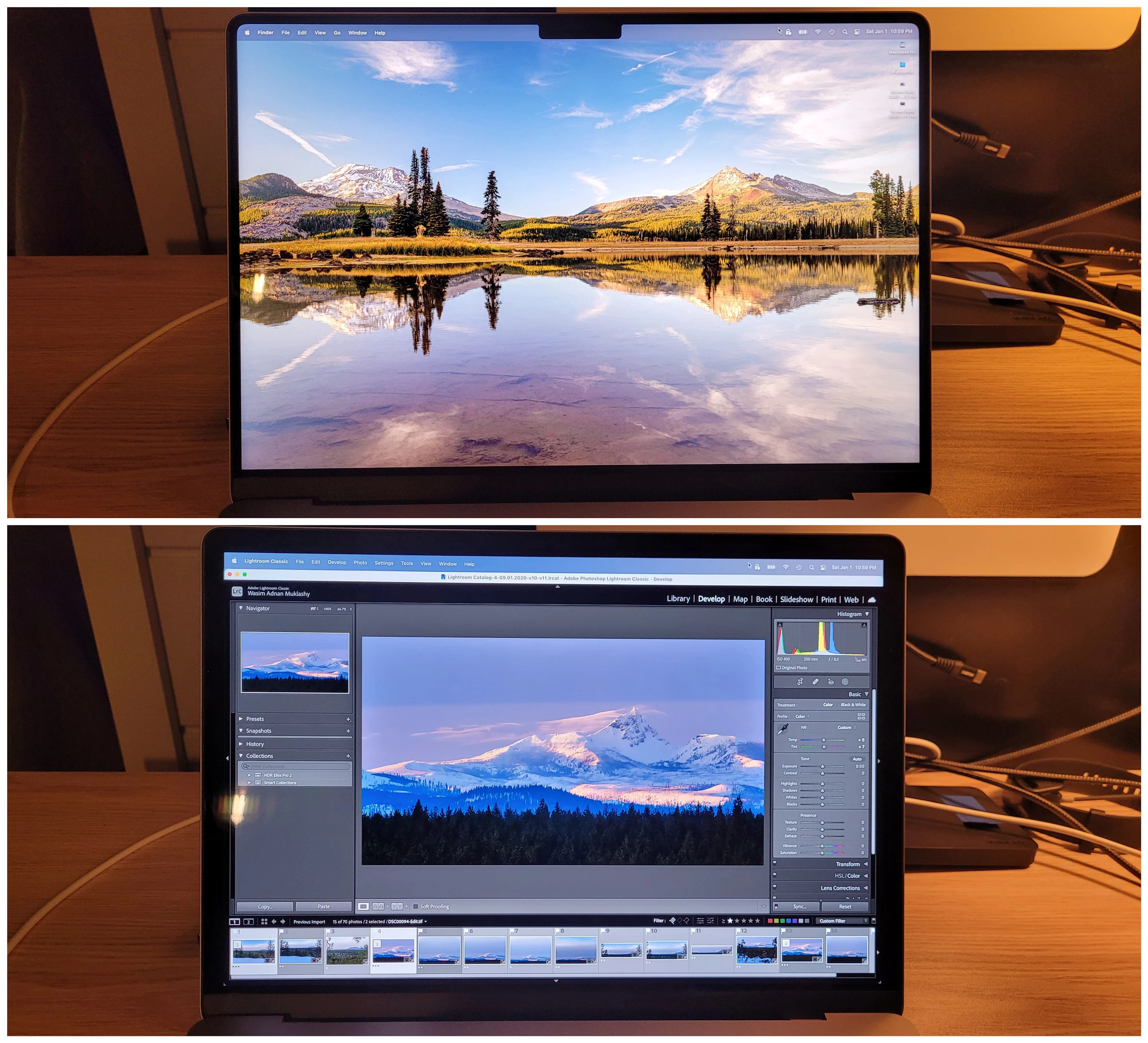
Happy New Year all! Curious, anyone else running into an issue where Lightroom isn't using all the screen real estate on the new 14" M1Max MacBook Pro? It's super weird, I'll be in any other program and everythign is fine, but when I select Lightroom it shrinks the part of the screen it uses and the 'digital bezel' around it increases. Pic attached showing difference from desktop to Lightroom. I've tried all screen options from default to scaled. Think I checked all options in Lightroom. Anywho...figured I'd give it a shot here and see if anyone else had that cosmic weirdness and if so, how you fixed it. 


Correct answer Conrad_C

@wasimofnazareth wrote:

I've tried all screen options from default to scaled. Think I checked all options in Lightroom.


For the MacBook Pros that have a “notch” for the camera in the middle of the menu bar, there is an option that macOS itself offers. This option is not specific to Lightroom Classic, you will find it available for almost any Mac app.


On the “notch” Macs, macOS now offers an option called “Scale to fit below built-in camera.” You will find this by switching to the Mac Finder desktop, selecting the application icon (not the folder), choosing File > Get Info, and changing the setting “Scale to fit below built-in camera.”
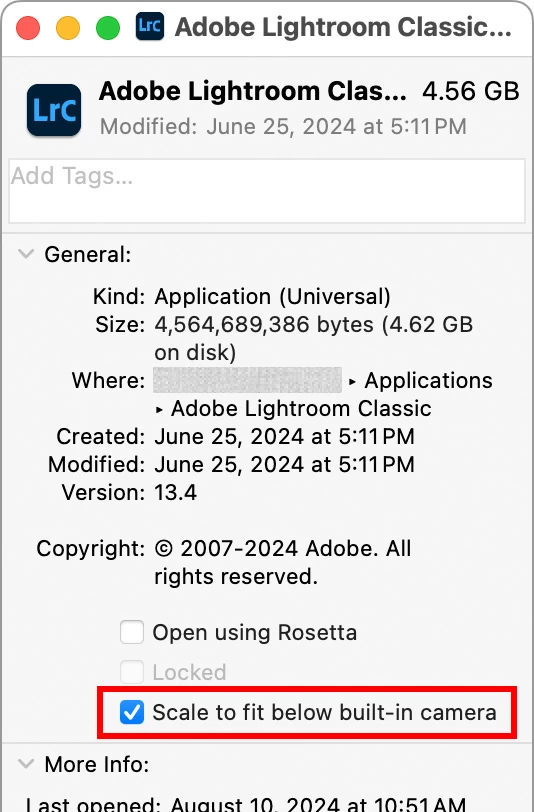


When the option is on, a Mac application will act like it always has on older Mac laptops: It will stay below the camera (notch), so you will always see all of the menu bar. When the option is off, a Mac application will extend up to use all of the screen area available on the M1 Pro/Max MacBook Pro, but then the notch must be visible.


If the option is enabled for Lightroom Classic, you can get the effects you’ve seen: The area appears to change as you go in and out of full screen/Lights Out, and the available screen area seems to shrink or grow as you switch among applications that have that option set differently.


If the option is disabled for Lightroom Classic, it will use as much screen area as it can, but that means you will see a notch when Lightroom Classic is full screen.


Try it both ways and decide whether you like using Lightroom Classic better with the option enabled or disabled.

2 replies

Ian Lyons
Community Expert
Community Expert
January 2, 2022

What you're seeing is normal for the 2021 14/16 inch MacBook Pros. The area either side of the notch can only be used by app or OS for menus.  However, Lightroom has an option that displays the app UI using all of the screen area below the menu/camera strip. This can be found under the Window > Screen Mode menu options as shown in below screenshot.


Participant
January 2, 2022

Oh cool! Thanks for that Ian! That worked (to an extent...). So when I first switched it using your recommendation, it looked great, I worked on some images, was excited, did the thing, but when I went to use the 'L' button (lights out mode) to dim the area around the image to check my progress, it reverted to just using the center part of the screen again, even on the left and right sides of the screen, and wouldn't go back to using the full screen again until I quit and relaunched LR. Here's screenshots of the progression from one mode to another and then back to filmstrip/develop mode. You'll see how the whole usable screen area shrunk from the top photo to the bottom photo with the lights out modes in between. I feel like there might be a bug or somethign with the lights out mode on the new screens. 


Cameron Braun
Known Participant
May 23, 2022

I'm not sure that we're on the same page.


LrC works perfectly fine with my MBP with notch.


The issue is that, while LrC is full screen and the LrC menu bar is correctly located next to the notch, if I press the letter "L" on my keyboard (which is supposed to simply "dim" the lights by making the LrC panels and background dim), then something happens to the entire UI.

I can only assume that it is a bug, becuase the second I press "L" then the LrC window changes sizes and the LrC menu bar relocates itself to be below notch instead of beside it.


Is this an issue with macOS or is it an issue with LrC?


How does pressing the letter "L" affect the way macOS handles apps that scale to fit below the notch? To be precise... i DONT wan't it to be scaled below the notch. I want it to behave just like it does before I press the letter "L". 


Do you own a MBP with notch? Could you test this for me to see if you see the same issue?


Yes, actually we are on the same page. For some reason Lightroom doesn't drop below the notch until you've manually put it in full screen mode, and then it stays below the notch until you quit and restart. If you uncheck the box in the Finder info window, it won't ever drop below the notch.

Participant
January 2, 2022

Happy New Year all! Curious, anyone else running into an issue where Lightroom isn't using all the screen real estate on the new 14" M1Max MacBook Pro? It's super weird, I'll be in any other program and everythign is fine, but when I select Lightroom it shrinks the part of the screen it uses and the 'digital bezel' around it increases. Pic attached showing difference from desktop to Lightroom. I've tried all screen options from default to scaled. Think I checked all options in Lightroom. Anywho...figured I'd give it a shot here and see if anyone else had that cosmic weirdness and if so, how you fixed it. 

Conrad_C
Community Expert
Conrad_CCommunity ExpertCorrect answer
Community Expert
January 2, 2022

@wasimofnazareth wrote:

I've tried all screen options from default to scaled. Think I checked all options in Lightroom.


For the MacBook Pros that have a “notch” for the camera in the middle of the menu bar, there is an option that macOS itself offers. This option is not specific to Lightroom Classic, you will find it available for almost any Mac app.


On the “notch” Macs, macOS now offers an option called “Scale to fit below built-in camera.” You will find this by switching to the Mac Finder desktop, selecting the application icon (not the folder), choosing File > Get Info, and changing the setting “Scale to fit below built-in camera.”


When the option is on, a Mac application will act like it always has on older Mac laptops: It will stay below the camera (notch), so you will always see all of the menu bar. When the option is off, a Mac application will extend up to use all of the screen area available on the M1 Pro/Max MacBook Pro, but then the notch must be visible.


If the option is enabled for Lightroom Classic, you can get the effects you’ve seen: The area appears to change as you go in and out of full screen/Lights Out, and the available screen area seems to shrink or grow as you switch among applications that have that option set differently.


If the option is disabled for Lightroom Classic, it will use as much screen area as it can, but that means you will see a notch when Lightroom Classic is full screen.


Try it both ways and decide whether you like using Lightroom Classic better with the option enabled or disabled.

Participant
January 3, 2022

Ahhhhh!! That's exactly what I was looking for. Thanks so much Conrad. It was already checked and once I unchecked it and relaunched LR, it now uses all the real estate. The notch really doesn't bother me, so this is perfect. I appreciate that. Didn't know that checkbox existed.