
Inspiring
August 14, 2020
Answered

LrC window maximized/ Thumbnails at bottom too small to see.

  • August 14, 2020
  • 3 replies
  • 2180 views

I've got two problems that happened unitentionally.


1. First is the LrC window is maximum size. How do I reduce the size of the wondow so it doesn't fill the whole screen size? I don't know how I ever got this to happen and I can't find any control to reduce window size. The standard bar at the top of Windows programs is no longer showing.


2. The row of thumbnail previews at the bottom of the window became so small its no use. I need to see the thumbnails at a reasonable size. Again something happened at some point when I moved the mouse somewhere. This setting got changed which I never intended and now I can't get back to make that row useable. Adobe should not make shortcuts that can get people into danger. Again I can't find a setting anywhere to increase the size of those thumbnails.
 

This topic has been closed for replies.
Correct answer Per Berntsen
  1.  You are in Full screen mode. Press Shift + F once or twice to get out of it.
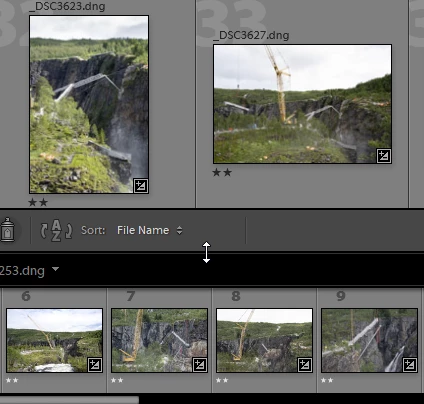
  2.  To resize the filmstrip, move the cursor above the filmstrip to where it changes to a double arrow.
    Then click and drag upwards.

3 replies

Per Berntsen
Community Expert
Community Expert
August 14, 2020

Window > Screen mode is where you find Full screen mode.

If you press Ctrl + / (Cmd + / on a Mac), you will see a list of shortcuts for the module that you're in.

This list is also available from the Help menu.


Lightroom is professional software built for power users, who prefer to use the keyboard rather than the mouse, and don't want to click on menus to get things done. So there are loads of shortcuts, even single key shortcuts, like G for Grid, D for Develop, T to show/hide toolbar, etc. This can be confusing for new users, who inadvertently press a key, and they have no idea what happened. So it's a good idea to learn at least some of the shortcuts, which will also speed up your work.


You can download a comprehensive list of keyboard shortcuts here:

https://www.lightroomqueen.com/keyboard-shortcuts/

Inspiring
August 14, 2020

Thank you Per. That fixed both issues. I see how I accidently resized the filmstrip and on my monitor there is very little space where you hit that magical resize option. I have no idea what I did make it full screen but this brings up one of my complaints, I don't memorize hundreds of short cut keys and I could find no wheres in the menu where you could this. It seems you either know the key shortcut or you are lost.

Per Berntsen
Community Expert
Per BerntsenCommunity ExpertCorrect answer
Community Expert
August 14, 2020
  1.  You are in Full screen mode. Press Shift + F once or twice to get out of it.
  2.  To resize the filmstrip, move the cursor above the filmstrip to where it changes to a double arrow.
    Then click and drag upwards.