
ItsMeBounce
Participant
November 20, 2022
Question

LRC won't detect any images on my computer

  • November 20, 2022
  • 3 replies
  • 888 views

I just started learnig LRC and i've grown incredibly frustrated with importing images from either an SD card or my SSD.


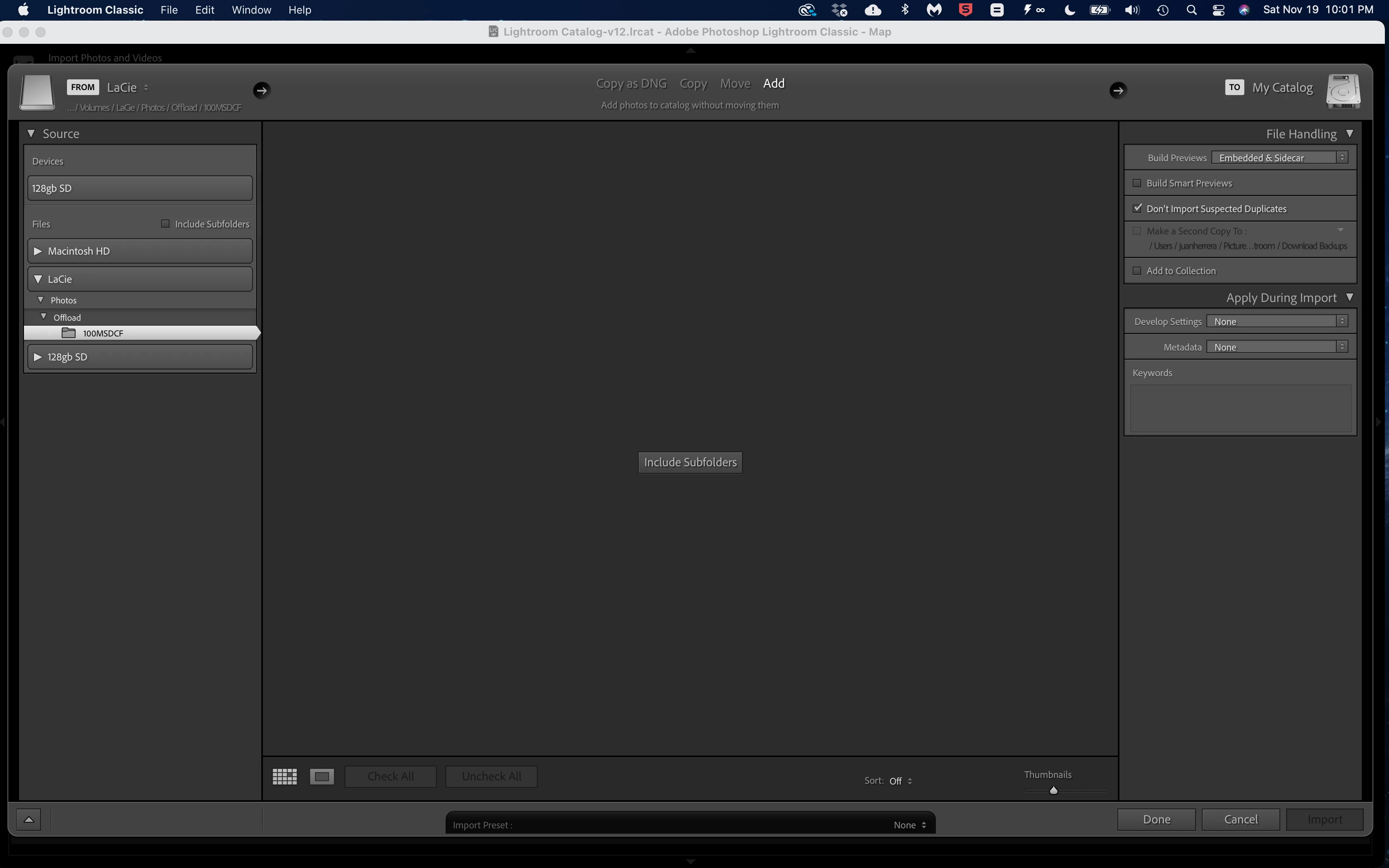
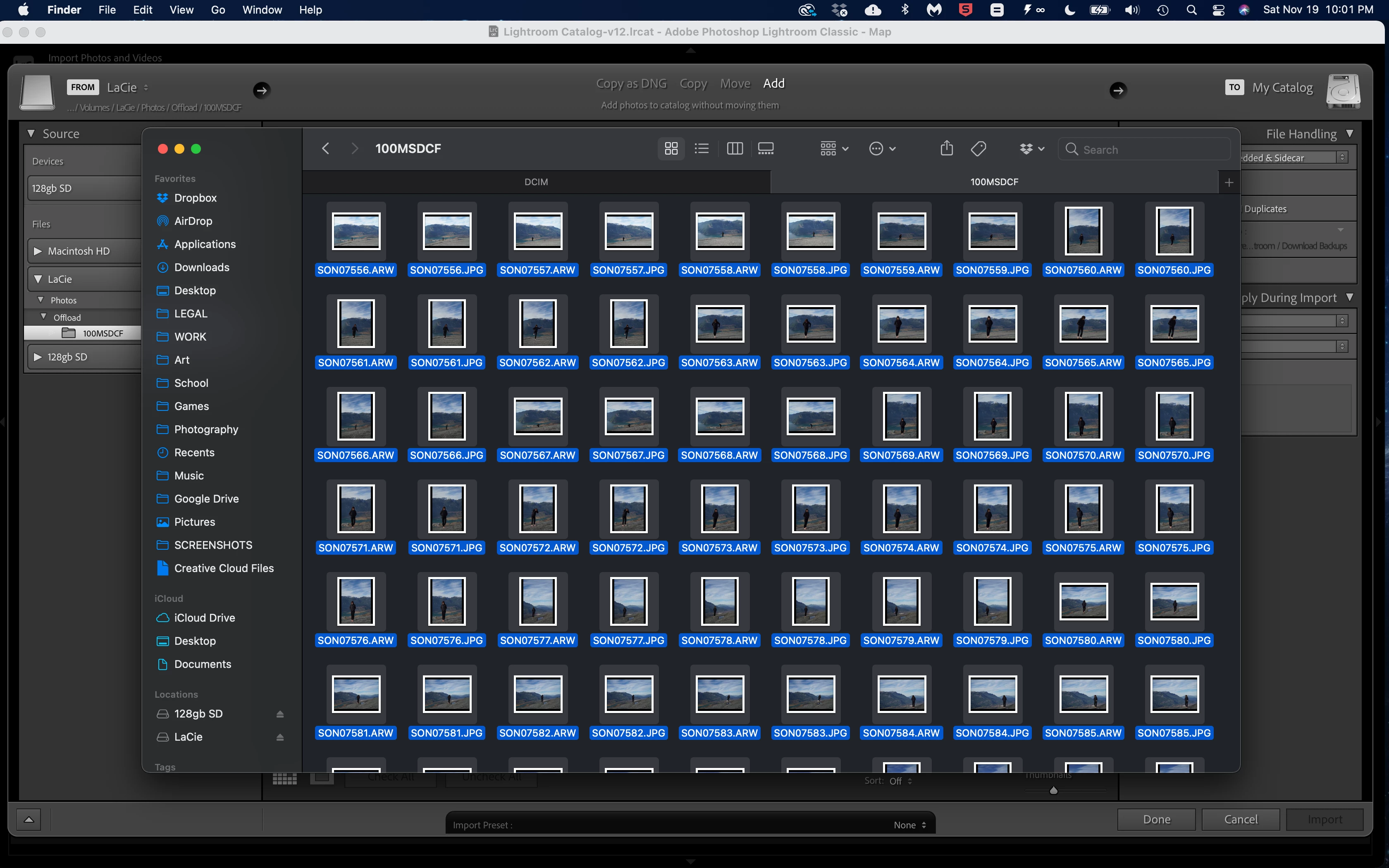
For some reason LRC won't detect any image when I try to import anymore,  it worked for the first 3 days but now suddenly it doesn't detect any image when I know there are at least 1000.


[moved from bugs to discussions - Mod.]

This topic has been closed for replies.

3 replies

GoldingD
Legend
November 20, 2022

In both screenshots it appears that the source is a SD card. And your import method is Add. LrC will not permit that. Adobe treats SD cards as media to not be trusted for long term storage. You need to copy the images on the SD card to a hard drive, internal or external to the computer. You can copy them before using LrC, then import the images on the hard drive via Add, or you can directly copy and import them in LrC via Copy, or Copy as DNG.


JohanElzenga
Community Expert
Community Expert
November 20, 2022

I noticed that too, but if you import from an SD card then 'ADD' will be dimmed. I think it's probably not yet dimmed because Lightroom could not find any photos, and this has nothing to do with the problem at hand.


-- Johan W. Elzenga
Sean McCormack
Community Expert
Community Expert
November 20, 2022

Did you click Include Subfolders? 

Sean McCormack. Author of 'Essential Development 3'. Magazine Writer. Former Official Fuji X-Photographer.
johnrellis
Legend
November 20, 2022

[This post contains formatting and embedded images that don't appear in email. View the post in your Web browser.]


"Did you click Include Subfolders?"


Good call. @ItsMeBounce, be sure to either check the option or click the button:


ItsMeBounce
Participant
November 20, 2022

Yes I have clicked inckude subfolders and still nothing unfortunately

JohanElzenga
Community Expert
Community Expert
November 20, 2022

Are you perhaps trying to import the same images? The option "Don't import suspected duplicates" is checked, so this would explain it. You should not try to import the same images twice, however. That is not how Lightroom works.


-- Johan W. Elzenga
ItsMeBounce
Participant
November 20, 2022

This was the first thing I tried when I ran into this issue.  After that I completeely wiped LRC of any images to try and import the photos that were already there, plus images hadn't put in.  It no longer detects any images anywhere. 

JohanElzenga
Community Expert
Community Expert
November 20, 2022

Did you do any updates (Lightroom or MacOS) that you did not tell us about? If so, check this (check it anyway): Apple changed the security requirements in MacOS Monterey and later. Go to MacOS 'System Settings - Security & Privacy' and add Lightroom Classic to "Full Disk Access". Click on the lock icon to unlock the settings, then click on the plus icon to add Lightroom Classic if it isn't already listed. If it is listed, then just enable the checkbox. See also Quick Tips: How to give Full Disk Access to Lightroom Classic on macOS


-- Johan W. Elzenga