Participant
April 18, 2020
Answered

Map Module In Lightroom Classic (New Install)

  • April 18, 2020
  • 2 replies
  • 687 views

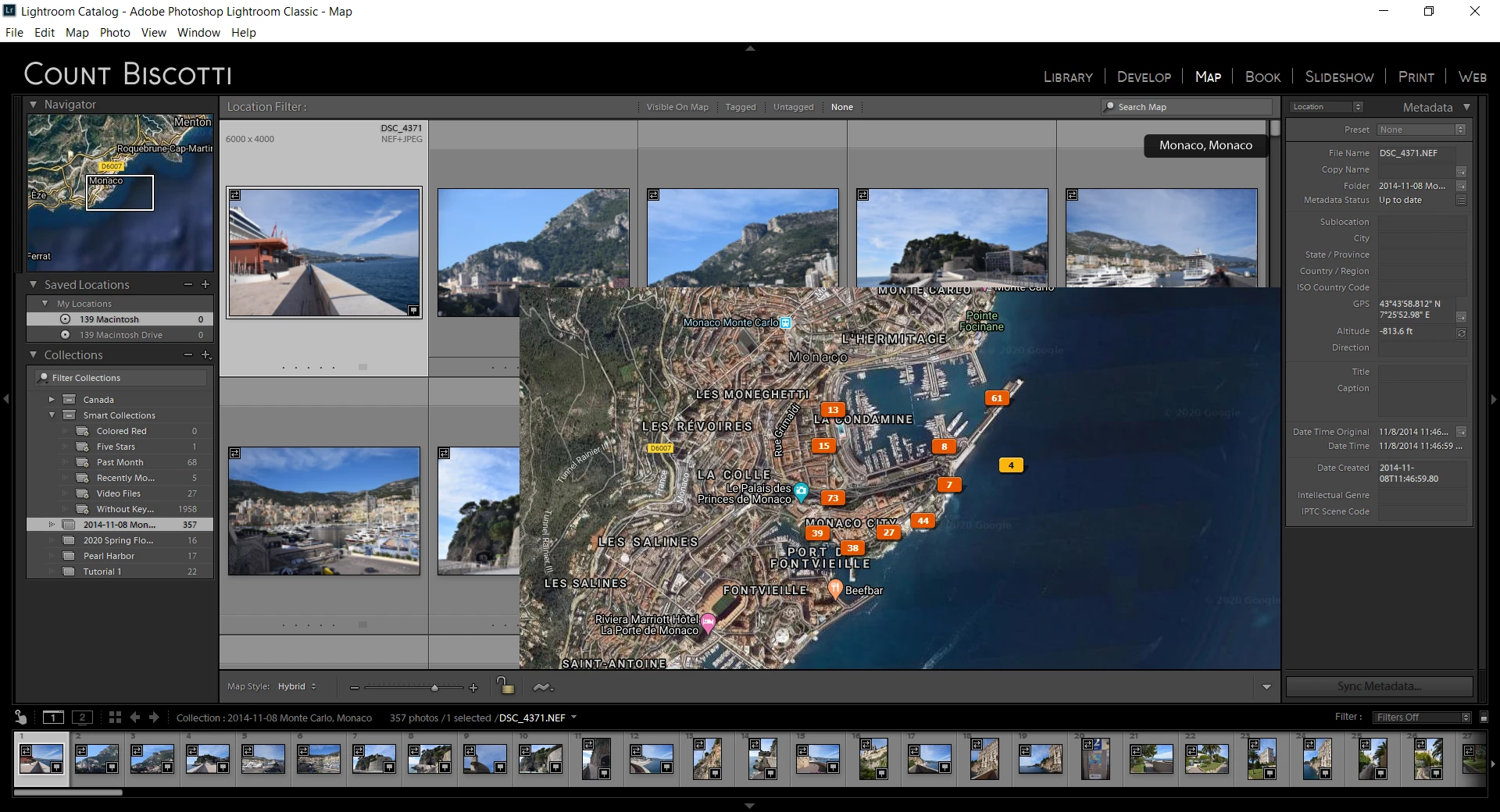
My Map Module comes up looking like this with a map in the bottom right. That doesn't look like the pictures in the book, and I can't select images around or under the map.  Any comments??

This topic has been closed for replies.
Correct answer Ian Lyons

Your  Lightroom preference file may be corrupt. Try resetting as described in Method 1 at https://helpx.adobe.com/lightroom-classic/help/setting-preferences-lightroom.html


If above doesn't resolve issue try disabling GPU acceleration in Performance tab of Lightroom Preferences.

2 replies

Participant
April 19, 2020

Actually, I jusy figured out what is going on here. I am using a laptop + a large second monitor. If I open the program, and it arrives on the second monitor screen in full screen mode, then the above is the result. If it arrives on the screen less than full screen (as a window on the screen), and I have to click the full screen icon to increase the size of the window to full screen, then all is well.

Participant
July 19, 2020

Thank you Daniel! This is correct and describes the Bug which is not fixed until two big update Versions now!

The problem is even bigger if you use a 4k screen of the laptop and a normal as primary.

Another part of this Bug is, that if you place the pics on one monitor an move LRC to the other monitor

the map is still there but the pictures have wrong places.


@Adobe when will this Bug be fixed? 


Ian Lyons
Community Expert
Ian LyonsCommunity ExpertCorrect answer
Community Expert
April 18, 2020

Your  Lightroom preference file may be corrupt. Try resetting as described in Method 1 at https://helpx.adobe.com/lightroom-classic/help/setting-preferences-lightroom.html


If above doesn't resolve issue try disabling GPU acceleration in Performance tab of Lightroom Preferences.

Participant
April 18, 2020

That's better!! Thank you!