
Missing Drive/Subfolders in Lightroom Import Menu?
Hi all! I've tried searching out the answer to this issue using multiple search queries but haven't been able to find this question previously asked/resolved. I did spot some issues that had been posted about regarding Mac computer permissions, and making sure to select "Copy" (as opposed to "Add") in the import dialogue, but neither seemed applicable here. However that said, apologies in advance if this has been asked before and I just was unable to come up with the magical question words to plug into Google. 
SYSTEM SPECS: I'm currently running Lightroom 6.10 on a Windows 7 computer with two internal drives: an SSD as the primary drive with the OS on it ("Local Disk (C:)") and an HDD where I store the bulk of my files, including my photos ("RUSS (B:)")
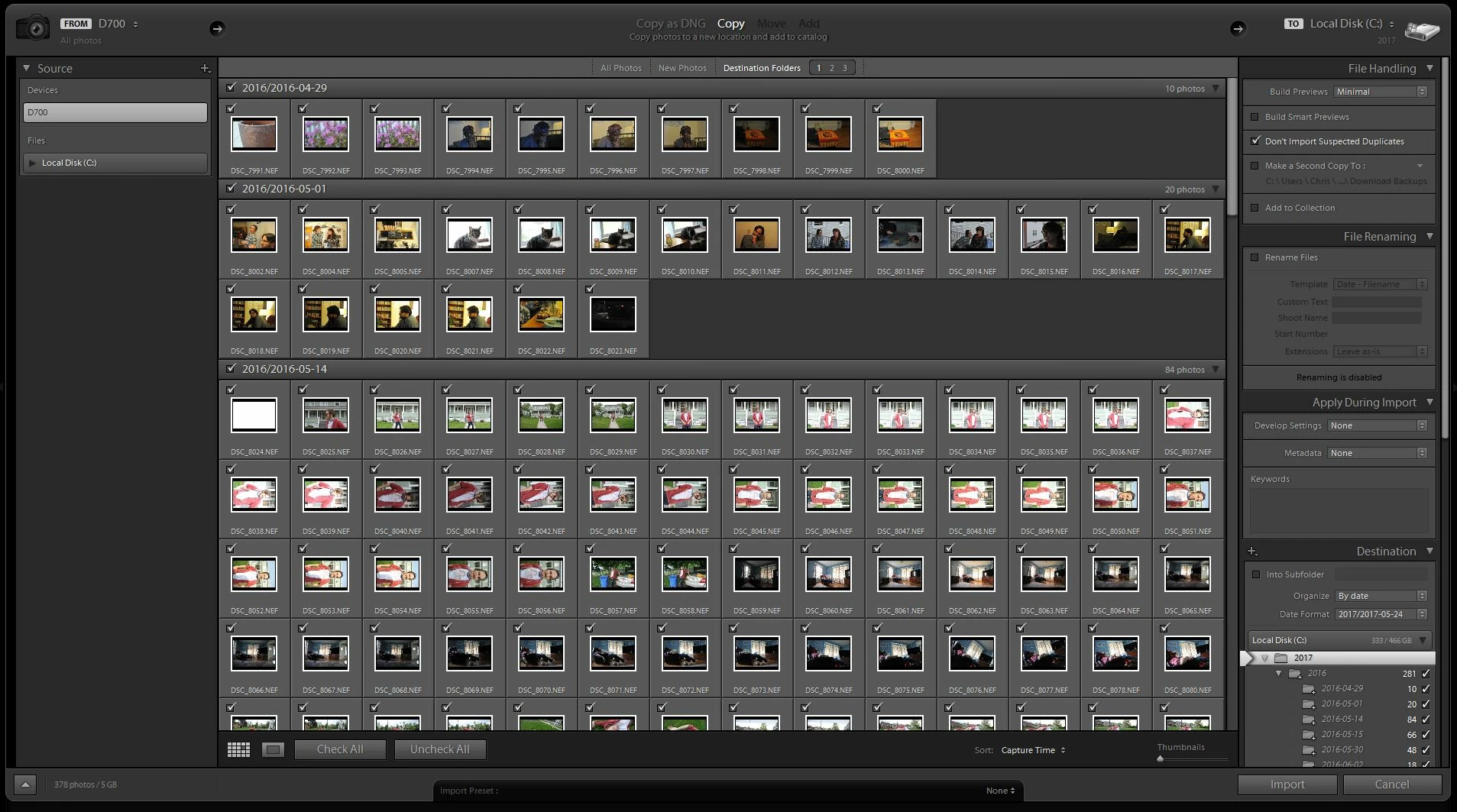
BACKGROUND: Historically when I've imported photos off of my camera/memory card my workflow has been to have the "Don't Import Suspected Duplicates" option checked, with the Destination panel set up to organize the imported photos by date and the date format set up as 2017/2017-05-24 (i.e. each year of photos has its own master folder, and then within that all photos are placed in their own daily folder with a "year-month-day" naming convention). Via this setup, Lightroom would automatically uncheck any duplicate photos before import, and then additionally I was able to rapidly uncheck further photos/folders based on the date, which was handy in cases where there were photos on the memory card that I had deleted in Lightroom between imports (and as a result Lightroom wouldn't identify as "duplicates"). Here is an example photo of what this would look like when correct as shown in the Destination sidebar (although please ignore the "2016" folder nested under the "2017" folder which was defo an unintentional mistake from when I was setting up this screenshot)
ISSUE: If you look at this next screenshot you can see where the issue is. At the top right of the import dialogue you can see my secondary drive (B:) has been chosen, however if you look down at the bottom right under the Destination panel, all that appears is the (C:) drive. When I execute the import Lightroom still goes about importing things correctly and all the photos I'd expect to be created are, however I am no longer able to see which folders will be created nor (as a result) can I toggle the photo selection by checking/unchecking boxes unless I'm doing it a bit more manually through the "Destination Folders" view that dominates the center of the screen in both screenshots.
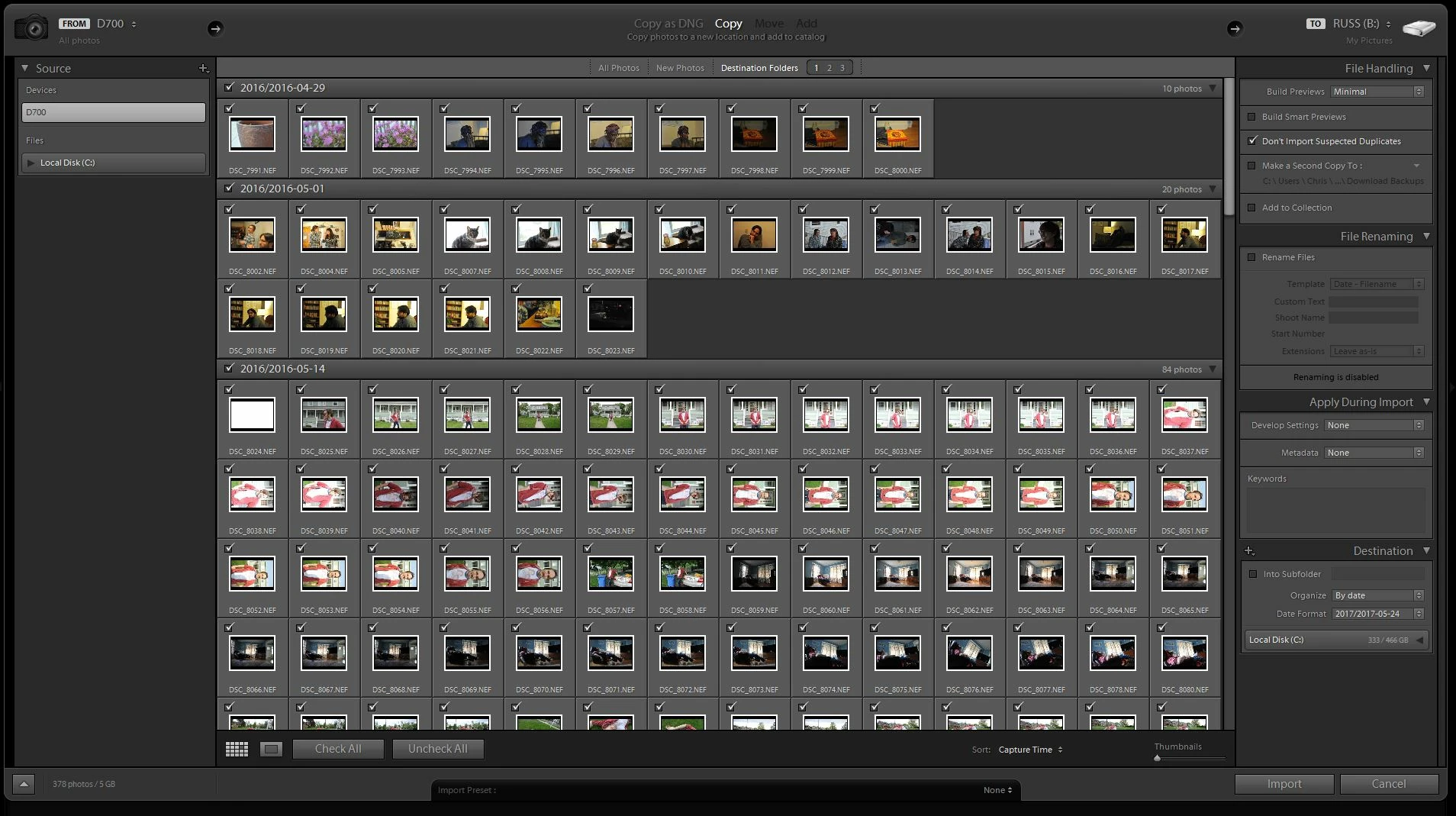
I'm not sure if it matters that previously I only used one hard drive (rather than the current setup of two), but I get the sense that this fix may be fairly straightforward I've just not been able to figure it out or track down a thread where someone has posted the same issue. I've tried clicking through the various options as well (such as adding in the (B:) drive via the "+" symbol dropdown but that doesn't seem to do it either (although I could be doing something wrong). Can anyone help?
 AdChoices