Participant
March 27, 2019
Answered

Moving a catalog and photos between computers

  • March 27, 2019
  • 2 replies
  • 462 views

I'm using standalone Lightroom 6.14 but there doesn't seem to be a forum for that. The situation is so complicated I can barely describe it. My old Macbook died, terminally, so I had to buy a new one. It's a model with a small SSD, so I also bought a new external disk as there was no way 500GB of photos would fit on the SSD. Getting the photos off the Time Machine backup of the old computer was a challenge, but I finally managed it. So now I have a folder called Pictures on the new external disk. Inside it is the structure I had in Lightroom on the old computer. I always import into a subfolder with the name of the place where I took the photos. So for example a folder for Paris would be Pictures/Paris. Inside Lightroom classifies the photos by date, with a folder for each year and day folders within that. So Paris/2019/2019-01-31 for example.

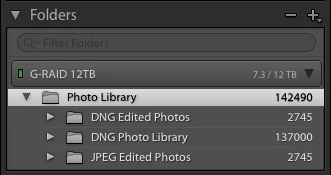
I also copied the catalog and understood that I would need to open the catalog and use Find Missing Folder to relink to the new location of the photos. When I open the catalog though, and look at folders in Library view, all the top level folders are absent -- even though I can see them in Finder -- and only the year folders show. So there are dozens of folders called 2014, 2015 etc. That makes it impossible to relink them because apart from there being hundreds of them to relink individually, I can't tell which place each belongs to. See screenshot below. Right clicking on Macintosh HD doesn't offer a Find Missing Folder option because it's not missing -- but the folders aren't on that disk, they are on the external drive. I can't just import the photos into a new catalog because I'll lose all the metadata and editing for thousands of photos. Help!!

This topic has been closed for replies.
Correct answer Ian Lyons

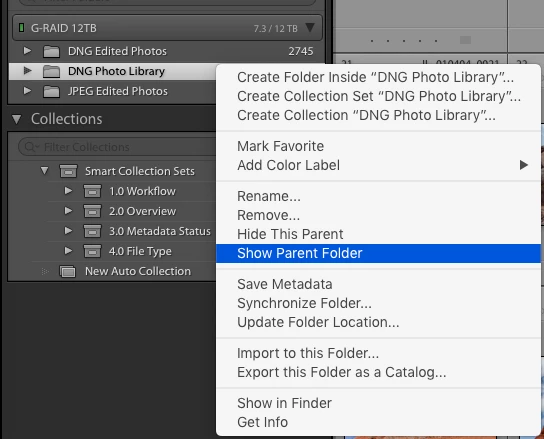
You should be able to expose the parent folder by right clicking on one of your '2013' folders then choosing 'Show Parent Folder' as shown in below below screenshots

2 replies

Ian Lyons
Community Expert
Ian LyonsCommunity ExpertCorrect answer
Community Expert
March 27, 2019

You should be able to expose the parent folder by right clicking on one of your '2013' folders then choosing 'Show Parent Folder' as shown in below below screenshots

veronicayAuthor
Participant
March 28, 2019

phew -- thanks! No idea why this worked the way it did ... the first year folder I clicked on, nothing happened, but I tried another and then many top-level (place) folders magically appeared. So I right clicked on each one and used "Find missing folder" to point to the matching folder on the external disk. Burt halfway through the alphabet, no further place folders were displayed in the folder pane for the internal hard disk. In the folder pane for the external disk, all the folders were there and also at the top of the list a bunch of apparently orphaned year folders, as in my earlier screenshot. I right-clicked on each of these, chose "Show parent folder", and they magically disappeared to reappear under their correct parent place folder.

So it took me a while, but ultimately it seems the catalog is as it should be, and the Folders panel makes sense (not that I ever use it normally). So thanks very much -- nearly 20,000 photos saved!

AxelMatt
Community Expert
Community Expert
March 27, 2019
My System: Intel i7-8700K - 64GB RAM - NVidia Geforce RTX 3060 - Windows 11 Pro 25H2 -- LR-Classic 15 - Photoshop 27 - Nik Collection 8 - PureRAW 5 - Topaz Photo
veronicayAuthor
Participant
March 28, 2019

Thanks, these are basically the steps I followed originally , but the articles you linked to provided more in-depth info about the missing file//folder problem.