
Known Participant
January 14, 2018
Answered

Moving child keyword out of parent list to make it a top level key word in Lightroom 6

  • January 14, 2018
  • 2 replies
  • 2779 views

Hello.. this is just what the question is asking... I have a large number of child keywords that have been inadvertently listed under a parent. I want to move them from being a child to be a top level but if I try to drag and drop them from out from below the parent, they can only go into another top level keyword and can't be a top level themselves... any ideas?... thaks...

    This topic has been closed for replies.
    Correct answer Rob_Cullen

    I agree- it is tricky getting the highlight to appear is the hard part.
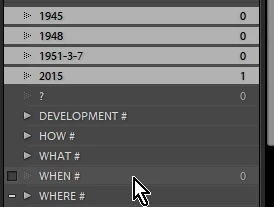
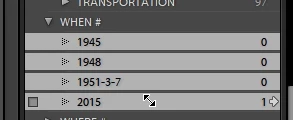
    Perhaps it is just your word description, but a "slot" does not open, or expand the keywords apart. It will only be the feint highlight to see that determines 'where' your keyword drops in the hierarchy.

    The number of photos with a Keyword assigned should have no bearing on the ability to re-arrange Keyword hierarchies.

    I can select multiple keywords (Hold [Ctrl] and click) and drag them to a 'top' level to appear as 'Parents'  (Numbers sort before letters)

    And then drag them back as 'Child' keywords under "WHEN#"

    2 replies

    Participating Frequently
    October 11, 2023

    I am very methodical so tried as many different ways to achive this with about 10% success rate. It appears that newly made (or edited) or made with a newer version of LR, keywords do not 'seem' to exhibit the dropping inbetween problem. Time is important so the quickest way to do this with older keywords is ...

    1) Rename the keyword (i.e. Sunset becomes Sunset1)

    2) Move keyword as suggested by the clever Rob Cullin (No entry icon should change to rectangle and when moving a narrow highlighted line should appear between parents, drop on to this line)

    3) Rename back to original (Sunset1 becomes Sunset)

    Not sure if this is a bug but as software develops often little hiccups get left behind.


    If for some reason this does not work (I only tested on a few devices), the following should be 100% ...

    1) Select (highlight) the original child keyword, rename slightly (i.e. add suffix 1 to end of name), then use the right arrow that now appears to show all keyworded images,

    2) CTRL + A to select all

    3) Create New Keyword Tag (+ icon left of Keyword List), then in pop-up, Keyword Name: add same name as original child keyword, then in the Creation Options section at the bottom ...

         3a) Ensure only Add to selected photos is ticked 

    4) Delete the old sub-keyword.

    Rob_Cullen
    Community Expert
    Community Expert
    January 14, 2018

    Dragging the Keyword to a new place needs superfine mouse movement to place it where you want.

    As you drag you will see the cursor change to a pointer with a rectangular box.

    The place to drop the keyword has to be highlighted- and that is the subtle detail- To place it to a top level you need to see a fine highlight line between other 'parent'  keywords, or at the top of the Keyword list (it will sort alphabetically).

    If a Keyword line is 'fully' highlighted, then you are placing it as a 'Child' under a 'Parent'.

    Regards. My System: Windows-11, Lightroom-Classic 15.1.1, Photoshop 27.3.1, ACR 18.1.1, Lightroom 9.0, Lr-iOS 10.4.0, Bridge 16.0.2 .
    Known Participant
    January 14, 2018

    Can you try to move a keyword that has say 300 photos in it and see if the slot opens and also try to grab about 20 keywords with maybe 100+ photos and see if the slot opens?.... those larger ones(and some of the smaller ones) are giving me a lot of trouble...

    Known Participant
    January 14, 2018

    David,

    Are you on Windows and do you have a very large number of keywords?  Windows LR has a long-standing bug that causes the Keyword List panel to go wonky when more than about 1500 keywords are being displayed in it (keywords in collapsed parent keywords don't count). 

    If this might apply to you, try completely collapsing all top-level keywords -- hold down Alt when you click on the triangle to the left of the keyword. Then as you incrementally expand the hierarchy to rearrange it, it's more likely that less than 1500 keywords will be displayed at any one time.


    I have about 1500 and most are top level... I've been moving my identified people into children under "people" keyword.... but again, not all the named people keywords can be moved from the child position and once I do have them all moved and close the de-expand the "people" keywords, they'll be less than 100 which is only going to keep me up a little below 1500. In the modern world, you wouldn't think that 1500 text keywords would be a problem!!