

Moving Lightroom Classic Catalog to New Drive
Lightroom Classic's catalog can be moved between drives and computers.
This week has seen the arrival of a new hard drive and so it is time to move the Lightroom Classic catalog to take account of the faster drive and larger capacity.
Sometimes, for any number of reasons, you might want to move the location of your Lightroom Classic catalog.
It could be because, like me, you are adding or changing hard drives or have run out of space; here is the simple method for moving catalogs in Lightroom Classic.
❶ First and without a doubt, the best place to start is by backing up your catalog.
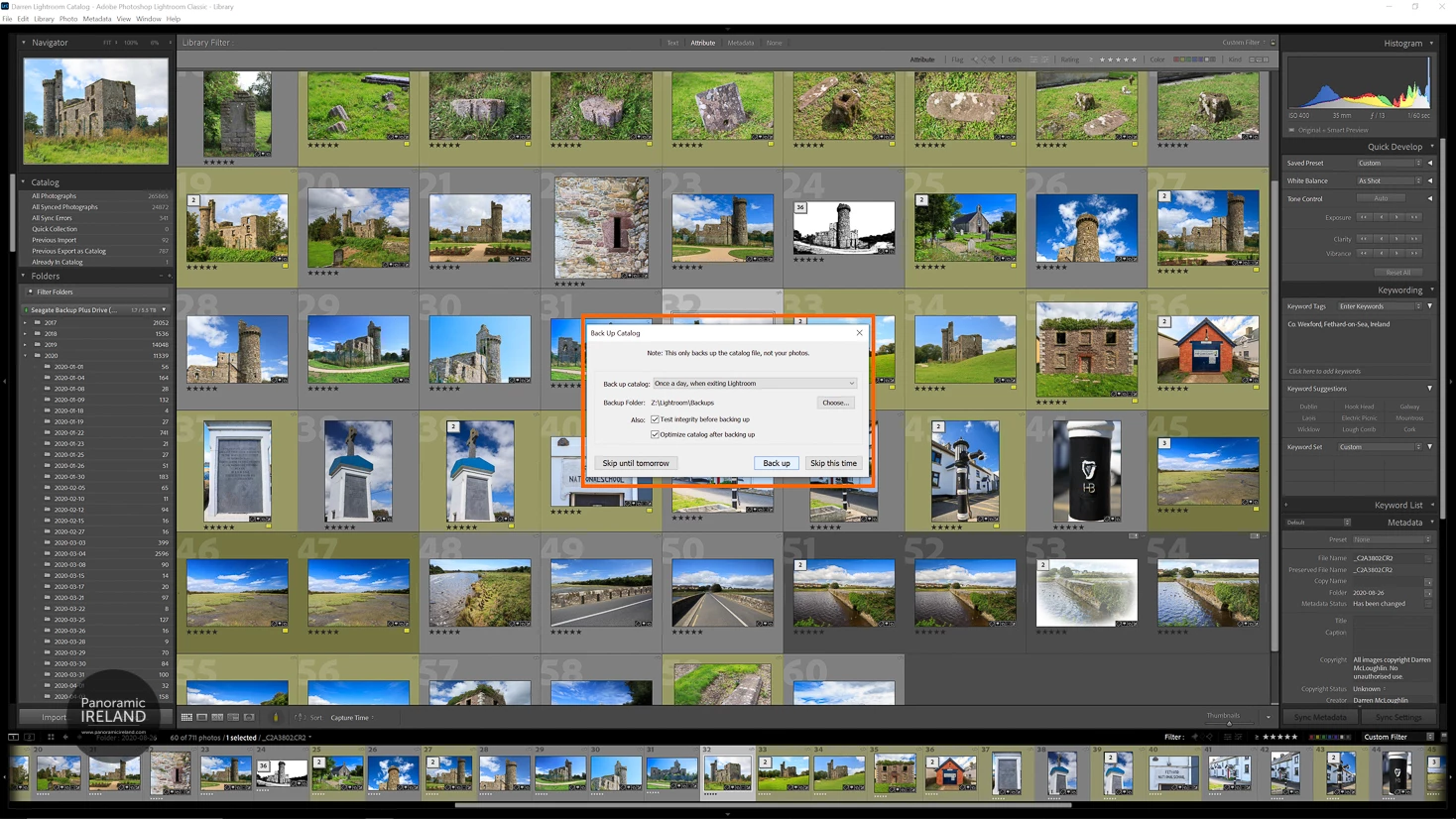
❷ Find your Lightroom Classic Catalog
- If you don't know where your Lightroom Classic catalog is stored go to Edit > Catalog Settings... then choose General. To the right of Location choose Show and it will open the folder containing the Lightroom folder.
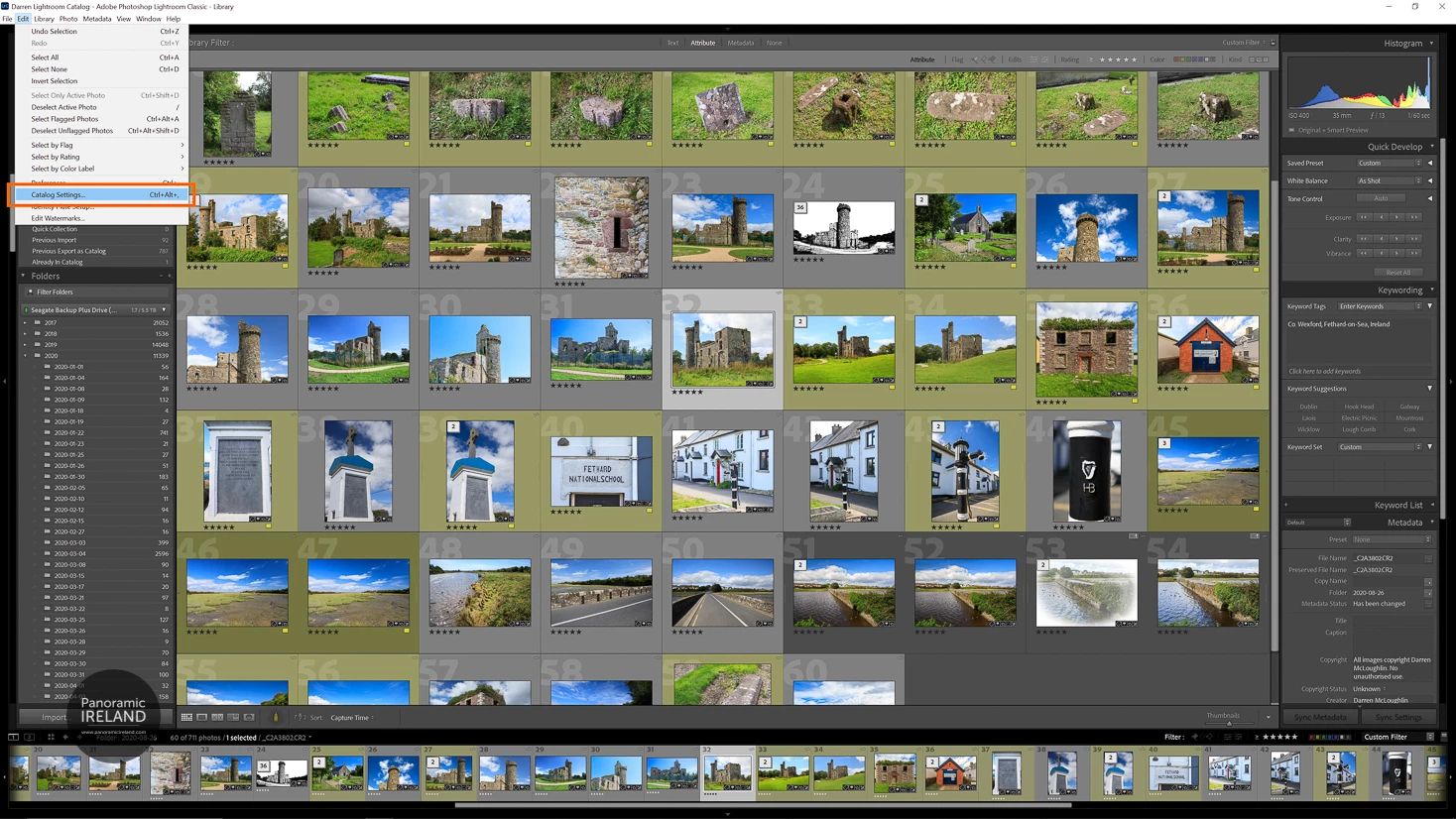
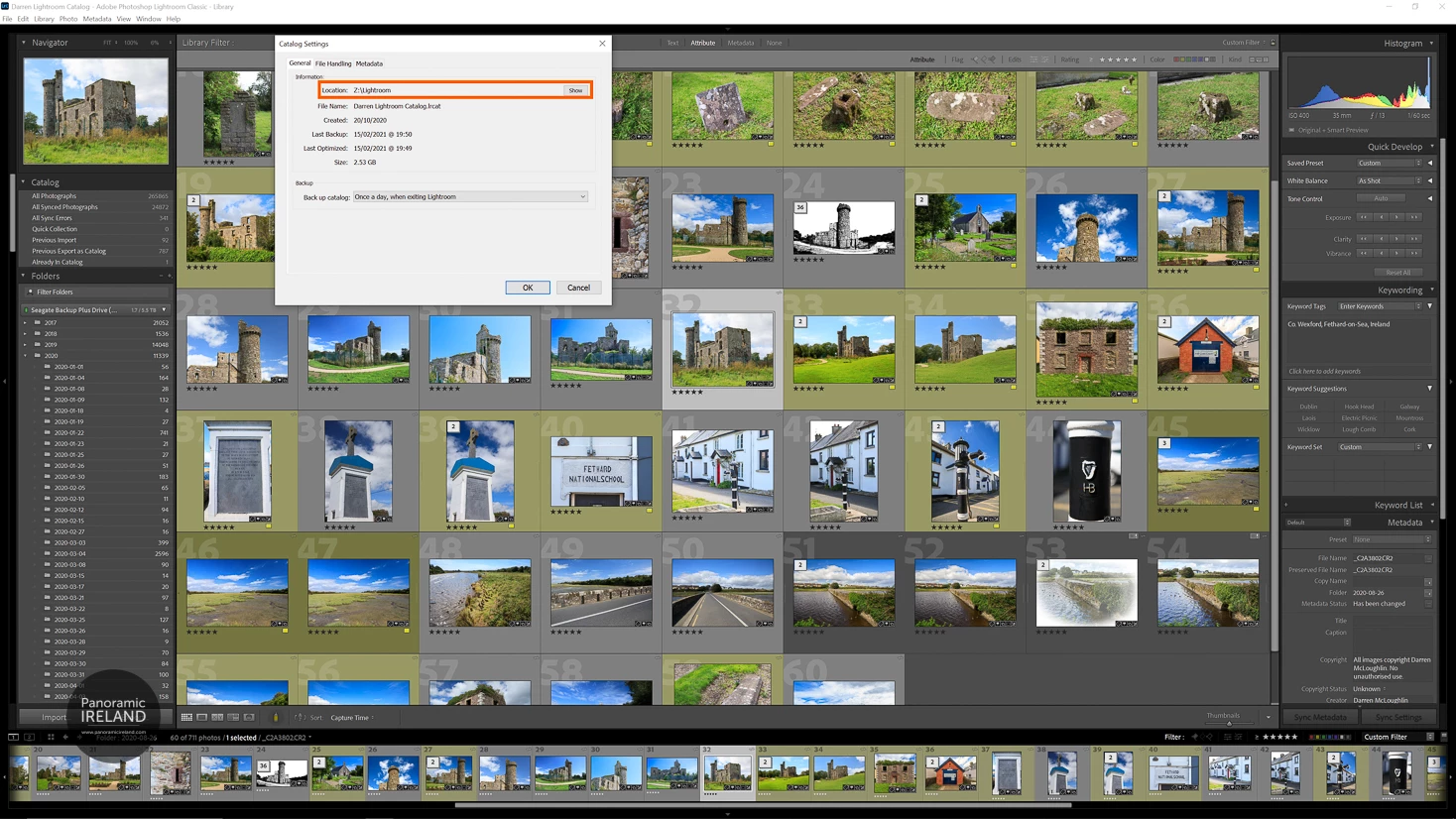
❸ Make sure to close Lightroom Classic.
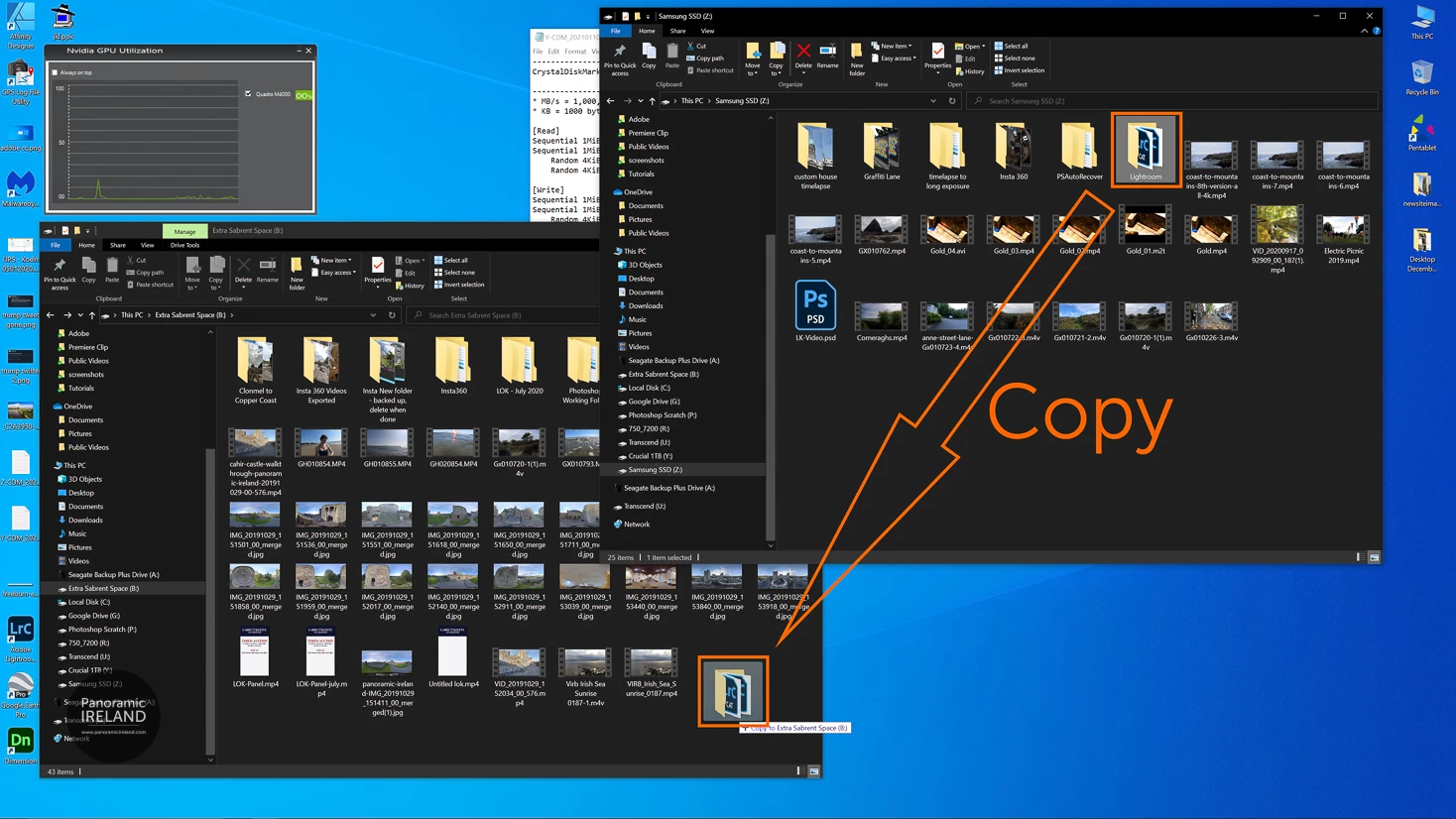
❹ Then, after making sure to backup duplicate the Lightroom folder.
- Copy the folder from the original location to the new location, here from my Z drive to B drive which has more space and is a faster drive. Both of these are internal drives.
❺ Open the new Lightroom Classic catalog
- Double click on your Lightroom Catalog.lrcat file in the new location, this will open Lightroom Classic and if everything has gone to plan all will look as you expect.
❻ Check that Lightroom Classic is using the correct catalog
- Go to Edit > Catalog Settings... and check that the catalog is pointing to the new location rather than the old.
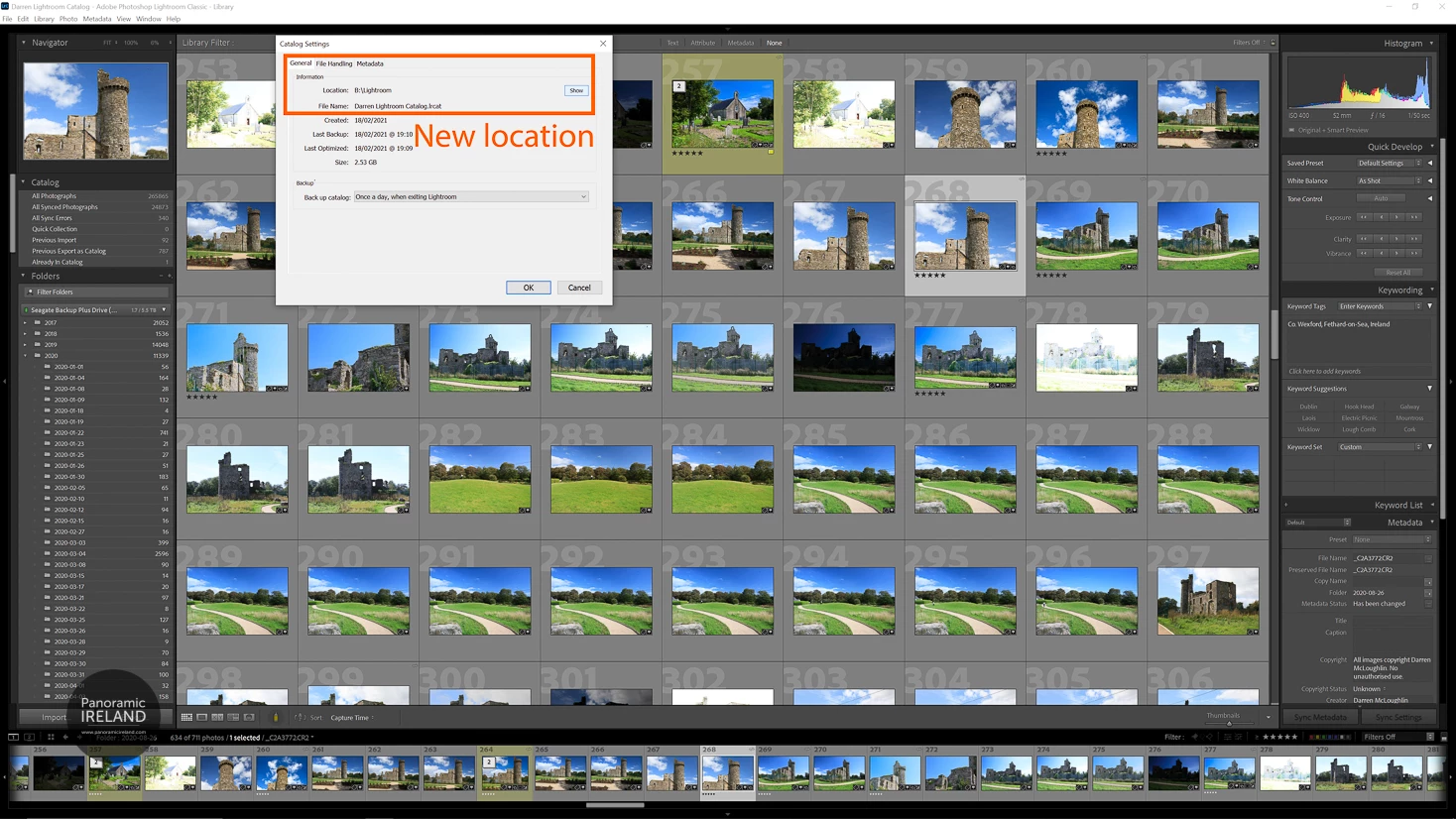
Spend some time using the new catalog before deciding to delete or archiving the original copy, I have some space so I will zip the original folder and store it for a while until I'm sure that the new catalog is working fine before finally deleting the zip also.
That's it, moving the Lightroom Classic catalog between hard drives is easy and can help to free up system resources and streamline your workflow.
 AdChoices