
Alex Petrenko
Known Participant
July 30, 2017
Answered

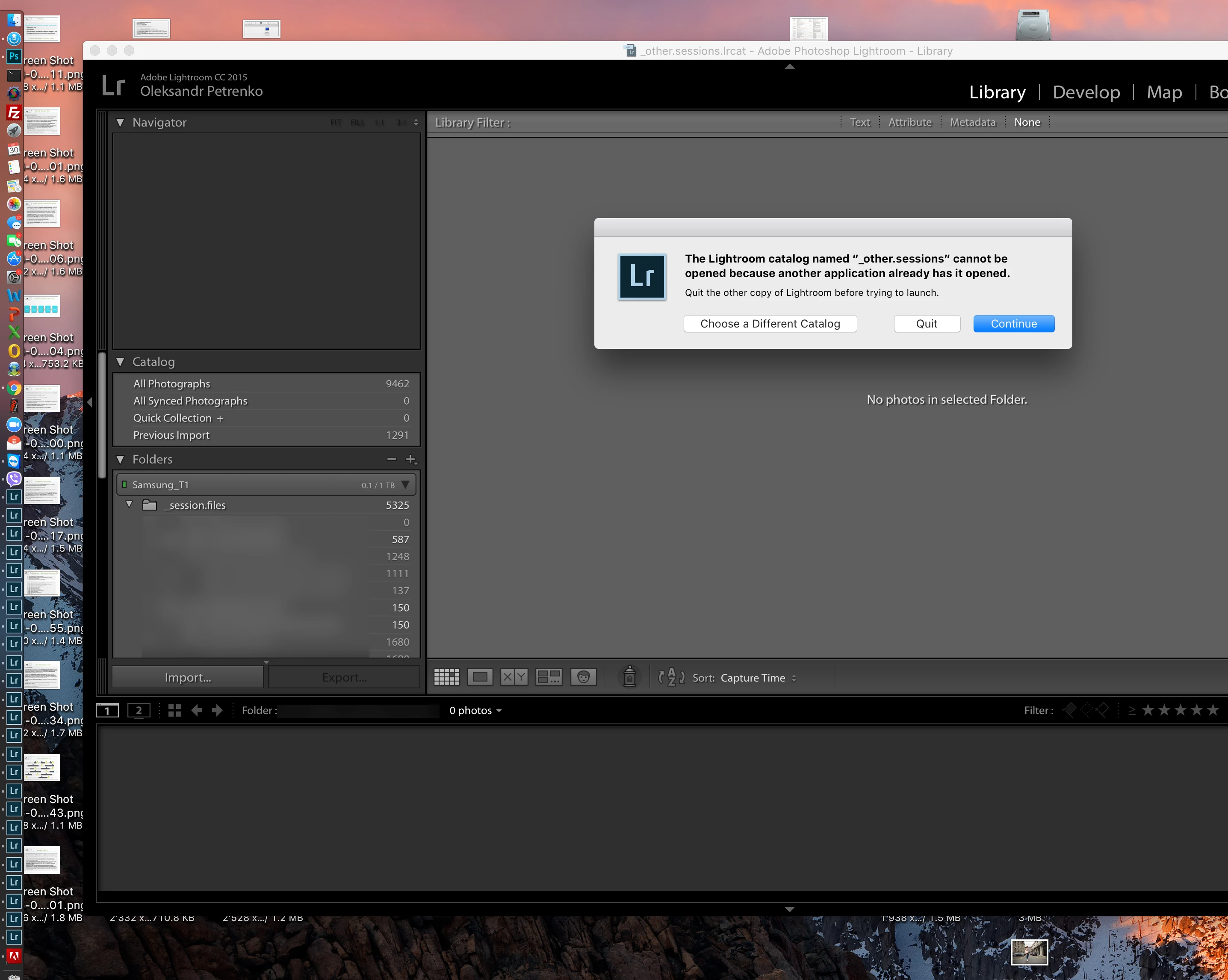
Multiple (and more and more) instances of LR start themselves

  • July 30, 2017
  • 3 replies
  • 12013 views

First of all thank you for absence of option to write to support for technical question. It is always pleasure for me to pay a subscription fee and realize there is no option to contact support. You made my move to C1 easier.

Back to the problem.

LR 2015.12. Right after update.

When I open LR after restart it tries to open new instances of the same catalog again. Again and again. And just can't stop.

It continues after reinstall.

In addition to that it says that my trial has expired and proposes to buy the software again. Last time activated - 19 juillet 2017
This topic has been closed for replies.
Correct answer Aashu_Bhargava

Hi  @

Alex Petrenko

Thank you for writing to us.

Its an activation issue in Mac machines.

If you have an active subscription & still you are getting trial error on your creative cloud & facing this multiple instance launch issue then,

please follow these steps:-

Sign out from creative cloud

Quit the application

Close all Adobe apps from activity monitor like:-

Adobe desktop services, CC library, core sync, creative cloud.

Now download Adobe application manager from this link & install

http://supportdownloads.adobe.com/thankyou.jsp?ftpID=4774&fileID=4438

Now launch Lightroom & license it if ask.

Then close lightroom.

Open Creative cloud app & sign in & open Lightroom from there

Your issue will be fixed.

Please try above mentioned steps & let us know if that fixes your issue.

For more support you can call us at 1800-585-6687, or you can write us at photosup@adobe.com

3 replies

Chadwick110
Participant
August 15, 2018

I've had the same problem for the past couple of days. Tried all the solutions above but they didn't work. Then I found this on the Creative Cloud forum, and (fingers crossed) it's fixed it. Not all the steps may be necessary; someone commented they did just steps 1-3 and 10 and it worked.

1. Open Finder

2. Go to /Library/Application Support/Adobe

3. Delete the SLCache and SLStore folders (and delete SLStore_v1 if that's there too).

4. Right-click on the Adobe folder that you were just in, and click Get Info.

5. Click the lock and enter the admin name+password.

6. Add your active user account by clicking the + button and clicking Select.

7. Give Read & Write permissions to everyone listed at the bottom of the window.

8. IMPORTANT: Click the gear button at the bottom of the window and click Apply to Enclosed Items.

9. Click the lock to lock the folder once more.

10. Open any CC application; this should work now! (After maybe one "Sign-In Required," that is, but it shouldn't pop up more than once!)

Original post here: Re: "Sign in Required" Loop

Aashu_Bhargava
Adobe Employee
Adobe Employee
August 16, 2018

Thanks Chadwick110 for Adding that step as well.

S. Blake
Participant
January 3, 2018

In the event that your fix doesn't work for me, what should I try next? I have the exact same problem Lightroom Classic MacOS Sierra on a Macbook air. Thanks!

Aashu_Bhargava
Adobe Employee
Adobe Employee
February 27, 2018

Hi

Please provide your contact details & time so that I can arrange a callback for you from my team

They will assist you.

Regards-

Ashutosh Bhargava | Product Support Consultant (Photography) | Customer Experience| Adobe Systems| photosup@adobe.com

jebergmann
Participant
February 27, 2018

Good to know that there might be a solution. Ashutosh, could you post the steps here so that I can resolve it myself? I also see that there are multiple threads in the forum with the same issue, so I think it would be very useful if we could fix it ourselves.

Also, not everyone might be comfortable with letting others into their computer... 

Aashu_Bhargava
Adobe Employee
Aashu_BhargavaCorrect answer
Adobe Employee
July 31, 2017

Hi  @

Alex Petrenko

Thank you for writing to us.

Its an activation issue in Mac machines.

If you have an active subscription & still you are getting trial error on your creative cloud & facing this multiple instance launch issue then,

please follow these steps:-

Sign out from creative cloud

Quit the application

Close all Adobe apps from activity monitor like:-

Adobe desktop services, CC library, core sync, creative cloud.

Now download Adobe application manager from this link & install

http://supportdownloads.adobe.com/thankyou.jsp?ftpID=4774&fileID=4438

Now launch Lightroom & license it if ask.

Then close lightroom.

Open Creative cloud app & sign in & open Lightroom from there

Your issue will be fixed.

Please try above mentioned steps & let us know if that fixes your issue.

For more support you can call us at 1800-585-6687, or you can write us at photosup@adobe.com

S. Blake
Participant
January 16, 2018

Also note the phone number in the solution doesn't take the caller to Adobe support.

S. Blake
Participant
February 26, 2018

I´m having the exact same issue. I´ve been using the LR for years and now I haven't been able to use it for months. I've reinstalled all Adobe software including LR and Application Manager without any luck. Considering cancelling my subscription if there´s no solution. Not being able to access and edit my 70k pictures is a bit frustrating...


Adobe support was able to fix my problem (see above post). There are a number of folders that had the wrong permissions. They have an app to take control of your computer (while you watch and with your permission) and change the folder permissions to make the application work. The answer for how the permissions got changed was a classic baloney answer (MacOS updates cased it) but I didn't care to press the technician for proof. It happens infrequently enough it's unlikely it's MacOS updates. Anyhow submit a ticket by calling them and they fixed it. Back to photo editing bliss.