Participant
July 20, 2024
Answered

Multiple Photos in Book Mode Lightroom Classic

  • July 20, 2024
  • 1 reply
  • 507 views

Hi!
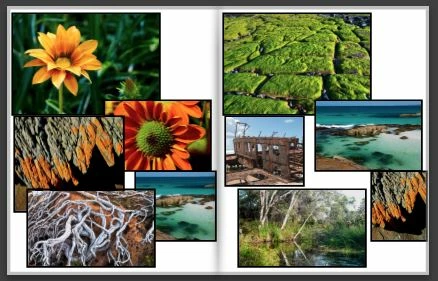
I want to insert a page with multiple photos (18 photos) in the book mode of the latest version of Lightroom Classic but ther's no option to do it. There are only few preset that have less or more cells than needed. 
If i try to select all photos and drag-n-drop in the page ther's no allinement layout and i have to drag those manually.
Please help.
This topic has been closed for replies.
Correct answer Rob_Cullen

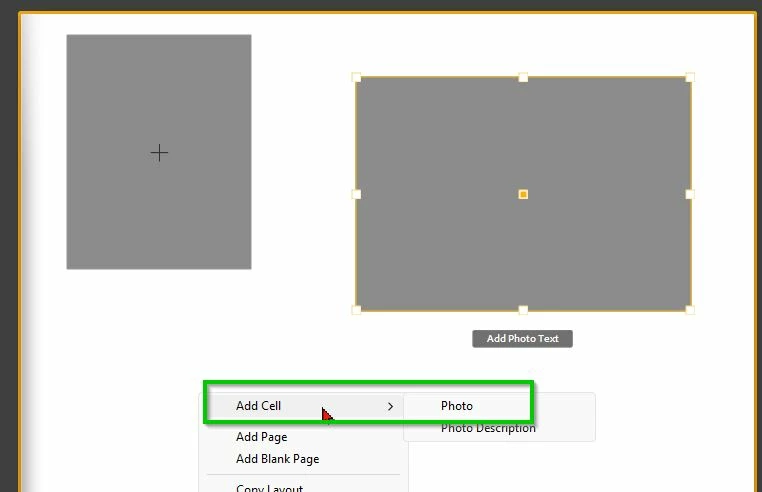
1) You can manually add as many Photo Cells as you want on a page.  [Right-Click] > Add Cell > Photo


2) You can move photo cells by holding cursor on the central spot of a selected cell.

3) You can resize, change aspect ratio of cells by holding cursor on the peripheral spots (Handles) of a cell.

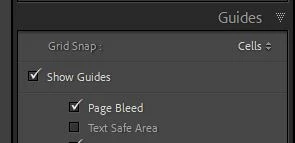
4) You can help cells to align by turning 'on' GRID SNAP

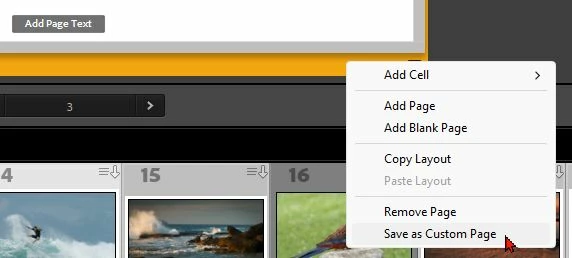
5) Once you page is designed as wanted- Save it as a Custom Page Template  ([Right-Click] on the yellow background of a selected page)

6) You can 'Stroke' all photo cells [Ctrl+Shift+Alt+A] and set the Stroke options (pixels & Colour).


1 reply

Rob_Cullen
Community Expert
Rob_CullenCommunity ExpertCorrect answer
Community Expert
July 21, 2024

1) You can manually add as many Photo Cells as you want on a page.  [Right-Click] > Add Cell > Photo


2) You can move photo cells by holding cursor on the central spot of a selected cell.

3) You can resize, change aspect ratio of cells by holding cursor on the peripheral spots (Handles) of a cell.

4) You can help cells to align by turning 'on' GRID SNAP

5) Once you page is designed as wanted- Save it as a Custom Page Template  ([Right-Click] on the yellow background of a selected page)

6) You can 'Stroke' all photo cells [Ctrl+Shift+Alt+A] and set the Stroke options (pixels & Colour).


Regards. My System: Windows-11, Lightroom-Classic 15.1.1, Photoshop 27.3.1, ACR 18.1.1, Lightroom 9.0, Lr-iOS 10.4.0, Bridge 16.0.2 .
Lucam_Author
Participant
July 21, 2024

Ok, thanks!

I think Adobe should add a function that allows you to select photos and then chose the ammount of columns and rows.
I'll create a preset as you tould me. Thanks again!

Rob_Cullen
Community Expert
Community Expert
July 22, 2024

"allows you to select photos and then chose the ammount of columns and rows"

If you are after book pages that look like a perfectly aligned Contact Sheet then I can suggest a work-around,  and that is to create your 'pages' of photos in the PRINT Module where you can-

1) Use a Layout Style for Contact Sheet with Columns and Rows

2) Set the [Print Job] to JPG

3) [Print to File] to 'save' the Contact sheet pages as JPGs

4) Import and Insert these JPGs into the book module as one Single Full-Page Photo cell.

Use an Auto-Layout with 'Single Page- one photo' and you can easily fill your multiple JPGs into a new book.

EDIT: A suggestion I forgot in my previous post was-  If you add  multiple Photo Cells to a page in the book they would normally be added at a constant size-  That 'size' can be adjusted the same for all the cells if you Select the multiple cells [Ctrl+Shift+Alt+A] -  Adjust one cell and they all change in unison!


Regards. My System: Windows-11, Lightroom-Classic 15.1.1, Photoshop 27.3.1, ACR 18.1.1, Lightroom 9.0, Lr-iOS 10.4.0, Bridge 16.0.2 .