

jimfenton
Participating Frequently
April 7, 2024
Answered

Only flagged photos selectable in Slideshow

  • April 7, 2024
  • 3 replies
  • 2527 views

I was hastily putting together a slideshow in Lightroom Classic for a family gathering, and wanted the slideshow to include only the flagged (picked) photos. Unfortunately, I didn't see the Filter feature in the lower right corner of slideshow, but I found something else that seemed to have the desired effect. The filmstrip at the bottom shows all the pictures in the collection, but the non-flagged ones are dark grey and can't be selected.


Bur I can't remember what I did to get this and don't know how to clear it so that all photos are selectable in Slideshow. I have tried reproducing what I did with a different collection without success, and I can't find this mentioned in the documentation anywhere. Does anyone know what I did and how to clear it?
This topic has been closed for replies.
Correct answer richardplondon

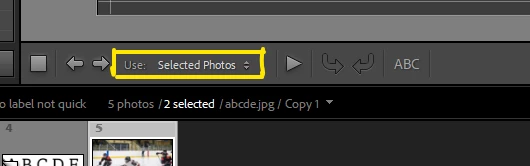
Press T to activate the Toolbar (just above Filmstrip). On there is a "Use:" dropdown menu which can be set to include All images currently showing in the Filmstrip / only those Selected / only those Flagged.


If set to "Selected Photos", as you select or deselect photos they brighten or dim (denoting IN or OUT of the slideshow).


You can see the number of slides react too, at the right hand end of this same Toolbar.


When set to  "Flagged Photos", it is this that puts each image IN or OUT of the slideshow. The thumbnail shows bright or dim accordingly. The Slideshow module is now paying no attention to its selected / unselected status.

3 replies

richardplondonCommunity ExpertCorrect answer
Community Expert
April 17, 2024

Press T to activate the Toolbar (just above Filmstrip). On there is a "Use:" dropdown menu which can be set to include All images currently showing in the Filmstrip / only those Selected / only those Flagged.


If set to "Selected Photos", as you select or deselect photos they brighten or dim (denoting IN or OUT of the slideshow).


You can see the number of slides react too, at the right hand end of this same Toolbar.


When set to  "Flagged Photos", it is this that puts each image IN or OUT of the slideshow. The thumbnail shows bright or dim accordingly. The Slideshow module is now paying no attention to its selected / unselected status.

Rob_Cullen
Community Expert
Community Expert
April 17, 2024

@richardplondon  You hit the correct answer!  I had been playing around with the Filter options on the Filmstrip and never thinking about the "Use:  " options in the Tool bar.  Just as you say- if you choose "Flagged" the unflagged photos on the filmstrip fade totally (Borders and image).

Thanks.


Regards. My System: Windows-11, Lightroom-Classic 15.1.1, Photoshop 27.3.1, ACR 18.1.1, Lightroom 9.0, Lr-iOS 10.4.0, Bridge 16.0.2 .
Rob_Cullen
Community Expert
Community Expert
April 17, 2024

Very weird.! I have not seen, neither can I re-produce, what you are seeing.

You have the Filter set to 'off' so all images (any Flag status) should be showing in the filmstrip. None are 'Missing' (that I can see.)

Photos set with the 'Rejected' flag should still show the thumbnail border as normal with only the image thumbnail dimmed, Not everything almost totally black as you are seeing.

I can only guess at suggestions without answers.

Do the image thumbnails show totally 'black' if you go direct to Library Grid View? (Press [G] while in the SS module.)

You might just Delete that 'Saved Slideshow' from the Collection Panel and try again. Try another SS template.

Reset the Catalog Preferences  PREFERENCES RESET (Lr Queen) 

Reset the Previews Cache (may take considerable time for previews to re-build!) PREVIEW CACHE ERRORS 

Un-install and Re-Install LrC from the Desktop App.

Let us know if you find a solution.

EDIT: and forgot this one- Try disabling GPU in preferences.


Regards. My System: Windows-11, Lightroom-Classic 15.1.1, Photoshop 27.3.1, ACR 18.1.1, Lightroom 9.0, Lr-iOS 10.4.0, Bridge 16.0.2 .
Rob_Cullen
Community Expert
Community Expert
April 9, 2024

By "Dark Grey" are you referring to the border around images, or are the filmstrip thumbnail images greyed out?

Greyed out images usually suggests they have been flagged with the 'Reject' flag [X].

Dark Grey Borders may indicate- Stacked images or Virtual Copies.

IME If I set the lower-right options to "Filter Off" I can use all images on the filmstrip regardless of flag status.

With the errant SS Collection in view -Post a screen-clip of your full screen including the FilmStrip- It might give some clues.


Regards. My System: Windows-11, Lightroom-Classic 15.1.1, Photoshop 27.3.1, ACR 18.1.1, Lightroom 9.0, Lr-iOS 10.4.0, Bridge 16.0.2 .
jimfenton
jimfentonAuthor
Participating Frequently
April 17, 2024

THanks for your reply, Rob. I have attached a screenshot. As you can see, I have filters off, but it's acting as though the other pictures were rejected, but (as I can see when selecting the Library), they aren't rejected.