


Participant
June 16, 2025
Answered

P: How do I batch edit Denoise (June Update) (LrC 14.4 & LrD 8.4)

  • June 16, 2025
  • 49 replies
  • 52454 views

Lightroom Classic versjon: 14.4 
Operativsystem: Mac OS 15


As of this new version I am not able to denoise a batch of photos, only individual ones. Can't find any guidance as to how this can be fixed. Hope you can help me, thanks.

Correct answer Ian Lyons

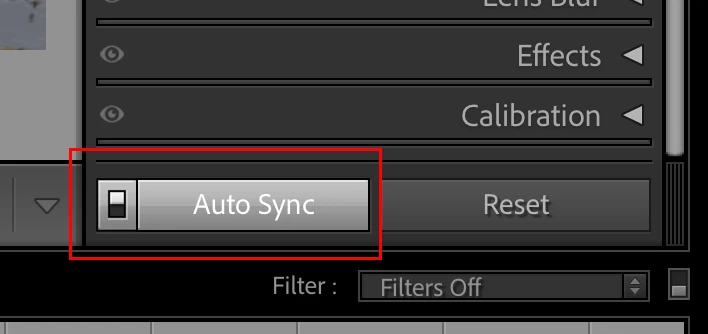
Select the images to be Denoised, enable Auto Sync, then click on the Denoise checkbox. You can use the slider below the Denoise checkbox to fine tune the amount of noise reduction applied to all or individual images in real time.


49 replies

Participant
February 6, 2026

In LrC 15.1.1, I do the following:

  1. Select a raw photo in Grid View that has not had denoising applied
  2. Hit Cmd-A to select all photos currently in Grid View (with some filtering applied via flags and/or keywords)
  3. Switch to Develop Module, then check the Denoise box under Details
  4. LrC works to denoise the most selected photo, then STOPS.
  5. In previous versions of LrC, after denoising the first file, it would then work to denoise all of the selected files and show a 2nd progress dialog with a time-to-complete estimate. It no longer does this.

So is batch denoising broken? Has the process for batch denoising changed? Given the time denoising takes, not being able to batch this is a real problem.

dj_paige
Legend
February 6, 2026

It’s not broken, you can batch denoise, but it works differently. See 


Richie Vitale
Participant
October 26, 2025

Lightroom Version Number

14.3.1

Operating System

macOS 26 Tahoe

Hello there,


I'm new here so don't know if I'm posting in the right area or even the correct forum...so excuse me if that is so.  This may also be my 2nd post about this subject as there is the new upgrade.


I'm still using LR Classic 14.3.1 because it has "bulk denoise" processing. So i could be "denoising" 40 RAW files or so and step out for coffee PLUS the Removal Tool had 3 choices to pick from. I thought this was the very best improvement Lightroom could have made!!!


To my horror the next upgrade dropped these two things and my work flow was so slow I switched back to vs 14.3.1.


Let me know if Lightroom Classic 14.5 has returned the ability to bulk denoise as seen in the first attachment?


Forever grateful, Riqiv

Community Expert
October 26, 2025

I'm using 14.5.1.    I selected three images in the Grid View.  With them selected I opened the Develop module and check the Denoise box.   After processing the first image, it then processed the next two.   There are probably other ways to do it.

Participant
October 12, 2025

The new denoise is having issues I never had with the old one. I could denoise 500 photos no issue previously, I now can only batch denoise around 100 at a time or lightroom totally freezes and won't load the paste-settings. It is really frustrating as a large-event photographer to have to babysit LR so much during a passive process where I cannot do anything else in app. I tried updating drivers, restarting my computer. everything I could think of 

Participating Frequently
October 10, 2025
Mods - please remove this reply. It is a phishing link.
Participant
October 3, 2025

comment réduire le bruit d'une photo dans l'lightroommerci d'avance


Participant
September 26, 2025

I used to have the option so select multiple pictures and right click on 'improve/enhace'. I used this for adding noise reduction to all my pictures at once. Now it takes me much longer to edit, since I have to add noise reduction so every picture separately. 

dj_paige
Legend
September 26, 2025
Participant
September 20, 2025

I miss being able to denoise multiple images at the same time. Now when I try to do it, it just bugs out and make the images look glithcy and weird. Hope the "Enhance" feature comes back to the new updates. 

johnrellis
Legend
September 21, 2025

@Espen Frivold: "I miss being able to denoise multiple images at the same time. Now when I try to do it, it just bugs out and make the images look glitchy and weird."


Normally, you can apply the new Denoise to a batch of images using Copy/Paste Settings, Sync Settings, or Auto Sync (which I don't recommend).


1. Please post a full-resolution screenshot (not a phone pic) of what you see when you try that.


2. Do the LR menu command Help > System Info and copy/paste the entire contents here so we can see exactly which versions of hardware and software LR thinks you're running and important LR options that are set.

Participant
September 28, 2025

When I try to copy the settings to multiple images at once, this happens. Then I have to manually update AI settings, which is basically the same as applying the effect manually to all my images. 

I'm sorry for late reply.

Here is the system info:

Lightroom version: 8.5.1 x64 [ 20250821-1548-c6398d5 ] (Aug 21 2025)
NGL Version: 1.41.0.11
WF Version: 7.4 a9dfbad
VF Version: 1.0.154
HIL Version: 40501
CAI Version: c2pa-c/0.6.0 c2pa-rs/0.46.0
PH Version: 5.2.3

Operating system: Windows 11
OS Version: Windows 11 Home (2009)
Application architecture: x64
System architecture: x64
Computer model: Micro-Star International Co., Ltd. MS-7C56 / AMD Ryzen 7 3700X 8-Core Processor
Logical processor count: 16
Processor speed: 3,6 GHz
Real memory available to Lightroom: 32694,0 MB
Real memory used by Lightroom: 4794,2 MB (14,6%)
Virtual memory used by Lightroom: 8141,1 MB
Memory cache size: 3728,6 MB

Internal Camera Raw version: 17.5 [ 2318 ]
Maximum thread count used by Camera Raw: 9
Camera Raw SIMD optimization: SSE2,AVX,AVX2
Camera Raw virtual memory: 2080MB / 14299MB (14%)
Camera Raw real memory: 2111MB / 32694MB (6%)

Displays: 1) 1920x1080, 2) 1920x1080
System DPI setting: 96 DPI
Dark Mode: Yes
Desktop composition enabled: Yes
Input types: Multitouch: No, Integrated touch: No, Integrated pen: No, External touch: No, External pen: No, Keyboard: No

Graphics Processor Info: DirectX: NVIDIA GeForce RTX 3070 Ti (32.0.15.7700) - 8 GB
Graphics Processor Detail: loaded: Yes, supported: Yes, compute: Yes, init: I4_GPU4, hard: success, soft: success, al: Yes, dl: No
OS Media Capability: true

Application Folder: C:\Program Files\Adobe\Adobe Lightroom CC
Settings Folder: C:\Users\06esp\AppData\Roaming\Adobe\Lightroom CC
Library Folder: C:\Users\06esp\AppData\Local\Adobe\Lightroom CC\Data

Participant
August 29, 2025

Lets say I have 50 photos I want to denoise with the AI powered RAW denoise tool. Is there a way to que these all up into a single operation so I don't have to denoise each individually (10-20 second operation each time) ? I think it would be helpful to more than just me if I'm not missing something. Thanks!


dj_paige
Legend
August 29, 2025

@nates74543960 You are using Lightroom and not Lightroom Classic, and yet you posted in the Lightroom Classic forum. Please post in the Lightroom (Ecosystem) forum.

Participant
August 18, 2025

This update completely messed up my workflow.  I switched to another photo editor but I use Lightroom for the Denoise.  Mainly because I store my catalog on my NAS which allowes me to work from any of my home computers.  Lightroom does not allow this. 


Anyways, I would add the folders for my selects to be denoised, old version of Lightroom would batch them and create a new file.  With this update, I have to wait for all the photos to denoise then export.  I would usually let it do its thing overnight but now I have peridocally check in on its progress so I can export to a .tif format and edit in my other photo editor.  Really messing up my workflow now that it's non-destructive.  

Participant
August 7, 2025

Bonjour, changement négatif avec la fonction "réduire le bruit"

‌‌ Ce qui a changé dans Lightroom 8.4 :
Avant (versions précédentes) :
‌‌ Tu cliquais sur “Réduire le bruit”
‌‌ Une fenêtre de prévisualisation avec curseur s’ouvrait en 2-3 secondes
‌‌ Tu choisissais le pourcentage avant traitement
‌‌ Puis tu lançais le rendu


Maintenant (Lightroom 8.4) :
‌‌ Tu ne choisis plus le pourcentage au départ
‌‌ Quand tu coches “Réduire le bruit”, l’image est immédiatement analysée
‌‌ Ça lance un prétraitement automatique à 50 %
‌‌ Ensuite tu peux ajuster le curseur dans la fenêtre d’aperçu après le premier rendu
‌‌ C’est plus lent, car le premier traitement est toujours fait à 50 %, même si tu voulais 30 %.
Pourquoi avoir fait ça ? Merci

dj_paige
Legend
August 11, 2025

@Audrey2453746255sk 


You are in the wrong forum. This is the Lightroom Classic forum, but your question is not about Lightroom Classic, it is about Lightroom. Please post in the Lightroom (Ecosystem) forum.