Participant
June 18, 2025
Answered

P: People and Reflections removal features are greyed out - Reenable Instructions

  • June 18, 2025
  • 2 replies
  • 1353 views

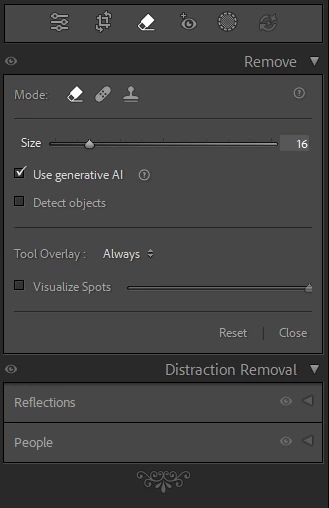
Hi, I wanted to try these new LrC 14.4 features, but they are greyed out on my system. I have tried RAW files and JPEGs. When I click on the little triangles, nothing happens.


Correct answer KrishnaMaithreya

@Caroline39004181n28b Thanks for reaching out to us. We'll investigate why the features are greyed out.


Following steps refresh the UI states of Distraction removal features. Can you please try them out once:
- Open Remove tool and press Alt key.

- Observe that visibility icon at the left end of "Distraction Removal" panel header is replaced with a switch icon.

- Now click on the switch icon ( with Alt key pressed ).

- Observe that Distraction removal features are now completely grayed out.

- Now click on the switch icon again ( with Alt key pressed ). This would re-enable the features.

2 replies

Known Participant
June 19, 2025

I was excited to read about this new tool, as I am currently editing a group shot with distractions - other people in the background.  The solution proposed does not work in my case. Perhaps too many people in the photo, perhaps.    I get either "no distractions found" or something about selecting the pin around what I don't want to delete. Help, please; I really want this to work. 

Claire H.
Community Manager
Community Manager
June 19, 2025

Hi @David Ris, Thanks for reaching out! Are you experiencing the People and Reflections removal features being greyed out for you? If not, can you make a new post with the issue you're experiencing? We would be happy to help! ^CH

Known Participant
June 20, 2025

will do

KrishnaMaithreyaCorrect answer
Adobe Employee
June 18, 2025

@Caroline39004181n28b Thanks for reaching out to us. We'll investigate why the features are greyed out.


Following steps refresh the UI states of Distraction removal features. Can you please try them out once:
- Open Remove tool and press Alt key.

- Observe that visibility icon at the left end of "Distraction Removal" panel header is replaced with a switch icon.

- Now click on the switch icon ( with Alt key pressed ).

- Observe that Distraction removal features are now completely grayed out.

- Now click on the switch icon again ( with Alt key pressed ). This would re-enable the features.

Participant
June 18, 2025

Thanks a lot, Krishna. The switch icon did the trick, now it works!


But I noticed something unexpected. When I pressed Alt for the first time, the Distraction removal switch was OFF.  That's why it wasn't working on my system. But I have no idea why it was OFF by default.


Should I (or you) report this as a bug?