Participating Frequently
May 17, 2024
Answered

Panorama merge, and denoise both fail to complete

  • May 17, 2024
  • 3 replies
  • 666 views

Some help please. I have been experiencing an issue with both panorama merge and denoise. Both processes begin and get two thirds of the way through before ending with no resulting image and no error warning. 

The denoise results in a grey screen stating 'no photo selected'

I'm using Lightroom 13.2 on Windows 11

The problem was initially resolved by increasing the cache settings, however the problem has returned after a fortnight or so, even after allocating real time memory to lightroom and again increasing cache in preferences. 

I have tried optimising the catalog, which is stored on the laptop.

I have a  2.6ghz processor with 16gb RAM  and 141gb hard drive spare
This topic has been closed for replies.
Correct answer GoldingD


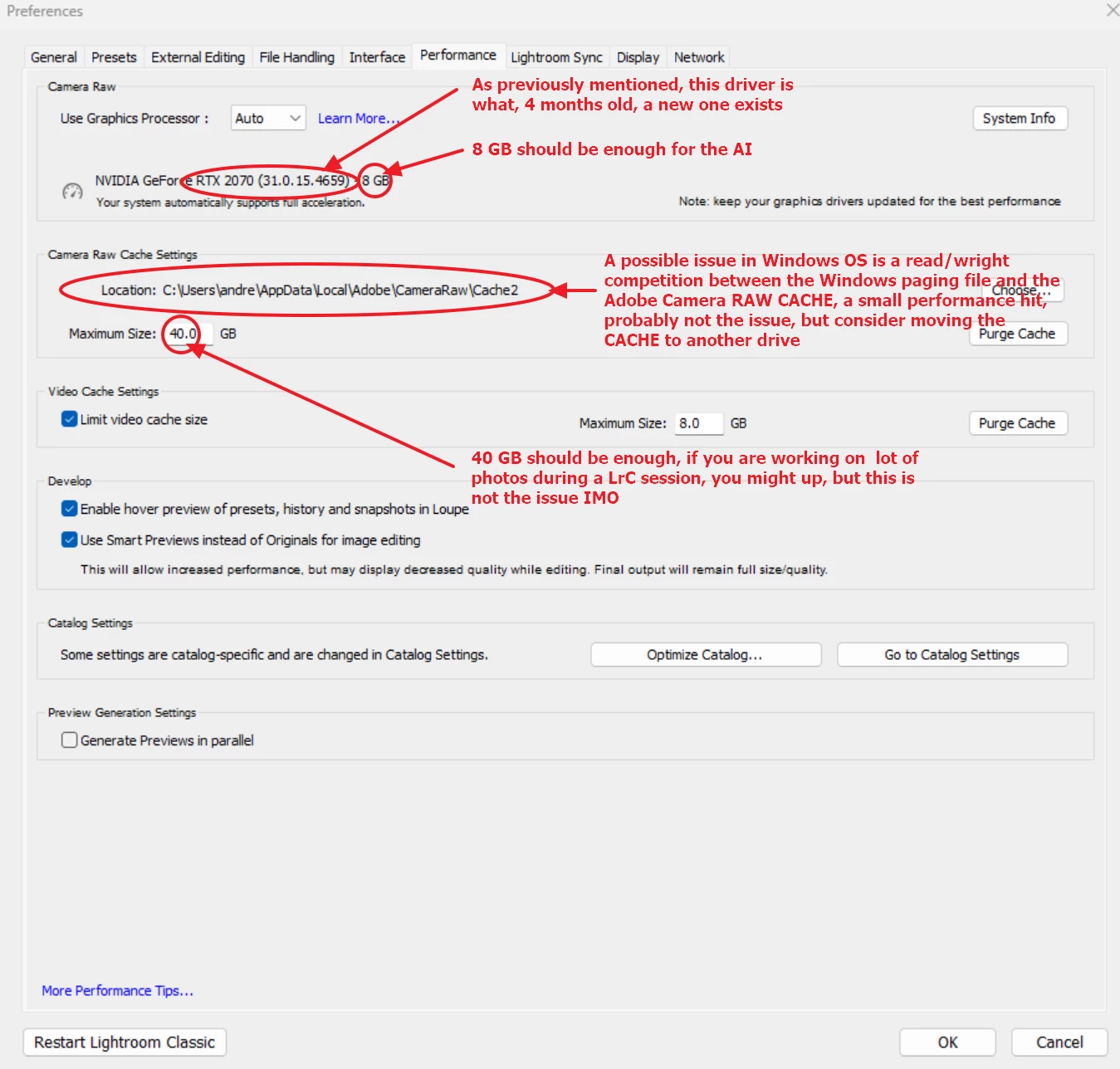
Nothing particularly wrong in that /preferences/performance/ other than the GPU driver.

A point to be made is LrC can take advantage of placing the catalog on your fastest hard drive. The same for the Camera RAW CACHE. No big advantage for locating the photos on a fast hard drive.


Issue about the Camera RAW CACHE location is a Windows specific one, it involves LrC and the OS reading/writing to both the Windows paging file and the Camera RAW CACHE, and a possibility that they both occur at the same time and compete. A small performance hit most may not notice.

3 replies

D Fosse
Community Expert
Community Expert
May 18, 2024

Since this is a laptop, it probably has dual graphics. That's known to cause conflicts. Disable the integrated GPU.


Participating Frequently
May 18, 2024

Thank you for that. I'll disable the intedgrated GPU and hopefully that will help.

GoldingD
Legend
May 17, 2024

2 of 2


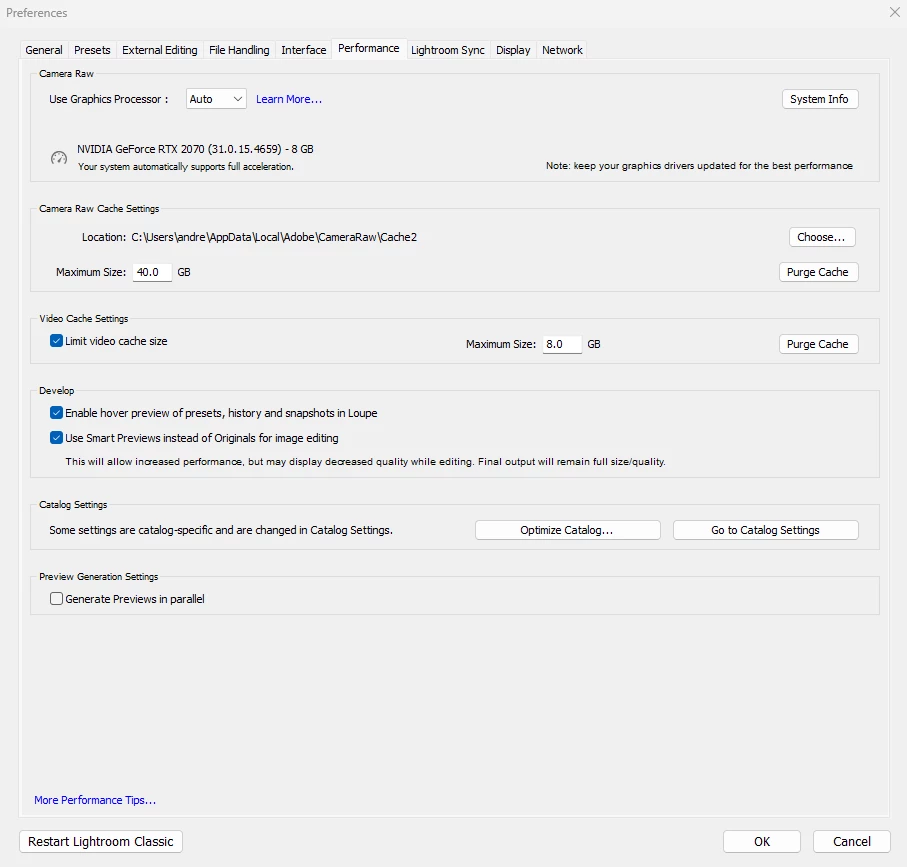
In LrC bring up /preferences/performance,. Please take a screenshot and post in a reply,


example: /deleted to save scroll space as author has posted reply


Participating Frequently
May 18, 2024
Lightroom_performance.png
GoldingD
GoldingDCorrect answer
Legend
May 18, 2024


Nothing particularly wrong in that /preferences/performance/ other than the GPU driver.

A point to be made is LrC can take advantage of placing the catalog on your fastest hard drive. The same for the Camera RAW CACHE. No big advantage for locating the photos on a fast hard drive.


Issue about the Camera RAW CACHE location is a Windows specific one, it involves LrC and the OS reading/writing to both the Windows paging file and the Camera RAW CACHE, and a possibility that they both occur at the same time and compete. A small performance hit most may not notice.

GoldingD
Legend
May 17, 2024

1 of 2


Please post your System Information as Lightroom Classic (LrC) reports it. In LrC click on Help, then System Info, then Copy. Paste that information into a reply. Please present all information from first line down to and including Plug-in Info. Info after Plug-in info can be cut out as that is just so much dead space to us non-Techs and it takes up vast amounts of scroll space making the reply less readable and less likely that others will bother with your post.


example: /deleted to save scroll space as author has posted reply


Participating Frequently
May 18, 2024

GoldingD, thanks very much for your help. Here is the system information:


Lightroom Classic version: 13.2 [ 202402141005-bf1aeb84 ]
License: Creative Cloud
Language setting: en
Operating system: Windows 11 - Home Premium Edition
Version: 11.0.22631
Application architecture: x64
System architecture: x64
Logical processor count: 12
Processor speed: 2.5GHz
SqLite Version: 3.36.0
CPU Utilisation: 0.0%
Built-in memory: 16145.6 MB
Dedicated GPU memory used by Lightroom: 676.8MB / 8019.0MB (8%)
Real memory available to Lightroom: 16145.6 MB
Real memory used by Lightroom: 1569.8 MB (9.7%)
Virtual memory used by Lightroom: 2521.4 MB
GDI objects count: 706
USER objects count: 2603
Process handles count: 2379
Memory cache size: 15.6MB
Internal Camera Raw version: 16.2 [ 1763 ]
Maximum thread count used by Camera Raw: 5
Camera Raw SIMD optimization: SSE2,AVX,AVX2
Camera Raw virtual memory: 562MB / 8072MB (6%)
Camera Raw real memory: 572MB / 16145MB (3%)

Cache1:
Preview1- RAM:20.0MB, VRAM:0.0MB, Ailsa Craig1.tif
Preview2- RAM:20.0MB, VRAM:66.0MB, High Kildonan-Edit.tif
NT- RAM:40.0MB, VRAM:66.0MB, Combined:106.0MB

Cache2:
final1- RAM:246.0MB, VRAM:0.0MB, Ailsa Craig1.tif
final2- RAM:269.0MB, VRAM:13.0MB, High Kildonan-Edit.tif
T- RAM:515.0MB, VRAM:13.0MB, Combined:528.0MB

Cache3:
m:15.6MB, n:65.7MB

U-main: 91.0MB

System DPI setting: 96 DPI
Desktop composition enabled: Yes
Standard Preview Size: 1920 pixels
Displays: 1) 1920x1080
Input types: Multitouch: No, Integrated touch: No, Integrated pen: Yes, External touch: No, External pen: Yes, Keyboard: No

Graphics Processor Info:
DirectX: NVIDIA GeForce RTX 2070 (31.0.15.4659)
Init State: GPU for Export supported by default
User Preference: Auto

Application folder: C:\Program Files\Adobe\Adobe Lightroom Classic
Library Path: C:\Users\andre\Pictures\Lightroom\Lightroom Catalog.lrcat
Settings Folder: C:\Users\andre\AppData\Roaming\Adobe\Lightroom

Installed Plugins:
1) AdobeStock
2) Flickr
3) Nikon Tether Plugin


GoldingD
Legend
May 18, 2024
Graphics Processor Info:
DirectX: NVIDIA GeForce RTX 2070 (31.0.15.4659)
Init State: GPU for Export supported by default

So v546.59, released last January, at NVIDIA the current Studio driver is v 552.22


You may want to update that driver, select custom install type as to force a clean install. And unless you are a gamer, select the Studio driver, not the Game Ready driver.