Participant
September 29, 2018
Answered

Perplexed - automatic vignette applied when switching from Library to Develop

  • September 29, 2018
  • 3 replies
  • 1798 views

Greetings,

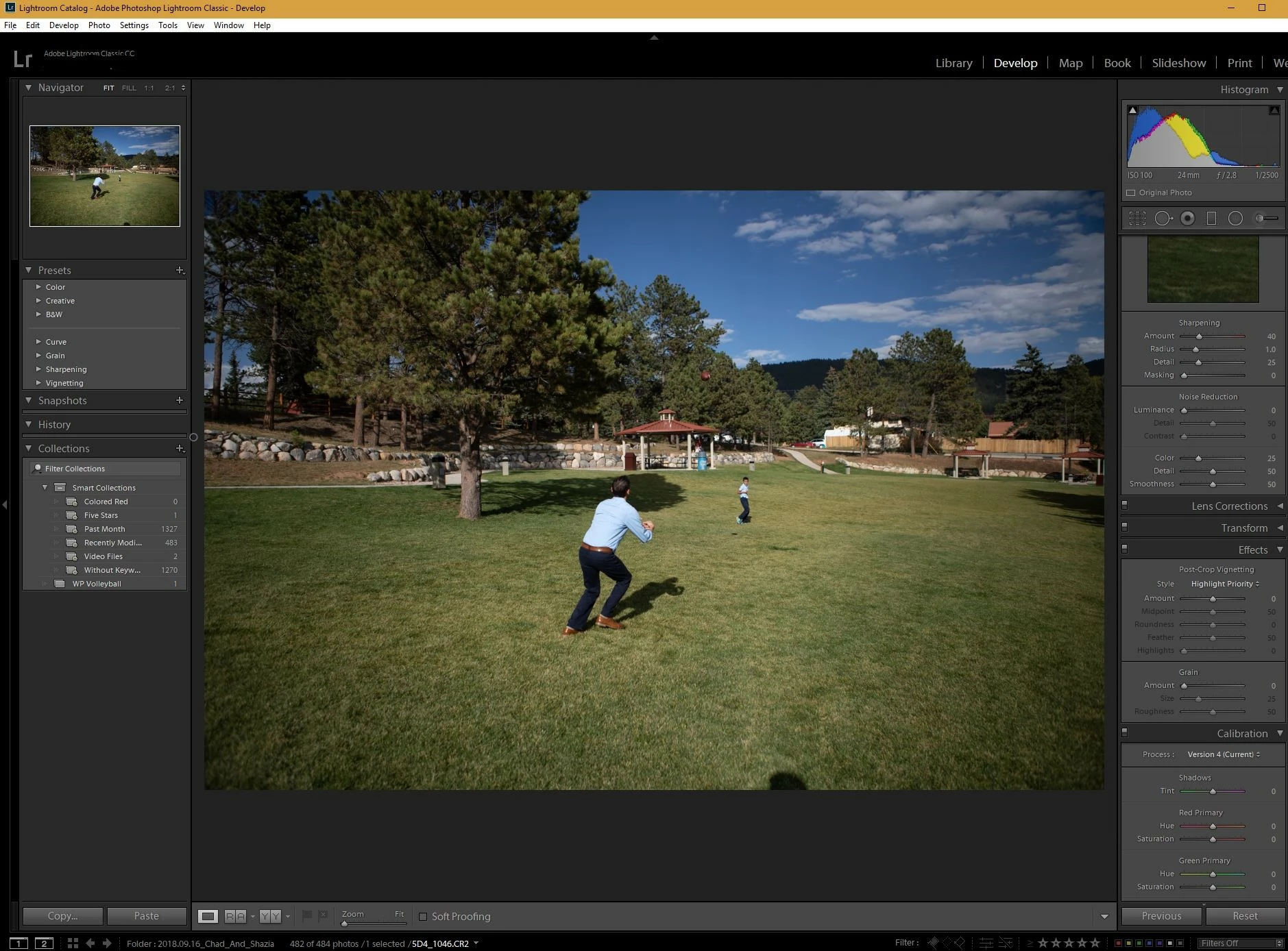
I've been processing photos for many years but I'm new to Lightroom. I'm very happy with the program so far, but I've started having a problem with Lightroom CC Classic where it appears to be applying a vignette whenever I switch from Library mode to Develop mode. I'm shooting RAW with a Canon 5D Mark IV.

- I understand how the embedded preview images work, and this does not appear to be consistent with the normal differences between the embedded image and the RAW image.

- I don't think the program was doing this before.  It seems like a setting changed.

- I've tried using the image reset options, made sure the camera settings were are set to the Adobe Default, verified no weird settings on import, etc.

- It is only happening on photos with no additional processing.  If I process the photos the problem goes away. I assume this is because LR is creating a preview image consistent with the edits. But I'm very confused about why it's happening on photos with no edits.

Here's links to an example:
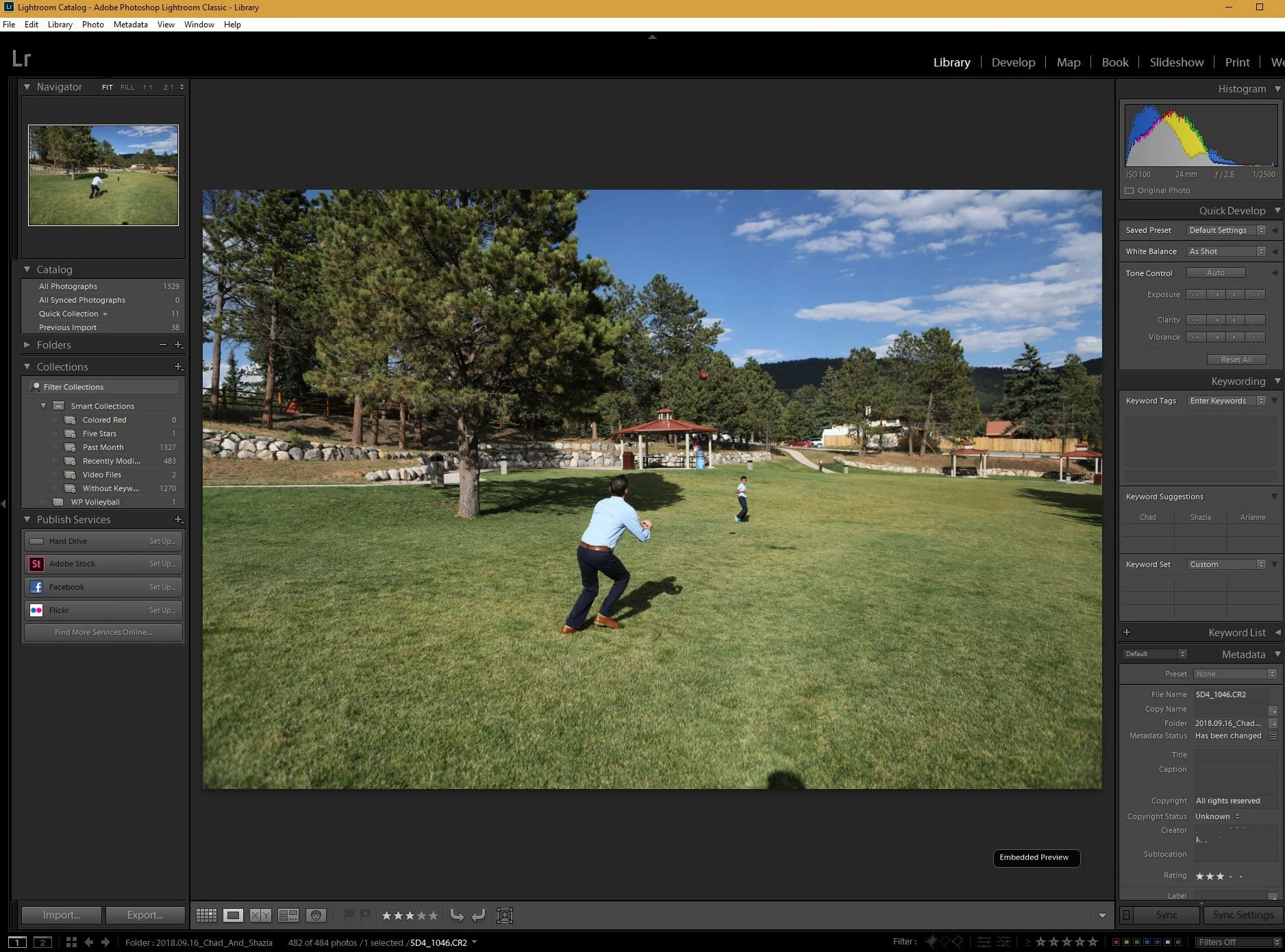
Library.jpg - Google Drive

Develop.JPG - Google Drive

I'm at a loss.  Any thoughts?

Thank you!

    This topic has been closed for replies.
    Correct answer Just Shoot Me

    Your first image, the one from the Library module, is the Embedded JPG image that is included in ever RAW file. That embedded image follows any and all In Camera settings. The RAW file does Not. There are settings in Canon cameras that will raise the exposure and do other things to make the image look better. These things are not applied to the RAW data. In the Library module select the Library menu item then Previews then Build 1:1 Preview of that image.

    Check your camera and reset all setting to base settings, as shipped from factory, Default setting.

    3 replies

    Participant
    September 29, 2018

    Interesting, that could certainly have something to do with it.  I'll experiment with the in-camera settings and see what happens.

    elie_dinur
    Participating Frequently
    September 30, 2018

    Canon actually has three different jpg enhancement tools: Highlight Tone Priority, Auto Lighting Optimization, and Peripheral Illumination and CA Correction. HTP reduces ISO by 1 stop and then pulls up mostly the shadows, ALO does a sort of AI analysis and tonal correction*, and Peripheral Illumination is according to profiles for supported Canon lenses. In this case it looks like a lens correction was done to the embedded jpg.

    *https://cpn.canon-europe.com/content/education/infobank/di…

    Participant
    September 30, 2018

    Great info Elie_Di, thank you.

    Participant
    September 29, 2018

    Thanks JSM.  I think you are right, I just didn't realize how noticeable the difference there could be between a RAW and JPEG with respect to vignetting (due to the in-camera corrections only affecting the JPEG/preview image).  This is my first full frame SLR and I think the effect is way more noticeable with wide angle shots (24 mm in this case). Now than I'm able to take advantage of the full FOV of the lens I'm seeing things that I didn't get with an APS-C sensor. 

    Also, I realized that I did not have the "Enable Profile Corrections" box checked in the "Lens Corrections" options.  Once I turned that on it pretty much fixed the problem. 

    That said, I'm still surprised the vignetting is so dramatic when the option isn't selected. Could it really be this bad on an L-series 24-70 lens? It still seams like something's not quite right, but I'm going to put it to rest for now.

    Just Shoot Me
    Legend
    September 29, 2018

    It's not just the difference between the 2 file formats. It is "In Camera" settings that is causing it. For Nikon one of them is called D Lighting. Canon does something similar. There was a discussion on it just a few days to a week or so ago. Someone was complaining on how LR is applying adjustment to their RAW files. They were actually under exposing the shots and those Canon In Camera setting were making the JPG properly exposed but not the RAW file.

    Sorry I can find that other discussion and I don't remember what the Canon name is for that similar feature to D Lighting in Nikon cameras.

    Just Shoot Me
    Just Shoot MeCorrect answer
    Legend
    September 29, 2018

    Your first image, the one from the Library module, is the Embedded JPG image that is included in ever RAW file. That embedded image follows any and all In Camera settings. The RAW file does Not. There are settings in Canon cameras that will raise the exposure and do other things to make the image look better. These things are not applied to the RAW data. In the Library module select the Library menu item then Previews then Build 1:1 Preview of that image.

    Check your camera and reset all setting to base settings, as shipped from factory, Default setting.