
Participant
July 18, 2018
Answered

Pink tint or pink hue when I import photos in Lightroom?

  • July 18, 2018
  • 3 replies
  • 7094 views

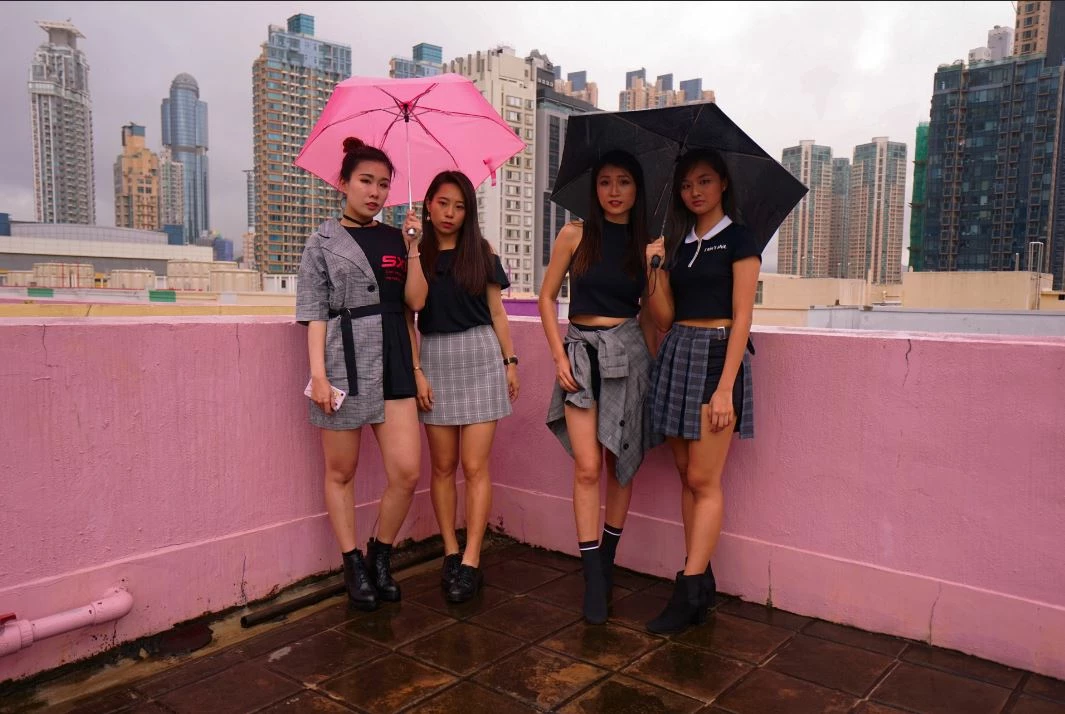
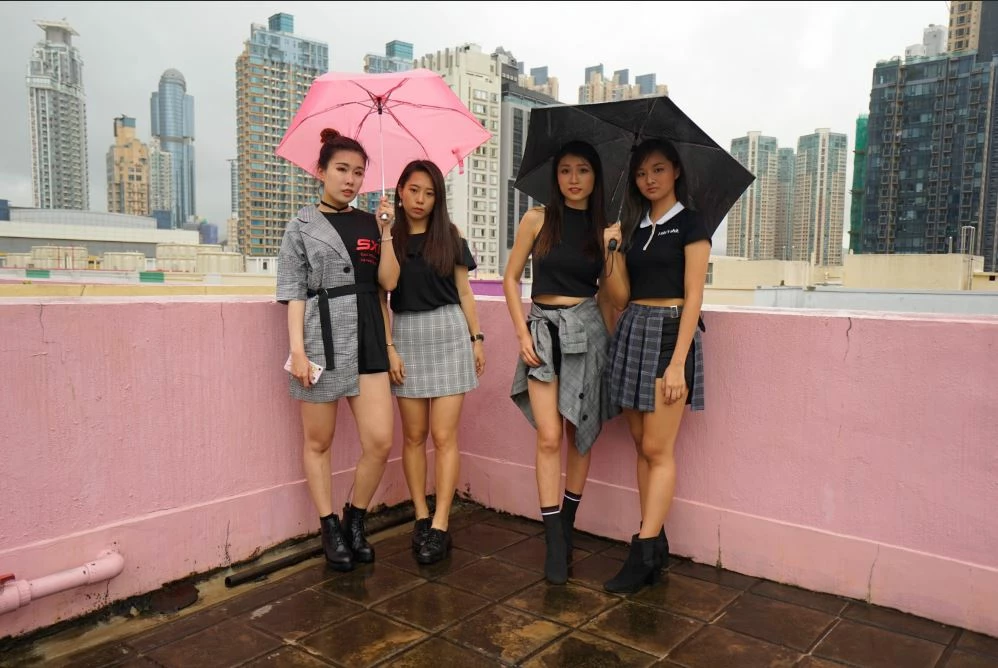
Basically I'm pretty sure its not a monitor deficit, because when I open it with window's preview, the color were fine, and origianlly I encounter the same problem in photoshop CC, but after changing the color setting to Monitor RGB in photoshop, everything is fine. But I couldn't find the option in Lightroom CC, I tried changing the external editing in lightroom but I dont think it works.

When i import with Lightroom CC
When I import with Photoshop CC
This topic has been closed for replies.
Correct answer Per Berntsen
But my PC wouldn't let me add new profiles?!?

Check Use my settings for this device, and the Add button becomes active.

Leave the All profiles and Advanced tabs alone, everything you need to is done in the Devices tab.

3 replies

Participant
November 29, 2022

This pink tint issue also happens in my Lightroom mobile while taking raw pics (.dng) and it only happens after importing, I'm using Nothing phone 1 , can anyone help me with this ?

dj_paige
Legend
November 29, 2022

This thread has a lot of information and possible solutions. Did you read the thread and try what has been suggested?

Participant
November 30, 2022

All the replies only have solution for the pc version not the mobile one

Participant
September 15, 2021

Thank you Per Bernsten!  I had a major pink hue problem and messed with Color Settings.  I had to change my RGB setting to VX4380 SERIES sRGB 6500K to get the color settings back to normal.  I'm not sure what happened.  Everything was pink one day.  Pretty sure it happened after a Windows update.  I tried everything until I found your post!

Per Berntsen
Community Expert
Community Expert
July 18, 2018

The cause of this is most likely a defective monitor profile.

Lightroom and Photoshop are color managed, and use the monitor profile to display correct colors.

Most other applications are not color managed, do not use the monitor profile, and are unaffected.

Setting the RGB working space in Photoshop to Monitor RGB does not fix the problem – what it does is to disable color management, and makes Photoshop behave like any other application without color management.

So change the color settings back to what they were before - similar to the screenshot below.

Set the RGB working space to a standard profile, like sRGB or Adobe RGB, and to choose Preserve Embedded Profiles under Color Management Policies.

To fix the problem with the monitor profile, go to Control Panel > Color Management, and set the monitor profile to sRGB (use Adobe RGB if you have a wide gamut monitor).

Add the profile from the list, then set it as Default. Make sure Use my settings for this device is checked.

Lightroom and Photoshop will need to be restarted to use the new monitor profile.

sRGB may not be entirely accurate, but, depending on the characteristics of your monitor, it may be close enough.

The best solution is to use a hardware calibrator, which will calibrate the monitor and create a very accurate monitor profile.

Participant
July 18, 2018

But my PC wouldn't let me add new profiles?!?

When I go to "All Profiles" tab, it shows the sRGB profile, but when I click add, it asked me to install the profile, does it mean that I need to install it from the Internet somewhere before I can add it to my color management?

For the advanced tab, it allows me to set my device profile to sRGB but still doesn't work for lightroom to display properly.

Per Berntsen
Community Expert
Per BerntsenCommunity ExpertCorrect answer
Community Expert
July 18, 2018
But my PC wouldn't let me add new profiles?!?

Check Use my settings for this device, and the Add button becomes active.

Leave the All profiles and Advanced tabs alone, everything you need to is done in the Devices tab.