
DullDan
Participant
December 30, 2022
Question

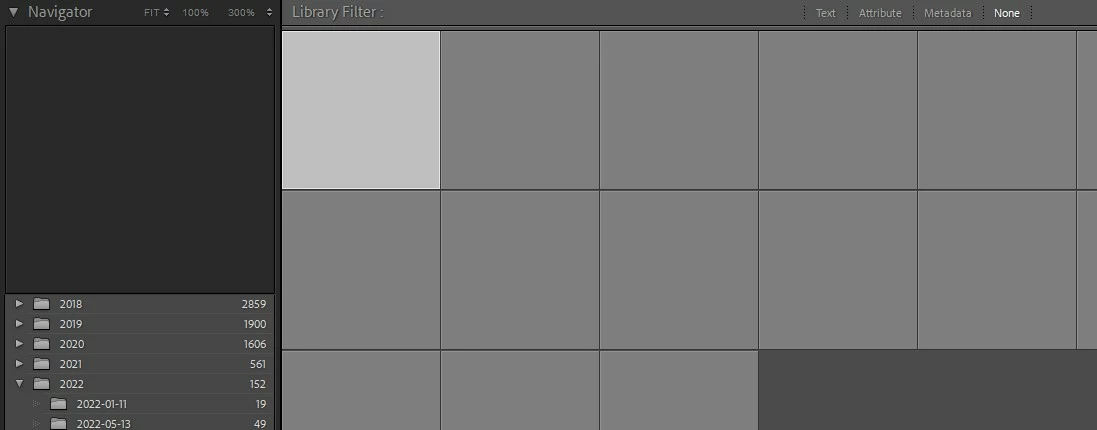
Previews & Photos Greyed Out After Updates/No Rebuild

  • December 30, 2022
  • 3 replies
  • 398 views

It has been a while since I opened LRC, and since I last opened LRC my Windows has updated to Win11 and LRC has updated to v12.1. When I opened LRC today, all of my previews and photos are just grayed out. If I select a photo, its EXIF data shows, no histogram data, however, when I open a photo in either Library or Develop, it just remains grayed out. I did some googling and found this Adobe help article and followed its instructions, first deleting previews.db and root-pixels.db files and when that didn't work deleting the entire Previews.lrdata folder, again without success.


Looking around LRC, I also noticed that none of my photos are showing in the Map tab. I have attempted to rebuilding my previews (Library>Previews>Rebuild Standard Sized Previews) and after several hours of nothing happening, I checked the Previews.lrdata folder and noticed no new files had been created.


Any ideas what to try from here?
 

This topic has been closed for replies.

3 replies

DullDan
DullDanAuthor
Participant
December 31, 2022

So, I’ve been playing around with this, and I have concluded that I think the catalog is somehow corrupt.


I uninstalled LrC, rebooted, installed LrC, rebooted, and when I opened my catalog nothing had changed, I was still unable to see previews and photos. I went through the test above, still no change. I also discovered some other issues: It would allow me to import new photos once, they wouldn’t actually import and no error message would be displayed, and after that the import button would be greyed out. Nothing happens when I click the export button. Also, nothing happens at all when I right-click on any of the preview squares.


I created a new catalog to test, and it has no issues at all. I’m able to import photos, and the previews show and everything else works.

Any thoughts?

Legend
December 31, 2022

Try creating a new empty catalog, then from the File menu choose "Import from Another Catalog...". Navigate to the suspect .lrcat catalog file and see if you can import it into the new empty catalog.

DullDan
DullDanAuthor
Participant
December 31, 2022

Well, this may have started out as another issue, but at this point I think there is some other issue with LrC. On a fresh PC reboot and fresh LrC startup, if I select a single image, then Library > Previews > Build Standard Sized Previews and then select the ‘Build Selected’, nothing happens. An hour later, and LrC is still trying to build a preview for a single image. This isn’t a PC permissions or specs issue. Should I try a fresh install of LrC?


Per Berntsen
Community Expert
Community Expert
December 30, 2022

The first thing to try is to disable the GPU. Go to Edit > Preferences > Performance, and set Use graphics processor to Off. If that fixes the issue, make sure that your graphics driver is up to date, then try to turn the GPU back on.


Another possibility is that you have a defective monitor profile.

As troubleshooting, and as a possible temporary fix, try setting it to sRGB (use Adobe RGB if you have a wide gamut monitor). If this fixes the issue, you should calibrate your monitor with a hardware calibrator. This will also create and install a custom monitor profile which will be more accurate than sRGB.


With Lightroom closed, press the Windows key + R, type colorcpl in the box and press Enter.

Add the sRGB profile, then set it as default.


DullDan
DullDanAuthor
Participant
December 30, 2022
quote

The first thing to try is to disable the GPU. Go to Edit > Preferences > Performance, and set Use graphics processor to Off. If that fixes the issue, make sure that your graphics driver is up to date, then try to turn the GPU back on.

By @Per Berntsen

Thank you for the reply! The only difference this made, was numbers now show with the greyed-out previews:

quote

Another possibility is that you have a defective monitor profile.

As troubleshooting, and as a possible temporary fix, try setting it to sRGB (use Adobe RGB if you have a wide gamut monitor). If this fixes the issue, you should calibrate your monitor with a hardware calibrator. This will also create and install a custom monitor profile which will be more accurate than sRGB.


With Lightroom closed, press the Windows key + R, type colorcpl in the box and press Enter.

Add the sRGB profile, then set it as default.

By @Per Berntsen

This made no change, other then the numbers disappearing from the previews.

Per Berntsen
Community Expert
Community Expert
December 30, 2022

Did you set the monitor profile to sRGB with Lightroom closed? If not, restart Lightroom.

Also try restarting your computer.

Another thing to try is to reset the preferences. Go to the General tab of the preferences. Press the Alt key, and a button will appear; Reset all preferences and relaunch.