iangriff66
Participant
November 9, 2018
Answered

Print Issues 0.66 Margin

  • November 9, 2018
  • 1 reply
  • 1562 views

Hi and here's hoping someone can answer my query

I use Lightroom classic cc and print to a canon MG2550

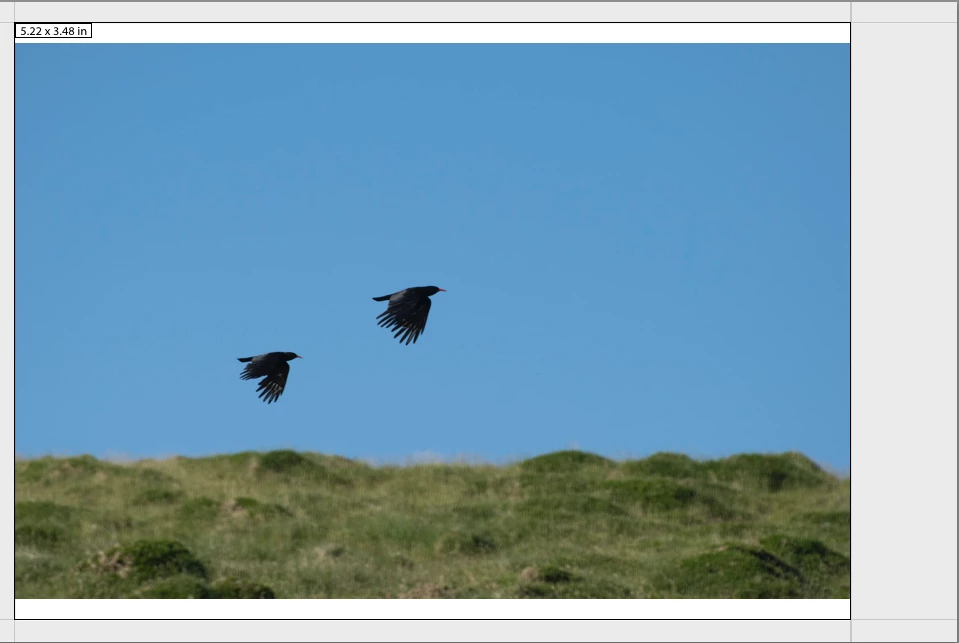
This is my issue. When I try to print there is a margin that cannot be moved, or I haven't found out how to. In the case of a landscape 6x4 print this margin is 0.66 inch on the right meaning the photo is not central to the paper. see image below.

The image is 6000x4000 so the correct ratio

I have selected the correct paper and orientation in the printer settings

Correct template in lightroom

Also tried printing to JPEG which also gave a border to the right.

I have just watched the adobe printing video where a custom overlap 3 on A4 is prepared in portrait and looking at the bottom of the page to be printed it appears that the bottom margin is thicker than the others but they were not covered in the video

Thanks in advance for your help

This topic has been closed for replies.
Correct answer richardplondon

Lightroom's Print module presents the currently set page size and obtains dimensions from the print driver, as to how close to each edge of this page size the ink can extend. These dimensions may be the same for all edges, or they may be different.

LR allows page margins that are further away from the paper edge than these dimensions, but not closer to the paper edge.

If you set in the print driver a "borderless" printing mode, then the dimensions that the print driver advises to LR, will be zero. This does not immediately change the LR page margins, but it does give you the possibility of reducing those to zero also. So in that case the LR print margins, and the page size, are the same and therefore your 6x4 aspect ratio photo can completely fill the page.

Even if your photo was not cropped to exactly the shape of the cell, you can still check the "zoom to fill" option and LR will make sure its whole area is covered, auto trimming any overflow on the fly.

Note: with most printers, the standard "borderless" mode automatically expands the image info when sent to the printer, by a few %, so that it makes sure that any inaccuracies of paper alignment or of manufactured paper size, won't leave any unprinted white slivers on one or another edge. This expansion means that parts of your composition seen right at the page edge inside LR, will get pushed "beyond" the page edge when printed. It's as if your photo was "zoomed in" slightly. You might make your crop slightly looser than required, in compensation for this (whereby these added edges will act as "bleed" for trimming, in effect).

Some printer drivers also offer a true-to-scale "borderless" option, whereby you can accept that risk of misalignment, and send the image to printer scaled exactly as laid out in LR. This also means that if you have chosen an output PPI to match the printer's native addressable resolution, this will (unlike with the standard borderless option) get respected in the output,

1 reply

Rob_Cullen
Community Expert
Community Expert
November 10, 2018

Can you place your mouse cursor on the Right image edge and drag it further to the right? (ie. drag the Margin)

Check your Margin sliders are all at the minimum.

Check your Cell Size sliders are at the maximum.

Toggle 'Zoom to Fill'  on/off to see a result.

Regards. My System: Windows-11, Lightroom-Classic 15.1.1, Photoshop 27.3.1, ACR 18.1.1, Lightroom 9.0, Lr-iOS 10.4.0, Bridge 16.0.2 .
iangriff66
Participant
November 10, 2018

HI WobertC settings are as in attached screen shot, it doesn't let me set them all to 0 gives an error message.

richardplondonCommunity ExpertCorrect answer
Community Expert
November 10, 2018

Lightroom's Print module presents the currently set page size and obtains dimensions from the print driver, as to how close to each edge of this page size the ink can extend. These dimensions may be the same for all edges, or they may be different.

LR allows page margins that are further away from the paper edge than these dimensions, but not closer to the paper edge.

If you set in the print driver a "borderless" printing mode, then the dimensions that the print driver advises to LR, will be zero. This does not immediately change the LR page margins, but it does give you the possibility of reducing those to zero also. So in that case the LR print margins, and the page size, are the same and therefore your 6x4 aspect ratio photo can completely fill the page.

Even if your photo was not cropped to exactly the shape of the cell, you can still check the "zoom to fill" option and LR will make sure its whole area is covered, auto trimming any overflow on the fly.

Note: with most printers, the standard "borderless" mode automatically expands the image info when sent to the printer, by a few %, so that it makes sure that any inaccuracies of paper alignment or of manufactured paper size, won't leave any unprinted white slivers on one or another edge. This expansion means that parts of your composition seen right at the page edge inside LR, will get pushed "beyond" the page edge when printed. It's as if your photo was "zoomed in" slightly. You might make your crop slightly looser than required, in compensation for this (whereby these added edges will act as "bleed" for trimming, in effect).

Some printer drivers also offer a true-to-scale "borderless" option, whereby you can accept that risk of misalignment, and send the image to printer scaled exactly as laid out in LR. This also means that if you have chosen an output PPI to match the printer's native addressable resolution, this will (unlike with the standard borderless option) get respected in the output,