

valentinozegna
Known Participant
August 27, 2021
Question

[Print Module] Lightroom won't apply the selected ICC profile when printing!

  • August 27, 2021
  • 4 replies
  • 8137 views

Setup:
MacBook Pro 16" running macOS 11.5.2
Canon imagePROGRAF PRO-1000 with driver 22.20.0.0
Lightroom Classic 10.4

Calibrated display with X-Rite i1Display PRO


Issue:
I am unable to print in Lightroom anymore since the latest 10.4 update. The problem is that Lightroom will completely ignore the ICC profile set in the Print panel, and the print will come out without any sort of color management.


Let me walk you through my finding step by step.

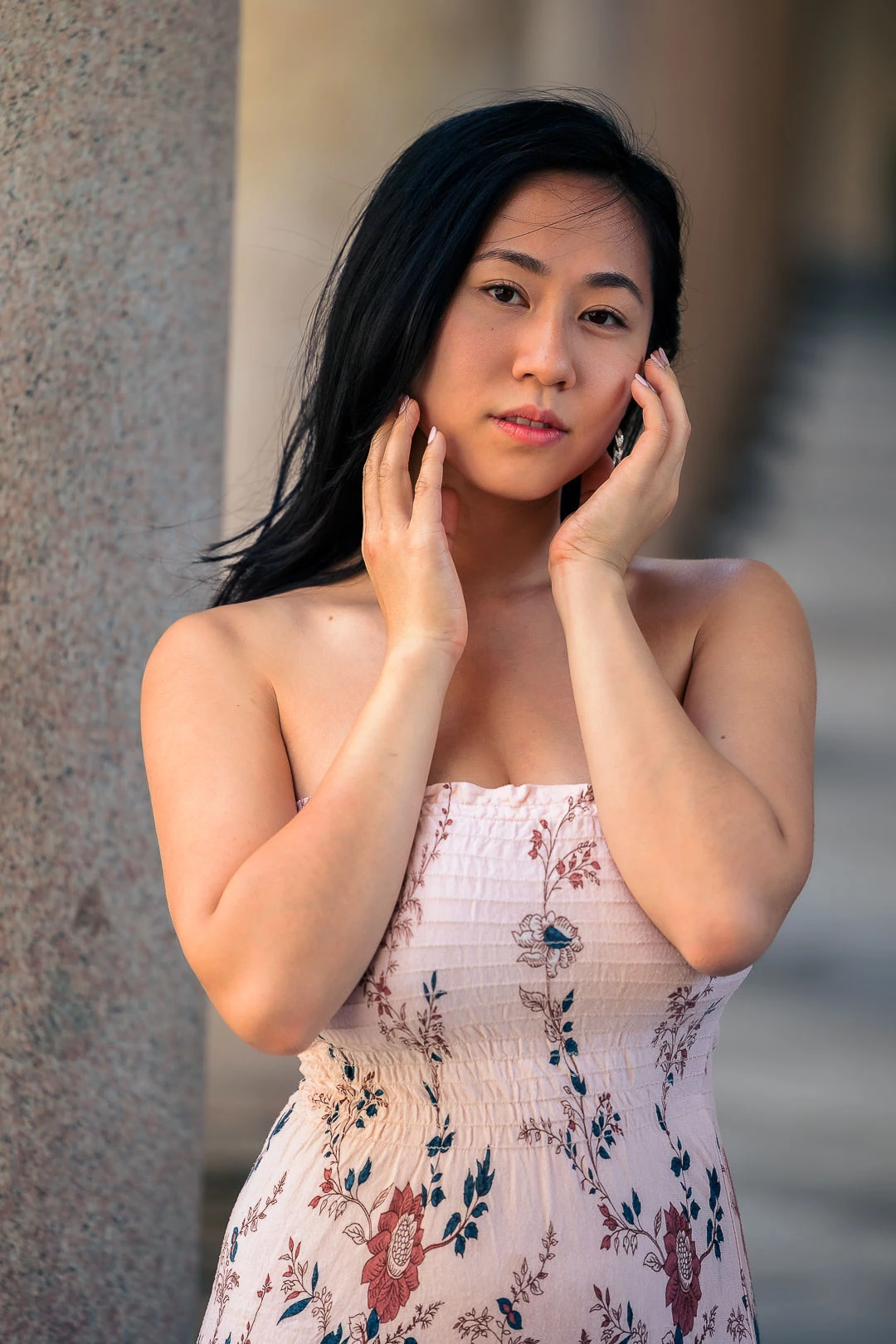
I am trying to print this photo:
 

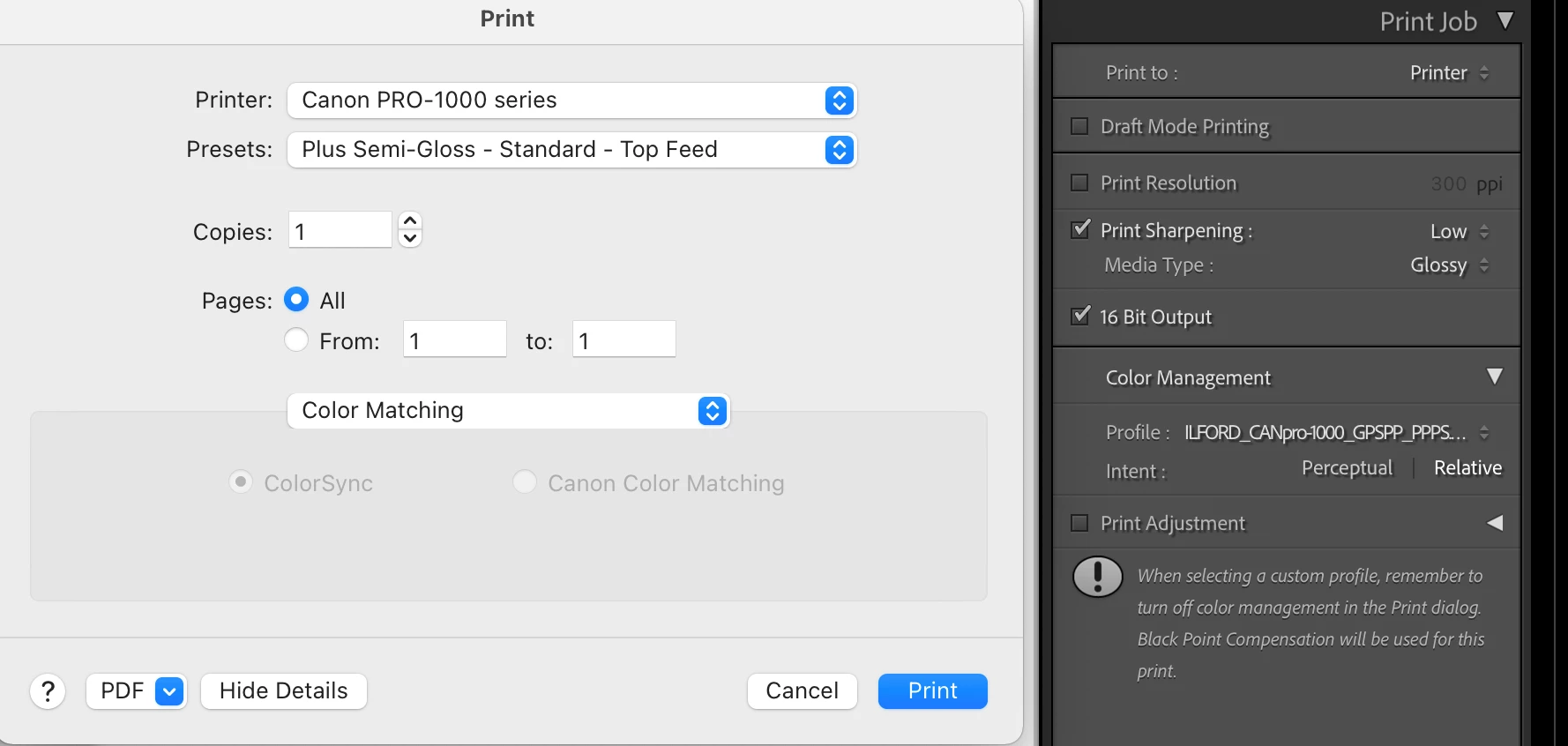
First, I tried to use the same workflow I have always used. I choose to manage the ICC profile in Lightroomm, therefore I select the correct Ilford Smooth Pearl profile as shown below. As you can see, the printer driver seems to be correctly set to "ColorSync" under the color matching menu.
 

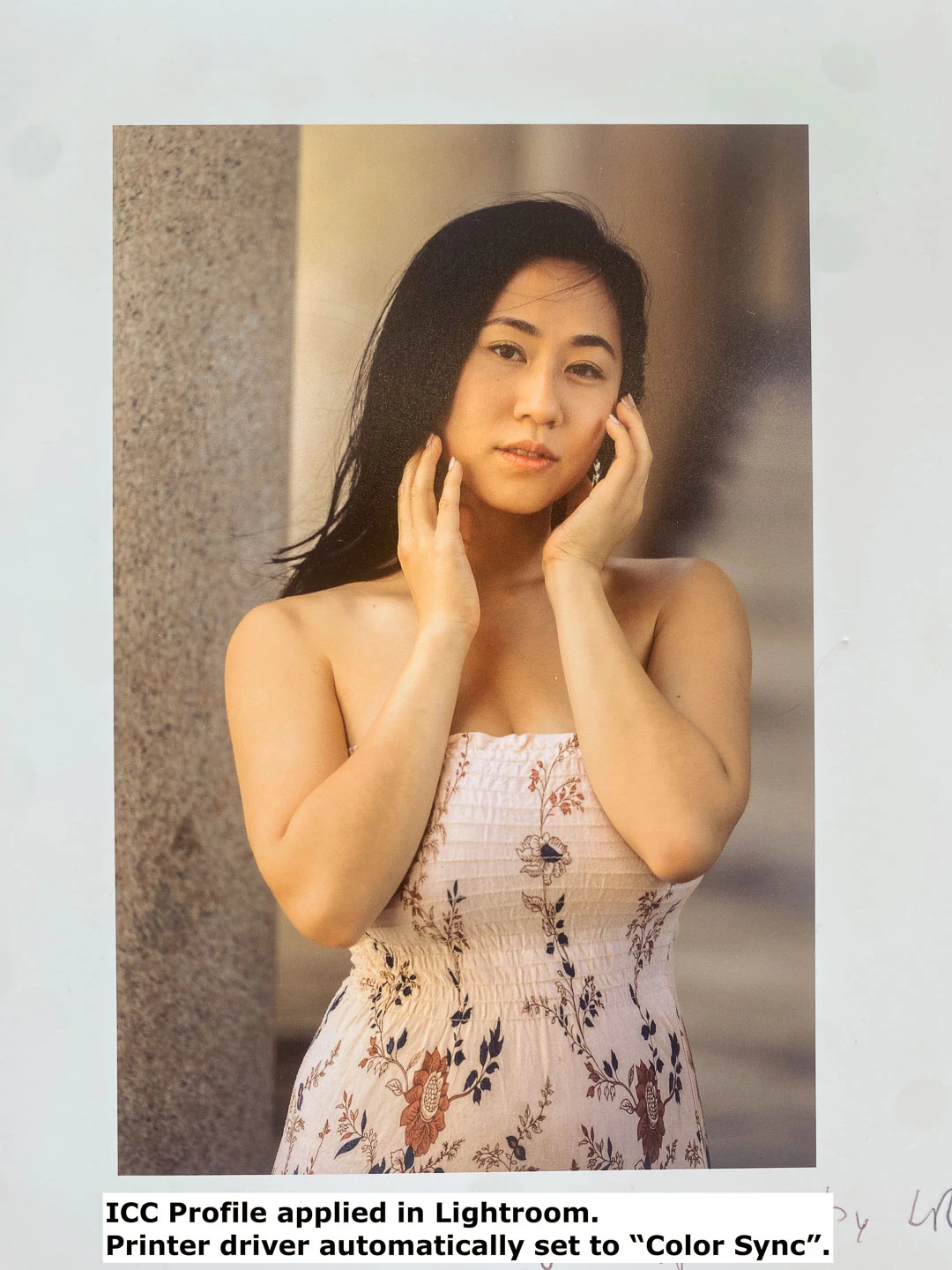
I make sure the paper media is set correctly, then I click on Print. This is what comes out of the printer. The colors are completely shifted towards a yellow dominant, they are not even close to the original picture.
 

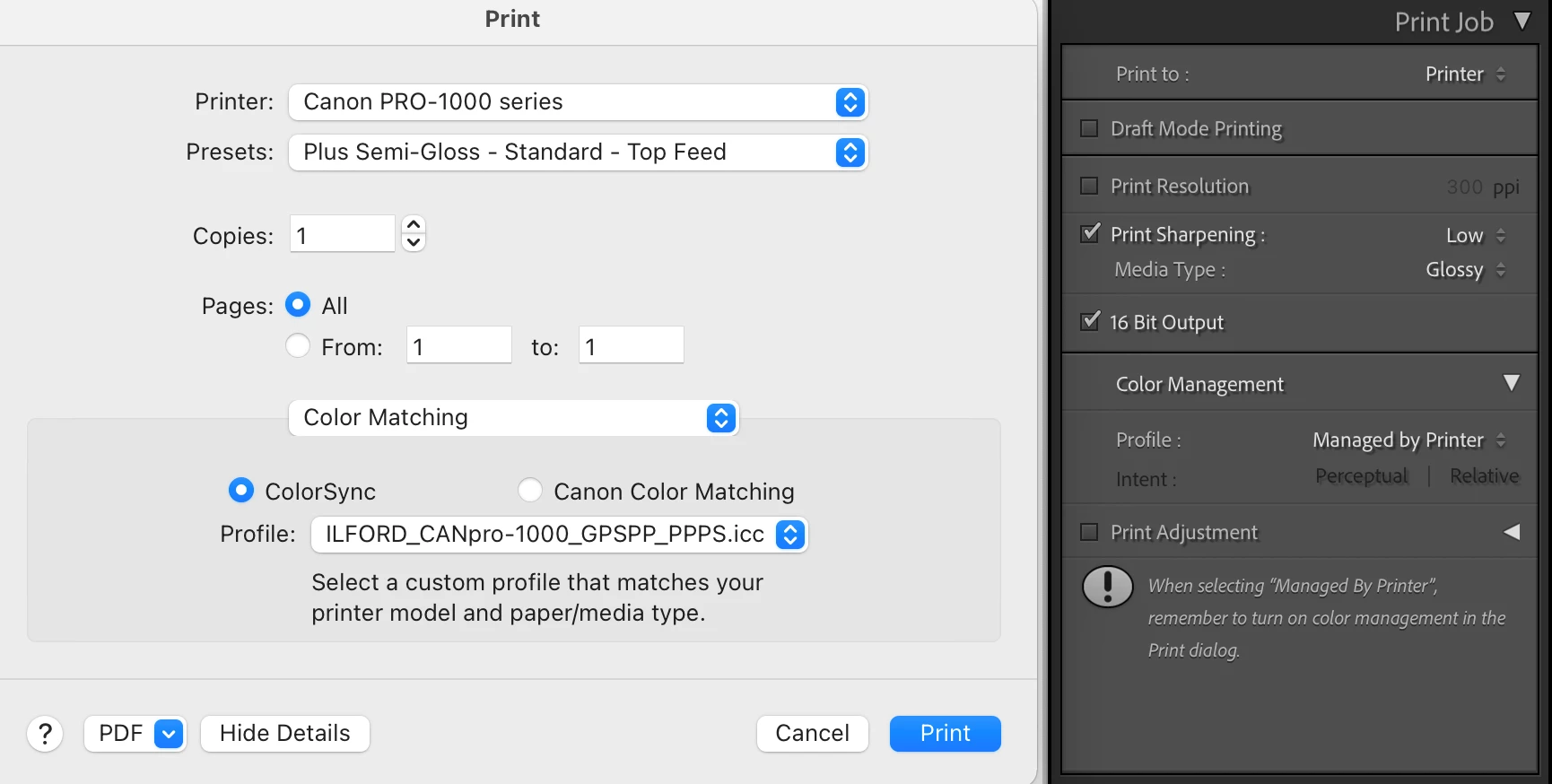
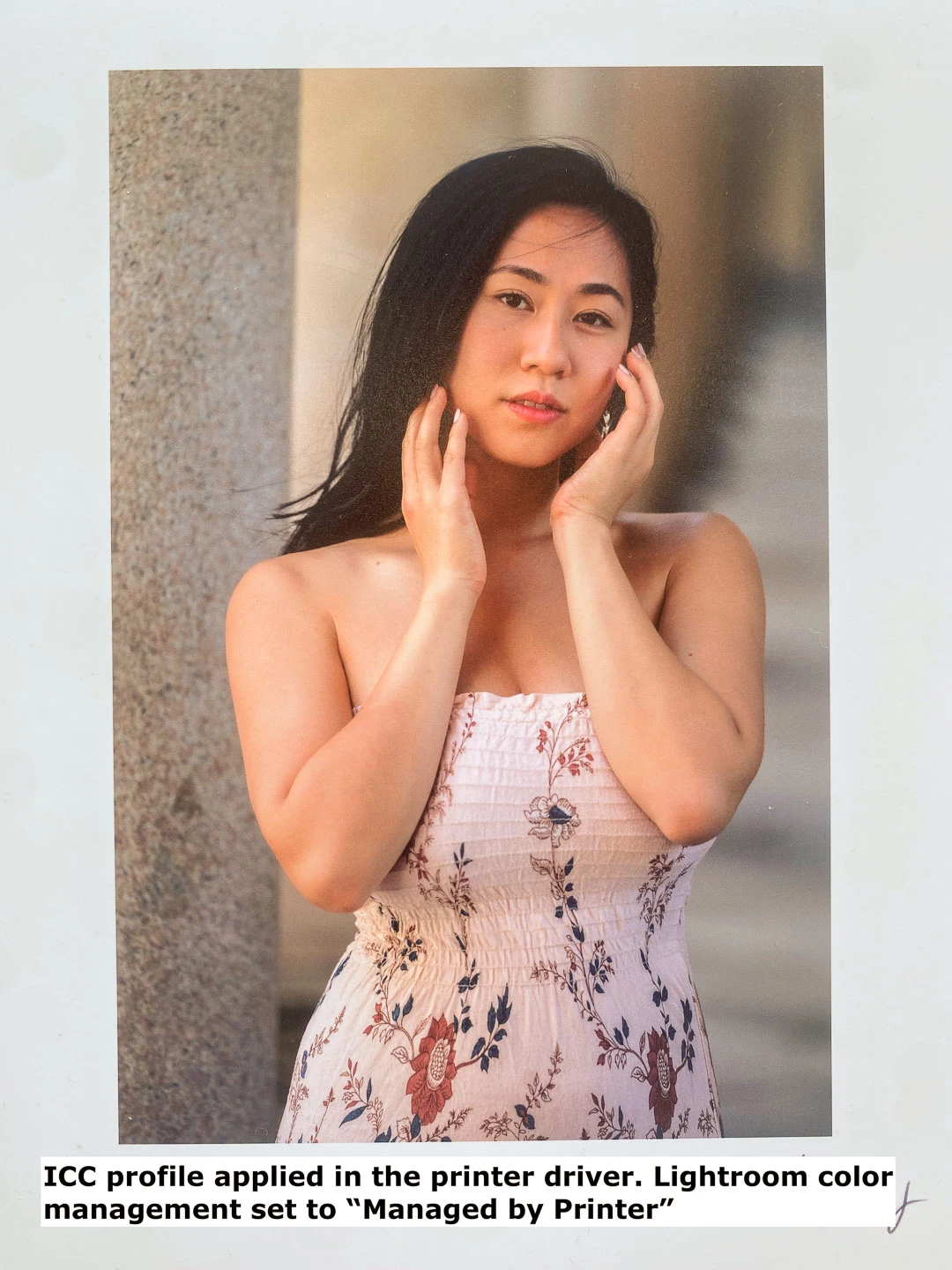
I then tried to go the other way, I input the ICC profile in the printer driver instead of Lightroom, as shown below. Notice how Lightroom is correctly set to "Managed by Printer".
 

I leave all the other printer settings the same as before, and I click on Print. The result is shown below. The colors are now perfect, the skin tones match my original photo (you will not see how accurate they are since I took a photo of the print with my iPhone, but you get a good idea).
 

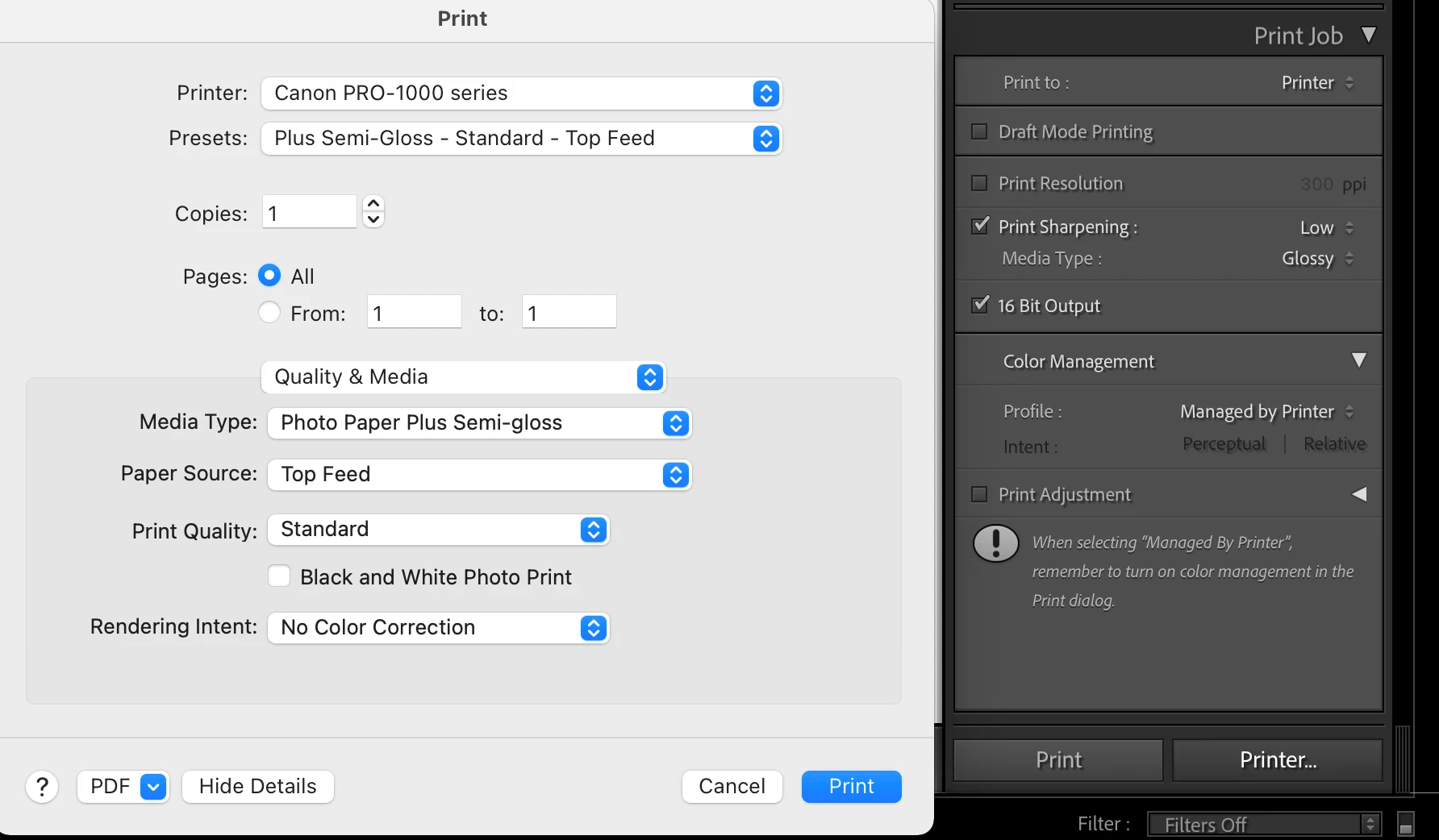
Next, I wanted to run one more experiment. I set the Lightroom color management to "Managed by Printer", and in the printer driver I selected "Canon Color Matching" in the Color Matching menu, then in the Quality & Media menu I set the rendering intent to "No Color Correction". 
 

I left all the other printer settings the same, then I clicked Print. Below you can see the result: it looks 100% identical to the first picture I printed! 
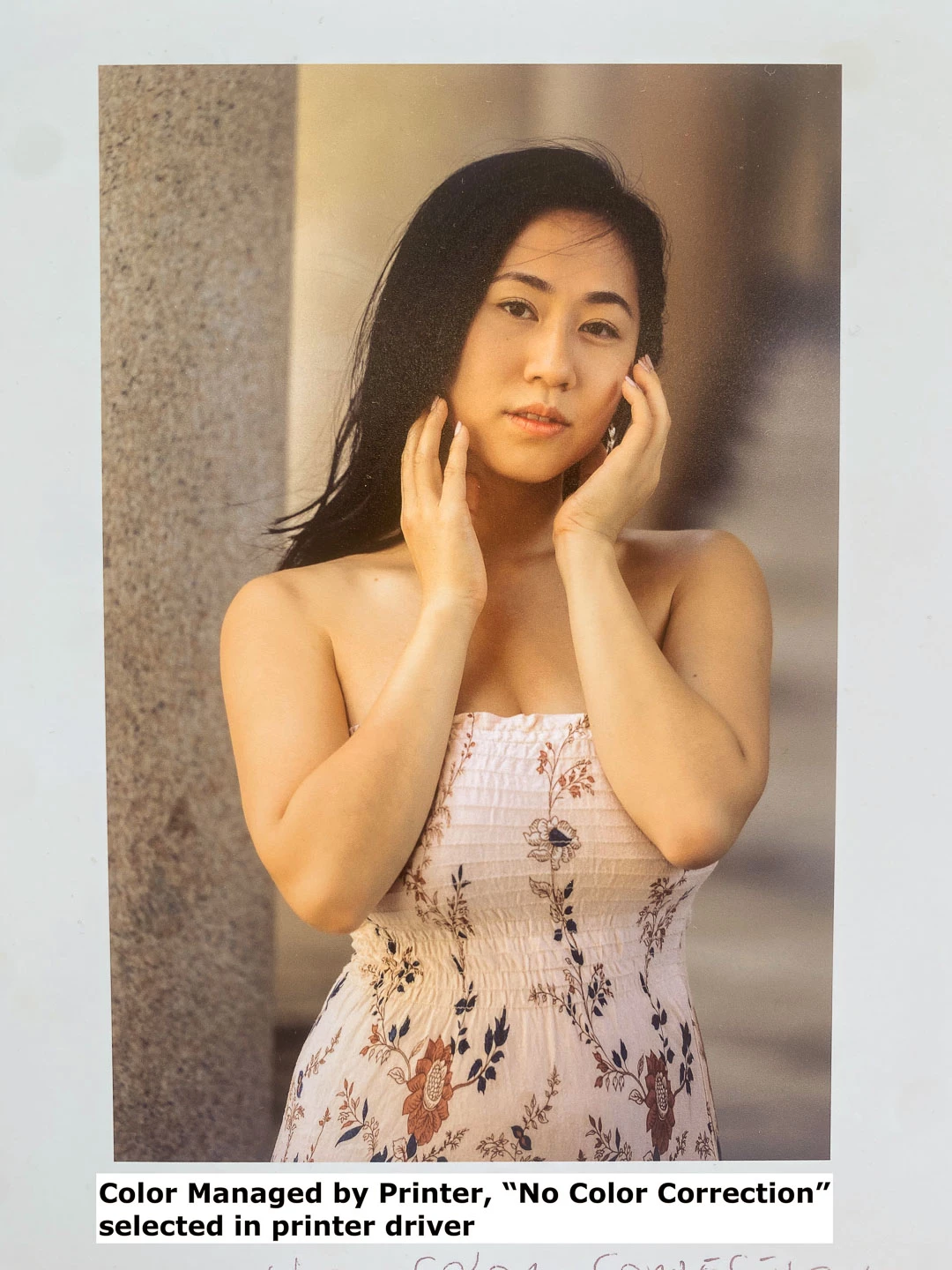
 

Based on these experiments, I think what is happening is clear. When color management is controlled by Lightroom, the printer driver won't manage color and it will rely on Lightroom to pass the correct ICC profile. It seems like Lightroom won't do that, because the print with color managed by Lightroom and the print with absolutely no color management look identical.


I have tried to restart Lightroom, restart my laptop, restart the printer... Nothing changes. I cannot print a single good photo if I let Lightroom do the color management.


For a professional photo application, this is absolutely unacceptable. 


Please don't tell me to re-install the printer driver, this is not a Canon issue, the print comes out perfectly when the ICC profile is set directly into the printer settings.

4 replies

codycobb
Participant
June 18, 2023

I'm encountering something similar with my Canon Pro-4100 using Lightroom Classic 12.4 on a brand new M2 Ultra Mac Studio running Mac OS 13.4.


It appears that Lightroom seems to automatically switch from ColorSync to Canon Color Matching despite those options being greyed out. Oddly enough, this seems to be triggered when I change other settings such as paper type or unidirectional printing.


Before I started catching on to this behavior, I was baffled when prints that looked great suddenly looked awful. This behavior doesn't seem to happen in Canon's Professional Print & Layout software. This also wasn't a problem on the 2019 MacBook Pro that I just upgraded from.


I've tried resetting the print system and reinstalling drivers but the problem keeps happening after a few prints.

TheDigitalDog
Inspiring
June 18, 2023

We've been over this before: this is an Apple bug in Ventura. Canon's software, unlike Adobe, doesn't use the Apple SPI which causes this bug. Contact Apple and point them to this thread. It is their bug to fix. 

Author “Color Management for Photographers" & "Photoshop CC Color Management/pluralsight"
timadams
Participant
November 19, 2022

Did you find a solution for this? I am having the same issue on my pro-200. My colour matches very close to the monitor when I let the it get managed by the printer, compared with the ICC profile which comes out completely wrong. 

Participant
January 11, 2023

Ditto. Having the same problem. The icc profile doesn't render at all in LR. If I open that same TIFF in Photoshop and use the same icc, I get the colors I was expecting.

Participant
April 17, 2023
quote

Ditto. Having the same problem. The icc profile doesn't render at all in LR. If I open that same TIFF in Photoshop and use the same icc, I get the colors I was expecting.


By @chi_spots

You should really start a new post with exactly what steps you're taking, the version of the product, your OS and version and what you expect to be seeing. ICC profile doesn't render at all isn't clear as well. You can or can't soft proof, you can or can't see the profile for print? Best to start a brand new post with all the necessary info since the original question is well over a year old. 


I'm having the same issue, printing on a Epson 3880

MacbookPro with MacOS 12.6.3

Lightroom Classic 12.2.1


I have printed succesfully on this printer for many years. Recently as I created some new print templates Lightroom does not apply a color profile. The one exception is once when I changed some print sharpness setting, then suddenly it printed correctly once. Since then I have not been able to repeat it.

With older saved pre-sets it prints correctly.


I have tried all above suggestions, re-installed printer driver. Restarted Lightroom and deleted preferences, re-created a new print template.


josephlavine
Community Expert
Community Expert
August 30, 2021

I tested on a Canon Pro-1000, and everything seems to be operating okay. Along with Rikk's suggestions, I suggest making sure your printer's firmware is up to date.

warmly/j

valentinozegna
Known Participant
August 30, 2021

The printer firmware is up to date, I have already checked. 

Rikk Flohr_Photography
Community Manager
August 30, 2021

I've tested with the Canon Pro 100 and the Canon 9000 and am not seeing the issue. I don't see that you've reset preferences. That is a good next stop.


This procedure works for both Lightroom Classic and Lightroom Desktop.

If you are using Lightroom Desktop it can change the location of your local storage. Please review this setting after resetting preferences. 


Reset Procedure:

1. Close Lightroom.

2. Hold down [Alt/Opt]+[Shift] while restarting Lightroom.

3. Overwrite the Preferences when prompted by the dialog.

4. Close Lightroom.

5. Restart Lightroom.


Rikk Flohr: Adobe Photography Org
valentinozegna
Known Participant
September 1, 2021

Resetting the preferences didn't make any difference, I still experience the same issue.

TheDigitalDog
Inspiring
September 2, 2021

What you should try is creating from scratch, a new Print Template with everything, and I mean everything needed to configure for a print, in LR and in the Print Dialog all over again and try once more. 

At least with Epsons, the preset drop down should always be set to Default Settings, not a preset. I see this in your screen capture but don't know if this is an issue with Canon as it is with Epson. All this 'stuff' should be stored and saved in the Print Template so again, start from scratch and let us know if that helps. 

Author “Color Management for Photographers" & "Photoshop CC Color Management/pluralsight"