Try to deactivate all virus and internet protection programs and try if LR is starting.
Please check if there's a .lock file next to the LR catalog in the appropriate folder.
If there's such a .lock file it must be deleted manually. More informations about this, you'll find here:
The Lightroom catalog cannot be opened because another application already has it opened - lrcat.loc...
The next is to try the following steps:
- Close Lightroom
- Backup the folder : C:\Users\xxxx\AppData\Roaming\Adobe\Lightroom to a save location and then rename it to LightroomOld
- Restart Lightroom
Another try is to hold the Ctrl-Key while starting LrC. This opens a catalog selection dialog.
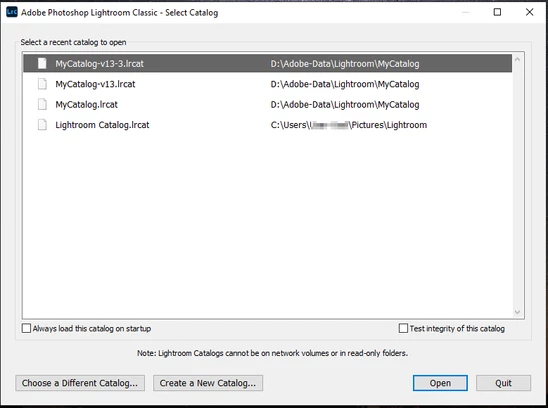
Select the appropriate catalog and let check it – note the checkmark to check its integrity. If that does not help, try to create a new one and see if this catalog then works. You could then try to import your current catalog into the new one.
Try is to switch off the GPU support from the Lightroom preferences and check if that helps to fix the issue.
Go to Lightroom > Preferences > Performance tab > Uncheck "Use Graphics Processor" > Restart Lightroom.
https://helpx.adobe.com/lightroom-classic/kb/troubleshoot-gpu.html
If Lightroom doesn't start correctly the please see "Solution 2" in the document behind the link below.
Troubleshoot GPU issues | Lightroom Classic (adobe.com)
Did you do a clean reinstallation? If no the try the reinstallation again and delete the preferences during the deinstallation, when you're asking. If this doesn't help try the following steps:
If you're unable to install the cc desktop app at this stage, use an administrator account (solution 4 here: https://helpx.adobe.com/creative-cloud/kb/creative-cloud-missing-damaged.html)
Do you get an error message?
If LR doesn't start check if there'S an LR task in the Windows Taskmanger aber starting LR.

 AdChoices