
Jeff A. Goulden
Inspiring
July 29, 2020
Answered

Problem Importing Lightroom Presets

  • July 29, 2020
  • 4 replies
  • 5287 views

I just converted from Lightroom 5.7 to Lightroom Classic 9.3 for Windows.  I have an extensive collection of presets that I exported from Lightroom 5.7.  When I try to import into Lightoom 9.3, I get the error message "File Appears to be Unsupported or Damaged".  My preset files all have the file extension .llrtemplate.  I suspect that this is an older format that is no longer supported.  Is there any way I can export these presets from my old Lightroom into the new program?
This topic has been closed for replies.
Correct answer johnrellis

[This post contains formatting and embedded images that don't appear in email. View the post in your Web browser.]


"Most of my presets have to do with exporting.  It seems like there should be something for this in the Library module."


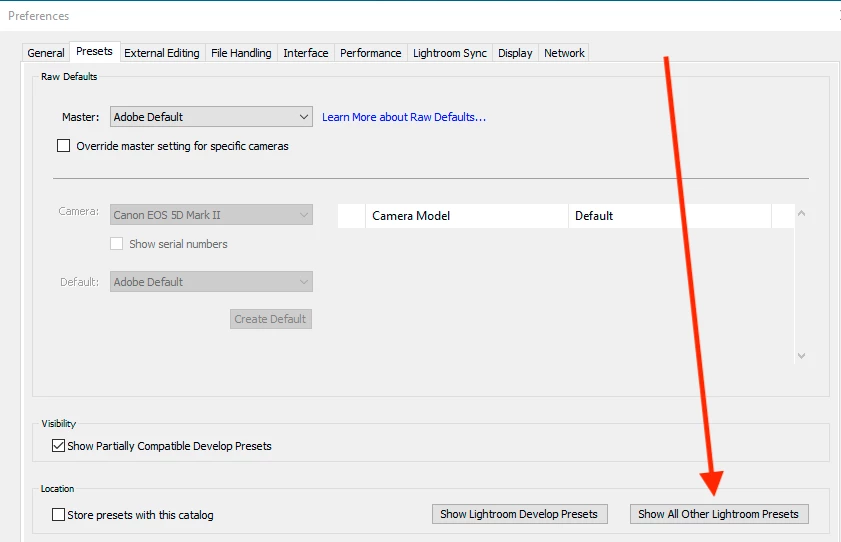
An easy way in LR 9.3 to get to the right folder mentioned by Just Shoot Me for all your other presets (other than Develop presets) is to do the menu command Edit > Preferences > Presets > Show All Other Lightroom Presets:

This will open File Explorer with the "Lightroom" folder selected, with subfolders for each type of preset: Export Presets, Filter Presets, Import Presets, etc. as shown in Just Shoot Me's screenshot.  These non-Develop presets still have the .lrtemplate format, so just place them in the corresponding subfolders.


[Use the blue reply button under the first post to ensure replies sort properly.]

4 replies

johnrellis
Legend
July 29, 2020

Glad you got it resolved.

johnrellis
johnrellisCorrect answer
Legend
July 29, 2020

[This post contains formatting and embedded images that don't appear in email. View the post in your Web browser.]


"Most of my presets have to do with exporting.  It seems like there should be something for this in the Library module."


An easy way in LR 9.3 to get to the right folder mentioned by Just Shoot Me for all your other presets (other than Develop presets) is to do the menu command Edit > Preferences > Presets > Show All Other Lightroom Presets:

This will open File Explorer with the "Lightroom" folder selected, with subfolders for each type of preset: Export Presets, Filter Presets, Import Presets, etc. as shown in Just Shoot Me's screenshot.  These non-Develop presets still have the .lrtemplate format, so just place them in the corresponding subfolders.


[Use the blue reply button under the first post to ensure replies sort properly.]

Jeff A. Goulden
Inspiring
July 29, 2020

Thanks John!!  That got me going in the right direction.  I was able to copy presets from my saved location to the location you showed me.  They appear to work.  Thanks again.

johnrellis
Legend
July 29, 2020

[This post contains formatting and embedded images that don't appear in email. View the post in your Web browser.]


"When I try to import into Lightoom 9.3, I get the error message "File Appears to be Unsupported or Damaged"."


To build on Just Shoot Me's reply: While his method will work (when done exactly right), another method that is less error-prone for many is to click the + button at the top of the Presets panel and do Import Presets:


There is also the menu command File > Import Develop Profiles And Presets, but it can't import old-format .lrtemplate presets.


If you're still getting that error message after using the + > Import Presets command, upload one of the presets to Dropbox or similar and post the sharing link here. We can quickly see what's going wrong.


[Use the blue reply button under the first post to ensure replies sort properly.]

Jeff A. Goulden
Inspiring
July 29, 2020

I should have also mentioned that I am going from Lightroom 5.7 on a Windows 7 machine to Lightroom 9 on a Windows 10 machine.  On my Windows 7 machine I found the preset files in the location as described by Just Shoot Me.  I didn't find the same path on my Windows 10 machine.  I actually saved my presets in a folder I called Lightroom Settings.


Having said that, I tried going to the preset panel and hitting the plus button.  It did find all my .lrtemplate files but when I tried to import, I got the error message "The preset file was the wrong type of preset".


Also, I don't understand why the preset panel and menu command File>Import Develop Profiles and Presets is only available in the Develop module.  Most of my presets have to do with exporting.  It seems like there should be something for this in the Library module.


As a follow-up, it was able to import my Develop Presets.


Just Shoot Me
Legend
July 29, 2020

You should find Most of that path.

C:\Users\YourUserName\AppData\Adobe\Lightroom as most of all presets are saved to that path in different folder names. Like Export Presets, Import Presets and the like.


The new path for Develop presets is.


C:\Users\YourUserName\AppData\Roaming\Adobe\CameraRaw\Settings


Just Shoot Me
Legend
July 29, 2020

IIRC place those older lrtemplate files in the same folder as they were in with LR 5 and LrC 9.3 should see them and ask to Convert them to the format, XMP, that works with the newer versions of LrC.


They are usually stored in your Usename folder area.


"C:\Users\YourUserName\AppData\Roaming\Adobe\Lightroom\Develop Presets