
Participating Frequently
September 13, 2023
Question

Profile not working / mismatch for old images

  • September 13, 2023
  • 1 reply
  • 1741 views

Hi. The "Profile" field for photos edited with old versions of Lightroom seems to be reporting / using an incorrect one. I am using Lightroom Classic 12.5 on Windows 10.


I noticed the error when editing photos from a session I took in 2019. I edited the pictures with the version of Lightroom that was available at that time . A couple of months ago I tried to edit some additional photos of that session and I noticed that when I copied the settings from one picture to another the colors would never match. So I thought this would be the Copy/Paste setting issue with the "Curve" checkbox.


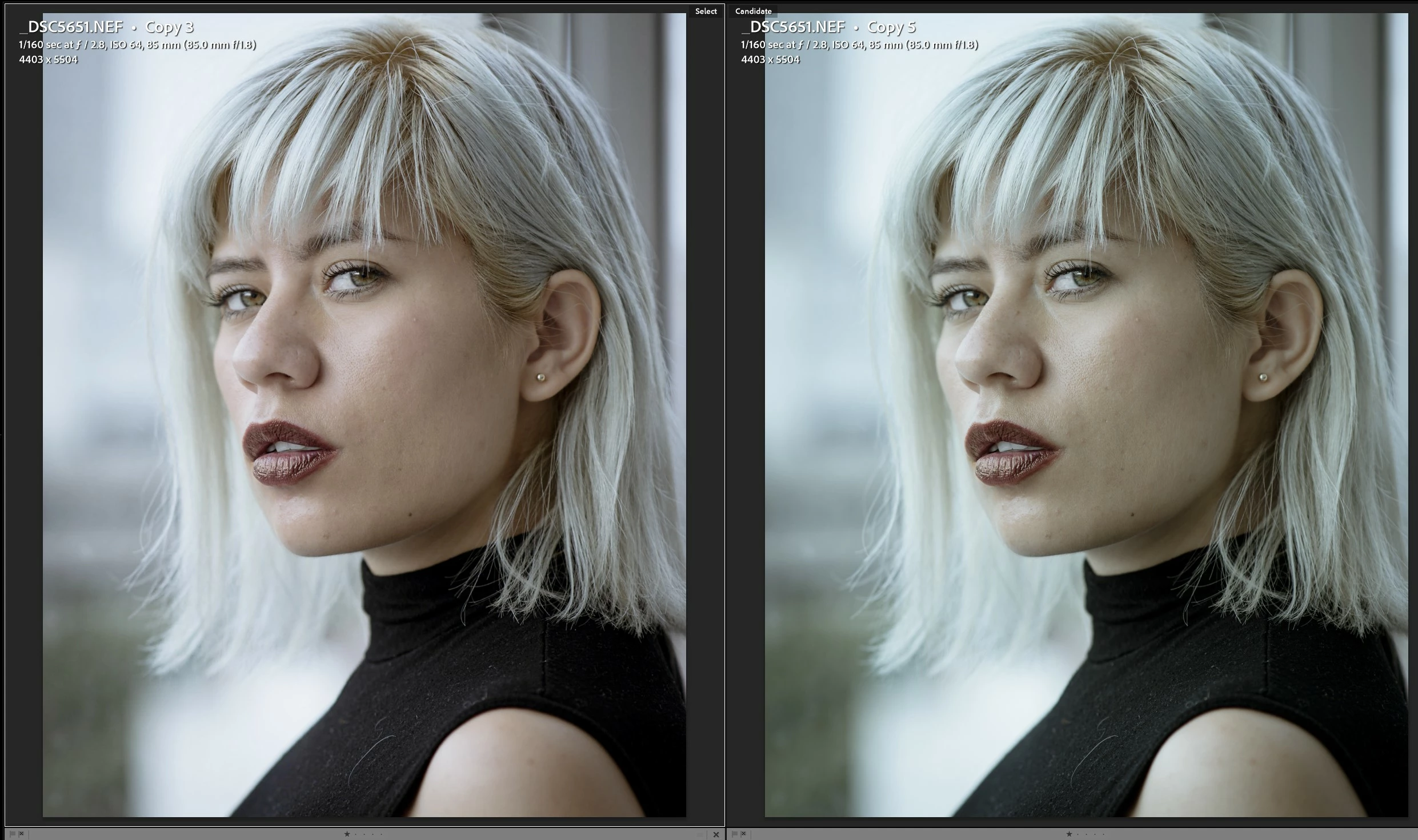
To replicate the issue I tried creating a new virtual copy of an already edited photo, I reset all the settings of the virtual copy and copied all the settings from the edited photo to the new virtual copy. All the settings would copy just fine, however the colors would look different. Below are the two pictures (on the left is the original edit and on the right is the new virtual copy with all the settings copied):
 

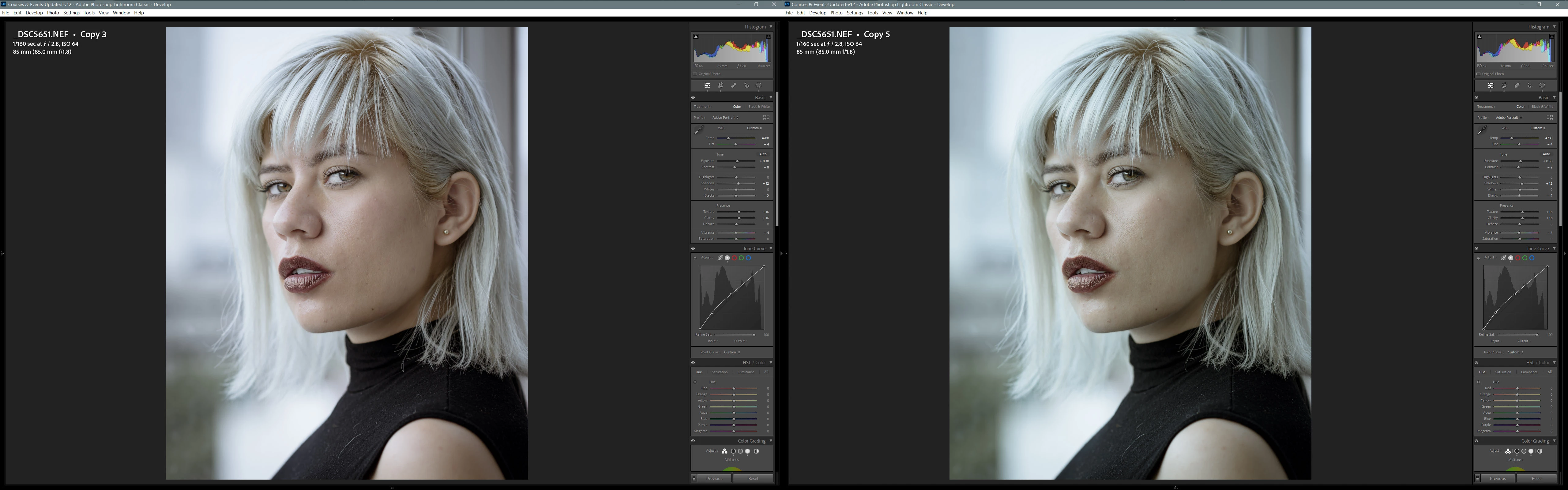
I tried comparing the settings of both photos using the bag-o-goodies plug-in, and it reported that all the settings were indeed the same except for the "Camera Profile", which is strange because I selected the "Treatment & Profile" checkbox when copying the settings. I reviewed the details of both photos and both had the "Adobe Portrait" Profile as seen below:
 

As a final test, I edited the new virtual copy, and applied the "Adobe Portrait" Profile assuming it was incorrectly applied, and nothing happened. Then I tried the same with the original photo that contained the edits I wanted, when I applied the "Adobe Portrait" Profile, the colors now look exactly the same as in the newly created virtual copy. As can be seen in the video below:


This is strange, because the Photo already had the "Adobe Portrait" Profile applied. So, this is making me think that although Lightroom is reporting the Profile as "Adobe Portrait", it is really using something else.


At some point, between 2019 and now, I updated all the pictures to Process "Version 6 (Current)". I think the upgrade had something to do with this issue with the Profile, maybe the one I edited used an old "Adobe Portrait" Profile and in newer versions the Pofile was updated.


Any help or guidance is muchly appreciated, it has been a pain trying to match colors.

This topic has been closed for replies.

1 reply

ArmagonzAuthor
Participating Frequently
September 13, 2023

Hi. The "Profile" field for photos edited with old versions of Lightroom seems to be reporting / using an incorrect one. I am using Lightroom Classic 12.5 on Windows 10.


I noticed the error when editing photos from a session I took in 2019. I edited the pictures with the version of Lightroom that was available at that time . A couple of months ago I tried to edit some additional photos of that session and I noticed that when I copied the settings from one picture to another the colors would never match. So I thought this would be the Copy/Paste setting issue with the "Curve" checkbox.


To replicate the issue I tried creating a new virtual copy of an already edited photo, I reset all the settings of the virtual copy and copied all the settings from the edited photo to the new virtual copy. All the settings would copy just fine, however the colors would look different. Below are the two pictures (on the left is the original edit and on the right is the new virtual copy with all the settings copied):


I tried comparing the settings of both photos using the bag-o-goodies plug-in, and it reported that all the settings were indeed the same except for the "Camera Profile", which is strange because I selected the "Treatment & Profile" checkbox when copying the settings. I reviewed the details of both photos and both had the "Adobe Portrait" Profile as seen below:


As a final test, I edited the new virtual copy, and applied the "Adobe Portrait" Profile assuming it was incorrectly applied, and nothing happened. Then I tried the same with the original photo that contained the edits I wanted, when I applied the "Adobe Portrait" Profile, the colors now look exactly the same as in the newly created virtual copy. As can be seen in the video below:


This is strange, because the Photo already had the "Adobe Portrait" Profile applied. So, this is making me think that although Lightroom is reporting the Profile as "Adobe Portrait", it is really using something else.


At some point, between 2019 and now, I updated all the pictures to Process "Version 6 (Current)". I think the upgrade had something to do with this issue with the Profile, maybe the one I edited used an old "Adobe Portrait" Profile and in newer versions the Pofile was updated.


If needed I can send a sample of the Catalog with this 2 Photos. Any help or guidance is muchly appreciated, it has been a pain trying to match colors.


johnrellis
Legend
September 16, 2023

Did you use the Adobe DNG Converter to convert those 2019 photos to DNG before importing them into LR? There is an obscure problem with camera profiles caused by misfeatures of both the DNG converter and LR.


Regardless, select two of the photos having the problem, do File > Export As Catalog with the options Export Selected Photos Only and Export Negative Files.  Zip the exported catalog folder, upload it to Dropbox, Google Drive, or similar, and post the sharing link here.


Without access to the catalog and original photos, it will be impossible to diagnose the issue.

ArmagonzAuthor
Participating Frequently
September 20, 2023

[This post contains formatting and embedded images that don't appear in email. View the post in your Web browser.]


You're tripping over obscure behavior in LR that wasn't well-designed (in my opinion):


All three images in the test catalog use the profile Adobe Portrait.  Adobe Portrait is implemented as an "enhanced profile" that is based on the Adobe Standard camera profile. The image edited in 2019 uses the original version of Adobe Standard for the Z 7, while the image edited just now uses Adobe Standard v2. It's not possible to tell this in the LR user interface -- you have to use Any Filter plugin or the free Show Catalog Metadata plugin.


The original version of Adobe Standard for the Z 6 and Z 7 had problems with white balance, so Adobe later released the v2 versions to fix that. This was never well-documented in the release notes, and Adobe has discarded the old forum discussions about this, but the Internet Archive contains an Adobe help article about it:

https://web.archive.org/web/20220901000000*/https://helpx.adobe.com/camera-raw/kb/white-balance-issue-color-cast-with-nikon-z-6-raw-file.html


The article only mentions the Z 6, but apparently it also applies to the Z 7 (the cameras were released at the same time).


When you edited the photo in 2019, you applied Adobe Portrait, which implicitly applied Adobe Standard (v1).  When you apply Adobe Portrait now, it implicitly applies Adobe Standard v2, with a much different white balance.


When you use Sync Settings to copy Treatment & Profile from the 2019 photo to, say, a fresh virtual copy that's been reset, Sync Settings copies Adobe Portrait, implicitly applying Adobe Standard v2, even though the original photo used the original v1 version.


You can force the old photos to use the new version of Adobe Portrait/Adobe Standard v2 by changing their profile to "Adobe Standard" (or any other profile) and then changing back to Adobe Portrait. This will of course change the white balance.


You can explicitly set the profile of a photo to the original version of Adobe Standard by selecting it from the Legacy group in the Porifle Browser:


However, there is no way to apply Adobe Portrait using the original Adobe Standard (v1), a design oversight -- you'll always get Adobe Standard v2.


Thank you for such a detailed answer to my issues. What you describe is consistent with the behavior I am seeing in all the photos I took with the Z7 and edited before 2022 using the Adobe Profile, when I try to edit any of them now the colors look different. 


Where can I find addtional information about the "enahced profiles", I always assumed that Adobe Portrait, Landscape, etc. were completely different profiles, not based on the Standard Profile. Also, I do not have that "Legacy" group that is in your screenshot in my Lightroom Profile Browser, how can I get it?


I visited the Internet Archive site and in all the cases it suggests to download the Standard v2 profiles, without much information about what were the issues with v1. For me, this raises a couple of questions:


  • Is there a way to get access to the original "Nikon Z 7 Adobe Standard.dcp"? I assume that if I can get it and install it in my Lightroom Folder, I could just tell Lightroom to use that profile and my issues would be solved, right?
  • Where can I find what are the issues with the Adobe Standard v1? Should I be concerned about any of my old edits?
  • Is there an easy way to have the white balance match between both profiles? Right now I am doing it by hand and although I am getting very similar colors, I cannot get exactly the same colors as in the first edits.


Once again, thank you for your help.