
Participating Frequently
September 13, 2023
Question

Profile not working / mismatch for old images

  • September 13, 2023
  • 1 reply
  • 1741 views

Hi. The "Profile" field for photos edited with old versions of Lightroom seems to be reporting / using an incorrect one. I am using Lightroom Classic 12.5 on Windows 10.


I noticed the error when editing photos from a session I took in 2019. I edited the pictures with the version of Lightroom that was available at that time . A couple of months ago I tried to edit some additional photos of that session and I noticed that when I copied the settings from one picture to another the colors would never match. So I thought this would be the Copy/Paste setting issue with the "Curve" checkbox.


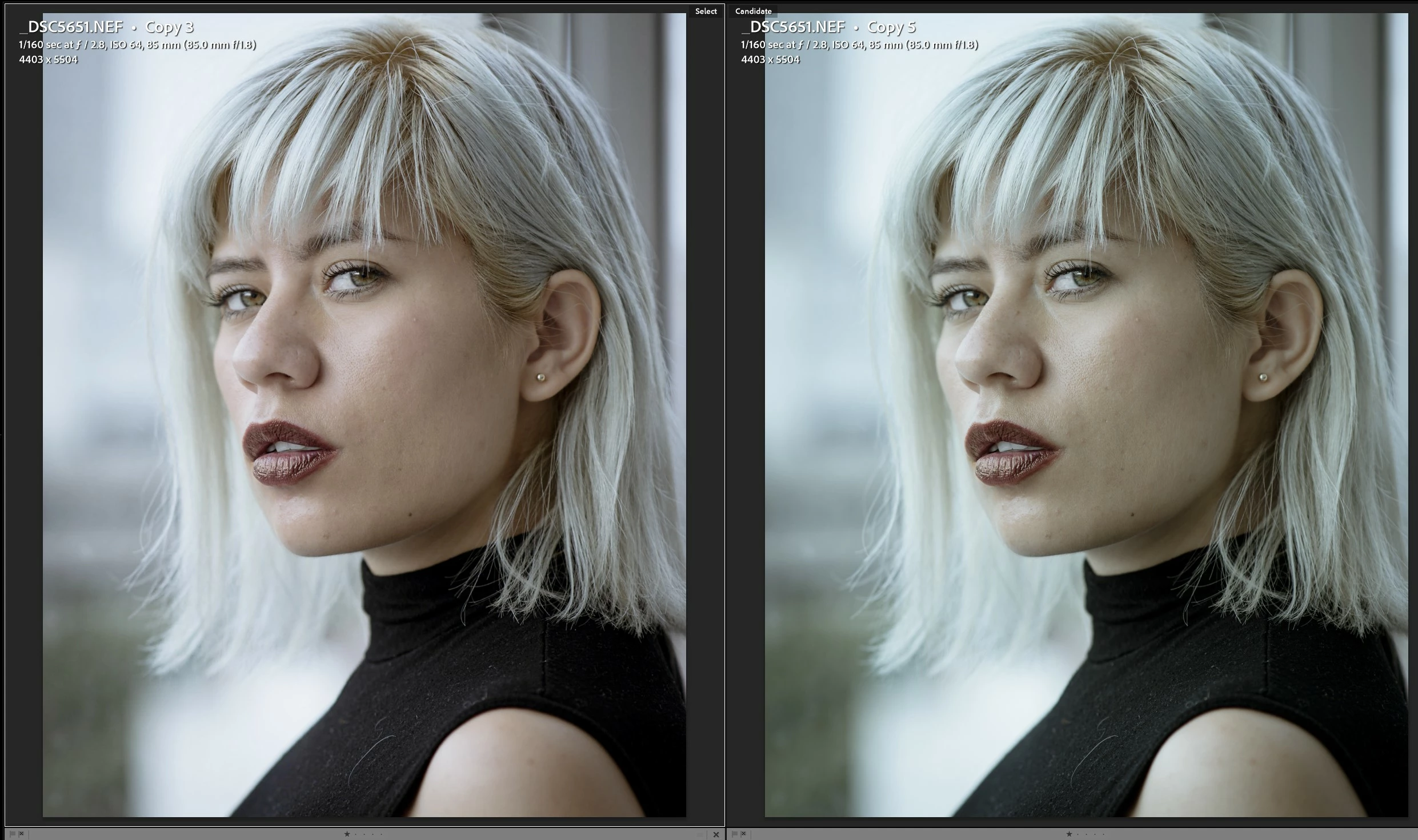
To replicate the issue I tried creating a new virtual copy of an already edited photo, I reset all the settings of the virtual copy and copied all the settings from the edited photo to the new virtual copy. All the settings would copy just fine, however the colors would look different. Below are the two pictures (on the left is the original edit and on the right is the new virtual copy with all the settings copied):
 

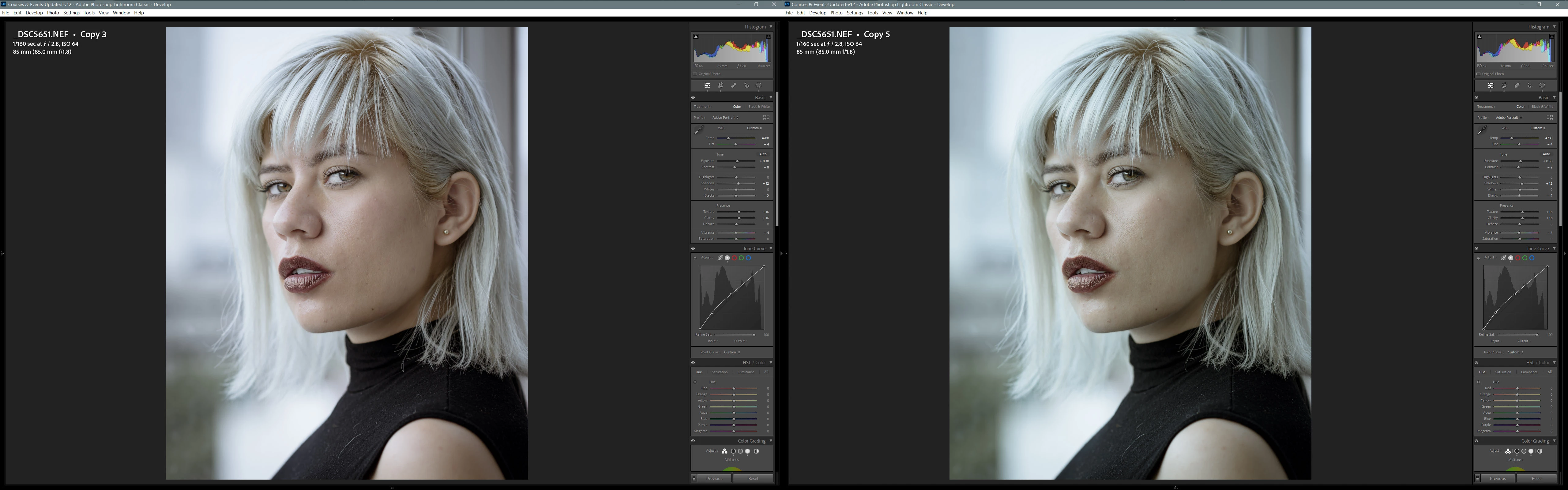
I tried comparing the settings of both photos using the bag-o-goodies plug-in, and it reported that all the settings were indeed the same except for the "Camera Profile", which is strange because I selected the "Treatment & Profile" checkbox when copying the settings. I reviewed the details of both photos and both had the "Adobe Portrait" Profile as seen below:
 

As a final test, I edited the new virtual copy, and applied the "Adobe Portrait" Profile assuming it was incorrectly applied, and nothing happened. Then I tried the same with the original photo that contained the edits I wanted, when I applied the "Adobe Portrait" Profile, the colors now look exactly the same as in the newly created virtual copy. As can be seen in the video below:


This is strange, because the Photo already had the "Adobe Portrait" Profile applied. So, this is making me think that although Lightroom is reporting the Profile as "Adobe Portrait", it is really using something else.


At some point, between 2019 and now, I updated all the pictures to Process "Version 6 (Current)". I think the upgrade had something to do with this issue with the Profile, maybe the one I edited used an old "Adobe Portrait" Profile and in newer versions the Pofile was updated.


Any help or guidance is muchly appreciated, it has been a pain trying to match colors.

This topic has been closed for replies.

1 reply

ArmagonzAuthor
Participating Frequently
September 13, 2023

Hi. The "Profile" field for photos edited with old versions of Lightroom seems to be reporting / using an incorrect one. I am using Lightroom Classic 12.5 on Windows 10.


I noticed the error when editing photos from a session I took in 2019. I edited the pictures with the version of Lightroom that was available at that time . A couple of months ago I tried to edit some additional photos of that session and I noticed that when I copied the settings from one picture to another the colors would never match. So I thought this would be the Copy/Paste setting issue with the "Curve" checkbox.


To replicate the issue I tried creating a new virtual copy of an already edited photo, I reset all the settings of the virtual copy and copied all the settings from the edited photo to the new virtual copy. All the settings would copy just fine, however the colors would look different. Below are the two pictures (on the left is the original edit and on the right is the new virtual copy with all the settings copied):


I tried comparing the settings of both photos using the bag-o-goodies plug-in, and it reported that all the settings were indeed the same except for the "Camera Profile", which is strange because I selected the "Treatment & Profile" checkbox when copying the settings. I reviewed the details of both photos and both had the "Adobe Portrait" Profile as seen below:


As a final test, I edited the new virtual copy, and applied the "Adobe Portrait" Profile assuming it was incorrectly applied, and nothing happened. Then I tried the same with the original photo that contained the edits I wanted, when I applied the "Adobe Portrait" Profile, the colors now look exactly the same as in the newly created virtual copy. As can be seen in the video below:


This is strange, because the Photo already had the "Adobe Portrait" Profile applied. So, this is making me think that although Lightroom is reporting the Profile as "Adobe Portrait", it is really using something else.


At some point, between 2019 and now, I updated all the pictures to Process "Version 6 (Current)". I think the upgrade had something to do with this issue with the Profile, maybe the one I edited used an old "Adobe Portrait" Profile and in newer versions the Pofile was updated.


If needed I can send a sample of the Catalog with this 2 Photos. Any help or guidance is muchly appreciated, it has been a pain trying to match colors.


C.Cella
Legend
September 19, 2023

@Armagonz 


Another issue, not connected to your but that but that you might want to be aware of.

In both photos you have empty masks.


This happens because the Presets you used (I realize only now are Masking presets, not "look presets") there is a selection that was not detected: Facial Hair.

LrC keeps creating Empty Mask and leaves them there, even if it is aware they are empty which leaves us users to do the cleanup via right click and waste our time.


To clean all empty Mask in batch you will need to use Auto Sync.

So use Any Filter plug-in by @johnrellis, search/filter photos with Empty Masks and delete them.


Maybe John can make a routine or a plug-in command that automatically clears Empty Masks form the selected photos without having to do all all these steps/workarounds.


Also last thing.

When one opens your catalog for the first time one can Undo and gets a "Undo Sync Smart Collection".

It seems there is a phantom event here that should not exist, smart collection sync should not be undoable or be part of the undo events.


This is yet another bug to report.


C.Cella
Legend
September 20, 2023

Wow, it seems to be that the more I use it the more bugs I runt into 😛 


Thank you for looking at this additional information. Indeed, I had noticed that some files now have empty masks but I did not pay attention to them. I asssumed they wouldn't harm my edits, should I remove them? what should be the concern with the empty masks?


I also noticed another "weird" behavior with the smart presets that I did not know how to explain. When applying some Smart Presets to pictures taken with my Z7 and initial edits before 2022, the colors in the image look diffent even though none of the masks affect any of the colors sliders (just like in the initial issue of this thread). So, based on the information provided by @johnrellis , I assume that some Smart Presets are automatically updating the Profile to the latest one, i.e. v2.


Empty corrections and empty masks add to the clutter in the Masking list.

We already have zero management for the list (note how corrections are NOT in alphabetical order) so it's best to not have empty items.

Vital UI space needs to be reclaimed. 


  • In 2022 you were probably working with Process version 5 which produced slightly different colors.

Now applying a Preset will automatically use Process Version 6

This is why the same preset applied at different points in time can look slightly different.


I would suggest to create your own Presets and not rely on  Adobe Premium Presets...they are mostly good for beginners.