
Inspiring
December 7, 2023
Question

Program Closes with no error dialogs

  • December 7, 2023
  • 2 replies
  • 2001 views

Recently, LRC has been crashing a repeatedly. When I say crash: the program just disappears - no error messages from Adobe or Windows. I looked at the Windows event viewer, it shows the following:
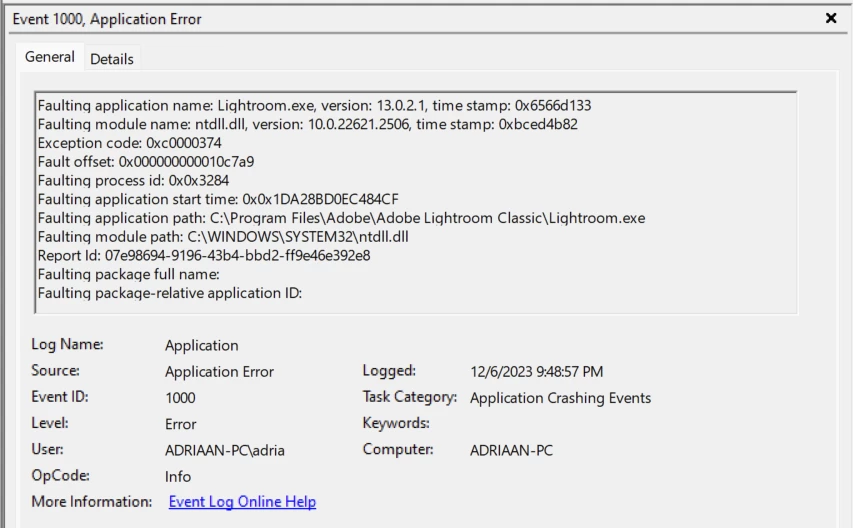
I did some searching on ntdll.dll crashing and performed the recommended system file scan with "sfc /scannow". This reported to have found some corrupt files and repaired them. I then also did a Windows update and reboot. However, a short while later it's crashing again.

What causes it to crash: in Develop module, simply selecting a different image to work with. Once, selecting the crop tool. It does not crash on the first few images, it takes a while (I don't have number on this). It is random as far as I can tell. I don't have problems with any other software.

>LRC version: 13.0.2

>Windows version: 11 Pro, build 22H2

Please let me know if there is a fix for this, or if I can provide more information.

In the meantime I'll try rolling back to an earlier version, e.g. 13.0.1.

Thanks, Adriaan


[moved from bugs to discussions according to the community rules - Mod.]

This topic has been closed for replies.

2 replies

GoldingD
Legend
December 7, 2023

Sounds very much like:

https://community.adobe.com/t5/lightroom-classic-discussions/lrc-13-0-2-still-crashes/m-p/14283803#M347743


Bring up Google, and search on:

Faulting module name: ntdll.dll


Perhaps as a MS site discussion on that might help

Adriaan_SAuthor
Inspiring
December 11, 2023

I took a look at your link, thanks. One suggestion relates to the graphics processor. I tried the following:

(1) Update to the latest NVIDIA studio driver: still crashing.

(2) Install an earlier version NVIDIA driver I had: still crashing.

(3) Roll back to LRC 13.0.0 (versions before that cannot read my current catalog): still crashing.

(4) Turn off the graphics processor: this works (so far at least) [with LRC and video driver updated to the current versions).

>This is strange, because #2 and #3 should have put the system back in an earlier state before the crashes occurred. Maybe something else is causing the problem?

Finally I looked more online on the nldll.dll error.  One post I found stated that the exception code is the more important part of this. That code is 0xC0000374. This is a "STATUS_HEAP_CORRUPTION". That post also stated that these are difficult to trace. Another post stated "Assuming that your Windows system is up to date and none of the usual checks for corruption has indicated a problem ( system file checker, dism ) then this is an issue that should be addressed by the author of the application." As I explained, my Windows is up to date and I have already done the system file checker and dism checks.

>>At this point, further trouble shooting is beyond my abilities.

Let me know if there are specific suggestions I can try, or specific information I can provide. Barring that, I'll have to leave the graphics processor turned off.

Adriaan

Adriaan_SAuthor
Inspiring
January 17, 2024

I get it, but turning that off stopped Lightroom 13 crashing for me.  In my experience, lightroom records what changes you make immediately, and crashing doesn't lose those.  But if you'd like more backup, you could also sync your changes to the lightroom cloud, and then you'd have them there as well.  Good luck!


Can you please explain in some detail what "sync your changes to the lightroom cloud" means?

>I did some Google searches but they are not comforting. (a) "Any photo synced from Lightroom Classic (LrC) to the Lr cloud is only uploaded to the cloud as a smart preview." -- so where are the changes stored? (b) "Only certain designated collections will by synched" -- so how do I save ALL my changes online?

Without XMP files, changes are saved in the catalog, so it seems to me this is what should be synched. I looked at the Preferences for Lightroom Sync, but I don't see an option to only sync the catalog. How would I sync only the catalog? According to multiple web pages, "Your LR-Classic catalog is not being stored in the clouds, it's being stored on your hard drive ". Is this wrong - if it can be done, how often will it be synced? Finally, if something goes wrong with the catalog, when/how would I find out? For example, does the whole thing become unusable all at once, or could parts of it become corrupted which I would not notice unless I go back to looking at those photos at a much later date - at which point a catalog retore from backup would wipe out a lot more edits?

--> Can you please explain how syncing will help given the above? By the way, I do back up the catalog overnight using my regular, separate backup software and the result goes to that companies cloud.

Thanks, Adriaan

F. McLion
Community Expert
Community Expert
December 7, 2023

Please share the first blocks (approx. 45 lines) of your system information from the LrC help menu.

Paste the information as text here rather than as a screen capture.


--- Got your issue resolved? Please label the response as 'Correct Answer' to help your fellow community members find a solution to similar problems. ---
Adriaan_SAuthor
Inspiring
December 7, 2023

Lightroom Classic version: 13.0.2 [ 202311290958-8ff975ea ]
License: Creative Cloud
Language setting: en
Operating system: Windows 11 - Business Edition
Version: 11.0.22621
Application architecture: x64
System architecture: x64
Logical processor count: 12
Processor speed: 3.6GHz
SqLite Version: 3.36.0
CPU Utilisation: 2.0%
Built-in memory: 32702.4 MB
Dedicated GPU memory used by Lightroom: 2658.7MB / 8032.0MB (33%)
Real memory available to Lightroom: 32702.4 MB
Real memory used by Lightroom: 1905.8 MB (5.8%)
Virtual memory used by Lightroom: 4907.1 MB
GDI objects count: 715
USER objects count: 2831
Process handles count: 5244
Memory cache size: 152.6MB
Internal Camera Raw version: 16.0 [ 1677 ]
Maximum thread count used by Camera Raw: 5
Camera Raw SIMD optimization: SSE2,AVX,AVX2
Camera Raw virtual memory: 547MB / 16351MB (3%)
Camera Raw real memory: 311MB / 32702MB (0%)
System DPI setting: 120 DPI
Desktop composition enabled: Yes
Standard Preview Size: 1440 pixels
Displays: 1) 2560x1440
Input types: Multitouch: No, Integrated touch: No, Integrated pen: Yes, External touch: No, External pen: Yes, Keyboard: No

Graphics Processor Info:
DirectX: NVIDIA GeForce RTX 3070 (31.0.15.4601)
Init State: GPU for Export supported by default
User Preference: Auto

Application folder: C:\Program Files\Adobe\Adobe Lightroom Classic
Library Path: D:\LR_Catalogs\LR-Main-v13.lrcat
Settings Folder: C:\Users\adria\AppData\Roaming\Adobe\Lightroom

Installed Plugins:
1) AdobeStock
2) Epson Print Layout
3) Flickr
4) LogiOptions
5) Nikon Tether Plugin
6) ON1 Photo RAW 2021
7) ON1 Resize 2021
😎 Topaz Photo AI