This topic has been closed for replies.

4 replies

Rob_Cullen
Community Expert
Community Expert
October 2, 2022

To add to the good reply from @Jill_C -

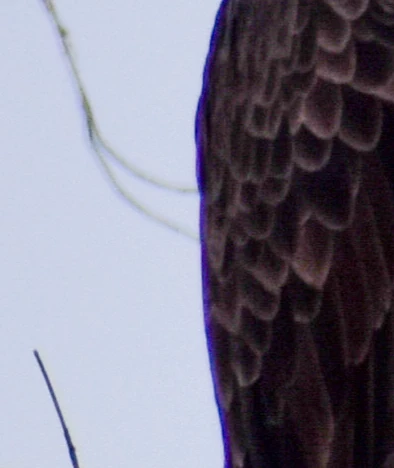
If you set the Lens Correction mode to [Manual] you have access to a selection 'dropper' that you can use to click-on, and select the exact fringing color with the dropper.


Regards. My System: Windows-11, Lightroom-Classic 15.1.1, Photoshop 27.3.1, ACR 18.1.1, Lightroom 9.0, Lr-iOS 10.4.0, Bridge 16.0.2 .
Jill_C
Community Expert
Community Expert
October 2, 2022

oh, wow, how did I never notice that little eyedropper icon there??? I learned somehting new today! Thanks Rob_Cullen

Jill C., Forum Volunteer
Nancy OShea
Community Expert
Community Expert
October 1, 2022

[Moderator moved from Stock Contributors to Lightroom Classic.]


Nancy O'Shea— Product User & Community Expert
Jill_C
Community Expert
Community Expert
October 1, 2022

In the Develop module, click on Lens Correction, then click the Remove Chromatic Aberration checkbox under the Profile section. Then click on Manual (still in the Lens Correction panel) and move the Amount and Purple Hue sliders to the right until the fringing disappears. Zoom in while doing this so that you can make sure you've not overdone it; too much correction creates an equally objectionable halo.

Jill C., Forum Volunteer
Jill_C
Community Expert
Community Expert
October 1, 2022

This is called "chromatic aberration" or "purple fringing", and you can fix it in the Lens Correction section of LRC. 

Jill C., Forum Volunteer