

🔎 Quick Tip: How to use the new Lens Blur feature in Lightroom Classic

Using the new Lens Blur in Lightroom Classic
Did you know, with the new Lens Blur feature in Lightroom Classic, you can create an AI generated depth map that lets you control the focus range or depth of field in a photograph? It also lets you create realistic bokeh in a number of styles. Read below to find out how.
Also, check out the related links at the bottom for more great information.
Enjoy!
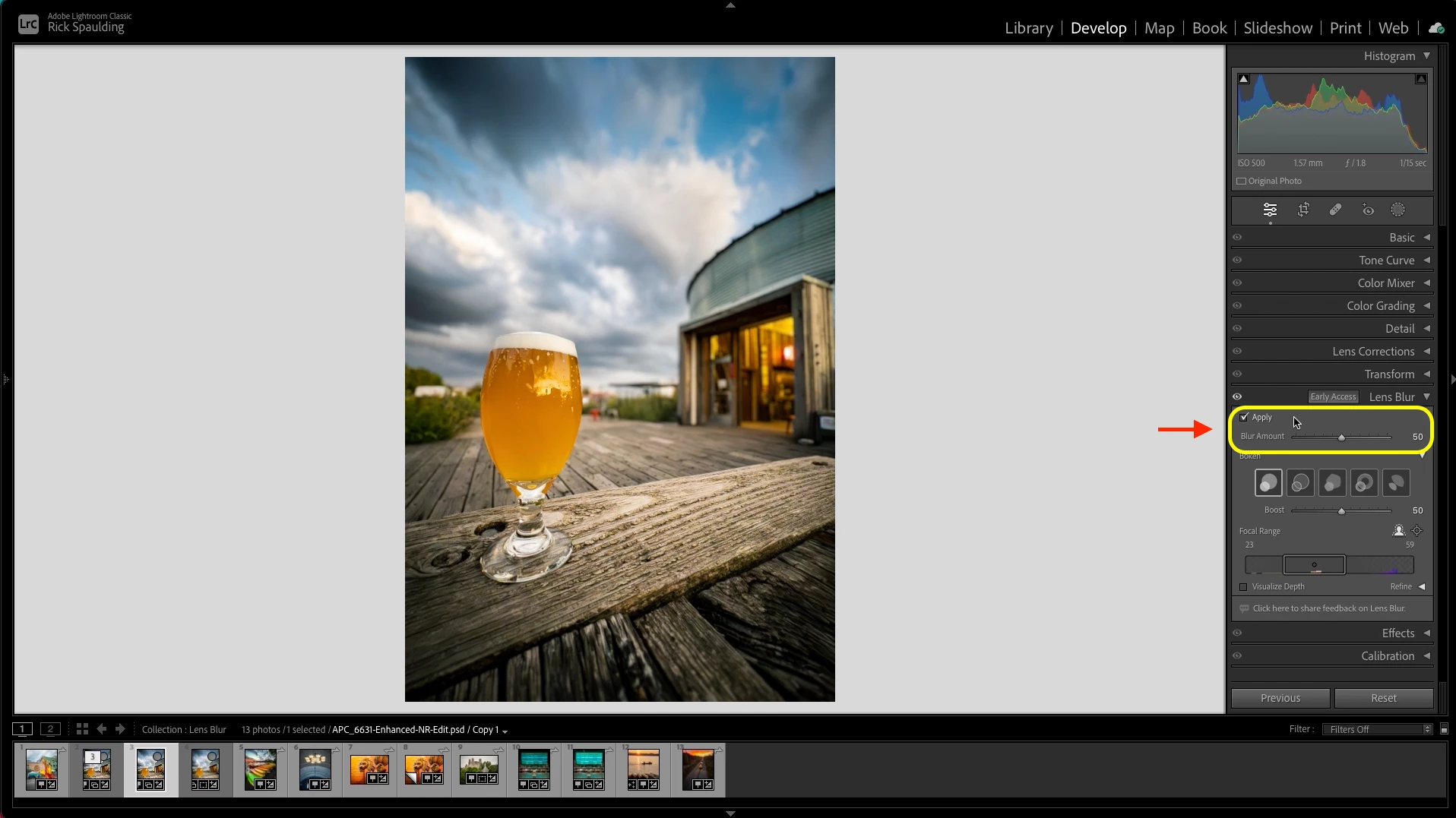
❶ Apply Lens Blur
- Click “Apply” in the Lens Blur Panel and Lightroom will use Artificial Intelligence to calculate a depth map with the focus point automatically selected.
- Use the Blur Amount slider to adjust the intensity of the effect.
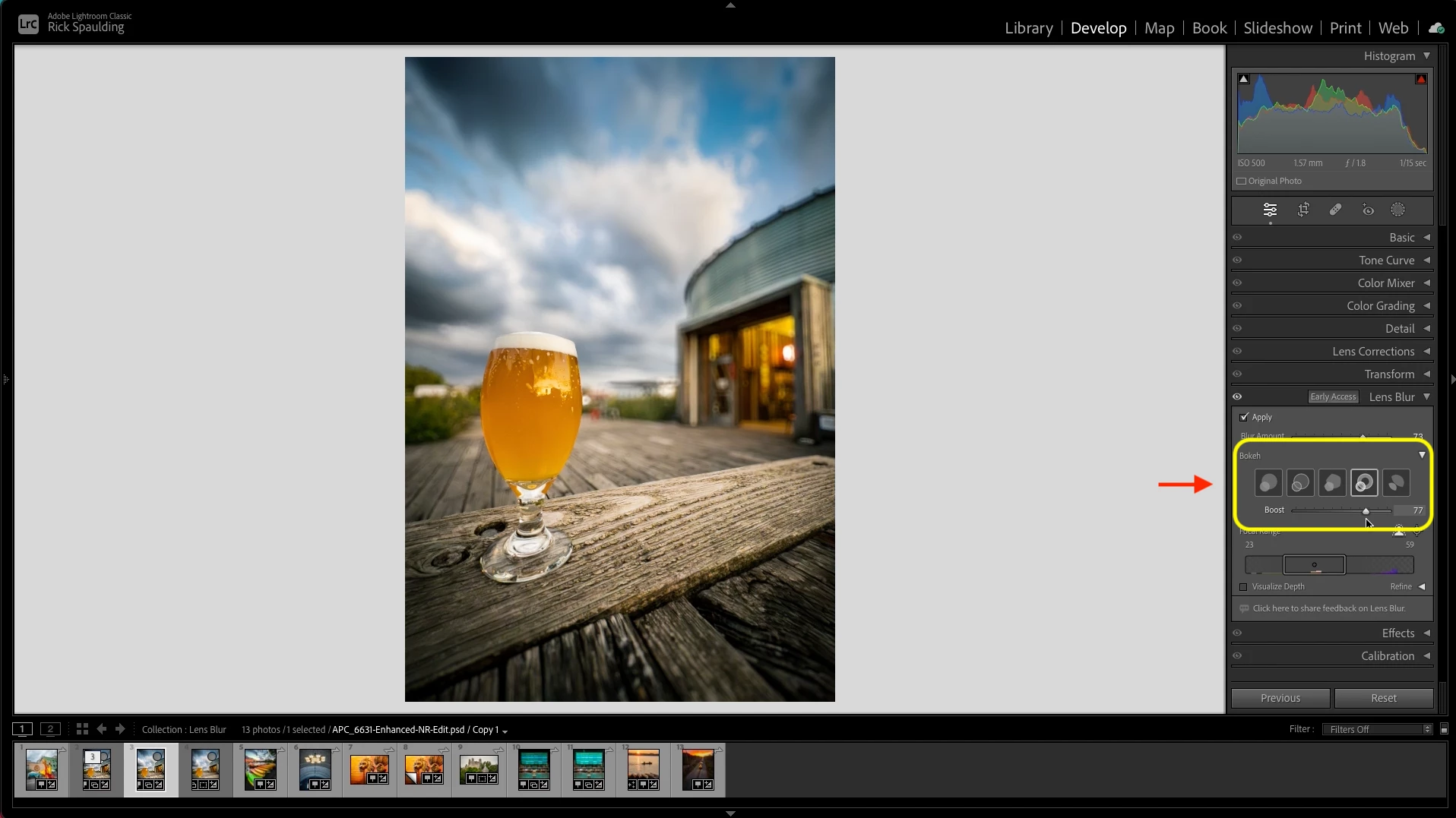
❷ Choose your Bokeh
- Lens Blur also adds realistic bokeh to the image. You can choose from five different aperture shapes, and use the Boost slider to adjust the highlights.
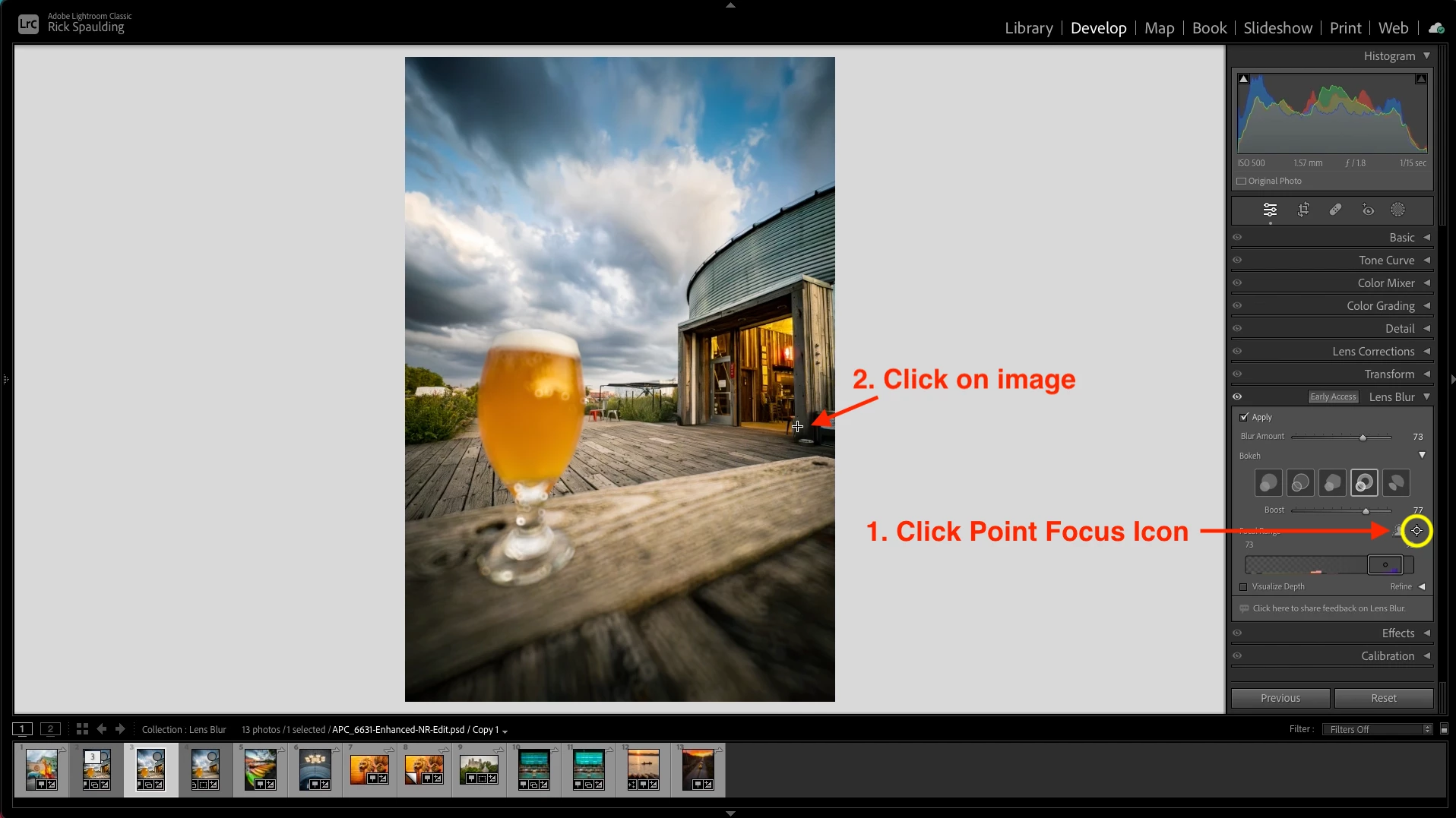
❸ Pick your focal point
-
You can choose a different focal point by selecting the Point or Area Focus icon then clicking or draging on the area you want in focus.
❹ Adjust the focal range
-
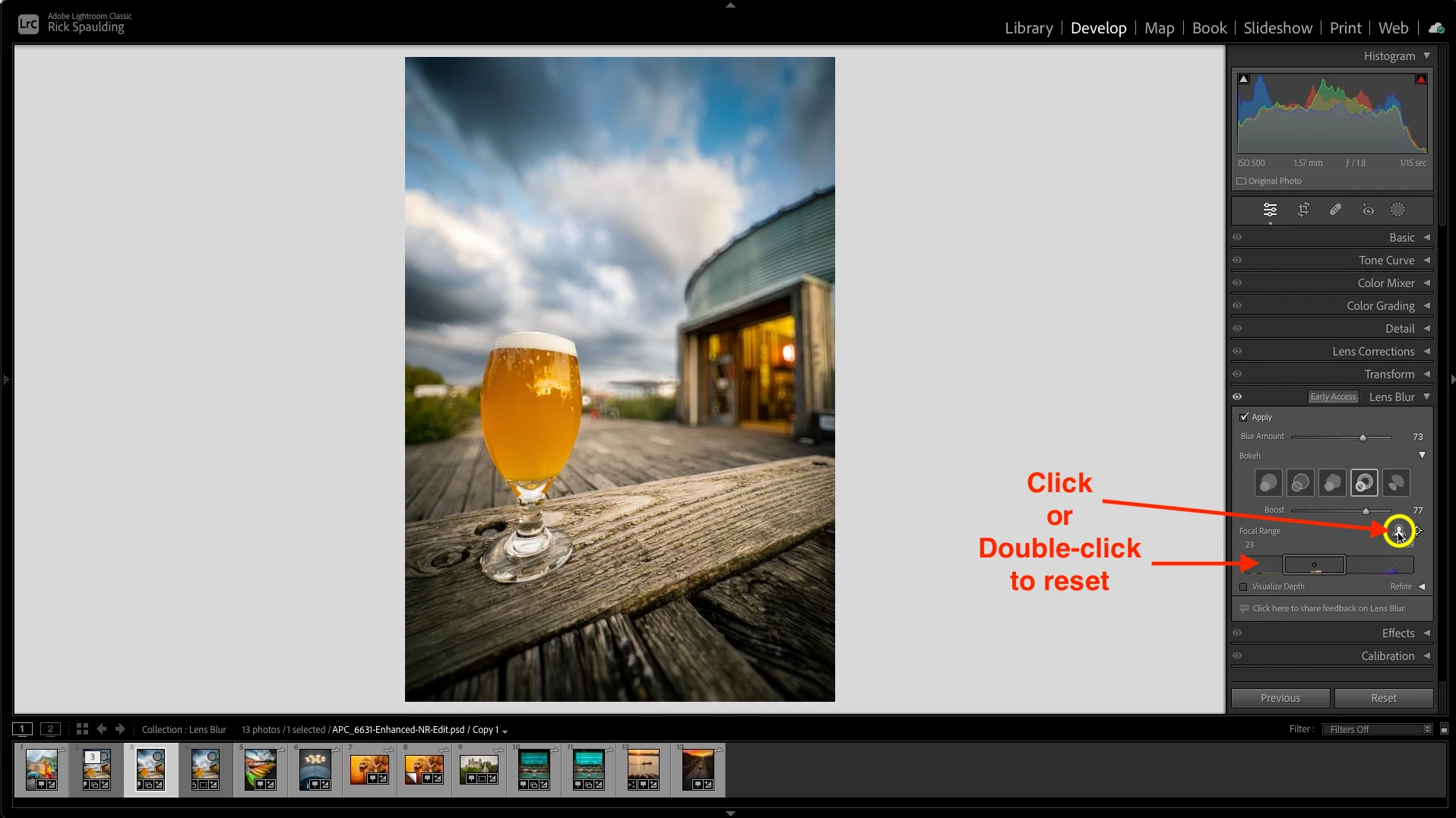
You can also adjust focus using the Focal Range Bar. Reposition the rectangle within the bar to change the focal area, and drag either edge to contract or expand the focal range.
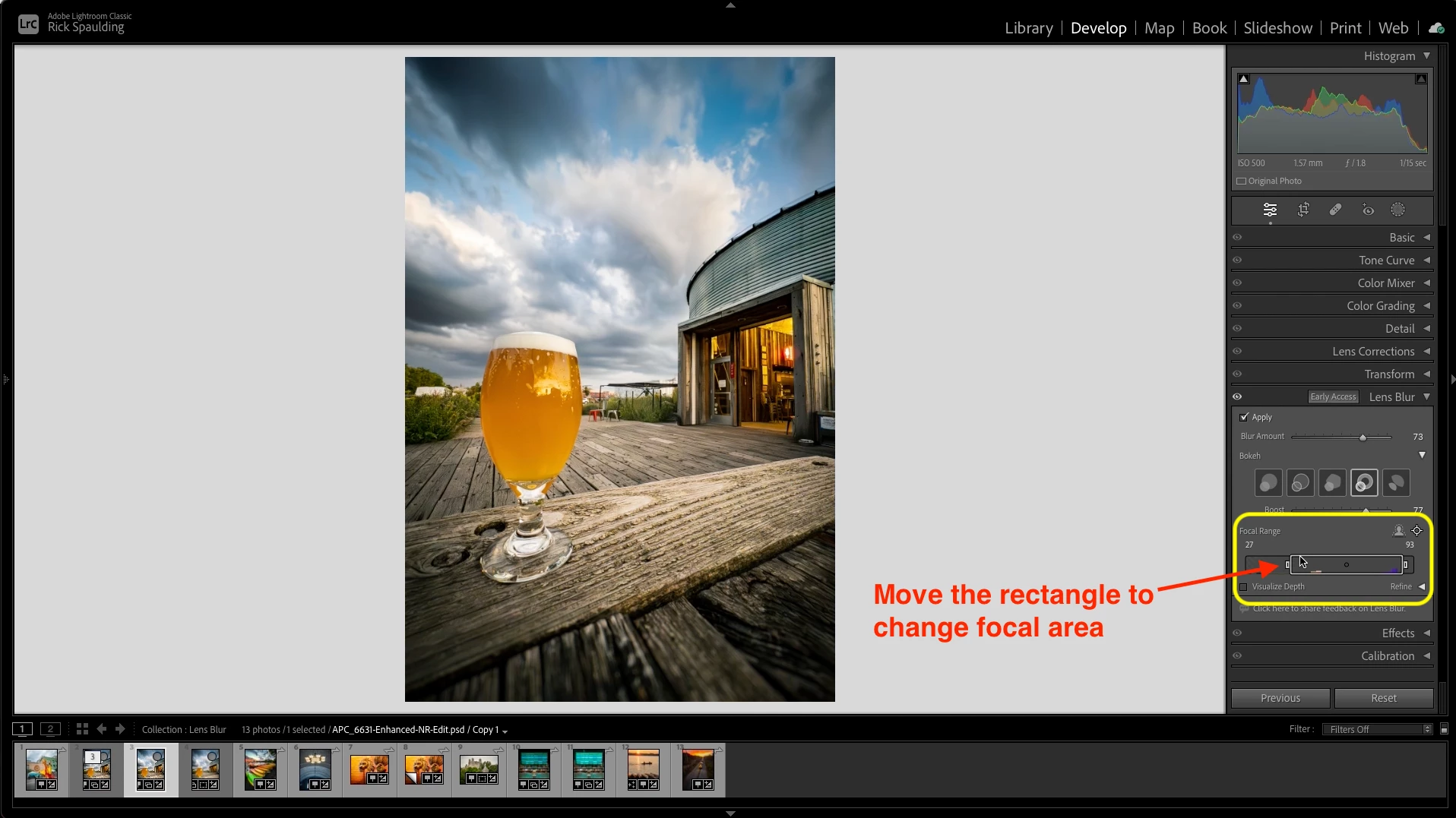
- To reset it, double-click anywhere in the bar or select the Subject Focus icon.
❺ Look into the Depth
-
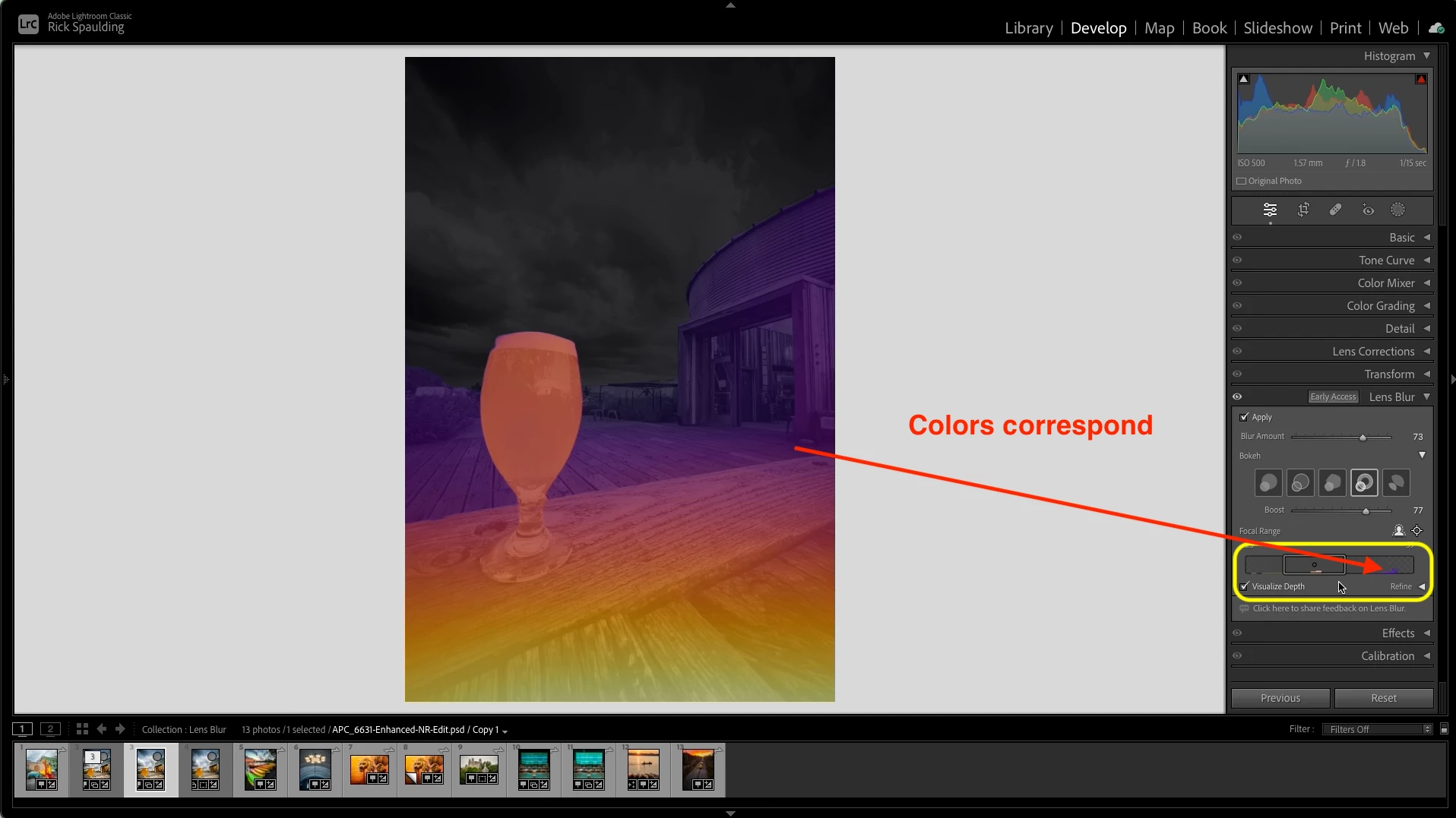
You can see an overlay of the Depth Map when you enable Visualize Depth.
-
The color overlay in the image, corresponds to the colors in the Focal Range Bar.
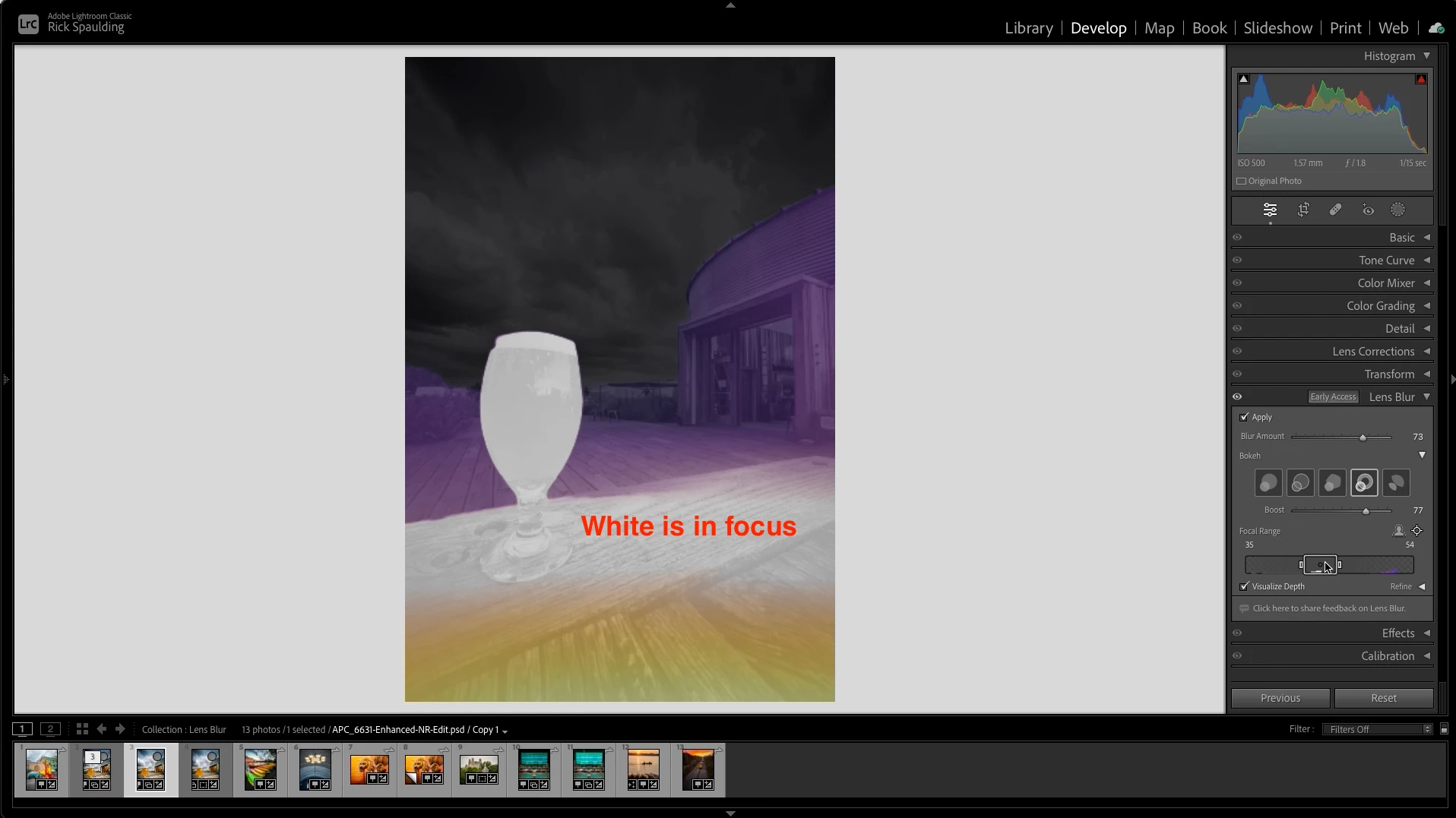
- When you move the rectangle in the focal Range Bar, the in focus ares are displayed in white. The yellow and purple areas represent the out of focus areas.
❻ Refine your vision
-
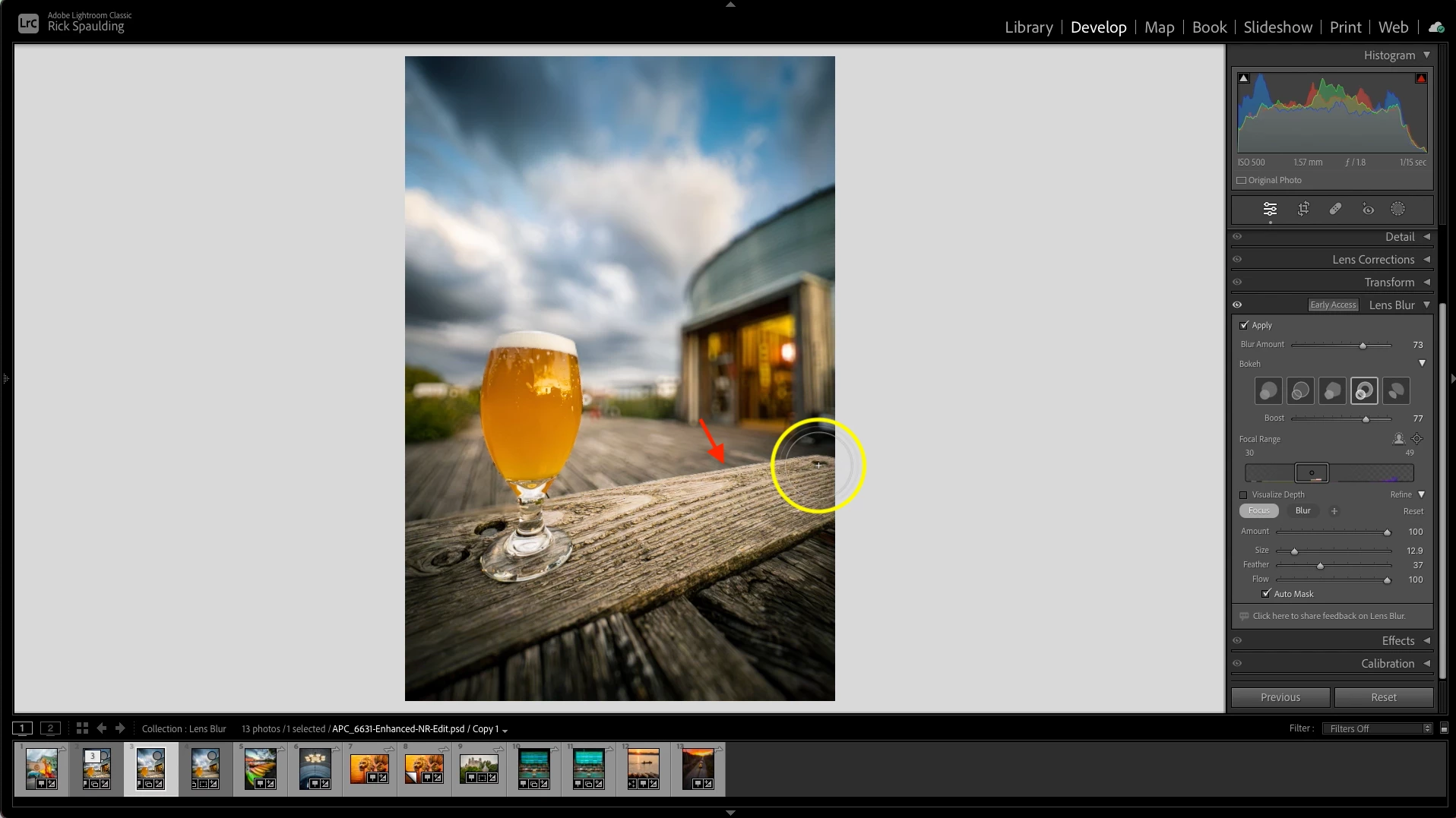
You can fine-tune your image using the Refine brush to paint in Focus or Blur.
-
Let’s choose Focus to sharpen the blurry edge of the table.
-
Set the Amount, Size, and Feathering for your brush and leave Flow set to 100.
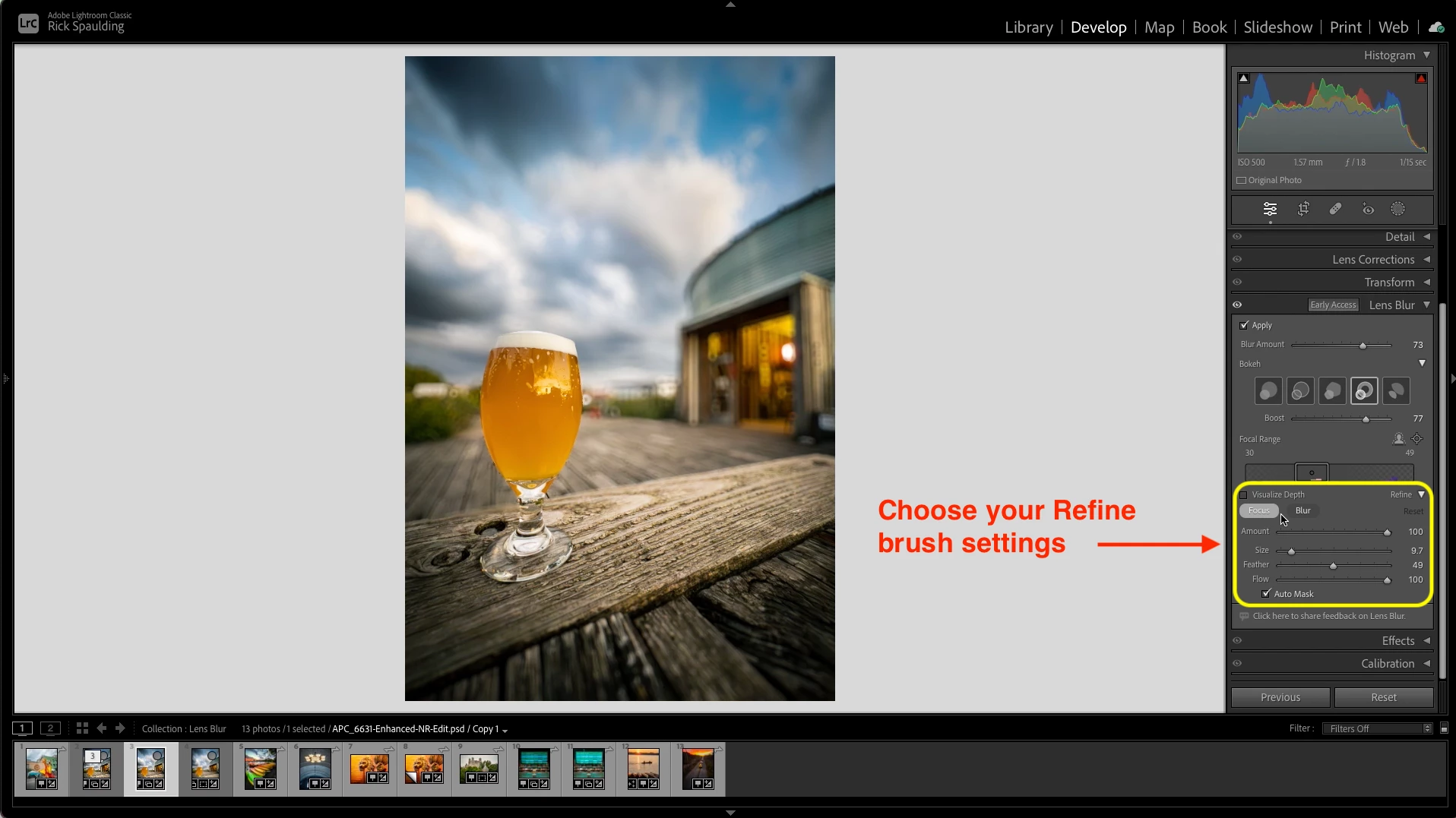
- Now use your brush to paint in focus at the edge of the table.
❼ Admire your work
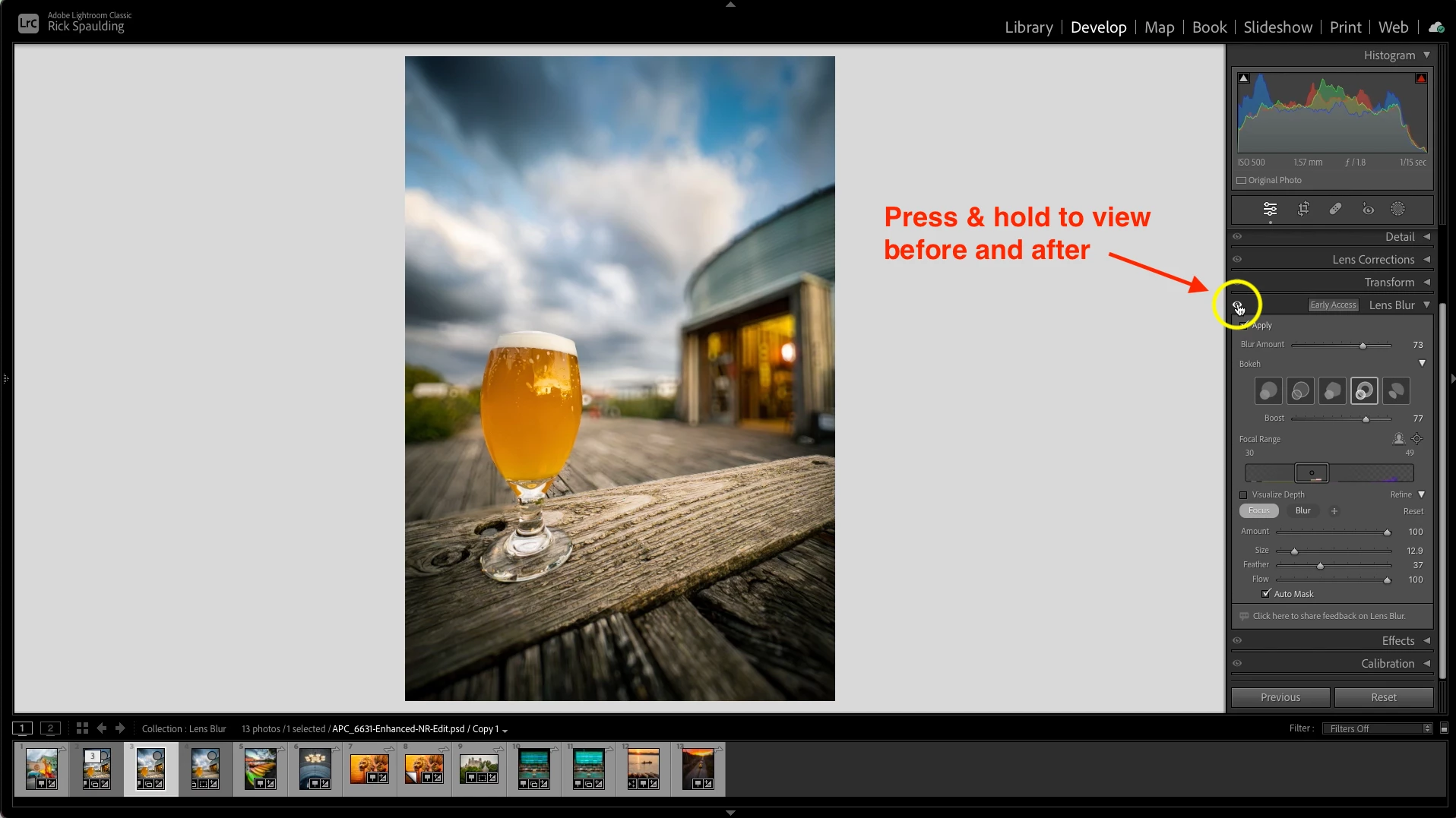
- You can use the Eye Icon to toggle between before and after to see how you’ve done.
❽ Watch the video
Related links:
Lens Blur (Early Access) in Lightroom Classic
How to use the new AI Denoise filter in Lightroom Classic
 AdChoices