Participant
July 18, 2024
Answered

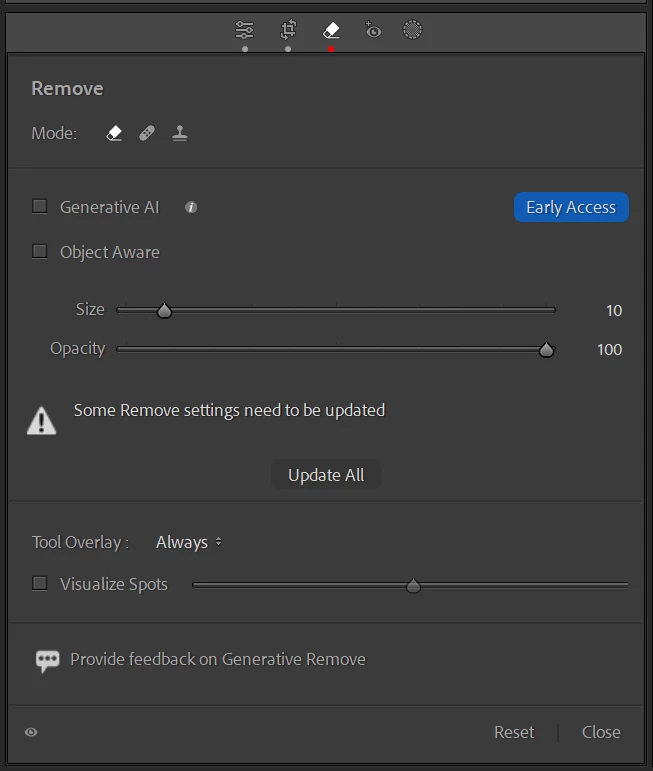
"Some Remove Settings need to be updated" error occurs repeatedly

  • July 18, 2024
  • 5 replies
  • 6876 views

Hello!


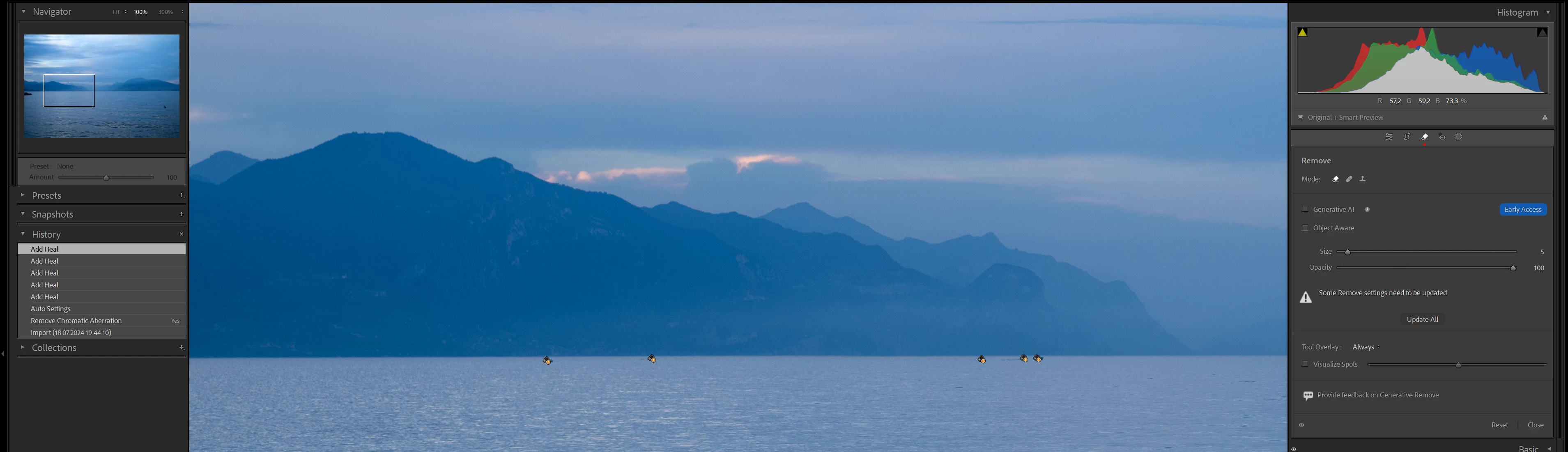
I have the following problem in Lightroom Classic (13.4), that is blocking my workflow. Maybe someone could help me out with this one.


Whenever I use the remove tool in the develop module, soon after there is the warning "Some Remove Settings need to be updated" and the changes that where done are gone. This happens espacially when I go on to a different photo and return to the previous one shortly after. All (new) changes that I had done before with the remove tool are affected. Other edits/changes are not affected.


This also happens sometimes while I use the remove tool in the same moment, in this case only the most recent instance is affected. But the other ones that have been done before that, will be affected afterwards after going to a different photo and then returning to this one.


Using "Update all" is only working for a few moments, the problem keeps on returning.


All remove tool instances that where done before the issue occurs for the first time are not affected. Only new changes that are done with the remove tool are affected. This is equaly for using Generative AI and also when not using Generative AI.


I updated Lightroom to Version 13.4 on 6th of July and could edit my photos without any issues on that day and the following day. One week later I wanted to continue my editing, that´s when this issue occurs. There was no further update of Lightroom Classic in between.


I have checked and tested the following things, that I found before while searching the community discussions, but none of it works:

  • GPU is updated with the current driver
    • The problem occurs on my desktop PC and on my Microsoft Surface PC
  • Turned OFF the use of the GPU
  • Deleted the helper.lrdata file
  • Reset the Lightroom preferences
  • Imported and tested with a new photo
  • The most recent History entry is selected and there is no other new entry


My specs:

  • Lightroom Classic 13.4
  • Windows 11 Pro (all Windows updates done)


Best regards

Jan

Correct answer johnrellis

These symptoms can occur when LR can't write the .lrcat-data file for some reason, either because LR has corrupted it or there is a permissions issue.  LR stores computed masks in that file.  Try these steps:


1. In LR, do Edit > Catalog Settings > General > Show. That will open Windows File Explorer on the current catalog folder.


2. Exit LR.


3. Move the file <catalog>.lrcat-data to the Desktop.


4. Start LR.  


5. In Library, select all photos and do Photo > Develop Settings > Update AI Settings. That will recompute all the AI masks, which could take a while. But it won't update Generative Removes, so you'll have to go to each photo with Remove, click on Remove, and then Update.

5 replies

Participant
May 10, 2025

My mask are not registering properly and I get this message: "Some remove settings need to be updated"

Only way to have it work it's to update the mask and export right away the photo (which is not doable on a galery of 1000 photos). If I export batch none of the masks are working.


It's really bad and I spend 3 hours with Adobe over the phone trying to go to previous version of LRclassic, updateding the catalogues and they couldnt  find the issue. 

Any one has a solution to make sure all the masks are working and I can export batch?


Their only answer was : we working on a new update..... doesnt help me at all exporting tousands of photos for my work.


My computer: 2017 Imac with 32 GB DDR4

Participant
June 3, 2025

I am also having this same issue. Tried the "fix" stated above - it's not working. This is super frustrating. Help! 

Participant
June 22, 2025

I am also having the same issue and wondering if a solution has been found yet.

Participating Frequently
April 24, 2025

This is SO frustrating. I have tried all these things without a single remedy. The best it has been is "solved" for a few minutes. How in the world can I export my work and deliver it to paying clients. Adobe, are you going to help or not!?

johnrellis
Legend
April 24, 2025
Participating Frequently
April 24, 2025

I did those first. Step by step. I'll do them again right now and see if it does anything. I didn't work the first few times.

Participating Frequently
November 7, 2024

Every single time I open LRC to work on my clients wedding photos!!!!!  It is EXHAUSTING!!  I find this  inexcusable on ADOBE's part.  We pay $60/m for this?????  Get the bugs out or i'll be canceling and owning my own software editor from another company!

When does it happen?  every instance of opening LRC from a closed state.

What do i experience? all masks, Remove, heal, clone,blur, Denoise, crop edits that I make from the previous session are needing to be updated.... not just a one button update, but I have to click on every mask created find the subject/object/preset used and update it.  Also if I update the masks first, then go to the Blur and update that, next I have to RE-update the masks, crop, remove/heal/clone, etc... all over again!  

What needs to be fixed?  If I need to update, it needs to analyse and know the sequence of priority for a one button push update on all!   I really should not have to do the update if it would just save to the catalouge properly.  I have LRC set to ask me to save the cat file every time prior to exit.  


This bug is a big time waster and is costing me time and money!  Fix it Adobe! or I'm gone!


Lightroom Classic version: 14.0.1 [ 202410161356-30922cfc ]
License: Creative Cloud
Language setting: en
Operating system: Windows 11 - Home Premium Edition
Version: 11.0.22631
Application architecture: x64
System architecture: x64
Logical processor count: 20
Processor speed: 2.1GHz
SqLite Version: 3.36.0
CPU Utilisation: 3.0%
Power Source: Plugged In
Built-in memory: 65251.0 MB
Dedicated GPU memory used by Lightroom: 14529.3MB / 12115.0MB (119%)
Real memory available to Lightroom: 65251.0 MB
Real memory used by Lightroom: 18163.0 MB (27.8%)
Virtual memory used by Lightroom: 34862.4 MB
GDI objects count: 1167
USER objects count: 4702
Process handles count: 4958
Memory cache size: 779.4MB
Internal Camera Raw version: 17.0 [ 2043 ]
Maximum thread count used by Camera Raw: 5
Camera Raw SIMD optimization: SSE2,AVX,AVX2
Camera Raw virtual memory: 4765MB / 32625MB (14%)
Camera Raw real memory: -133994MB / 65251MB (-205%)
 
Participant
January 17, 2025

January 17, 2025, and I still have the same problem as you. It's very frustrating when we need to work quickly and focus on editing and creativity, but instead, we have to spend time finding solutions for these numerous bugs (also in Premiere Pro, After Effects, etc.).


ADOBE, PLEASE FIX THIS AND LISTEN TO YOUR COMMUNITY!

johnrellis
Legend
January 17, 2025

@Michael_S777a bug introduced in LR 14.0 (released after the original post here) caused the original post's symptoms for very many people, and Adobe released a fix a couple days later (14.0.1). To correct the symptoms:


A. Do the menu command Help > System Info and ensure you're on the latest version of LR, 14.1.1. If not, do Help > Updates.


B. The fix released in 14.0.1 sometimes requires these additional one-time steps:


1. In LR, do Edit > Catalog Settings > General > Show. That will open Windows File Explorer on the current catalog folder.

2. Exit LR.

3. Move the file <catalog>.lrcat-data to the Desktop.

4. Start LR.

5. In Library Grid view (not Loupe view), select all photos and do Photo > Develop Settings > Update AI Settings. That will recompute all the AI settings, which could take a while.

Participant
July 25, 2024

I also tried to reinstall Lightroom Classic, but that did not work either.


Has anyone some more ideas what I could try to do or has someone the same kind of issues with the remove tool?

johnrellis
johnrellisCorrect answer
Legend
July 27, 2024

These symptoms can occur when LR can't write the .lrcat-data file for some reason, either because LR has corrupted it or there is a permissions issue.  LR stores computed masks in that file.  Try these steps:


1. In LR, do Edit > Catalog Settings > General > Show. That will open Windows File Explorer on the current catalog folder.


2. Exit LR.


3. Move the file <catalog>.lrcat-data to the Desktop.


4. Start LR.  


5. In Library, select all photos and do Photo > Develop Settings > Update AI Settings. That will recompute all the AI masks, which could take a while. But it won't update Generative Removes, so you'll have to go to each photo with Remove, click on Remove, and then Update.

Participant
July 28, 2024

Hello John!


Thank you very much for your solution. It seems that this fixed my problem. The error message has not returned yet and new edits are possible.


As you have mentioned I had to update all Generative Removes manually for each photo. Fortunately this was doable because it only affected about 25 photos. So I am very thankful that I can continue my edits.


Do you know if this could happen more often and is there something I could do to prevent this from happening again? If there are way more photos edited with Generativ Removes in the future, such an issue could be very painful. 


Thanks again!

Best regards

Jan

Participant
July 21, 2024

I tried one more thing to solve/avoid the issue. Before, I used a catalog that was created before the session where the problem occured for the first time. This did not change anything and the issue was back immediately.


Now I loaded an older catalog from a few hours before the last catalog was saved before the session the problem occured for the first time. This worked out for a few hours and I could edit a some photos, but now the remove tool issue is back once again.