Participant
May 1, 2021
Question

Raw Images appear different to the Image that was taken (Lightroom Classic)

  • May 1, 2021
  • 5 replies
  • 8510 views

I was in the middle of editing a wedding session, when all of the sudden the images start to appear totally different from the original RAW file. When I started editing the Gallery everything was fine. Then after some time I realised, that the programm makes some images appear way brighter then the original RAW files. I didn't change anything or imported them with a preset. They sometimes look just like the shot RAW picture in the Library but look totally different in the Development section. I can't reset this "editing" made by the program. Also the Preview Image on the left side appears right in the first second but then switches. 

I am using a Canon EOS R and never had any problems with my files. 
Does anyone know where this weird "editing" comes from and how I can get my original original RAW file look back? It is really frustrating to see the original Image being made way brighter, then intended.
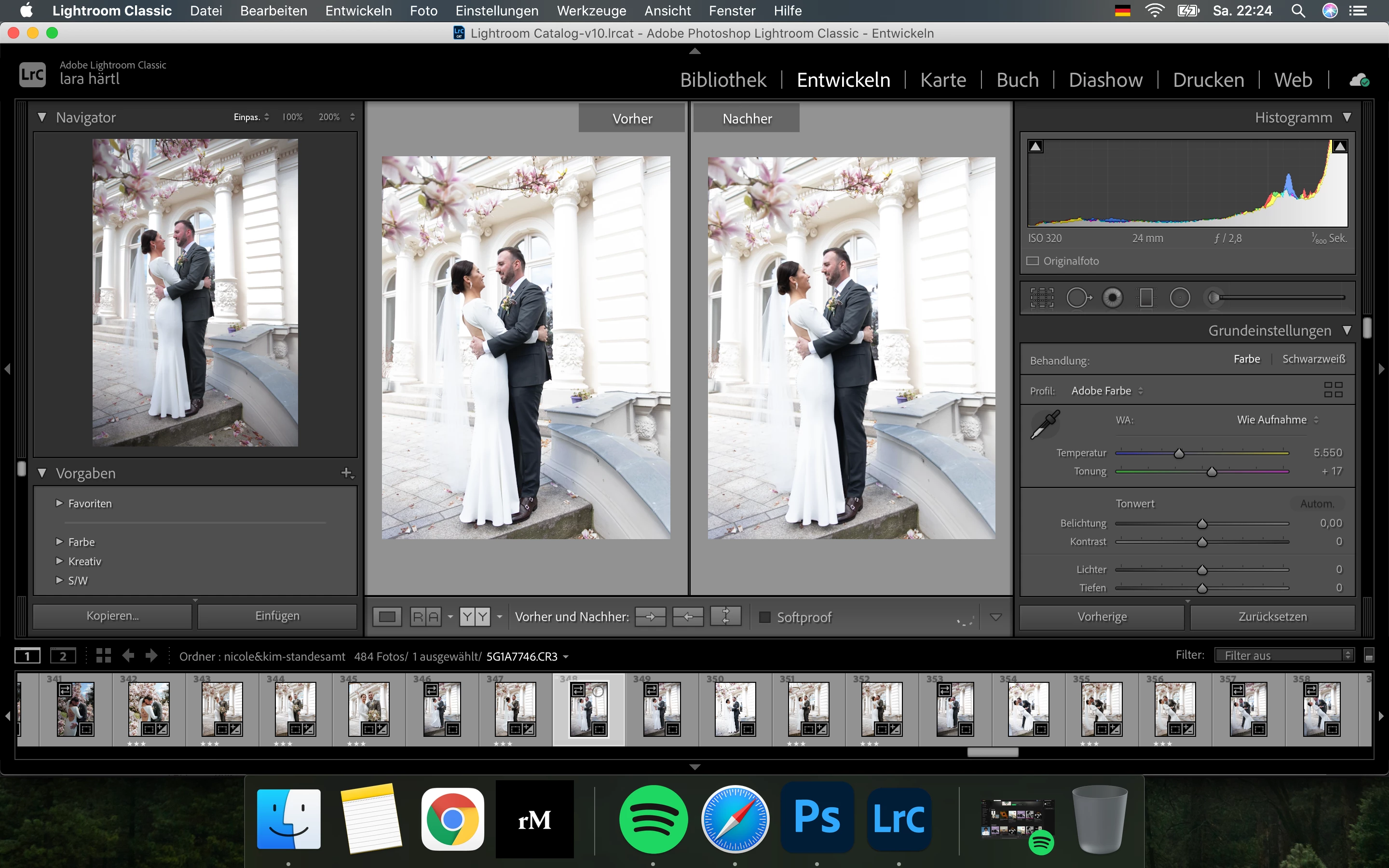
This topic has been closed for replies.

5 replies

Participant
July 31, 2023

I am also having the same problem, please help :'( 


D Fosse
Community Expert
Community Expert
July 31, 2023

What problem, specifically?


Lightroom can't "overexpose" relative to what you see on the camera LCD. It's exactly the same sensor data!


This usually boils down to the misunderstanding that there is such a thing as an "original" raw file. There isn't. Any raw file has to be processed to result in a usable image. What you see is a result of that processing of the sensor data.


The difference is that what you see on the camera LCD has been processed automatically, with fixed parameters that you have no control over. In Lightroom you set those parameters yourself, instead of leaving it to some algorithm.


As long as you haven't overexposed the shot, making sure the sensor pixels haven't been saturated to the clipping point, you can recover those highlights in Lightroom, and produce the same result as the camera processing.


If you have overexposed the sensor and blown out the highlights, the camera processing can't fix that either.

Participant
July 31, 2023

the image on the left is what the nef file looks like when opened on windows, and the right is that same file in lightroom. my import is set to adobe default. the picture might have been a little overexposed in camera but definitely not to this degree. 


and the processed image on my camera lcd was not as exposed as this.


Participant
November 7, 2022

Was this ever solved? I'm having the same issue.

Todd Shaner
Legend
May 1, 2021

You have Embedded & Sidecar selected in the Import module File Handling> Build Previews selected. This uses the camera embedded JPEG preview until you either apply a Develop setting or build Previews in the Library module. The double-arrow icon on the thumbnail indicates the Embeded & Sidecar preview is still active and LrC Previews have not been built. You may have an in-camera setting that LrC can not apply that is causing the issue. If you upload one of the files to Dropbox or other file sharing site we can see if that's what's causing the issue.


JP Hess
Inspiring
May 1, 2021

The histogram for the image displayed indicates that the image IS dramatically overexposed. That is why Lightroom displays it as it does. That is why there are adjustment tools in Lightroom to make corrections as needed. Lightroom is not capable of reading in-camera settings. If you want to take the time to establish default settings for your cameras, that will help improve initial display your images. However, you must expect to make adjustments using the Lightroom tools in order to optimize the quality of your images. That's what Lightroom is for.

Participant
May 1, 2021

The image was not taken overexposed. It was taken as it shows on the left side. Lightroom changes it up after a few seconds in the development section. As you can see on the left side (Navigator) the whites are not burned out and the overall color is less yellow. I know there exist Camera profiles but that doesn't fix the overexposing, that lightroom applies to the image.

Participant
May 1, 2021


I know what Lightroom is for and I've never had any problems with my RAW images. I don't use any in camera setting for exposure or special color profiles. Half of this session works just fine and lighroom shows me this exact RAW image in the development section but the other half gets overexposed by the program. 

dj_paige
Legend
May 1, 2021

Show us the History Panel of this photo.

Participant
May 1, 2021


As you can tell the navigator image also changed to the overexposed version. The original Raw file is not that overexposed and looks like on the navigator image in the initial screenshot.