
J3972
Participating Frequently
April 13, 2018
Answered

Re-download raw files from LR CC Cloud to LR Classic CC

  • April 13, 2018
  • 2 replies
  • 6819 views

TL;DR: Imported raw photos via iPad into LR CC. Automatically downloaded from LR CC to LR Classic CC on Mac. Accidentally deleted local copies on Mac. How to re-download from LR CC / Adobe Cloud without breaking anything?

(This post involves both LR Classic CC and LR CC - I've posted in the Classic forum as that seems more appropriate - hope that's right.)

I am attempting to save/recover some photos which I've accidentally deleted from my local hard drive, but which are stored in raw format in Adobe's cloud. I'd be very grateful for any help. Please bear with me, as I'm still trying to get my head round how exactly LR Classic CC now works with LR CC.

My setup is as follows:

  • LR Classic CC installed on a Mac running High Sierra, linked to my LR CC account.
  • LR CC running on iPhone and iPad.

My workflow is as follows:

  • Generally, I import raw photos directly from my camera's SD card into LR Classic CC on the mac. Original raw files are stored locally, backed up to external hard drives and to a (non-Adobe) cloud service.
  • I edit files in LR Classic CC on the mac, produce collections etc.
  • Some of these collections are set to 'sync with Lightroom CC', which I understand uploads a smart preview to Adobe Cloud which lets me use LR CC on the iPad to edit photos on the move on or show photos easily to friends, etc.
  • If I'm away from the mac for a while, I sometimes import photos in the opposite direction: I import raw files from the SD card into the iPad's photo gallery, and from there into LR CC on my iPad. Then I'll do some editing while away from home on the iPad. LR CC on the iPad backs up the raw files to Adobe Cloud. When I return to the Mac, LR Classic CC will download those raw files to the local hard drive, and I then ensure they're organised in the standard way. It's this workflow that I've messed up.

Generally this has worked well. Unfortunately I've just discovered I messed up the 'specify location for Lightroom CC ecosystem's images' option in LR Classic CC on the mac. I'm not entirely sure what happened, but I think I managed to temporarily set that location to a folder which was wiped and not backed up (a long story relating to encrypted volumes). The result is that for three sets of photos, the original downloaded files on the mac have been wiped, and I want to re-download without accidentally deleting anything in the cloud.

So:

  • There are three sets of images (c. 500 in total) where the original raw files were imported via iPad to LR CC and then to LR Classic CC on the Mac, but those downloaded files were then deleted from the Mac hard drive (but not from within LR Classic CC).
  • However, it appears that the original raw files are still stored in Adobe Cloud.
  • In LR Classic CC on the mac, smart previews display but I get the 'exclamation mark' icon and a warning that 'photo is missing'. The folder similarly has a warning and if I right-click I have the option to 'find missing folder'. All the 'missing' photos are still marked as 'Synced with Lightroom CC', as are the collections they're in.
  • In LR CC on the iPad, if I view any of the problem photos and tap the cloud icon in the top right, it tells me that the 'Local' file (i.e. on the iPad) is a Smart Preview, and the 'Cloud Backup' file is 'Original - ORF'. This is the case for all the problem photos. (Phew - I thought I'd lost the raw files completely!)
  • In LR Classic CC, I've just realised that if I right click a relevant problem collection and click 'view on web' then I can see all the photos. If I view any particular photo, the 'download' icon gives me the option to download the original raw (ORF) file or a jpg.

So... what I want to do is restore to the Mac the local copy of the raw files for all of these 500 photos.

It would appear that I could manually download each raw file one-by-one from the Adobe 'view on the web' location, but this would clearly take me a while to do!

Questions:

  • Is there a way to tell Lightroom Classic CC to automatically re-download the raw files from Adobe Cloud / LR CC to the Mac?
  • If not, is there a way to download the original files in bulk (i.e. for a whole collection at a time) from the 'view on the web' location?

Thanks in advance - and apologies for the length of this post!
This topic has been closed for replies.
Correct answer john beardsworth

j306  wrote

I didn't delete them from within LR Classic; I deleted the files on the local disk. The 'photos' are still in LR Classic, but as previews only; the link to the actual file on the local disk is lost. The raw photos remain in the cloud. Sorry, I made this clear in the body of my question but not in the TL;DR.

Why don't you try this....

First, close LR Classic and LRCC and anything else LR related. So we are freezing the situation as it is now.

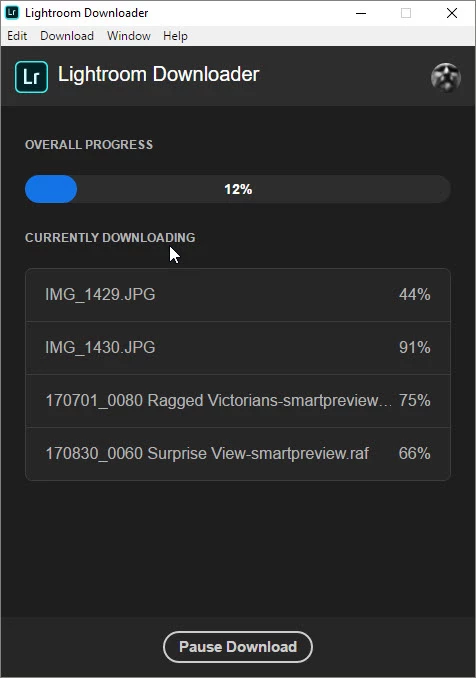
Then install the Adobe Lightroom Downloader application , open it and log into your account. It will then download everything that's in the cloud.

You can take your time reviewing what you have rescued. Smart previews are identifiable by the filenames and it's easy enough to identify the originals.

John

2 replies

Jim Wilde
Community Expert
Community Expert
April 13, 2018

I'm trying to think what would be the least unattractive way of downloading those deleted images. There are various things that could be done, but to a large degree it depends on how many images in total you have synced with the cloud, and how many of them are "originals" versus "smart previews". If you have that information it might help determine the least worst option.

One thing....do not in the meantime remove those "missing images" from the Classic catalog, as that will indeed delete them from the cloud as well.

J3972
J3972Author
Participating Frequently
April 13, 2018

https://forums.adobe.com/people/Jim+Wilde  wrote

I'm trying to think what would be the least unattractive way of downloading those deleted images. There are various things that could be done, but to a large degree it depends on how many images in total you have synced with the cloud, and how many of them are "originals" versus "smart previews". If you have that information it might help determine the least worst option.

According to LR CC on the iPad I have 2,094 photos in total in LR CC (taking up 18.5GB of my 20GB allowance). I'm not sure how to tell how many of these are "originals" versus "smart previews" - I would estimate about half and half.

I have fast and unmetered broadband, and am happy to leave computers syncing for a day or two if that's what it'll take.

https://forums.adobe.com/people/Jim+Wilde  wrote

One thing....do not in the meantime remove those "missing images" from the Classic catalog, as that will indeed delete them from the cloud as well.

Thanks... I'll make sure I don't do this!

Jim Wilde
Community Expert
Community Expert
April 13, 2018

OK, 2000 might not be too bad. So you could:

Start the LRCC desktop app on the Mac and in the preferences>Local Storage select the option to "Store a copy of all originals at the specified location" (which will be the default location unless you specify somewhere different). That should then download a copy of all the originals into a date-based folder structure, so assuming you know the capture dates of those 500 images, you'll be able to find them. The problem then becomes copying them into the location that LR Classic expects to find them (so that they'll be automatically relinked), which you'll have to do manually I'm afraid.

There are various other ways of downloading the images, but all will involve the same manual activity to organise the downloaded files into the expected folders in LR Classic.

Once you've got them safely copied into the LR Classic folders, uncheck that option again in LRCC and gradually those original downloads will be removed (or uninstall the LRCC desktop app if you don't need it).

JohanElzenga
Community Expert
Community Expert
April 13, 2018

j306  wrote

TL;DR: Imported raw photos via iPad into LR CC. Automatically downloaded from LR CC to LR Classic CC on Mac. Accidentally deleted local copies on Mac. How to re-download from LR CC / Adobe Cloud without breaking anything?

If you deleted the local copies in Lightroom Classic, that will have deleted them in the cloud too.

-- Johan W. Elzenga
J3972
J3972Author
Participating Frequently
April 13, 2018

JohanEl54  wrote

j306   wrote

TL;DR: Imported raw photos via iPad into LR CC. Automatically downloaded from LR CC to LR Classic CC on Mac. Accidentally deleted local copies on Mac. How to re-download from LR CC / Adobe Cloud without breaking anything?

If you deleted the local copies in Lightroom Classic, that will have deleted them in the cloud too.

I didn't delete them from within LR Classic; I deleted the files on the local disk. The 'photos' are still in LR Classic, but as previews only; the link to the actual file on the local disk is lost. The raw photos remain in the cloud. Sorry, I made this clear in the body of my question but not in the TL;DR.

J3972
J3972Author
Participating Frequently
April 14, 2018

j306  wrote

I didn't delete them from within LR Classic; I deleted the files on the local disk. The 'photos' are still in LR Classic, but as previews only; the link to the actual file on the local disk is lost. The raw photos remain in the cloud. Sorry, I made this clear in the body of my question but not in the TL;DR.

Why don't you try this....

First, close LR Classic and LRCC and anything else LR related. So we are freezing the situation as it is now.

Then install the Adobe Lightroom Downloader application , open it and log into your account. It will then download everything that's in the cloud.

You can take your time reviewing what you have rescued. Smart previews are identifiable by the filenames and it's easy enough to identify the originals.

John


https://forums.adobe.com/people/john+beardsworth  wrote

Why don't you try this....

First, close LR Classic and LRCC and anything else LR related. So we are freezing the situation as it is now.

Then install the Adobe Lightroom Downloader application , open it and log into your account. It will then download everything that's in the cloud.

You can take your time reviewing what you have rescued. Smart previews are identifiable by the filenames and it's easy enough to identify the originals.

John

Ok I'm trying this - thanks for the pointer - I wasn't aware of the Downloader app. Interestingly this app tells me I have c. 48GB photos in the Cloud (compared with the 18.5GB that LR CC tells me I'm using of my 20B limit). I guess some of this must be from before the LR CC launch and doesn't count towards the new 20GB limit?

I'll confirm success once the download's finished and I've matched up the photos. The three collections I'm having issues with are all from distinct time periods so it should be fairly straightforward... I hope!