Participant
December 31, 2017
Answered

Resolution worsens when importing into Lightroom

  • December 31, 2017
  • 3 replies
  • 4566 views

Hey everyone,

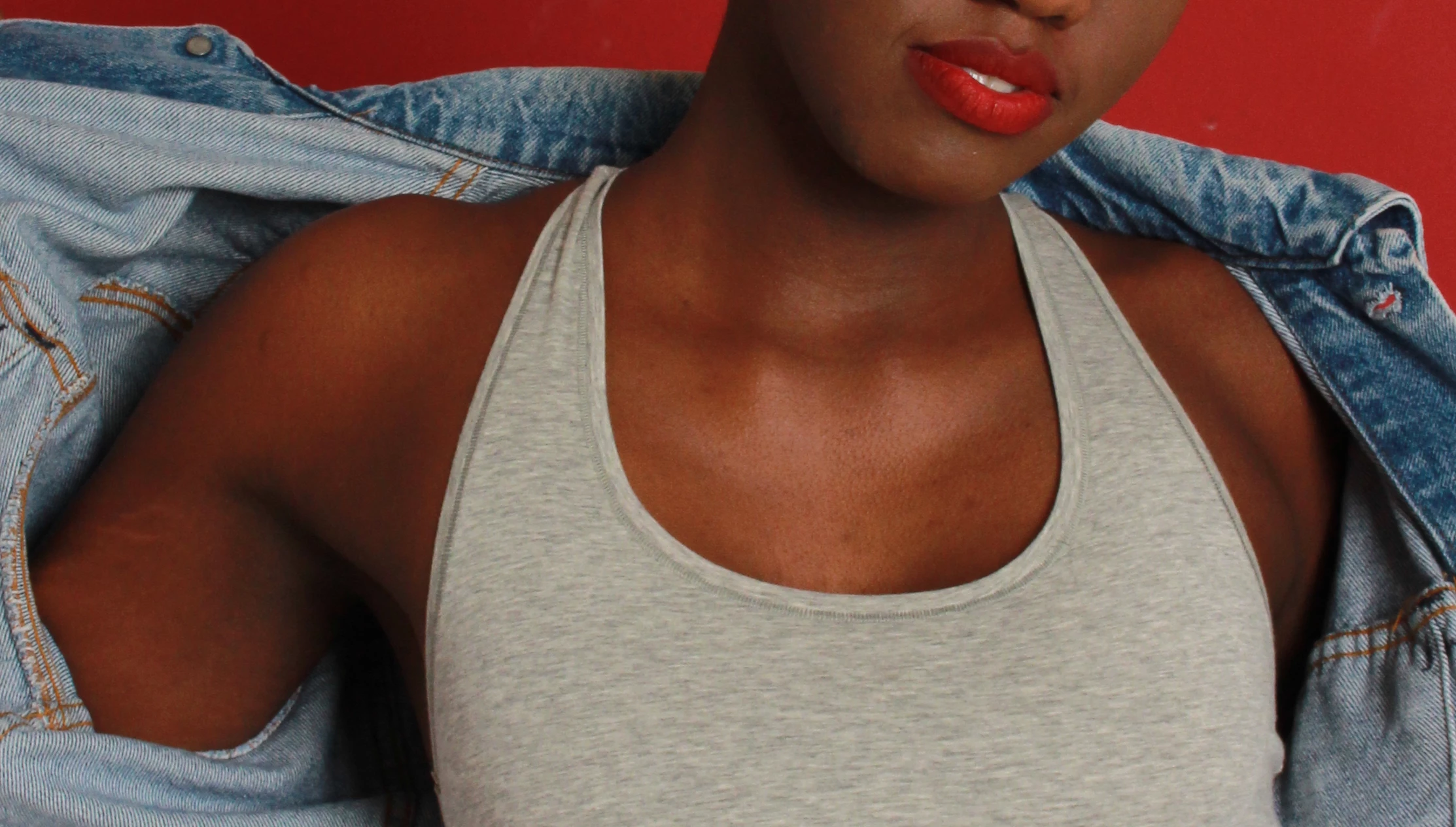
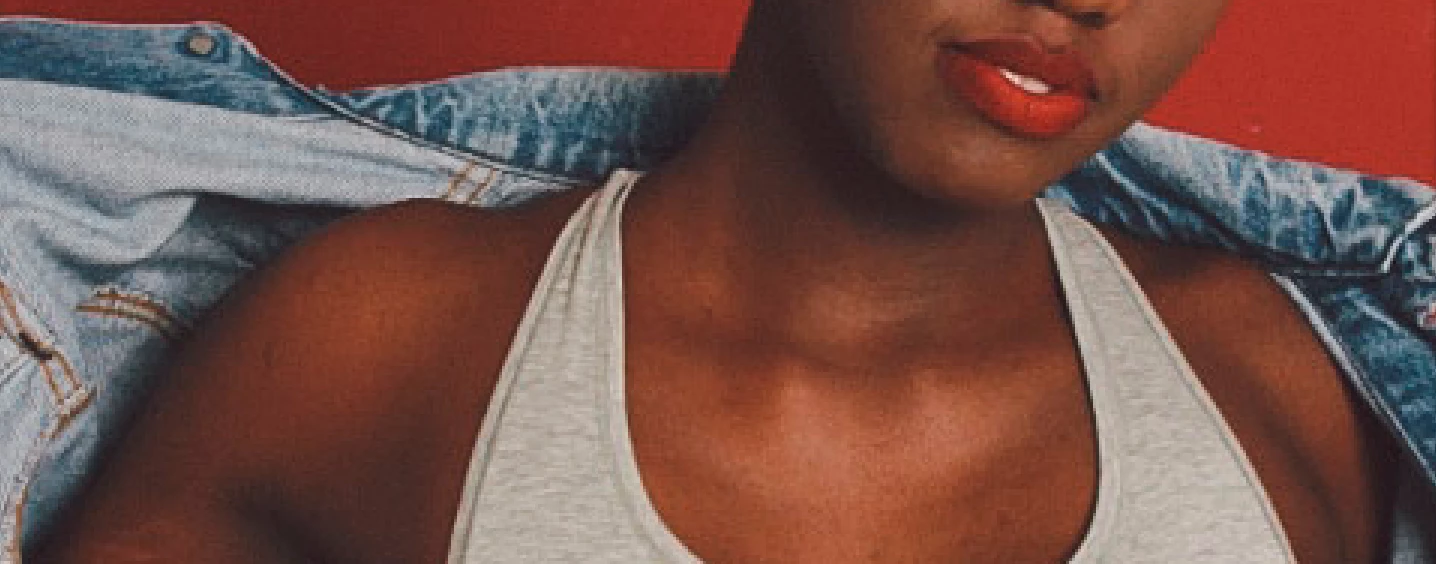
I'm somewhat of a newbie with Lightroom and just learning my way round it. I had a shoot with someone yesterday and imported the images into Lightroom, and noticed that the quality diminishes by a lot. Thinking this would maybe resolve itself with exporting the final images to JPEG or editing them with the lightroom settings in photoshop and then saving them, but it's still the same. I've attached an example so you can see what I mean. The first one is the lightroom edited image, and the one after is the original unedited before import into lightroom. Does anyone know why this is happening or how to fix this?

Thanks
This topic has been closed for replies.
Correct answer JP Hess

The quality doesn't really "diminish" when you import images into Lightroom. Depending on the settings that are applied in the camera, there are a lot of settings that have to be ignored by Lightroom because every camera manufacturer applies those settings differently. If you're going to utilize Lightroom effectively you've got to take the time to establish real and effective default settings for your cameras that reflect how you want Lightroom to process your images when they are first imported. That would include sharpening and noise reduction as well as other settings which might even include color adjustments. Once you get your default settings the way you want them, then when you import new images a lot of those Issues won't have to be dealt with and you can devote your Lightroom processing to the creative work that you want to do. So if you want Lightroom to work for you as much as possible, take the time to adjust a newly imported image that represents your typical work to look the way you want it to look initially. Once you have it looking that way, save new default settings for the camera.

3 replies

Just Shoot Me
Legend
December 31, 2017

I'll start with the same question asked by Jim Hess.

What program are you using to View the original file?

Are you working with RAW files?

Can you upload one or two of your original images to someplace like Dropbox and share a public link here so we can download and import them into our install of LR?

The first image you posted is that a screen shot of the LR library module window?

gary_sc
Community Expert
Community Expert
January 1, 2018

On the upper right side of the image above her jean jacket and the maroon background I'm seeing a lot of jpeg degradation that cannot be there from the original image.

When you compare that with the good image, you can easily see the jpeg degradation

The ONLY way that that can be there is from either saving the image with a very low jpeg setting or multiple re-saves at a medium setting. LR or Photoshop, or Adobe Camera Raw does not process an image upon opening the image. There is something else going on here that you seem to be missing and/or not elaborating on.

Like Just and Jim said, what/how did you create/view the original image? What application did you view the 2nd image?

JP Hess
JP HessCorrect answer
Inspiring
December 31, 2017

The quality doesn't really "diminish" when you import images into Lightroom. Depending on the settings that are applied in the camera, there are a lot of settings that have to be ignored by Lightroom because every camera manufacturer applies those settings differently. If you're going to utilize Lightroom effectively you've got to take the time to establish real and effective default settings for your cameras that reflect how you want Lightroom to process your images when they are first imported. That would include sharpening and noise reduction as well as other settings which might even include color adjustments. Once you get your default settings the way you want them, then when you import new images a lot of those Issues won't have to be dealt with and you can devote your Lightroom processing to the creative work that you want to do. So if you want Lightroom to work for you as much as possible, take the time to adjust a newly imported image that represents your typical work to look the way you want it to look initially. Once you have it looking that way, save new default settings for the camera.

Neox99
Legend
December 31, 2017

AMEN!  It's called GIGO!

I don't have any problems with any iteration of Lr. I shot RAW (.dng or .cr2) and rarely use Lr.

Using the Bridge | Camera Raw | Photoshop workflow eliminates any import or export issues that may need correcting.

Just Shoot Me
Legend
December 31, 2017

Neox99  wrote

AMEN!  It's called GIGO!

I don't have any problems with any iteration of Lr. I shot RAW (.dng or .cr2) and rarely use Lr.

Using the Bridge | Camera Raw | Photoshop workflow eliminates any import or export issues that may need correcting.

There are no import or export issue with LR. LR is a Database program. It never, let me say that again NEVER, touches the original file.

It references the file and its location from where it is stored on your system into the Database file called the Catalog.

It then builds a preview of that image file and that is what you see on screen, 99% of the time.

I'm sorry but if you rarely use LR why are you in the LR forum answering question on it?

KR Seals
Community Expert
Community Expert
December 31, 2017

How are you viewing the original image before importing into Lightroom? The default import and develop settings in Lightroom do not change the resolution of the image. Are you basing your judgement of the Lightroom processed image on the exported version?

The first image is very pixellated, meaning the resolution is much lower that the second. Check your settings in the Export dialog box and set the pixels to a much higher value.

If you have cropped in highly before exporting in LR or sending the image to Photoshop, the effect is the same, too few pixels.

Ken Seals - Nikon Z 9, Z 8, 14mm-800mm. Computer Win 11 Pro, I7-14700K, 64GB, RTX3070TI. Travel machine: 2021 MacBook Pro M1 MAX 64GB. All Adobe apps.