
Participant
August 27, 2020
Answered

SELECTIVELY, gradually importing from Mac Photos

  • August 27, 2020
  • 11 replies
  • 852 views

I am a beginner at Lightroom, with over 100,000 photos in Mac Photos.  I want to migrate to Lightroom slowly and gradually to make sure I do everything correctly.  How can I import only some of my photos (I.e. one month's worth) at a time?  I don't need to import all the edits.  But I want to be sure to import full quality originals.  Thank you.
 

This topic has been closed for replies.
Correct answer gary_sc

Hi Adrienne,


To work in Catalina, as I stated above, you need to export from your Photos Catalog.


First select the group of images that you wish to export out (either by Shift-clicking or by Command-Clicking depending on if you want continuous or discontinuous selection).


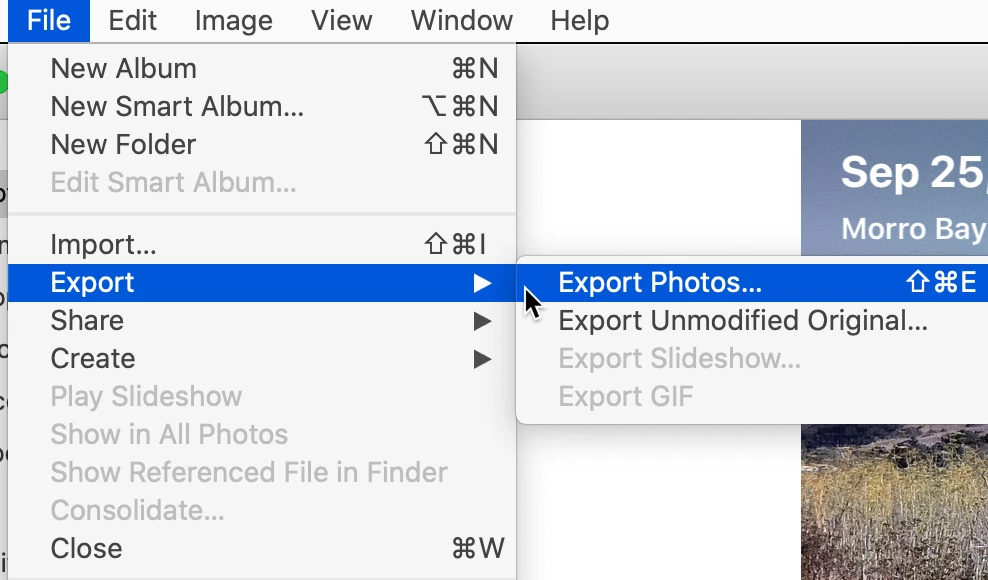
Then go to File (menu) -> Export -> and then select the image with the alterations or without.


Let me know if you have any more questions.

11 replies

Participant
August 27, 2020

Thanks Sean - I wish that were still the case, but OS Catalina no longer allows you to right-click on the library and see "show package contents."  I somehow found folders called, "0, 1, 2...A, B, C..," each with thousands of randomly collected images with file names like FOA27BA1-D4DC-4F33-9E3C-19E027D368BE.jpg.  They are in no order at all, and they all show today's date. I was able to make aliases, but I sure don't want to move thousands of randomly grouped photos without dates into Lightroom.  Do you know of a solution that will work with Catalina?

gary_sc
Community Expert
gary_scCommunity ExpertCorrect answer
Community Expert
August 27, 2020

Hi Adrienne,


To work in Catalina, as I stated above, you need to export from your Photos Catalog.


First select the group of images that you wish to export out (either by Shift-clicking or by Command-Clicking depending on if you want continuous or discontinuous selection).


Then go to File (menu) -> Export -> and then select the image with the alterations or without.


Let me know if you have any more questions.

Participant
August 28, 2020

Thank you Gary!  I was taught that you cannot import to Lightroom directly from your Mac Photos app, so I did not understand your first reply.   But now I've used "Export Unmodified Original" to a newly created folder within my Pictures folder. Then I imported to Lightroom from there.  Is that how you would have done it?  As I migrate my photos, I'm planning to delete them from Photos, so that they're not in two places.  Any further suggestions would be much appreciated!

Sean McCormack
Community Expert
Community Expert
August 27, 2020

To access your original files, you need to go into the package file for the Photos library. Right click on the Photos Library.photoslibrary file and choose Show Package contents. The folder you want to look at for the original files is Masters The images and videos are there in dated folders, so you can drag a month folder onto the Lightroom icon to initiate import. Make sure to import as a copy to avoid potential conflicts with future versions of Photos. 

Sean McCormack. Author of 'Essential Development 3'. Magazine Writer. Former Official Fuji X-Photographer.
gary_sc
Community Expert
Community Expert
August 27, 2020

Hi, yes doing it in bit at first is an excellent idea. 

Here's the deal: all you have to do is to export you images and import them into Lightroom. But to start you need to make a choice: one is to export the images WITH you alterations or the other is without your alterations. The catch is that if you export with your changes, you may loose the chance to make the adjustments to achieve better results that you can get with LR. On the other hand, all of the work you've already done will have been lost. 

that's why it's a great idea to do small runs and see how it goes. 

I do have one big important suggestion though: LR doesn't care where any image is kept as opposed to Photos where it must be kept on the hard drive. Because you have so many photos, that will be a great benifit to getting them off your hard drive. 

to learn more about how to set up LR's storage on an external drive, go tohttps://www.lightroomqueen.com/


Good luck!!