@tlemaitre15551823 wrote:
a setting that allow to navigate between the pictures really fast because the pictures didn't need to load because it was already loaded during the import.
Is it the Embedded and Sidecar setting in the File Handling panel of the Import dialog box?
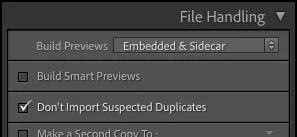
That is the setting I use. It is fast, because Lightroom Classic doesn’t have to render anything: It simply shows the preview that was embedded in each raw file by the camera. It can skip the entire process of rendering previews on import; it only has to fetch the previews that are already there.
Two things to remember about the Embedded and Sidecar setting:
- The quality and pixel dimensions of the previews are controlled by preview settings in the camera, because Lightroom Classic is not doing anything except taking the preview created by the camera.
- The embedded preview stops being used when you make any visual edit to the image. This is because the preview is how the camera rendered it, but Lightroom Classic has its own different rendering engine, so any Lightroom Classic visual edit replaces the embedded preview with one that it renders, to show how it looks with current Lightroom Classic edits.
After you edit a raw file with Lightroom Classic, the size and quality of the previews is controlled by the File Handling tab in Catalog Settings. In there, you can have Lightroom Classics create previews that are faster to render, by setting them to smaller pixel dimensions or lower quality.
@tlemaitre15551823 wrote:
In my memory it wasn't with the feature of smart preview. Maybe I'm wrong
Smart previews don’t make an import take less time because they still have to be rendered.
Smart previews can make it faster to load each image in the Develop module. But that is still different than standard previews, which are used to load images when going from image to image in the other modules, especially Library. Yes, it is a little confusing.


 AdChoices