Inspiring
January 29, 2020
Answered

[Solved] IPHONE to Lightroom Classic Import on Catalina OS: No Photos Found Error

  • January 29, 2020
  • 3 replies
  • 22051 views

Hi - 


I got a new Iphone 11 & I want to import photo taken with my Iphone to my Lightroom Classic catalog via USB.  My old phone works, but not my new phone.  


Issue:  When I connect the phone to lightroom classic to import via USB, I can select the iphone, but lightroom says 'no photos found'.


So far I have tried the following with no sucess:

1) Adjusting Iphone settings: settings > photo  > tranfer to mac or pic  > I selected both 'automatic' and 'keep originals'

2) Resetting Trust & Location information per "known adobe issues" - https://helpx.adobe.com/lightroom-cc/kb/known-issues.html

3) Rebooted machine and iphone with new settings


Any ideas?


I am using:

- Iphone 11 Pro Max, ios 13.3

- Lightroom Classic 9.1, Camera Raw 12.1 - Mac Catalina 10.15.2


EDIT: Transfer via cloud and CC is too slow for me - 30 photos/1-2 GB takes 24 hours, hence the interest in a direct transfer


Thank you!

Sarah
This topic has been closed for replies.
Correct answer hayesse2

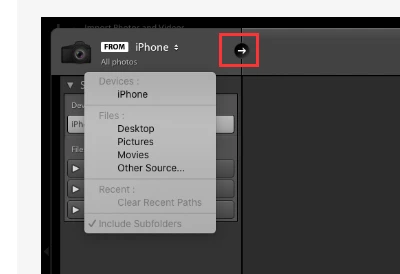
Click the Right Facing Arrow and see what happens.


Solved!  


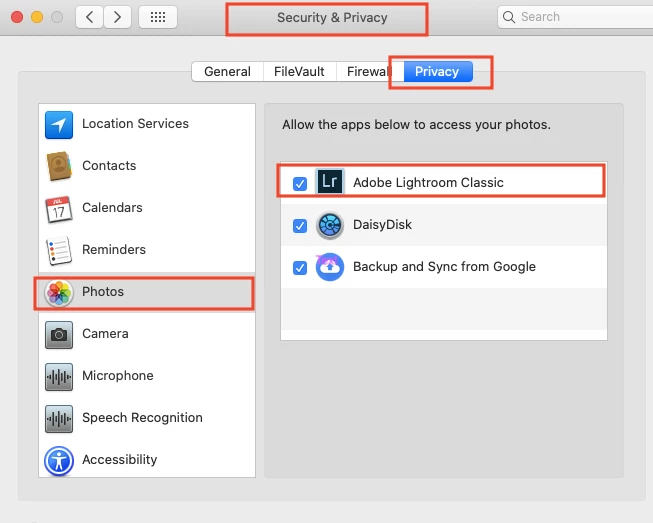
Lightroom Classic on my Mac didn't have permission to access the photos on my phone due to Mac OS Catalina settings.   To corrrect this, you must update the mac OS settings through the following path:


(apple icon, upper left corner) > system preferences > security & privacy > privacy tab > photos > check that box next to Lightroom Classic to allow Lightroom Classic to access photos.  


Image attached of Security & Privacy window, with correct items selected. 


Note: I upgraded to Catalina OS on my Mac at the same time that I purchased my new Iphone 11, so I'm unsure which of these changes caused the change/issue.  


Thanks so much for everyone's help


3 replies

Participant
August 16, 2020

Couldn't get any of these solutions to work, but there's a fast 2-step workaround:


In photos, bulk select as many photos as you'd like — e.g. Recents. Squeeze the pix till you have rows of 3 — at the top right of the iPhone screen it should say Select. Swipe across the pix you want to import into LRC. At the bottom left, there'll be an AirDrop symbol; touch it and it will show your Mac and boom, your photos will be in your Downloads folder ...

From which LRC will happily move them to your Mac's Lightroom folder. (mine is on a separate drive for Movies & Photos)

Participant
June 30, 2021

I'm having the same issue it seems, but fixing permissions is not working... I fixed the permissions in the System Settings area (Using Big Sur OS at this point and an iPhone 12 Pro Max).  I got the following message from Lightroom when I canceled the non-working import:


This message says (in case you can't read the tiny print: "The following files were not imported because they could not be read or the destination folder is not writable (769)".  This looks and feels like a removable drive issue - however, Lightroom works w/ all the other removable drives on my system just fine.  And I have many, > 5 removable storage devices... it's just the phone that's not being read...


HELP!?


Participant
July 9, 2021

I've got the same set up (12 Pro Max, Big Sur on an M1 Mac Mini) and haven't been able to upload photos since the M1 version of LrC came out.

Just Shoot Me
Legend
January 30, 2020

Does the folder that is used on the phone to store images in show up in LR Classic import dialog under the source/device section?

And do you have Included Subfolders selected?


I don't use an Apple phone so I have no idea if Apple even allows that on their phones. Might be to restrictive.


hayesse2Author
Inspiring
January 30, 2020

Good idea. 


Yes, Iphone does show up.  The checkbox is checked but greyed out.    Here is what I see


Just Shoot Me
Legend
January 30, 2020

Click the Right Facing Arrow and see what happens.


melissapiccone
Community Expert
Community Expert
January 30, 2020

I use LR on my phone to automatically transfer photos to my LR Classic on my computer. I have LR on my phone set to import all of my photos form my camera roll. I'm logged into Creative Cloud and when I open LR on the phone, they sync up to the cloud. When I open LR Classic on my computer, the images sync. Much easier than using usb.

Melissa Piccone | Adobe Trainer | Online Courses Author | Fine Artist
hayesse2Author
Inspiring
January 30, 2020

Thx for suggesting CC via cloud.   I appreciate the work around. 


Unfortunately the transfer speeds are so slow - about 30 2 MB photos in 24 hours - that CC isn't an option. 


I will try to update my original post with that extra information.


Thx!