James Jiao
Inspiring
July 31, 2024
Answered

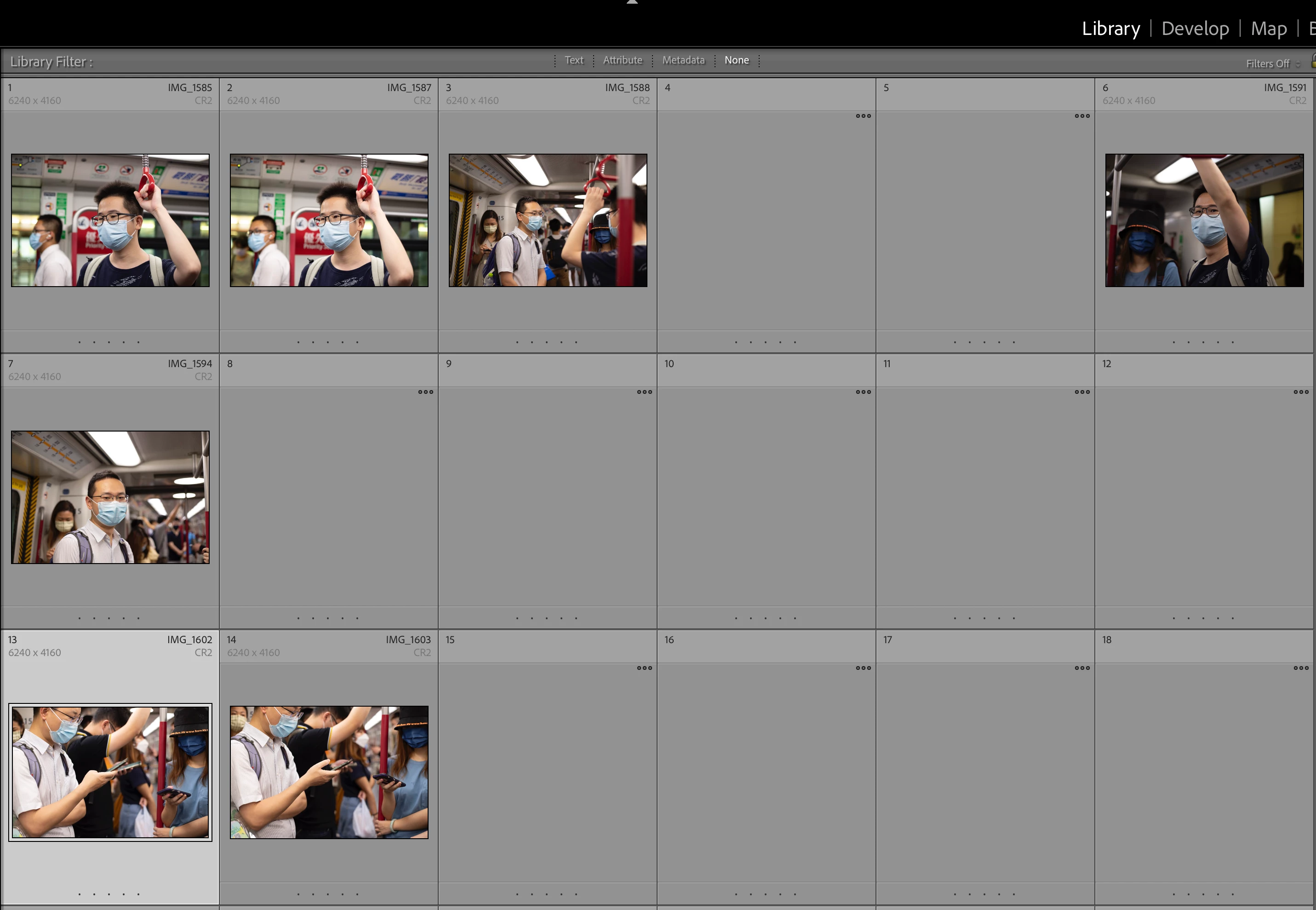
some photos greyed out

  • July 31, 2024
  • 5 replies
  • 2035 views

some photos greyed out and reappear  only when I click it. At the right bottom corner, edits are not displayed. Can anyone help?  Jimmy
 

This topic has been closed for replies.
Correct answer James Jiao

Hi, incidently I "solved" the problem. I just select all (command+A), all the photos will display gradually. 

5 replies

GoldingD
Legend
August 1, 2024


Operating system: Mac OS 14
Version: 14.1.1 [23B81]


I do not think that your MACOS is the cause. But, I do think that their are updates, and even if the updates do not fix this issue, they may be important to your computers security, and other issues. Oh, and any GPU driver issue, would be addressed via MACOS updates.


James Jiao
James JiaoAuthorCorrect answer
Inspiring
August 3, 2024

Hi, incidently I "solved" the problem. I just select all (command+A), all the photos will display gradually. 

GoldingD
Legend
August 3, 2024
quote

Hi, incidently I "solved" the problem. I just select all (command+A), all the photos will display gradually. 


By @James Jiao

Interesting. thinking about what that process may have accomplished. If I understand correctly, selecting an image would trigger a refresh of the library preview if necessary, so selecting all would trigger a refresh for all where necessary.


Perhaps a more knowledgeable member can reply?? If nothing else other than to say hay David, wrong.


P.S. As you discovered a solution, can you mark your reply as correct? That helps other members searching for correct answers to issues.


from: https://community.adobe.com/t5/using-the-community-discussions/community-how-to-guide-tips-amp-best-practices/td-p/11601738


AxelMatt
Community Expert
Community Expert
August 1, 2024

Please try to switch off the GPU support from the Lightroom preferences and check if that helps to fix the issue. 

Go to Lightroom > Preferences > Performance tab > Uncheck "Use Graphics Processor" > Restart Lightroom.

https://helpx.adobe.com/lightroom-classic/kb/troubleshoot-gpu.html


Another step is to try to reset the Lightroom preferences.

https://www.lightroomqueen.com/how-do-i-reset-lightrooms-preferences/

It's recommended to backup your preferences before you reset the preferences to the default settings:

https://helpx.adobe.com/lightroom-classic/kb/preference-file-and-other-file-locations.html


If this doesn't help we need more informations about your environment. Please provide also a copy of your 'System Info'. This can be get from the LrC Help > System Info menu item. There's a copy button in the System Info dialog. Press this button and paste the info into your next forum post.


My System: Intel i7-8700K - 64GB RAM - NVidia Geforce RTX 3060 - Windows 11 Pro 25H2 -- LR-Classic 15 - Photoshop 27 - Nik Collection 8 - PureRAW 6 - Topaz Photo AI
James Jiao
Inspiring
August 1, 2024

Thanks and I have tried the first two options but the problem remains. Here is the system info:


Lightroom Classic version: 13.4 [ 202406181129-60d181b7 ]
License: Creative Cloud
Language setting: en-HK
Operating system: Mac OS 14
Version: 14.1.1 [23B81]
Application architecture: x64
Logical processor count: 16
Processor speed: 3.6GHz
SqLite Version: 3.36.0
Built-in memory: 32,768.0 MB
Dedicated GPU memory used by Lightroom: 259.9MB / 8,192.0MB (3%)
Real memory available to Lightroom: 32,768.0 MB
Real memory used by Lightroom: 1,763.0 MB (5.3%)
Virtual memory used by Lightroom: 44,850.6 MB
Memory cache size: 158.6MB
Internal Camera Raw version: 16.4 [ 1897 ]
Maximum thread count used by Camera Raw: 5
Camera Raw SIMD optimization: SSE2,AVX,AVX2
Camera Raw virtual memory: 223MB / 16383MB (1%)
Camera Raw real memory: 225MB / 32768MB (0%)

Cache1:
Final1- RAM:205.0MB, VRAM:0.0MB, IMG_1597.CR2
NT- RAM:205.0MB, VRAM:0.0MB, Combined:205.0MB

Cache2:
m:158.6MB, n:205.3MB

U-main: 129.0MB

Standard Preview Size: 1440 pixels
Displays: 1) 5120x2880

Graphics Processor Info:
Metal: AMD Radeon Pro 580X
Init State: GPU for Export supported by default
User Preference: Auto

Application folder: /Applications/Adobe Lightroom Classic
Library Path: /Users/jimmyjiao/Documents/LrClassicLogs total/Backups/2020-06-04 1008/Corrupt Catalogs 2/Photo2020Jan-v13-3.lrcat
Settings Folder: /Users/jimmyjiao/Library/Application Support/Adobe/Lightroom

Installed Plugins:
1) AdobeStock
2) Aperture/iPhoto Importer Plug-in
3) Flickr
4) Nikon Tether Plugin

Config.lua flags:


James Jiao
Inspiring
August 1, 2024

thank you for the two questions. Here are the answers: 

1: When I moved the cursor to the three dots, I can see "loading....", so you are probabaly right, but this has been like that... When I I click any of these greyed box, the image reappears. 

2: No. 

Here is the todays screen shot:


GoldingD
Legend
August 1, 2024

Did you go and delete the library preview cache? The preview folder?

James Jiao
Inspiring
July 31, 2024

Thanks for your quick reply. Yes I did that already. You can see the system regenerated a new Previews.lrdata file but the problem remained the same.


AxelMatt
Community Expert
Community Expert
July 31, 2024

That's the catalog file and not the preview cache!!

Delete this:


My System: Intel i7-8700K - 64GB RAM - NVidia Geforce RTX 3060 - Windows 11 Pro 25H2 -- LR-Classic 15 - Photoshop 27 - Nik Collection 8 - PureRAW 6 - Topaz Photo AI
AxelMatt
Community Expert
Community Expert
July 31, 2024

It seems there's a problem with the preview cache.

Goto the folder that contains your Lightroom catalog in Finder. The default location is in the Pictures/Lightroom folder under your user folder. Search the [Catalog-name] Previews.lrdata file and drag it to the trash. Then restart Lightroom.


More informations you'll find here: Lightroom error on preview cache or displays gray thumbnails (adobe.com)


My System: Intel i7-8700K - 64GB RAM - NVidia Geforce RTX 3060 - Windows 11 Pro 25H2 -- LR-Classic 15 - Photoshop 27 - Nik Collection 8 - PureRAW 6 - Topaz Photo AI
