Participant
August 20, 2017
Answered

The original file could not be found (but it's there...I have photos)

  • August 20, 2017
  • 1 reply
  • 2408 views

Hello All,

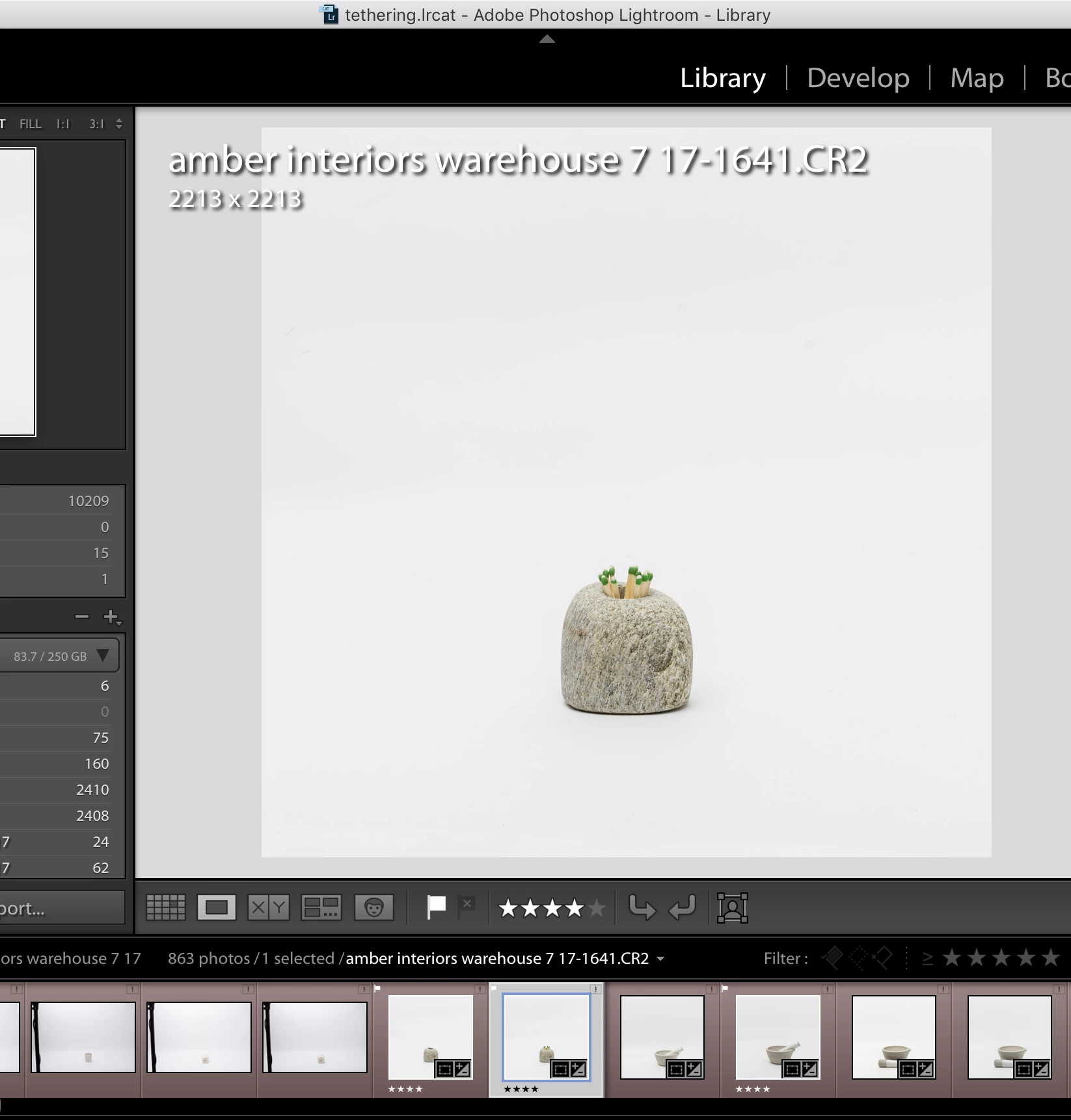
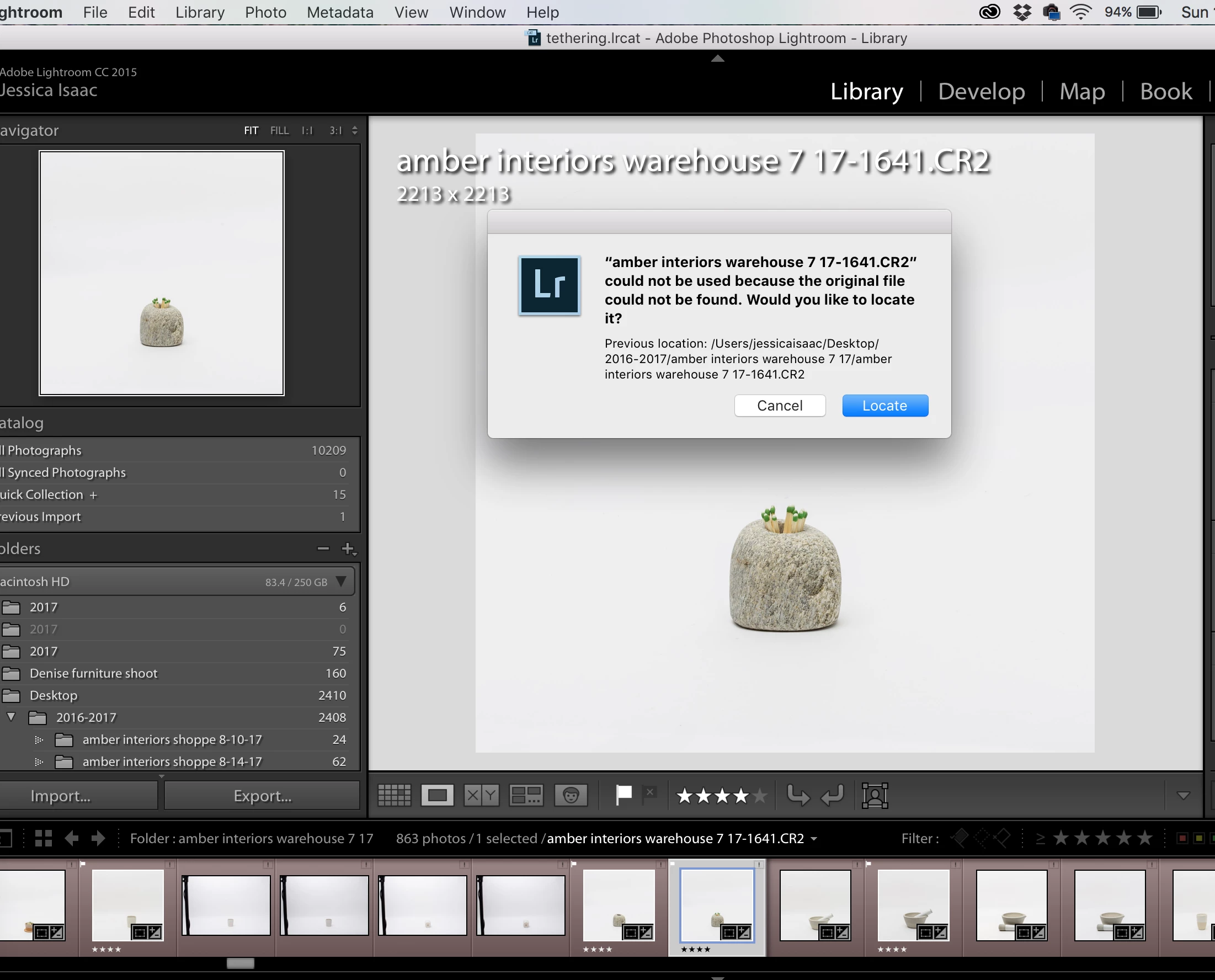
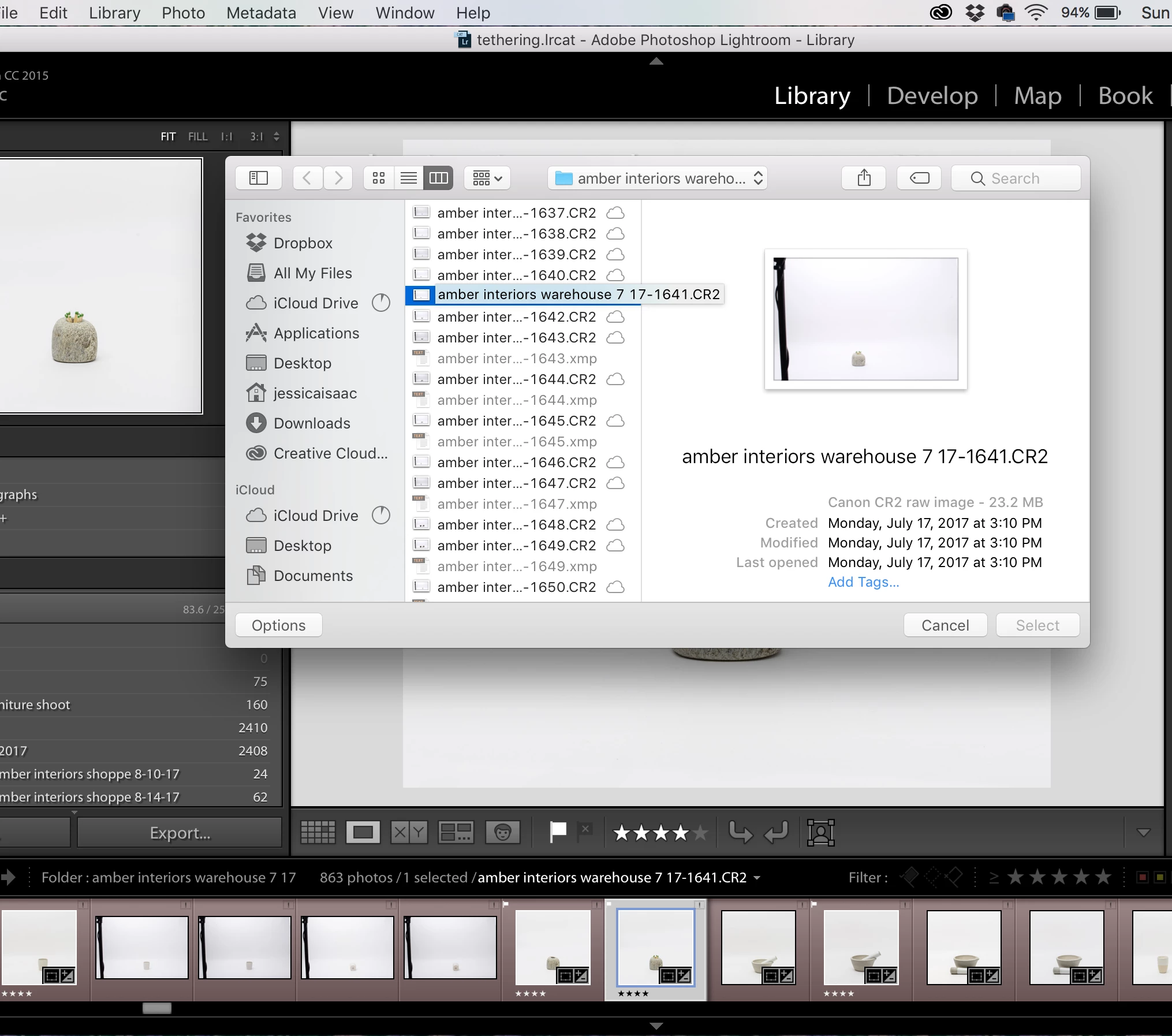
I'm having a strange issue. Lightroom cannot find these original files, but I'm getting the "exclamation point" and when I click on it, it gives me the error message, "could not be used because the original file could not be found". When I click "locate" hoping to relink the file, it takes me to the original folder, and the file IS THERE, same name and all. It won't let me click on it. Select is greyed out. I've noticed that some of these files randomly start reappearing without the exclamation point, but its totally random and not a result of anything I do. Each raw file is about 23 MB, so I know the info is there, and I also can open it in Photoshop from the finder, but I need to be able to access these in Lightroom, as they've already been flagged and marked, etc. HELP
    This topic has been closed for replies.
    Correct answer jessicai16448450

    Thanks, wobertc! There was no question mark. However, I think I have figured out the problem.

    In System Preferences/iCloud/click "options..." next to iCloud Drive, there is a box to "optimize Mac storage". If that is checked, when you start to run out of room on your hard drive, certain folders will only be stored in the cloud. Even though all of the folders storing these photos were still on my hard drive, the photos themselves had been moved to the cloud only (hence the reason they still "appeared" to be in the original location). To restore these photos, in the finder window I clicked the cloud with down arrow icon next to the folder in question. This took some time and lots of frustration, but eventually the files became editable again. Until the next day when it happened all over again.

    I know, there are WAY too many files on my desktop, but there was a specific reason I had to dump these photos on to my desktop (for another time or place) . If anyone is having this problem, I hope this helps!

    1 reply

    Rob_Cullen
    Community Expert
    Community Expert
    August 21, 2017

    Can you post a screen-clip of the Lightroom Folder panel that shows the folder- {amber warehouse 7 17 }  ?

    Does this folder have a "?" on the folder name?

    Edit:

    You have >2000 photos in "Desktop" folders- this can slow computers considerably.

    https://www.lifehacker.com.au/2012/03/clean-your-cluttered-mac-desktop-to-boost-speed/

    Regards. My System: Windows-11, Lightroom-Classic 15.1.1, Photoshop 27.3.1, ACR 18.1.1, Lightroom 9.0, Lr-iOS 10.4.0, Bridge 16.0.2 .
    jessicai16448450AuthorCorrect answer
    Participant
    August 22, 2017

    Thanks, wobertc! There was no question mark. However, I think I have figured out the problem.

    In System Preferences/iCloud/click "options..." next to iCloud Drive, there is a box to "optimize Mac storage". If that is checked, when you start to run out of room on your hard drive, certain folders will only be stored in the cloud. Even though all of the folders storing these photos were still on my hard drive, the photos themselves had been moved to the cloud only (hence the reason they still "appeared" to be in the original location). To restore these photos, in the finder window I clicked the cloud with down arrow icon next to the folder in question. This took some time and lots of frustration, but eventually the files became editable again. Until the next day when it happened all over again.

    I know, there are WAY too many files on my desktop, but there was a specific reason I had to dump these photos on to my desktop (for another time or place) . If anyone is having this problem, I hope this helps!