
jsk09
Inspiring
February 10, 2018
Answered

Turn off Smart Previews on Import

  • February 10, 2018
  • 5 replies
  • 26682 views

As I have no need to work on my files remotely, I don't need Smart Previews.  How do I turn off Smart Previews when I import into Lightroom?  I don't need to use the space or the CPU capacity but I just can't fine anything in Preferences or anywhere else to shut it off. As I'm importing off of a card, I can click on the progress graph in the upper left, then wait until it starts building the Smart Previews and cancel the operation, but that is not only inefficient, several are produced before I can cancel the operation.

There must be a way to just say no....I'm running a Windows 10 Pro machine and 64 bit LR Classic CC.  Any help?

Jeff
    This topic has been closed for replies.
    Correct answer Just Shoot Me

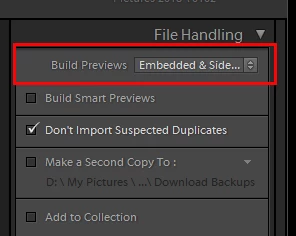
    It's an option right at the top of the right hand panel of the import dialog window. File Handling, Build Previews.

    5 replies

    ManiacJoe
    Inspiring
    March 18, 2020

    Hey, I really do not like the preview I get when I am trying to edit a RAW image. Is there a way I can have this embeded preview disabled as I want to see my RAW image in the Develop section as I edit my picture so that I am not blindly editing. 


    What are you preview options set to in the Import dialog?

    One of the things I do after an import is, in the grid view, gently scroll down the images which seems to force Lightroom to generate the standard preview "now" instead of on demand later.


    elie_dinur
    Participating Frequently
    February 11, 2018

    >"Choose embedded & sidecar method. Lightroom will use the camera preview."

    >"Okay. Learn something new everyday."

    It should be pointed out that this is a new feature introduced in LR Classic 7.0. It can indeed be a useful "speed-up" tool for the experienced or power user, but I am a bit concerned that new users may set it without understanding that what they see in the Library module will not reflect what LR intends to do to their image until some action is taken that causes a new preview to be created. On one hand that will avoid all those cries of, "Why is LR ruining my pictures?" but if exporting directly from Library the difference between Loupe view and an exported default RGB render could be significant, especially if the camera is set for strong jpg processing.

    Inspiring
    February 10, 2018

    I've found that when I build smart previews the culling process and rating is quicker. Moving through images in the Library module is pretty instant. When standard or 1:1 previews are built but not smart previews I experience a bit a lag when moving between images. Once I'm done rating the images I'll discard the smart previews if they are not needed any longer.

    serenalasko
    Known Participant
    February 15, 2018

    How are you discarding your previews? I just got my computer back from the shop with a new hard drive and video card and am trying to figure out why Lightroom is running so slow.

    Rob_Cullen
    Community Expert
    Community Expert
    February 16, 2018

    Thanks for the quick reply. I've been poking around trying to figure out what is going on. Lightroom has spent the last few hours Building 1:1 previews and when I try to go to 1:1 to check focus it is forever loading and never generates the preview (which I am guessing is due to the previews not being built yet).

    I am trying to figure out if the repair shop did something that is negatively effecting Lightroom.


    Some comments-

    If you have many thousands of images, building 1:1 previews could take "over-night", not just hours!!

    Building 1:1 previews for ALL files will GREATLY increase the size of your Previews folder.

    You can stop the previews building by clicking the X on the Progress bar at the top of screen.

    You really only need 1:1 previews for photos that you are reviewing or editing. All others can be set to 'Standard' previews.

    You can build (or Discard) 1:1 previews for selected Folders or Images when needed.

    Regards. My System: Windows-11, Lightroom-Classic 15.1.1, Photoshop 27.3.1, ACR 18.1.1, Lightroom 9.0, Lr-iOS 10.4.0, Bridge 16.0.2 .
    JP Hess
    Inspiring
    February 10, 2018

    You probably know this, but just for clarification. Even though you don't choose to build smart previews Lightroom will create standard previews. It is part of the process, and will speed up the editing process. You cannot use Lightroom without the standard previews. You can however choose whether to have standard, minimal or 1:1 previews.

    Just Shoot Me
    Legend
    February 10, 2018

    JimHess  wrote

    You can however choose whether to have standard, minimal or 1:1 previews.

    Or as shown in my screen shot use the embedded JPG included in every RAW file or a JPG Sidecar file as the preview.

    JP Hess
    Inspiring
    February 10, 2018

    And have no previews at all? Really?

    Just Shoot Me
    Just Shoot MeCorrect answer
    Legend
    February 10, 2018

    It's an option right at the top of the right hand panel of the import dialog window. File Handling, Build Previews.

    jsk09
    jsk09Author
    Inspiring
    February 10, 2018

    Hey Just Shoot Me,

    I can't believe I didn't see that check box.  Duh.....Thanks and thanks to all that responded. I'll now go hang my head in shame.!

    Jeff