
Inspiring
December 10, 2016
Answered

Unable to backup LR Catalog files upon closing LR

  • December 10, 2016
  • 5 replies
  • 2819 views

Hi guys,

When I tried to close LR - backing up the LR Cat files in the process, I got the following:
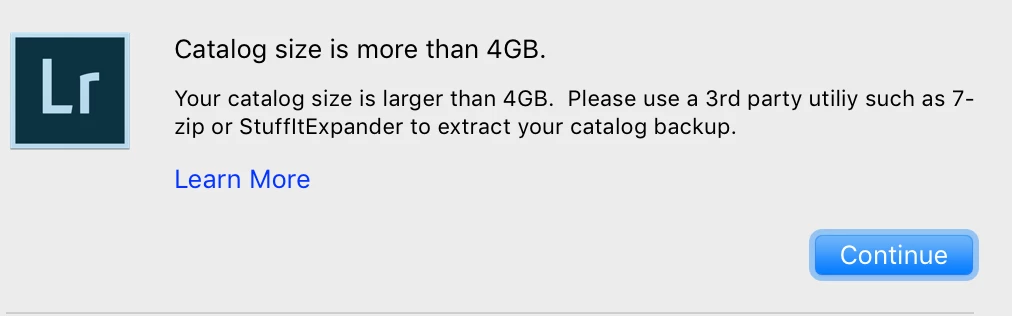
I removed my external drive for these backups and tried to close LR again. The same alert re-appeared and I had no option but to click Continue, but in the end LR closed without the files being backed up. I read their explanations in Learn More which meant nothing to me - too technical.

What's going on and what now? - in plain English, please. Thanks a lot.

Raphael

This topic has been closed for replies.
Correct answer Michael J. Hoffman

Hi Raphael,

Lightroom stores backups of the catalog in a zip compressed format to save space. If you need to recover from a backup, you'll need to unzip the archive to get the .lrcat file backup you need.

Because your catalog file file is over 4Gb, your native MacOS tools can't extract it. You'll need to use a 3rd party product to open these archives in the future (a utility such as 7zip or Stuffit Expander).

This dialog is just an informational warning. It's new, because in earlier releases, if your catalog exceeded 4Gb, LR didn't compress it.

Mike

5 replies

February 12, 2017

Thank you Laura and Michael for your helpful answers, I was wondering what was going wrong with this catalog warning.
Best regards
Marc

Laura Shoe
Inspiring
February 14, 2017

You're welcome, Marc!

josephlavine
Community Expert
Community Expert
December 16, 2016

"....but in the end LR closed without the files being backed up"

I would check the date on your most recent backup to confirm that you are truly backed up. 

Laura Shoe
Inspiring
December 12, 2016

Hi Raphael, I see Mike's answers, which I agree with, but you say that in the end Lightroom closed without backing up your catalog. Is this the case, or did you find the backup?

Michael J. Hoffman
Community Expert
Community Expert
December 11, 2016

Correct. Like I said, I keep 3-4 just to be safe.

By the way, one other thing I do: I set Lightroom to store the backups in a folder within my Google Drive sync folder. That way, it's automatically backed up to the cloud (you could equally well use Dropbox, or Box, or OneDrive, etc.)

That way, even if my computer fails or is lost or destroyed, my catalog backups are safe and can be recovered.

Mike

Inspiring
December 17, 2016

Mike, we are talking about this kind of file "Lightroom Catalog.lrcat.zip"?

Laura and joseph, I meant by that that I chose to not backup the files because somewhere down the road they will be backed up, once I clear the other ones. Right?

Laura Shoe
Inspiring
December 19, 2016

Thank you Laura. Following these discussions I deleted all but 4 cat files. One good thing done.

And yet the same alert appears as you pointed out. Hello Apple/Adobe!

I do have another question to ask but ... later because I am dying to go back to my book "The Art of Rivalry" - Matisse vs Picasso, Lucian Freud vs Francis Bacon, etc.

More to come. It's re: files I can't delete.


You're welcome Raphael! Please post unrelated questions in a new thread – otherwise other people won't be able to find and benefit from the discussion.

Michael J. Hoffman
Community Expert
Michael J. HoffmanCommunity ExpertCorrect answer
Community Expert
December 10, 2016

Hi Raphael,

Lightroom stores backups of the catalog in a zip compressed format to save space. If you need to recover from a backup, you'll need to unzip the archive to get the .lrcat file backup you need.

Because your catalog file file is over 4Gb, your native MacOS tools can't extract it. You'll need to use a 3rd party product to open these archives in the future (a utility such as 7zip or Stuffit Expander).

This dialog is just an informational warning. It's new, because in earlier releases, if your catalog exceeded 4Gb, LR didn't compress it.

Mike

Inspiring
December 10, 2016

Thank you Mike. The question for me is, do I need all these backups?

As I understand it, it's OK to delete older ones. Am I correct?

Michael J. Hoffman
Community Expert
Community Expert
December 10, 2016

Yes, you can delete older ones. I usually keep the last 3-4 of them. If you're really really picky, you're opening the newer backups to make sure they are fully intact, before erasing older ones. I've not been that careful myself, honestly.

MIke