Participant
October 21, 2019
Question

Unable to check "Use GPU for image processing"

  • October 21, 2019
  • 1 reply
  • 1553 views

Hi,


I have the laterst versions and drivers of Lightroom Classic, Windows 10 build, Graphics card etc. 

EVERYTHING is up to date. The GPU 100% supports DirectX 12, and so does the operating system.
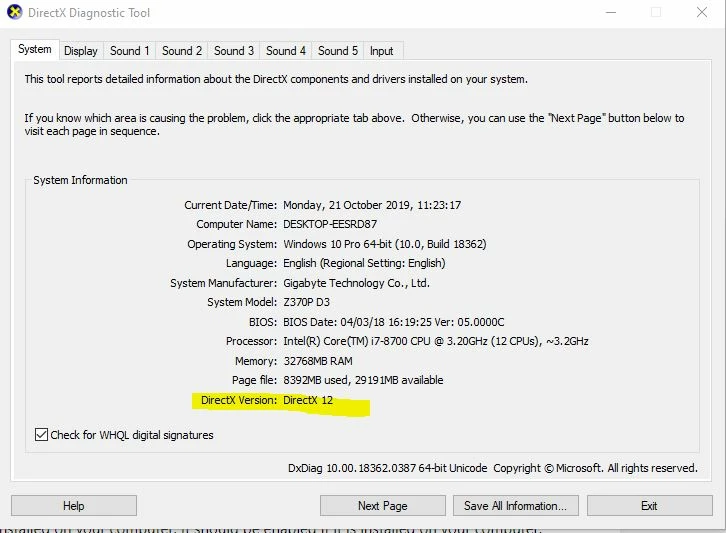


Yet when I go to the Performance tab, choose "Custom" for  "Use Graphics processor", I cannot check the "Use GPU for image processing" option. It is greyed out. 
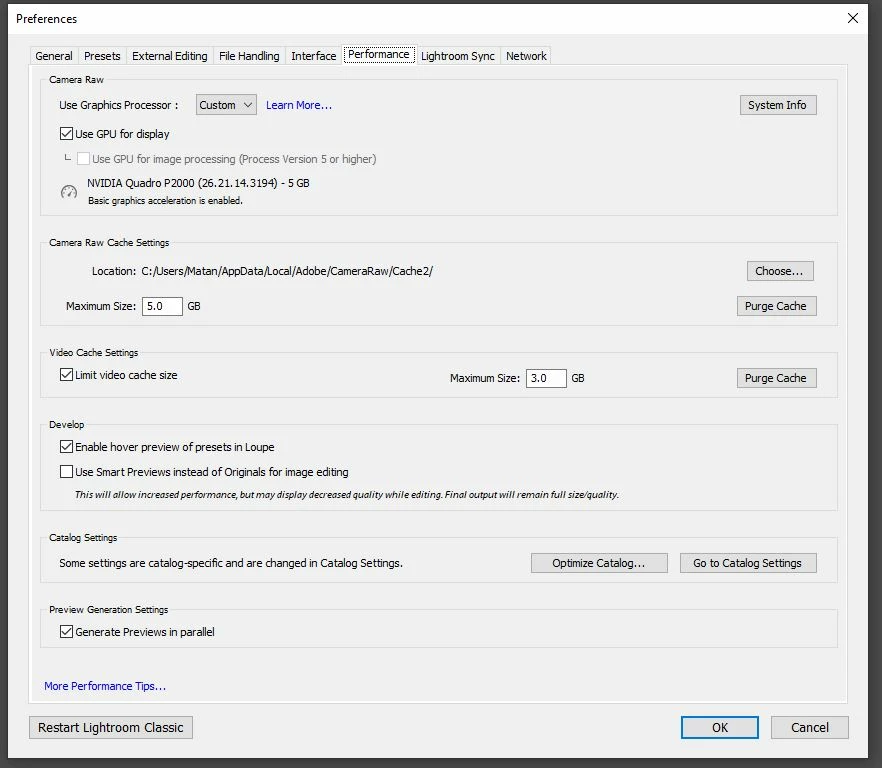


I've seen that other users have written about this issue but couldn't find a solution. 


Could someone advise what to do?


Thank you!

    This topic has been closed for replies.

    1 reply

    Adobe Employee
    October 24, 2019

    Hi, 

    Looks like there is some issue with GPU initialization on LrClassic. 
    Could you delete the folder 'GPU' from \AppData\Roaming\Adobe\CameraRaw\ and launch Lightroom and see if it helps.


    If the above does not work please follow the below steps:

    You can zip the below files/folders and share with us via any cloud storage app.
    1. \AppData\Roaming\Adobe\CameraRaw\GPU\Adobe Photoshop Lightroom Classic
    2. \AppData\Roaming\Adobe\CameraRaw\Logs


    More info on GPU related issues and troubleshooting:
    https://helpx.adobe.com/lightroom-classic/kb/lightroom-gpu-faq.html#gpu_driver_troubleshoot

    Venkatesh PenjuriAdobe Lightroom Team
    Matan909Author
    Participant
    October 24, 2019

    Hi!


    Deleting the 'GPU' folder from \AppData\Roaming\Adobe\CameraRaw\ fixed this issue!


    Many many thanks!!