Copy link to clipboard
Copied
Turning on "Use Graphics Processor" causes colours show in the Develop module to be significantly more saturated and vibrant than with the setting off. I expect that the colours should be the same, just with a performance difference.
Turning the setting off makes the colours match the Library module, exported JPGs, and the colours seen when you go "Edit in Photoshop" from Lightroom directly. The last one in particular makes me confident that the accelerated colours are incorrect. For exported images the colour space doesn't greatly affect this, this are allo close to the non accelerated version.
For now I can work around this by just disabling GPU acceleration, though obviously this affects editing performance.
Here is a comparison with the two settings:
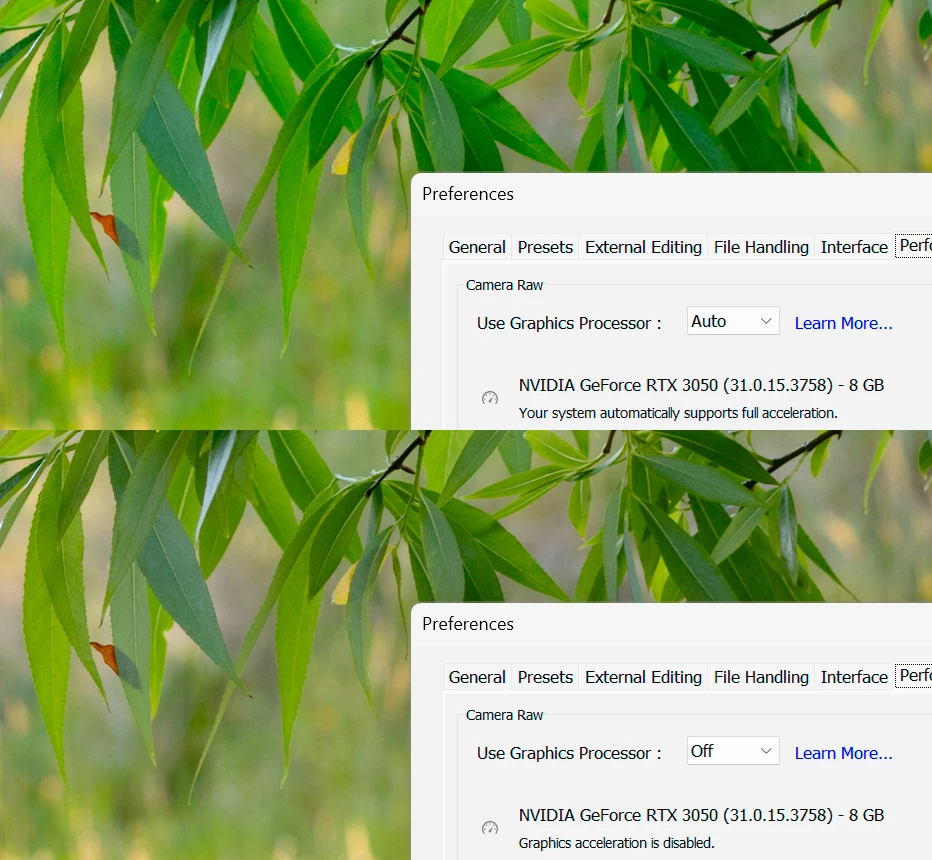
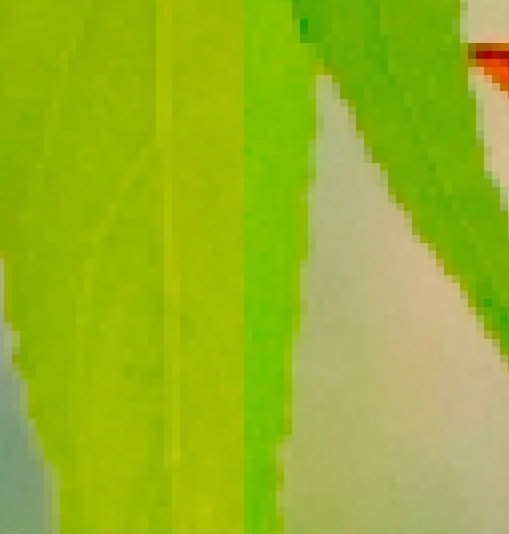
Here is a close up of one of the leafs, with the GPU off on the left, and on on the right.
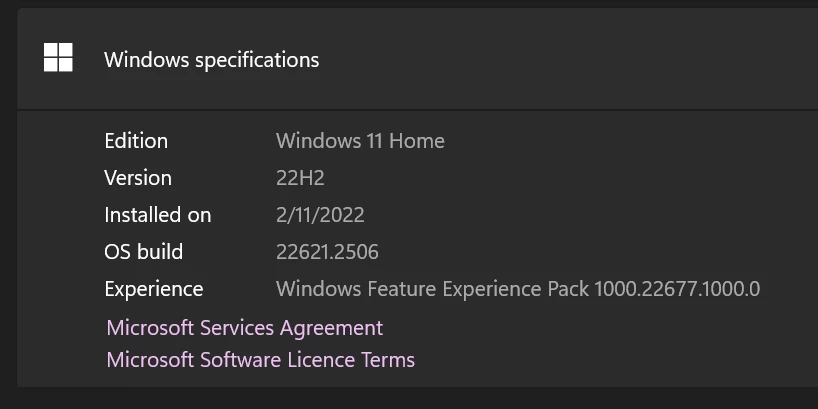
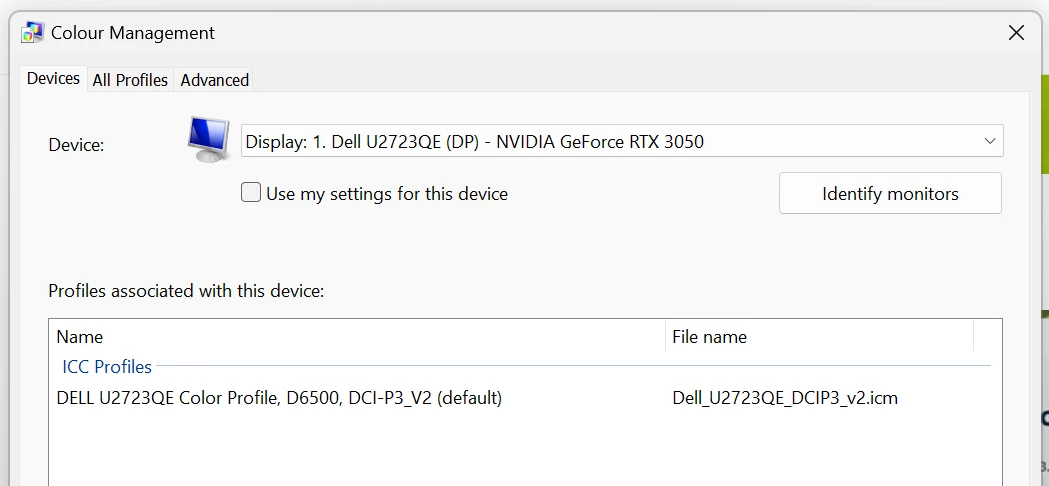
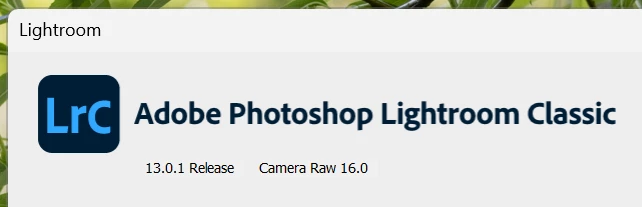
Here are the various versions on things I'm using, hardware, and colour profiles:
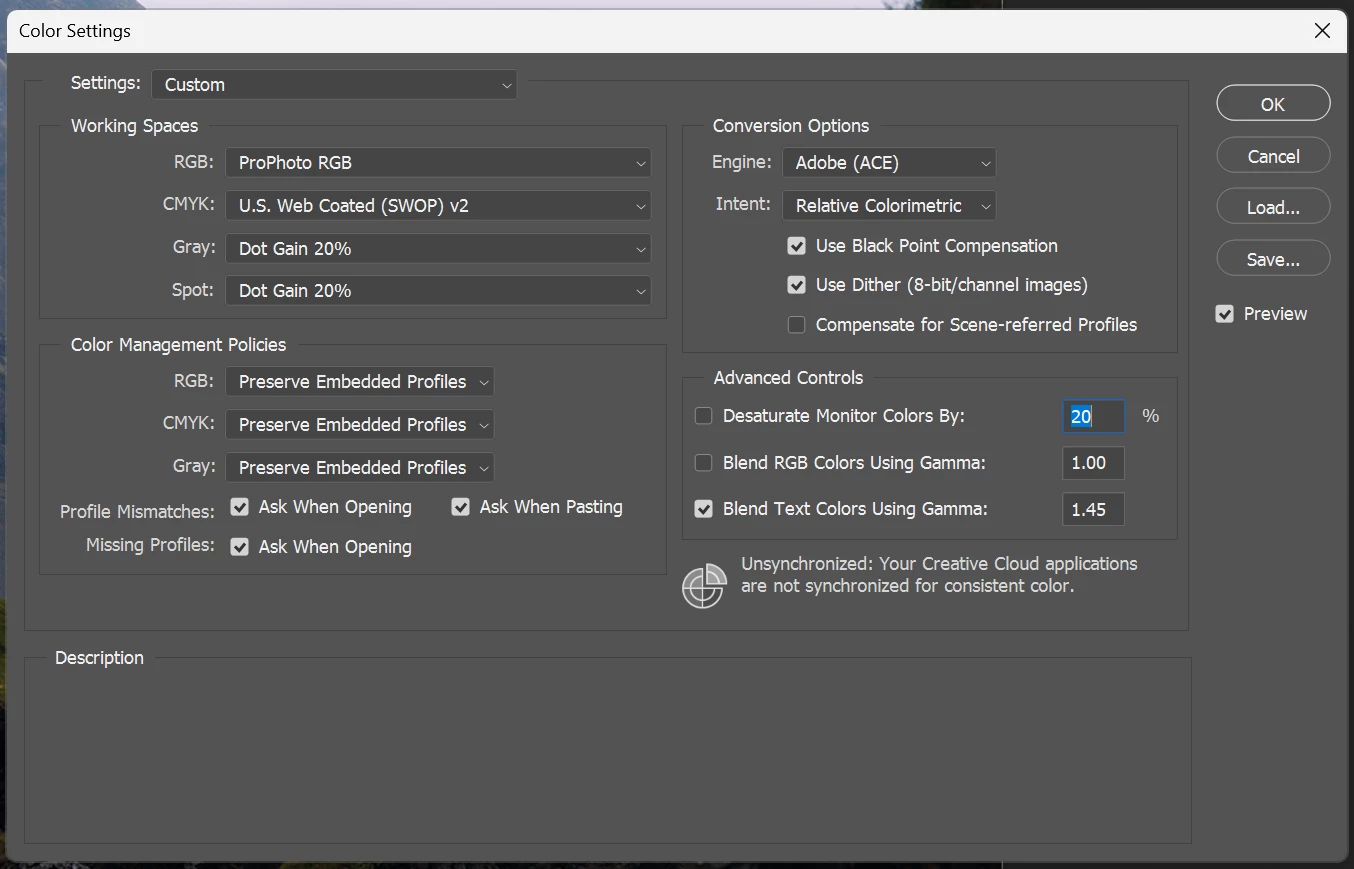
Photoshop colour settings just in case the "Edit in Photoshop" is in question:
Are there any known fixes for this? Are there combinations of hardware that will work better? The 3050 is not my favourite graphics card but I'd like to know that what I move to will work correctly.
Thanks
Aly
Right. I was typing up a reply saying just what Per says. Dell monitor profiles are very often bad in different ways. This is apparently a "P3" wide gamut monitor, so try Image P3 as replacement profile for testing.
You need to get a calibrator! I've always said that no wide gamut monitor should ever be sold without including a calibrator. Having a valid monitor profile is crucial for a wide gamut display, and using a calibrator is the only way to have full control over this.
In fact, this c
...Copy link to clipboard
Copied
Apologies for the typos, I can't see where to edit it.
Copy link to clipboard
Copied
New members cannot edit their initial postings untill they get some more postings in. An oddity for the community.
Copy link to clipboard
Copied
To collect, then post your system information needs not be so complex. It can be obtained in LrC by clicking on Help, then System Info. From their you can click on Copy. Mind you it may be best to edit that copy (perhaps using Notepad) as to cut down on some of the excess baggage that will eat up scroll space (all that techno geek stuff after the plugin info)
That being said, perhaps for future postings, as I can see what would be my first observation and recommendation
Problems in LrC can often be due to GPU drivers not being up to date, especially upon upgrades of the LrC application. In the Adobe troubleshooting documents that is repeatedly mentioned.
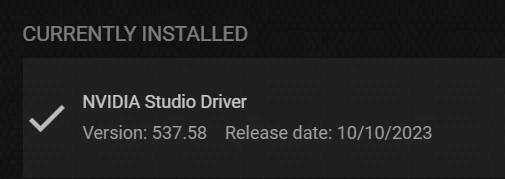
I see you have an NVIDIA RTX 3050 with GPU Driver version 537.58. Looking at the NVIDIA driver webpage, the current Studio driver is v546.01. You should probably update your GPU driver, then give LrC another try.
NVIDIA provides both GameReady and Studio drivers. They recommend the Studio driver for creative users, as opposed to Gamers. the Studio drivers are more tested. GameReady drivers may be buggy at first (trying to keep Gamers happy). Also, when updating via the NVIDIA GeForce Experience App (that you should have on your computer) select Custom Install type as to force a clean install (gets rid of old junk)
P.S. the PS Color Settings have nothing to do with LrC.
Copy link to clipboard
Copied
First of all, update your graphics driver. You have version 537.58, the latest is 546.01.
If that doesn't help, you most likely have a defective monitor profile. I see that your current one is from Dell, and their profiles are notoriously bad, often defective out of the box.
As troubleshooting, and as a possible temporary fix, try setting the monitor profile to sRGB. (use Adobe RGB if you have a wide gamut monitor)
Close Lightroom. Press the Windows key + R, type colorcpl in the box and press Enter.
Add the sRGB profile, then set it as default.
If this fixes the issue, it is recommended that you calibrate your monitor with a hardware calibrator.
This will also create and install a custom monitor profile, which will be more accurate than sRGB.
Copy link to clipboard
Copied
Right. I was typing up a reply saying just what Per says. Dell monitor profiles are very often bad in different ways. This is apparently a "P3" wide gamut monitor, so try Image P3 as replacement profile for testing.
You need to get a calibrator! I've always said that no wide gamut monitor should ever be sold without including a calibrator. Having a valid monitor profile is crucial for a wide gamut display, and using a calibrator is the only way to have full control over this.
In fact, this crosses over to the GPU driver. The actual conversion into the monitor profile is executed in the GPU nowadays, and this means that the monitor profile and the GPU driver need to work together. If one of them is marginal, buggy or slightly off, the other may choke. In this monitor profile <> GPU driver interface, it can be difficult to tell which one is failing.
When you disable the GPU, the display color management is shifted over to the CPU in the traditional way.
One more thing: I don't agree that you need to have "GeForce Experience" installed. I have always unchecked that and not installed it. There have also been some reported cases in the Photoshop forum where uninstalling it have cleared up problems. What I usually say is to install only the base driver and uncheck everything else.
Copy link to clipboard
Copied
Thank you for the advice all, I got there in the end. Steps I have been through:
In the end this was all good maintenance but made no difference. I find it quite strange that parts of Lightroom get the colour right, and Photoshop from the same developer does as well, but the Develop module of Lightroom does not.
I eventually got hold of a Spyder 5 Pro and ran a full calibration on the monitor. This gave a reasonably good result, covering most of P3 as expected. It also created a profile that gives consistent results across all programs, and predictable results for print.
Whether the fault goes to Dell for providing bad profiles, or Adobe for not interpreting them properly, I am not sure.
I had given up on the Spyder long ago because the monitors I had at the time were so poor it couldn't produce a reasonable calibration. With the newer Dell it's done a pretty good job. It is disaapointing to intentionally spend quite a bit more on a better screen with well reviewed colour performance, and still have issues like this.
But we're off the the printers now! Thanks all.
Get ready! An upgraded Adobe Community experience is coming in January.
Learn more