
triumphrider69
Inspiring
January 20, 2024
Answered

Use of collections

  • January 20, 2024
  • 2 replies
  • 1145 views

I can create a collection.


I am unable to add new photos in the library to the specific collection after the collection of initial photos has been completed.


Thanks for your help!

This topic has been closed for replies.
Correct answer Rob_Cullen

Something Less tedious?

@triumphrider69  If you are 'working' with one specific Standard Collection that you want to add photos into-

Setting this Collection to the 'Target Collection' means that you can select photos (anywhere) and simply press keyboard [B].  This 'Bounces' any selected images into the Target Collection whether it is visible in the Collections panel, or not.. (It is a 'toggle' as [B] will also remove a photo from the Target Collection.)


Or- If you use the Quick Collection for your initial gathering of photos, if Grid View is set to show Expanded Cells, and the option for [Quick Collection Markers] set 'on'.  Then you will have a small grey dot on every image. A click on the grey dot will add an image to the Quick Collection.

 

Another useful option is to use the 'Painter Tool' (the Spray can) with it set to "Target Collection"
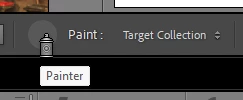
A quick 'squirt' on any one (or multiple photos- spray across thumbnails) photo will add it to the Target Collection. (Don't forget to return the spray can to its spot on the Tool Bar!)


2 replies

dj_paige
Legend
January 20, 2024

Are you trying to add photos to a Smart Collection? can't be done via drag and drop.


Are you trying to add photos to a Collection set? Can't be done at all.


Are you tring to add photos to a regular collection? Drag and drop is one way to do so, but you have to hold your mouse over the thumbnail picture in the Library Module grid and then hold the mouse button down and drag. If you are pointing at the grey rectangle outside of the thumbnail photo, it won't work.


triumphrider69
Inspiring
January 23, 2024

the drag and drop certainly does work, but it seems like a tedious way to accomplish this. Thank you, DJ.

Rob_Cullen
Community Expert
Rob_CullenCommunity ExpertCorrect answer
Community Expert
January 23, 2024

Something Less tedious?

@triumphrider69  If you are 'working' with one specific Standard Collection that you want to add photos into-

Setting this Collection to the 'Target Collection' means that you can select photos (anywhere) and simply press keyboard [B].  This 'Bounces' any selected images into the Target Collection whether it is visible in the Collections panel, or not.. (It is a 'toggle' as [B] will also remove a photo from the Target Collection.)


Or- If you use the Quick Collection for your initial gathering of photos, if Grid View is set to show Expanded Cells, and the option for [Quick Collection Markers] set 'on'.  Then you will have a small grey dot on every image. A click on the grey dot will add an image to the Quick Collection.


Another useful option is to use the 'Painter Tool' (the Spray can) with it set to "Target Collection"

A quick 'squirt' on any one (or multiple photos- spray across thumbnails) photo will add it to the Target Collection. (Don't forget to return the spray can to its spot on the Tool Bar!)


Regards. My System: Windows-11, Lightroom-Classic 15.1.1, Photoshop 27.3.1, ACR 18.1.1, Lightroom 9.0, Lr-iOS 10.4.0, Bridge 16.0.2 .
JohanElzenga
Community Expert
Community Expert
January 20, 2024

Be more specific. How are you trying to do that? What does (not) happen when you try it? You can normally add photos to a collection by dragging them onto that collection in the left panel.


-- Johan W. Elzenga
triumphrider69
Inspiring
January 20, 2024

Tanks Johan- How do I simultaneously see the collection and the photos in the library to drag and drop?

I do not see an application option in the Library tab.


Conrad_C
Community Expert
Community Expert
January 20, 2024

The middle of the window displays only the photos for the selected source(s), so if you want to add photos to a collection:

1. Select the source (folder or collection), which will show those photos in the Filmstrip/Grid so you can select the ones you want to add.

2. In the left panel stack, scroll until the destination collection or folder is visible, but don’t select it (so that the source images remain visible).

3. In the Filmstrip or Grid, select images, and drop them on the destination collection or folder in the left stack.


This is exactly the same procedure as on the computer desktop itself, when you want to drag selected files into a folder. The destination folder doesn’t have to be open, you just have to be able to see its icon as a drop target.


Now, if your question is actually about being able to see both the photos in the target collection/folder and the photos in the source collection/folder at the same time in separate views, that is something Lightroom Classic cannot do. It would have be to a feature request in the Ideas section of this community, but first see if someone has already requested it because then it might already have votes.