James261772764r0m
Known Participant
September 30, 2022
Question

Viewing folders in Lightroom Classic Library

  • September 30, 2022
  • 5 replies
  • 980 views

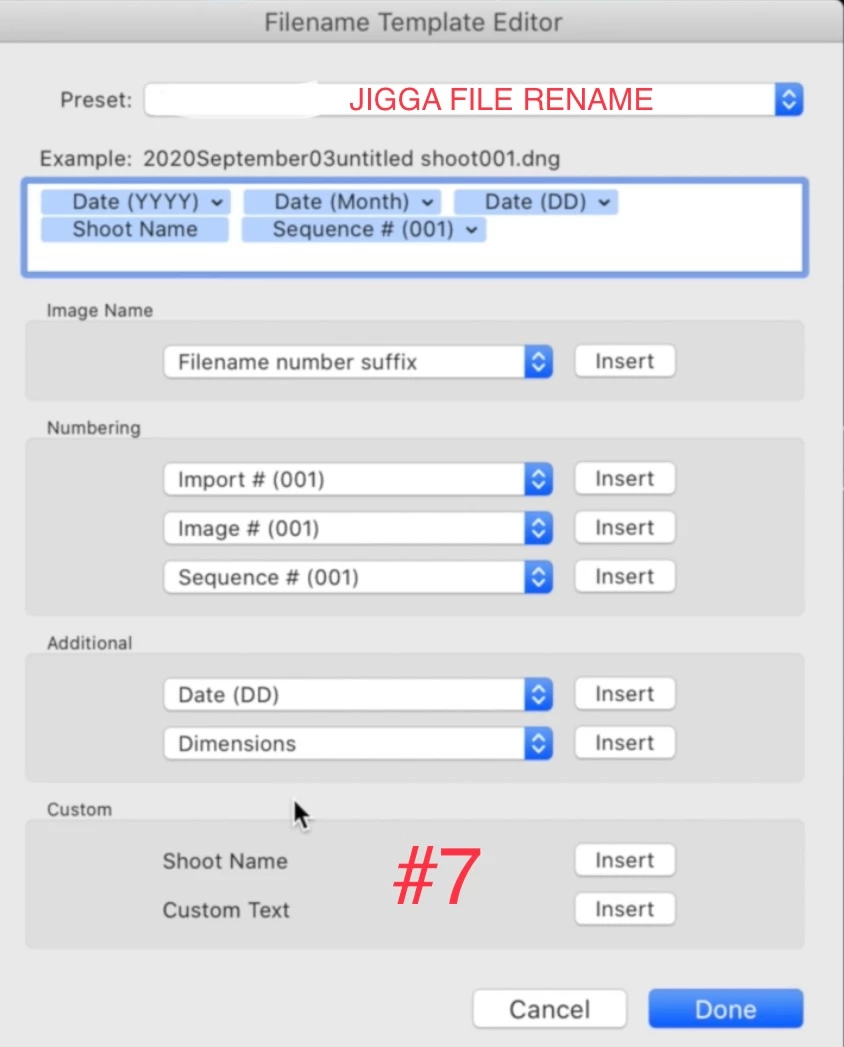
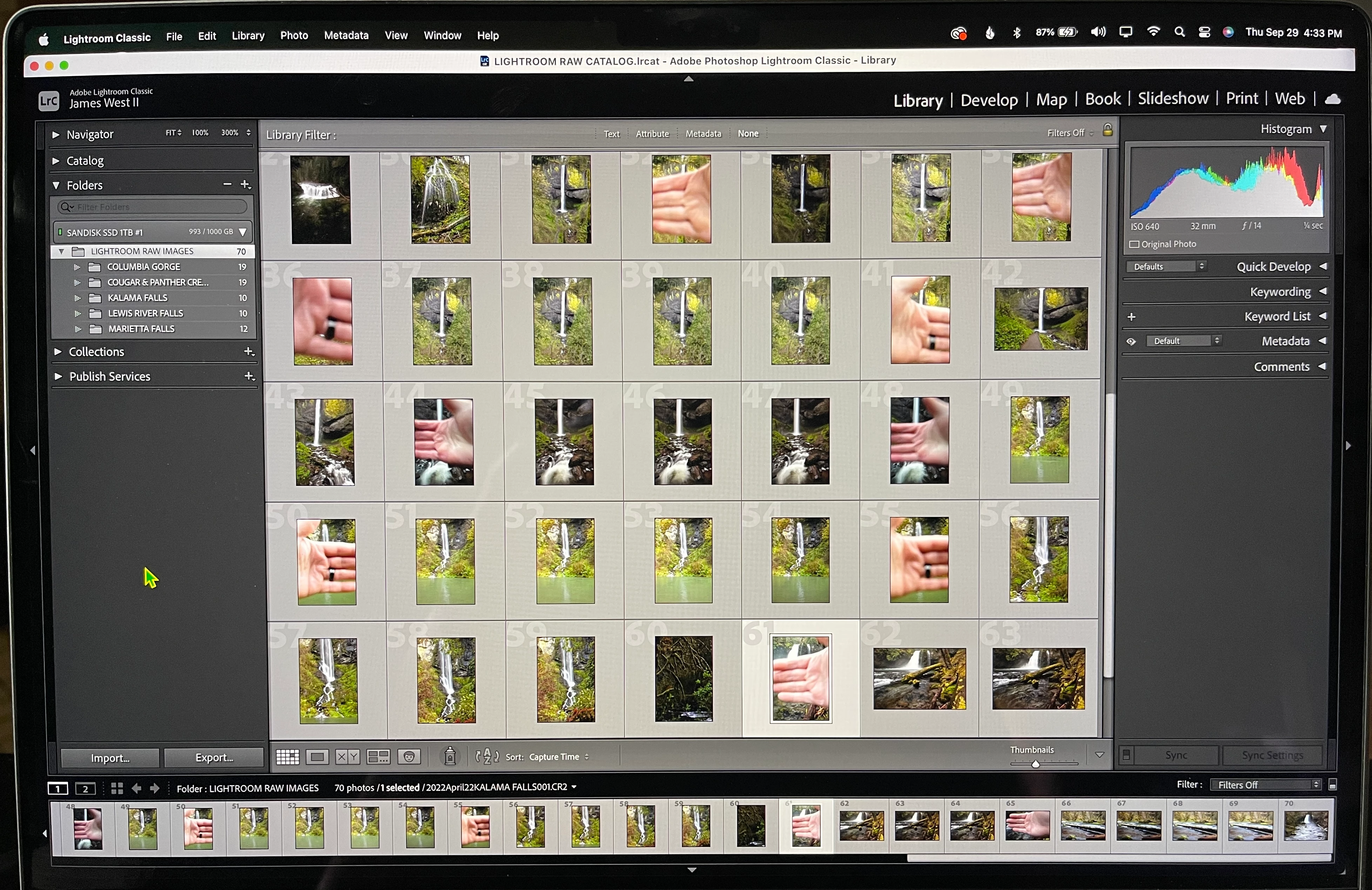
In the Lightroom Classic library view under Folders, how can I sort and view each new imported folder in the order that I created it? I only see them listed in alphabetical order. I will include a clip of what it looks like now & one showing how I have the Filename Template Editor set up. I created in the order below:

1st - Cougar and Panther Creek Falls (3-16-22)

2nd - Lewis River Falls (4-4-22)

3rd - Columbia Gorge (4-17-22)

4th - Marietta Falls (4-21-22)

5th - Kalama Falls (4-22-22)
Thank you.


    This topic has been closed for replies.

    5 replies

    Community Expert
    September 30, 2022

    Just some observations on folder schemes / image renaming: 


    Personally, I don't rename the actual imported sourccefiles since other people will never see these. They will only see exports or prints - and the naming scheme for a given export can be part of its creation, perhaps differing for different purposes, perhaps changing over time as you prefer. But the imported file stays wherever originally put and under an unchanging name, which is far more efficient for e.g. backup.


    Using month names results in an accidental sort sequence (besides being needlessly language-specific):

    "April, August, December, February, January, July, June, March, May, November, October, September"

    which is not very intuitive! Month number is far better IMO.


    Of course even with numbered months, e.g. year-day-month will not sort chronologically - to make that worse, even if the year's distinguished correctly, "2022 0305" may be (confidently) presumed to either mean 5th March 2022, or 3rd May 2022. IMO the best way is the specific international ISO format: YYYY-MM-DD. The dashes indicate the recognised standard, and it's legible with less risk of error. A 4-digit year (2022) will not get confused for a day (22nd of the month).


    So far as import / folder organisation: personally I assign LrC that whole task. Result is an auto "DD" subfolder (this could equally have had "YY-MM-DD" naming) for each new day's shooting, sitting suitably within "YYYY"/"MM" auto date folder scheme. Optionally, that folder name could be made more informative but it is worth remembering that anything descriptive later suffixed onto an automatic folder name, will not then get reflected in the eventual exports. However keywording etc identifying the shoot or whatever - I apply this in the batch as part of the import - can optionally then get reflected into these exports' metadata as well as optionally these exports' file naming, besides being helpful at the individual image level within the Catalog.

    Known Participant
    September 30, 2022

    Great info that I need. Thank you very much.

    dj_paige
    Legend
    September 30, 2022

    You can go to "All Photograhps" and sort by capture date, then you don't really need to search by folder name ... or you can go to "All Photographs" and use the filter bar to search by capture date. When you do find a photo from the date you want, you can right-click on it and select "Go to Folder in Library".


    Honestly, the idea of keeping two pieces of information (in your case, location and capture date) in the file name is bound to cause problems of this sort. Better to keep the infomration separate, such as putting the location into metadata and not into folder names, and then you can search for the location using the metadata search in the Filter bar in LrC, and you can also search by folder names which now would be only the capture date.

    Known Participant
    September 30, 2022

    Thank you for explaining that for me.


    So I have my Lightroom Classic catalog on my SanDisk 1TB SSD along with all my images. I also use BackBlaze and soon will be purchasing another same SSD for a third backup. I just started using Lightroom Classic so I was not sure what that prompt was every time I was exiting Lightroom and have not done one yet. Do I just select in the prompts drop down to use my SSD for these backups?
    TY

    dj_paige
    Legend
    September 30, 2022

    You would select whatever disk you want the backups to be on, as long as its not the same disk as your working catalog.

    Rob_Cullen
    Community Expert
    Community Expert
    September 30, 2022

    Or -  Use an Import Preset that creates 'Dated' folders that will sort by 'Date'.

    You can rename FOLDERs after the import process, to add a description.


    The Filename Template Editor is only for FILES (not Folders).


    Regards. My System: Windows-11, Lightroom-Classic 15.1.1, Photoshop 27.3.1, ACR 18.1.1, Lightroom 9.0, Lr-iOS 10.4.0, Bridge 16.0.2 .
    Known Participant
    September 30, 2022

    This will be my next step. Do I rename folders in the Lightroom Classic library or can I rename them inside my SSD while it's attached? I know I am supposed to make changes inside Lightroom but my mind keeps telling me that since my SSD is where my Lightroom catalog is then as long as it is attached and Lightroom is open that I can do changes there. I suppose I would be wrong as possibly answering my own question?

    Conrad_C
    Community Expert
    Community Expert
    September 30, 2022

    If you change folder names on the OS desktop (or using any application other than Lightroom Classic), Lightroom Classic will not see them next time. It doesn’t automatically follow name or location changes on the desktop, so it will continue to follow the last recorded path and filename, which is no longer true, and you will have to manually show Lightroom Classic where each renamed folder went (using Update Folder Location). So if you renamed 35 folders on the desktop, in Lightroom Classic you will have to re-link 35 folders individually…not fun.


    To avoid that problem, move or rename files or folders using the Folders panel in Lightroom Classic. That way, Lightroom Classic knows about the change (because it did it), and it updates the actual file or folder on the desktop. Or, try to finalize folder and file names before you catalog them.


    The time you don’t have to worry about this is if you want to move or rename a very small number of parent folders (ideally one, but two or four isn’t too bad) that each contain many folders and files cataloged in Lightroom Classic. For example, if you need to transfer everything to a new, bigger SSD, it’s OK to use the desktop to move one parent folder to the new SSD. That’s because you will have only one folder to re-link in Lightroom Classic, which takes only a few seconds. As long as the folder hierarchy inside the parent folder was not altered, Lightroom Classic will be able to re-link all folders and files within the parent folder.

    GoldingD
    Legend
    September 30, 2022

    Change the folder names, use a numeric as first characters in name, typically three digits, a sequance number. 


    001 Cougar and Panther Creek Falls 

    002 Lewis River Falls

    003 Columbia Gorge

    004 Marietta Falls

    005 Kalama Falls


    with or without dates 


    I think that would involve a sequence number in the template.

    Known Participant
    September 30, 2022

    Thank you.

    kglad
    Community Expert
    Community Expert
    September 30, 2022

    <moved from using the community >